Source Code
<div class="ps-card">
  <div class="ps-plan" id="psPlan"></div>
  <div class="ps-head">
    <h3 id="psName"></h3>
    <p class="ps-seats"><b id="psSeats"></b> team members</p>
  </div>
  <input type="range" id="psRange" class="ps-range" min="1" max="100" value="8">
  <div class="ps-ticks"><span>1</span><span>25</span><span>50</span><span>75</span><span>100</span></div>
  <div class="ps-price">
    <span class="ps-amt" id="psAmt"></span>
    <span class="ps-per">/ month</span>
  </div>
  <p class="ps-note" id="psNote"></p>
  <button type="button" class="ps-cta" id="psCta"></button>
</div>*{box-sizing:border-box;margin:0;padding:0}
body{font-family:system-ui,-apple-system,sans-serif;background:#f1f5f9;min-height:100vh;display:flex;align-items:center;justify-content:center;padding:24px}
.ps-card{background:#fff;border-radius:18px;padding:26px;width:100%;max-width:380px;box-shadow:0 18px 44px rgba(15,23,42,.1);text-align:center}
.ps-plan{display:inline-block;font-size:11px;font-weight:800;text-transform:uppercase;letter-spacing:.05em;padding:4px 12px;border-radius:999px;margin-bottom:14px;transition:background .2s,color .2s}
.ps-head h3{font-size:15px;font-weight:800;color:#0f172a;margin-bottom:3px}
.ps-seats{font-size:13px;color:#64748b}
.ps-seats b{color:#0f172a;font-weight:800}
.ps-range{-webkit-appearance:none;appearance:none;width:100%;height:7px;border-radius:5px;background:#e2e8f0;margin:22px 0 6px;outline:none}
.ps-range::-webkit-slider-thumb{-webkit-appearance:none;width:24px;height:24px;border-radius:50%;background:#6366f1;border:4px solid #fff;box-shadow:0 2px 8px rgba(99,102,241,.5);cursor:pointer}
.ps-range::-moz-range-thumb{width:24px;height:24px;border-radius:50%;background:#6366f1;border:4px solid #fff;box-shadow:0 2px 8px rgba(99,102,241,.5);cursor:pointer}
.ps-ticks{display:flex;justify-content:space-between;font-size:10.5px;font-weight:700;color:#94a3b8;margin-bottom:18px}
.ps-price{display:flex;align-items:baseline;justify-content:center;gap:4px;margin-bottom:6px}
.ps-amt{font-size:40px;font-weight:800;color:#0f172a;font-variant-numeric:tabular-nums}
.ps-per{font-size:14px;font-weight:600;color:#94a3b8}
.ps-note{font-size:12px;color:#64748b;margin-bottom:18px;min-height:16px}
.ps-cta{width:100%;background:#6366f1;color:#fff;border:none;border-radius:11px;padding:13px;font-size:15px;font-weight:700;cursor:pointer;font-family:inherit;transition:background .15s}
.ps-cta:hover{background:#4f46e5}// Tiered per-seat pricing: bigger teams get a lower per-seat rate, and the plan
// name + accent change with team size.
var TIERS = [
{ upTo: 5, name: 'Starter', perSeat: 12, color: '#0ea5e9', bg: '#e0f2fe' },
{ upTo: 20, name: 'Team', perSeat: 10, color: '#6366f1', bg: '#eef2ff' },
{ upTo: 50, name: 'Business', perSeat: 8, color: '#8b5cf6', bg: '#f3e8ff' },
{ upTo: 100, name: 'Enterprise', perSeat: 6, color: '#ec4899', bg: '#fce7f3' },
];
var range = document.getElementById('psRange');
var planEl = document.querySelector('.ps-plan');
function tierFor(seats) {
for (var i = 0; i < TIERS.length; i++) if (seats <= TIERS[i].upTo) return TIERS[i];
return TIERS[TIERS.length - 1];
}
function update() {
var seats = +range.value;
var tier = tierFor(seats);
var total = seats * tier.perSeat;
// Fill the slider track up to the thumb with the tier colour.
var pct = ((seats - range.min) / (range.max - range.min)) * 100;
range.style.background = 'linear-gradient(90deg,' + tier.color + ' ' + pct + '%,#e2e8f0 ' + pct + '%)';
planEl.textContent = tier.name;
planEl.style.background = tier.bg;
planEl.style.color = tier.color;
document.getElementById('psName').textContent = tier.name + ' plan';
document.getElementById('psSeats').textContent = seats;
document.getElementById('psAmt').textContent = '$' + total.toLocaleString();
document.getElementById('psNote').textContent = '$' + tier.perSeat + ' per member · billed monthly';
document.getElementById('psCta').textContent = seats >= 100 ? 'Contact sales' : 'Start ' + tier.name;
document.getElementById('psCta').style.background = tier.color;
}
range.addEventListener('input', update);
update();Learn Coding Visually
Learn to code with interactive, live-preview playgrounds — HTML, CSS, JavaScript, React & more.
 HTML Playground42 lessons · Click-based · Live preview
 CSS PlaygroundLearn CSS with a live editor
 JavaScript Playground60 lessons · DOM · Async · Canvas
 React PlaygroundLearn React with a live code editor
 GSAP PlaygroundLearn GSAP animation interactively
 SVG Playground44 lessons · shapes · paths · animation
 SCSS Playground45 lessons · Sass modules · tokens
 Tailwind PlaygroundLearn Tailwind CSS with a live editor
 Bootstrap 5 Playground50 lessons · live preview
Pricing Slider — Per-Seat Price Slider HTML CSS JS
Pricing Slider · Pricing · Plain HTML, CSS & JS · Live preview
What's included
Features
About this UI Snippet
Pricing Slider — Drag Team Size to See the Plan, Per-Seat Rate, and Total
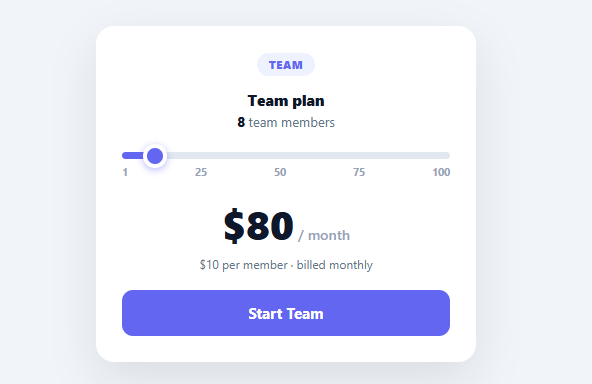
A pricing slider lets a prospect drag to their team size (or usage) and instantly see what they'd pay — turning a static pricing table into an interactive, personalised quote. This snippet builds it in plain HTML, CSS, and vanilla JavaScript, with tiered per-seat pricing, a plan name and accent colour that change with size, and a slider track that fills as you drag — no library.
Tiered, volume-based pricing
The pricing isn't flat: bigger teams get a lower per-seat rate, defined by a TIERS table (up to 5 seats → $12/seat Starter, up to 20 → $10 Team, and so on). tierFor(seats) finds the tier the current size falls into, and the total is seats × that tier's rate. Encoding volume discounts as a tier table — rather than a formula — makes the pricing easy to read, change, and match to your real plans, and it's how most SaaS per-seat pricing actually works.
The plan changes as you drag
Crossing a tier boundary doesn't just change the rate — the plan name, the accent colour, the badge, the note, and even the CTA all update (the top tier flips the button to "Contact sales"). Reflecting the whole plan identity from the slider position makes the interaction feel like exploring real plans, not just watching a number tick. Everything derives from the current tier, so it stays consistent.
A filled slider track
The native range input's track is filled up to the thumb with the tier's colour using a linear-gradient whose stop is the slider's percentage — recomputed on every input. This gives the standard "progress-filled" slider look (which native inputs don't provide) and ties the fill colour to the current tier, so the control itself reinforces which plan you're in. Custom thumb styling via ::-webkit-slider-thumb and ::-moz-range-thumb keeps it on-brand across browsers.
Live total, instantly
Dragging recomputes the seats, tier, per-seat rate, and total on every input event, so the big price updates in real time. Showing the live total (with the per-seat breakdown beneath) answers the prospect's actual question — "what will this cost *me*?" — far more effectively than a grid of fixed numbers, which research links to higher pricing-page conversion.
Data-driven and drop-in
Edit the TIERS table to match your plans and rates, change the slider range to your seat or usage limits, and wire the CTA to checkout with the current seat count. It's a clear reference for tiered pricing logic, a colour-filled range input, and slider-driven plan selection. A native <input type="range"> is also keyboard- and screen-reader-friendly out of the box — arrow keys nudge the value and the accessible name comes from a label — which a custom drag-to-position div slider would have to reimplement, so it's worth keeping the real range element even after the heavy visual restyling applied here.
Build with AI
Build, Understand, Optimize, and Extend It With AI
You don't have to work through the tier lookup or the gradient-fill math by hand. Paste this snippet's HTML, CSS, and JS into an AI coding assistant like Claude and ask it to explain exactly how tierFor walks the TIERS array to find the first tier whose upTo covers the current seat count, and how the linear-gradient background string on the range input is recalculated on every drag to visually fill the track up to the thumb. The same assistant can help optimize it, for example checking whether the tierFor loop scales fine for a much longer tiers table, or whether the update function does more DOM writes per input event than necessary. It's also useful for extending the effect: ask it to add a second slider for a usage-based dimension (like API calls) that combines with seat count into one total, animate the price number counting up or down instead of snapping instantly, or persist the last-selected seat count in the URL so a shared link opens at the same price. Treat the code less like a finished artifact and more like a starting point for a conversation.
Prompt to recreate it
Copy this into your AI assistant of choice to build the effect from scratch, or as a jumping-off point for your own variant:
Build a per-seat pricing slider in plain HTML, CSS, and vanilla JavaScript using a native range input — no libraries.

Requirements:
- A single native input of type range representing team size (for example 1 to 100 seats), styled with a custom cross-browser thumb (webkit and moz pseudo-elements) so it looks intentional rather than like the browser default.
- A tiers table in JavaScript where each tier defines an upper seat-count boundary, a plan name, a per-seat dollar rate, an accent color, and a background tint — with a lookup function that returns the first tier whose boundary is greater than or equal to the current seat count.
- On every input event on the slider, recompute the current tier from the seat count, compute the total price as seats times that tier's per-seat rate, and update: the displayed plan name badge (text, background tint, and text color), the seat count display, the large total price display, a small note showing the per-seat rate, and a call-to-action button whose label and background color both reflect the current tier.
- Visually fill the slider's track up to the current thumb position using a CSS linear-gradient set as the input's inline background style, recalculated on every drag so the filled portion's color matches the current tier's accent color and the unfilled portion stays a neutral gray.
- Make the highest tier's call-to-action button say "Contact sales" instead of a "Start [Plan]" label, since enterprise-scale seat counts typically require a sales conversation rather than instant self-serve checkout.
- Keep the whole thing keyboard-accessible by using the real native range input (not a custom div-based slider) so arrow keys and screen readers work without any extra code.
Want to tighten it up first? Run this prompt through the AI Prompt Studio to score it across 8 quality dimensions, catch anti-patterns, and tune the wording for Claude, ChatGPT, or Gemini before you paste it in.
Step by step
How to Use
- 1Paste HTML, CSS, and JSA pricing card renders with a team-size slider and a live total.
- 2Drag the sliderAs you change team size, the plan, per-seat rate, total, and accent update live.
- 3Cross a tierPassing a tier boundary changes the plan name, colour, and CTA (top tier → Contact sales).
- 4Edit the tiersChange the TIERS table to your plans, seat caps, and per-seat rates.
- 5Set the rangeAdjust the slider min/max to your seat or usage limits.
- 6Wire checkoutSend the current seat count to your checkout from the CTA handler.
Real-world uses
Common Use Cases
Got questions?
Frequently Asked Questions
A TIERS table lists, for each tier, the maximum seats it covers and the per-seat rate (smaller for bigger teams). tierFor(seats) returns the first tier whose upTo is at least the current seat count, and the total is seats × that tier's per-seat rate. Using a table rather than a formula makes volume discounts easy to read and to match to your real published plans.
Native range inputs don't show a filled portion by default. The snippet sets the input's background to a linear-gradient with a hard stop at the current value's percentage — coloured up to the thumb, grey after — and recomputes that percentage on every input event. The stop colour is the current tier's accent, so the fill also signals which plan you're in. Custom thumb styling makes it consistent across browsers.
Updating the plan name, accent colour, badge, note, and CTA as the slider crosses tiers makes the interaction feel like exploring your actual plans, not just scrubbing a price. It connects the cost to a named plan with its own identity, which is more persuasive and informative than a bare number — and it sets up the top-tier "Contact sales" handoff for enterprise.
Read the current seat count (range.value) and tier in the CTA's click handler, then pass them to your checkout — e.g. redirect to Stripe with the right price ID and quantity, or open your signup with the seat count prefilled. For the top tier, route to a contact-sales form instead. The slider is the configurator; your checkout consumes its output.
Hold the seat count in state, derive the tier and total with a computed/useMemo, and bind them to the display and the slider's fill style. In React use useState with an onChange; in Vue v-model with computed; in Angular ngModel with a getter. The TIERS lookup and pricing math are framework-agnostic — only the state and bindings move into the framework.