Source Code
<div class="page">
  <h2 class="heading">Simple, transparent pricing</h2>

  <div class="toggle-row">
    <span class="tog-label" id="m-label" style="color:#f1f5f9">Monthly</span>
    <button class="toggle" id="tog" onclick="switchBilling()">
      <span class="knob" id="knob"></span>
    </button>
    <span class="tog-label" id="a-label">Annual <span class="save-badge">Save 20%</span></span>
  </div>

  <div class="cards">
    <div class="card">
      <div class="tier">Starter</div>
      <div class="price"><span class="cur">$</span><span id="p1">9</span><span class="per">/mo</span></div>
      <ul>
        <li>5 projects</li><li>2 GB storage</li><li>Email support</li><li class="off">API access</li><li class="off">Team members</li>
      </ul>
      <button class="btn outline">Get started</button>
    </div>
    <div class="card featured">
      <div class="popular">Most popular</div>
      <div class="tier">Pro</div>
      <div class="price"><span class="cur">$</span><span id="p2">29</span><span class="per">/mo</span></div>
      <ul>
        <li>Unlimited projects</li><li>50 GB storage</li><li>Priority support</li><li>API access</li><li class="off">Team members</li>
      </ul>
      <button class="btn solid">Get started</button>
    </div>
    <div class="card">
      <div class="tier">Team</div>
      <div class="price"><span class="cur">$</span><span id="p3">79</span><span class="per">/mo</span></div>
      <ul>
        <li>Unlimited projects</li><li>500 GB storage</li><li>24/7 support</li><li>API access</li><li>Up to 20 members</li>
      </ul>
      <button class="btn outline">Get started</button>
    </div>
  </div>
</div>
* { box-sizing: border-box; margin: 0; padding: 0; }
body { font-family: system-ui, sans-serif; background: #0f172a; display: flex; align-items: center; justify-content: center; min-height: 100vh; padding: 20px; }
.page { display: flex; flex-direction: column; align-items: center; gap: 28px; width: 100%; max-width: 860px; }
.heading { font-size: 24px; font-weight: 800; color: #f1f5f9; }
.toggle-row { display: flex; align-items: center; gap: 12px; }
.tog-label { font-size: 13px; font-weight: 600; color: #475569; transition: color 0.2s; display: flex; align-items: center; gap: 6px; }
.save-badge { font-size: 10px; font-weight: 700; background: rgba(34,197,94,0.15); color: #22c55e; border: 1px solid rgba(34,197,94,0.3); border-radius: 20px; padding: 1px 6px; }
.toggle { width: 48px; height: 26px; background: #334155; border: none; border-radius: 26px; cursor: pointer; position: relative; padding: 0; transition: background 0.2s; }
.toggle.annual { background: #6366f1; }
.knob { position: absolute; top: 3px; left: 3px; width: 20px; height: 20px; background: #fff; border-radius: 50%; transition: transform 0.25s cubic-bezier(0.4,0,0.2,1); box-shadow: 0 1px 4px rgba(0,0,0,0.3); }
.toggle.annual .knob { transform: translateX(22px); }
.cards { display: flex; gap: 12px; flex-wrap: wrap; justify-content: center; width: 100%; }
.card {
background: #1e293b; border-radius: 16px; padding: 24px 20px;
flex: 1; min-width: 220px; max-width: 260px;
border: 1.5px solid #334155; position: relative;
display: flex; flex-direction: column; gap: 16px;
}
.card.featured { border-color: #6366f1; background: linear-gradient(180deg, #1e1b4b, #1e293b); box-shadow: 0 0 40px rgba(99,102,241,0.15); }
.popular { position: absolute; top: -10px; left: 50%; transform: translateX(-50%); font-size: 10px; font-weight: 700; background: #6366f1; color: #fff; border-radius: 20px; padding: 2px 10px; white-space: nowrap; }
.tier { font-size: 11px; font-weight: 700; text-transform: uppercase; letter-spacing: 0.6px; color: #6366f1; }
.price { display: flex; align-items: flex-end; gap: 2px; line-height: 1; }
.cur { font-size: 18px; font-weight: 700; color: #94a3b8; margin-bottom: 4px; }
.price span:nth-child(2) { font-size: 40px; font-weight: 800; color: #f1f5f9; transition: all 0.2s; }
.per { font-size: 13px; color: #475569; margin-bottom: 6px; }
ul { list-style: none; display: flex; flex-direction: column; gap: 7px; flex: 1; }
li { font-size: 12.5px; color: #64748b; display: flex; align-items: center; gap: 6px; }
li::before { content: '✓'; color: #22c55e; font-size: 12px; font-weight: 700; }
li.off { color: #334155; }
li.off::before { content: '✗'; color: #334155; }
.btn { padding: 10px; border-radius: 8px; font-size: 13px; font-weight: 600; cursor: pointer; font-family: inherit; transition: all 0.15s; width: 100%; }
.btn.outline { background: none; border: 1.5px solid #334155; color: #64748b; }
.btn.outline:hover { border-color: #6366f1; color: #f1f5f9; }
.btn.solid { background: #6366f1; border: none; color: #fff; }
.btn.solid:hover { background: #4f46e5; }const monthly = [9, 29, 79];
const annual = [7, 23, 63];
let isAnnual = false;
function switchBilling() {
isAnnual = !isAnnual;
document.getElementById('tog').classList.toggle('annual', isAnnual);
document.getElementById('m-label').style.color = isAnnual ? '#475569' : '#f1f5f9';
document.getElementById('a-label').style.color = isAnnual ? '#f1f5f9' : '#475569';
const prices = isAnnual ? annual : monthly;
[1,2,3].forEach((n, i) => {
const el = document.getElementById('p'+n);
el.style.transform = 'translateY(-4px)'; el.style.opacity = '0';
setTimeout(() => {
el.textContent = prices[i];
el.style.transform = 'translateY(0)'; el.style.opacity = '1';
}, 120);
});
}Learn Coding Visually
Learn to code with interactive, live-preview playgrounds — HTML, CSS, JavaScript, React & more.
 HTML Playground42 lessons · Click-based · Live preview
 CSS PlaygroundLearn CSS with a live editor
 JavaScript Playground60 lessons · DOM · Async · Canvas
 React PlaygroundLearn React with a live code editor
 GSAP PlaygroundLearn GSAP animation interactively
 SVG Playground44 lessons · shapes · paths · animation
 SCSS Playground45 lessons · Sass modules · tokens
 Tailwind PlaygroundLearn Tailwind CSS with a live editor
 Bootstrap 5 Playground50 lessons · live preview
Pricing Toggle — Free HTML CSS JS Monthly/Annual Snippet
Pricing Toggle · Pricing · Plain HTML, CSS & JS · Live preview
What's included
Features
About this UI Snippet
Pricing Toggle — Price Array Swap, CSS Knob Slide & Annual Discount Badge
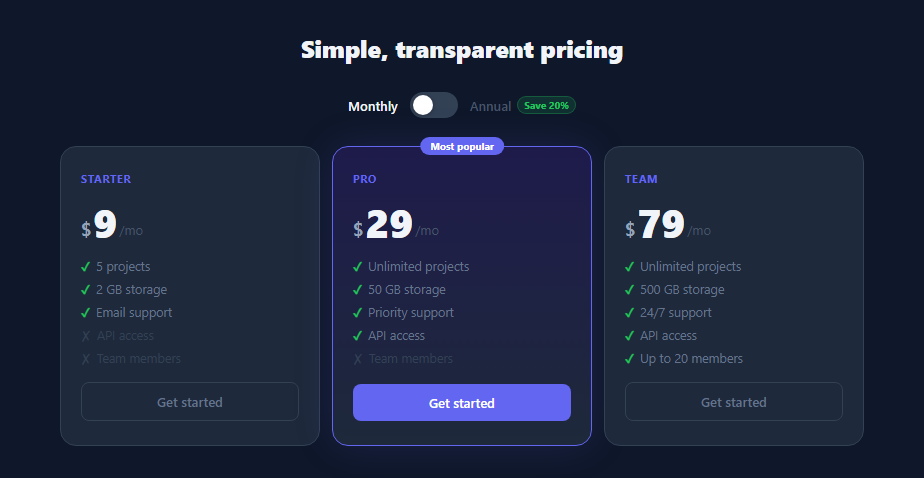
A monthly/annual billing toggle is a standard conversion pattern on SaaS pricing pages. Annual billing usually saves 20-30% — the toggle lets users see both options without a page reload. The price change combined with a "Save X%" badge nudges users toward the annual plan.
The data structure
Two arrays hold the prices: const monthly = [9, 29, 79] and const annual = [7, 23, 63]. Each index corresponds to a pricing tier. switchBilling() toggles isAnnual and selects the right array: document.querySelectorAll('.price-num') iterates all price elements and updates each textContent with the corresponding array value.
The CSS toggle knob
The toggle button gains the .annual class on switch. CSS transitions the knob: .tog-btn { transform: translateX(0) } for monthly and .tog.annual .tog-btn { transform: translateX(28px) } for annual. The background colour also changes.
Active label highlighting
switchBilling() directly sets style.color on the Monthly and Annual label elements — active label gets #f1f5f9 (bright), inactive gets #475569 (dimmed). This communicates which billing cycle is currently selected.
The save badge
An .annual child of each price shows the discount percentage (Save 22%, Save 21%, etc.). It starts hidden and gains display: flex when the toggle activates annual. The percentage values are hardcoded in the HTML — update them to match your actual discount.
The two-array price swap
Two JavaScript arrays hold prices for each plan: const monthly = [0, 12, 39] and const annual = [0, 10, 31]. When the toggle fires, it reads the current isAnnual boolean and selects the correct array. It then iterates each .amount span and updates textContent with the corresponding price. The transition: color 0.2s on .amount creates a brief colour fade as the number changes, drawing the eye to the update.
The CSS knob animation
The toggle knob uses transform: translateX(20px) in the checked state versus translateX(0) in the unchecked state. The CSS transition: transform 0.2s eases the slide. No JavaScript position calculation — the toggle is pure CSS with JavaScript only for the price swap and label active-state class toggling.
The "Save 20%" badge
The annual label contains a badge chip that is always visible, even before the toggle is switched. This is a deliberate conversion pattern — showing the savings before the user interacts means they see the benefit immediately. The badge uses a green tinted background to communicate positive value.
Connecting to Stripe
Store two Stripe price IDs per plan: one for monthly and one for annual billing. On CTA click, read the isAnnual state and pass the matching priceId to stripe.redirectToCheckout(). The toggle state determines which billing cycle the user enters at checkout.
Build with AI
Build, Understand, Optimize, and Extend It With AI
You don't have to work out the price-swap and knob-slide interaction by hand. Paste this snippet's HTML, CSS, and JS into an AI coding assistant like Claude and ask it to explain exactly how switchBilling reads the isAnnual boolean to pick between two parallel price arrays and why each price element gets a brief opacity fade and vertical shift during the swap rather than an instant text change. The same assistant can help optimize it, for example checking whether indexing into monthly and annual arrays by a fixed [1,2,3] literal is fragile if a plan is added or reordered, or whether the featured card's styling stays legible if the accent color changes. It's also useful for extending the effect: ask it to add a third billing option (like quarterly), animate the numeric digits rolling rather than fading, or wire each tier's button to a specific Stripe price ID that depends on both the tier and the current billing period. Treat the code less like a finished artifact and more like a starting point for a conversation.
Prompt to recreate it
Copy this into your AI assistant of choice to build the effect from scratch, or as a jumping-off point for your own variant:
Build a monthly/annual pricing toggle for a three-tier pricing section in plain HTML, CSS, and vanilla JavaScript — no libraries.

Requirements:
- A pill-shaped toggle switch with a circular knob that slides between two positions via a CSS transform transition, plus a "Monthly" label and an "Annual" label with an always-visible "Save X%" badge, where the inactive label dims and the active label brightens whenever the toggle state changes.
- Two parallel JavaScript arrays, one holding monthly prices and one holding annual prices, indexed identically to the three pricing tier cards, so a single boolean flip determines which array is read.
- Clicking the toggle must: flip the boolean, add or remove a CSS class on the toggle button that drives the knob's slide animation, update both labels' visual emphasis, and update each of the three displayed prices by reading from the newly active array.
- Each displayed price number must play a brief transition when it changes — fade its opacity down and shift it slightly, swap the text content, then fade and shift it back — rather than the number changing instantly with no visual feedback.
- One of the three tier cards must be visually marked as the featured/recommended plan with a distinct accent border, a background gradient or glow, and a floating "Most popular" badge centered above its top edge.
- Every feature list item in each card must show a checkmark or a cross via CSS pseudo-elements (not typed characters), with excluded features additionally dimmed in color.
Want to tighten it up first? Run this prompt through the AI Prompt Studio to score it across 8 quality dimensions, catch anti-patterns, and tune the wording for Claude, ChatGPT, or Gemini before you paste it in.
Step by step
How to Use
- 1Click the toggleClick the Monthly/Annual toggle to switch between price arrays. The knob slides, labels dim/brighten, and the Save badges appear.
- 2Update pricesIn the JS panel, update the monthly and annual arrays to your actual prices. Each index corresponds to a pricing tier card.
- 3Update save percentagesIn the HTML panel, update the Save X% text in each .annual badge to match your actual annual discount.
- 4Update plan names and featuresIn the HTML panel, update the tier names (Starter, Pro, Team), the price labels, and the feature lists.
- 5Change the accent colourFind #6366f1 in the CSS and replace with your brand colour. Updates the toggle background, featured card, and save badge.
- 6Export in your formatClick "HTML" for a standalone file, "JSX" for a React component, or "Tailwind" for a React + Tailwind version.
Real-world uses
Common Use Cases
Got questions?
Frequently Asked Questions
Two arrays hold the prices for each tier. switchBilling() picks the active array (isAnnual ? annual : monthly) and iterates document.querySelectorAll(".price-num") to set each element's textContent to the corresponding array value.
The .tog-btn has CSS transition: transform 0.2s. In the default state, transform: translateX(0). When .annual is added to .tog, the CSS rule .tog.annual .tog-btn { transform: translateX(28px) } slides it right.
Add a fourth value to both monthly and annual arrays. Add a fourth .card div to the HTML with matching structure. The querySelectorAll iteration picks it up automatically by index.
Store a currentRate variable. In switchBilling(), multiply each price by currentRate before displaying. Add a currency dropdown that updates currentRate and calls switchBilling() again to refresh displayed prices.
Add data-price-id attributes to each CTA button. In the button onclick, read the active billing cycle and the tier price ID, then call stripe.redirectToCheckout({ priceId }) with the appropriate ID from your Stripe dashboard.
Yes. Click "JSX" for a React component. Manage isAnnual in useState. Derive displayed prices as isAnnual ? annual[i] : monthly[i] in the render. The CSS toggle animations work unchanged.