Source Code
<div class="fd-wrap">
  <div class="fd-zone" id="fdZone">
    <svg width="34" height="34" viewBox="0 0 24 24" fill="none" stroke="currentColor" stroke-width="1.8" stroke-linecap="round" stroke-linejoin="round"><path d="M4 16.5V19a2 2 0 0 0 2 2h12a2 2 0 0 0 2-2v-2.5"/><path d="M7 9l5-5 5 5"/><path d="M12 4v13"/></svg>
    <div class="fd-text">Drag files here or <span>click to browse</span></div>
    <input type="file" id="fdInput" multiple hidden />
  </div>
  <div class="fd-list" id="fdList"></div>
</div>
* { box-sizing: border-box; margin: 0; padding: 0; }
body { font-family: system-ui, -apple-system, sans-serif; background: #f8fafc; min-height: 100vh; display: flex; align-items: center; justify-content: center; padding: 24px; }
.fd-wrap { width: 100%; max-width: 440px; }
.fd-zone {
border: 2px dashed #cbd5e1; border-radius: 14px; padding: 36px 20px;
display: flex; flex-direction: column; align-items: center; gap: 10px;
color: #94a3b8; cursor: pointer; background: #fff; transition: border-color 0.15s, background 0.15s, color 0.15s;
text-align: center;
}
.fd-zone.drag-active { border-color: #6366f1; background: #eef2ff; color: #6366f1; }
.fd-text { font-size: 13.5px; font-weight: 600; }
.fd-text span { color: #6366f1; font-weight: 700; text-decoration: underline; }
.fd-list { margin-top: 14px; display: flex; flex-direction: column; gap: 8px; }
.fd-file {
display: flex; align-items: center; gap: 10px; background: #fff; border: 1px solid #e2e8f0;
border-radius: 10px; padding: 10px 12px;
}
.fd-badge {
font-size: 10px; font-weight: 800; color: #fff; width: 34px; height: 34px; border-radius: 8px;
display: flex; align-items: center; justify-content: center; flex-shrink: 0; text-transform: uppercase;
}
.fd-file-body { flex: 1; min-width: 0; }
.fd-file-name { font-size: 12.5px; font-weight: 700; color: #1e293b; overflow: hidden; text-overflow: ellipsis; white-space: nowrap; }
.fd-file-size { font-size: 11px; color: #94a3b8; margin-top: 1px; }
.fd-remove {
background: none; border: none; color: #94a3b8; font-size: 16px; cursor: pointer; line-height: 1;
padding: 4px 6px; border-radius: 6px; flex-shrink: 0;
}
.fd-remove:hover { background: #fef2f2; color: #ef4444; }const zone = document.getElementById('fdZone');
const input = document.getElementById('fdInput');
const list = document.getElementById('fdList');
const BADGE_COLORS = {
pdf: '#ef4444', doc: '#3b82f6', docx: '#3b82f6', png: '#22c55e', jpg: '#22c55e',
jpeg: '#22c55e', gif: '#22c55e', csv: '#f59e0b', xls: '#f59e0b', xlsx: '#f59e0b',
zip: '#a855f7', txt: '#64748b', default: '#6366f1',
};
let files = [];
function formatSize(bytes) {
if (bytes < 1024) return bytes + ' B';
if (bytes < 1024 * 1024) return (bytes / 1024).toFixed(1) + ' KB';
return (bytes / (1024 * 1024)).toFixed(1) + ' MB';
}
function extOf(name) {
const parts = name.split('.');
return parts.length > 1 ? parts.pop().toLowerCase() : '';
}
function renderList() {
list.innerHTML = '';
files.forEach((file, index) => {
const ext = extOf(file.name);
const color = BADGE_COLORS[ext] || BADGE_COLORS.default;
const row = document.createElement('div');
row.className = 'fd-file';
row.innerHTML = `
<div class="fd-badge" style="background:${color}">${ext || 'file'}</div>
<div class="fd-file-body">
<div class="fd-file-name">${file.name}</div>
<div class="fd-file-size">${formatSize(file.size)}</div>
</div>
<button class="fd-remove" aria-label="Remove file">\u00D7</button>`;
row.querySelector('.fd-remove').addEventListener('click', () => {
files.splice(index, 1);
renderList();
});
list.appendChild(row);
});
}
function addFiles(fileList) {
Array.from(fileList).forEach((f) => files.push(f));
renderList();
}
zone.addEventListener('click', () => input.click());
input.addEventListener('change', (e) => {
addFiles(e.target.files);
input.value = '';
});
zone.addEventListener('dragover', (e) => {
e.preventDefault();
zone.classList.add('drag-active');
});
zone.addEventListener('dragleave', () => {
zone.classList.remove('drag-active');
});
zone.addEventListener('drop', (e) => {
e.preventDefault();
zone.classList.remove('drag-active');
addFiles(e.dataTransfer.files);
});Learn Coding Visually
Learn to code with interactive, live-preview playgrounds — HTML, CSS, JavaScript, React & more.
 HTML Playground42 lessons · Click-based · Live preview
 CSS PlaygroundLearn CSS with a live editor
 JavaScript Playground60 lessons · DOM · Async · Canvas
 React PlaygroundLearn React with a live code editor
 GSAP PlaygroundLearn GSAP animation interactively
 SVG Playground44 lessons · shapes · paths · animation
 SCSS Playground45 lessons · Sass modules · tokens
 Tailwind PlaygroundLearn Tailwind CSS with a live editor
 Bootstrap 5 Playground50 lessons · live preview
File Dropzone Uploader — Free HTML CSS JS Snippet
File Dropzone Uploader · Forms · Plain HTML, CSS & JS · Live preview
What's included
Features
About this UI Snippet
File Dropzone Uploader — Drag-and-Drop File Upload With Live File List
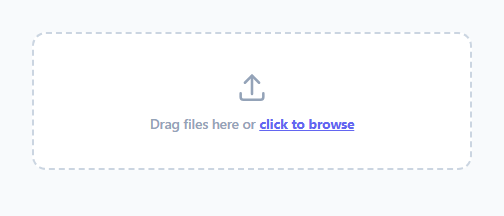
This snippet is a file upload dropzone: a dashed-border drop area that accepts files either by clicking to browse or by dragging them straight from the desktop, backed by the native HTML5 drag-and-drop API and the File API.
Two ways in, one code path
Clicking the zone programmatically triggers a hidden <input type="file" multiple> via input.click(); its change event hands back a FileList. Dropping files fires the zone's drop handler, which reads event.dataTransfer.files — also a FileList. Both paths converge on a single addFiles() function so browsed and dropped files are handled identically.
Visual drag feedback
dragover calls preventDefault() (required for the drop to be allowed) and adds a .drag-active class that recolors the border, background, and icon; dragleave and drop both remove it, so the highlight only shows while a file is actually being dragged over the zone.
Per-file metadata rendering
Each accepted File object is pushed into a local files array. formatSize() converts the raw byte count into a human-readable KB/MB string, and extOf() pulls the extension off the filename to look up a color in the BADGE_COLORS map (falling back to a default indigo for unrecognized types) — giving each row a colored badge at a glance. A remove button on each row splices that file out of the array and re-renders the list.
Step by step
How to Use
- 1Load the snippetClick "File Dropzone Uploader" in the sidebar to load its HTML, CSS, and JS into the editor panels. The preview updates instantly.
- 2Edit the codeModify any panel — HTML, CSS, or JS. The preview refreshes as you type. Use Reset in each panel header to restore the original.
- 3Preview on devicesClick the Mobile (375px), Tablet (768px), or Desktop buttons in the preview header to check responsiveness.
- 4Export in your formatClick "HTML" to download a standalone file, "JSX" for a React component, "Tailwind" for a React + Tailwind CSS component, "Tailwind HTML" for a standalone HTML file with Tailwind CDN, "Vue" for a Vue 3 SFC with <template>/<script setup>/<style scoped>, or "Angular" for a standalone Angular .component.ts file. "Copy all" copies the full code to clipboard.
- 5Save your versionClick "Save as", type a name, and press Enter. Your snippet saves to IndexedDB and appears in the Saved tab.
Real-world uses
Common Use Cases
Got questions?
Frequently Asked Questions
No, this snippet only handles client-side file selection and lists the chosen files with their metadata. Wire the addFiles function or the files array to an actual upload request (e.g. fetch with FormData) to send them somewhere.
The visible dropzone wraps a hidden <input type="file" multiple>. A click listener on the zone calls input.click() to programmatically open the native file picker, keeping the styled zone as the only visible control.
formatSize() checks the raw byte count: under 1024 bytes it shows bytes, under 1024*1024 it divides by 1024 for KB, and above that it divides by 1024*1024 for MB, each rounded to one decimal place.
extOf() extracts the lowercase extension from the filename, and that extension is looked up in the BADGE_COLORS map. Unmapped extensions fall back to a default indigo color so every file still gets a badge.