Source Code
<div class="mtz-wrap" id="mtzWrap"></div>* { box-sizing: border-box; margin: 0; padding: 0; }
body { font-family: system-ui, -apple-system, sans-serif; background: #f8fafc; min-height: 100vh; display: flex; align-items: center; justify-content: center; padding: 24px; }
.mtz-wrap { display: flex; gap: 14px; flex-wrap: wrap; justify-content: center; max-width: 780px; }
.mtz-card { width: 168px; background: #fff; border: 1px solid #e2e8f0; border-radius: 16px; padding: 18px 16px; box-shadow: 0 12px 30px rgba(30,41,59,0.06); }
.mtz-card.mtz-night { background: #1e293b; border-color: #334155; }
.mtz-city-row { display: flex; align-items: center; justify-content: space-between; margin-bottom: 12px; }
.mtz-city { font-size: 12.5px; font-weight: 800; color: #1e293b; }
.mtz-night .mtz-city { color: #f1f5f9; }
.mtz-icon { width: 16px; height: 16px; flex-shrink: 0; color: #f59e0b; }
.mtz-night .mtz-icon { color: #93c5fd; }
.mtz-time { font-size: 24px; font-weight: 800; color: #1e293b; font-variant-numeric: tabular-nums; letter-spacing: -0.5px; margin-bottom: 4px; }
.mtz-night .mtz-time { color: #fff; }
.mtz-date { font-size: 11px; color: #94a3b8; font-weight: 600; }
.mtz-night .mtz-date { color: #94a3b8; }const CITIES = [
{ name: 'New York', tz: 'America/New_York' },
{ name: 'London', tz: 'Europe/London' },
{ name: 'Tokyo', tz: 'Asia/Tokyo' },
{ name: 'Sydney', tz: 'Australia/Sydney' },
];
const ICON_SUN = '<svg viewBox="0 0 24 24" fill="none" stroke="currentColor" stroke-width="2" stroke-linecap="round" stroke-linejoin="round"><circle cx="12" cy="12" r="4"/><path d="M12 2v2M12 20v2M4.93 4.93l1.41 1.41M17.66 17.66l1.41 1.41M2 12h2M20 12h2M6.34 17.66l-1.41 1.41M19.07 4.93l-1.41 1.41"/></svg>';
const ICON_MOON = '<svg viewBox="0 0 24 24" fill="none" stroke="currentColor" stroke-width="2" stroke-linecap="round" stroke-linejoin="round"><path d="M21 12.79A9 9 0 1 1 11.21 3 7 7 0 0 0 21 12.79z"/></svg>';
const wrap = document.getElementById('mtzWrap');
const timeFormatters = {};
const dateFormatters = {};
const hourFormatters = {};
CITIES.forEach((city) => {
timeFormatters[city.tz] = new Intl.DateTimeFormat('en-US', {
timeZone: city.tz, hour: '2-digit', minute: '2-digit', second: '2-digit', hour12: true,
});
dateFormatters[city.tz] = new Intl.DateTimeFormat('en-US', {
timeZone: city.tz, weekday: 'short', month: 'short', day: 'numeric',
});
hourFormatters[city.tz] = new Intl.DateTimeFormat('en-US', {
timeZone: city.tz, hour: 'numeric', hour12: false,
});
});
function buildCards() {
wrap.innerHTML = CITIES.map((city, i) => `
<div class="mtz-card" id="mtzCard${i}">
<div class="mtz-city-row">
<span class="mtz-city">${city.name}</span>
<span class="mtz-icon" id="mtzIcon${i}"></span>
</div>
<div class="mtz-time" id="mtzTime${i}">--:--:--</div>
<div class="mtz-date" id="mtzDate${i}">--</div>
</div>`).join('');
}
function isNightHour(hour24) {
return hour24 < 6 || hour24 >= 18;
}
function update() {
const now = new Date();
CITIES.forEach((city, i) => {
const timeStr = timeFormatters[city.tz].format(now);
const dateStr = dateFormatters[city.tz].format(now);
const hour24 = parseInt(hourFormatters[city.tz].format(now), 10);
const night = isNightHour(hour24 === 24 ? 0 : hour24);
document.getElementById('mtzTime' + i).textContent = timeStr;
document.getElementById('mtzDate' + i).textContent = dateStr;
document.getElementById('mtzIcon' + i).innerHTML = night ? ICON_MOON : ICON_SUN;
document.getElementById('mtzCard' + i).classList.toggle('mtz-night', night);
});
}
buildCards();
update();
setInterval(update, 1000);Learn Coding Visually
Learn to code with interactive, live-preview playgrounds — HTML, CSS, JavaScript, React & more.
 HTML Playground42 lessons · Click-based · Live preview
 CSS PlaygroundLearn CSS with a live editor
 JavaScript Playground60 lessons · DOM · Async · Canvas
 React PlaygroundLearn React with a live code editor
 GSAP PlaygroundLearn GSAP animation interactively
 SVG Playground44 lessons · shapes · paths · animation
 SCSS Playground45 lessons · Sass modules · tokens
 Tailwind PlaygroundLearn Tailwind CSS with a live editor
 Bootstrap 5 Playground50 lessons · live preview
Multi-Timezone Digital Clock — Free HTML CSS JS Snippet
Multi-Timezone Digital Clock · Dashboards · Plain HTML, CSS & JS · Live preview
What's included
Features
About this UI Snippet
Multi-Timezone Digital Clock — Live City Clocks Using Intl.DateTimeFormat
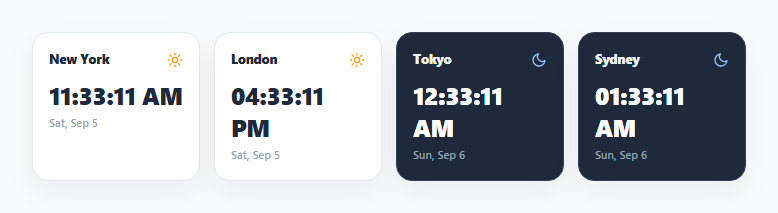
Showing the correct current time for several cities at once is a common dashboard need — for distributed teams, trading desks, or travel tools — and it's easy to get wrong by hand-rolling UTC offset math, which breaks around daylight saving time transitions. This snippet instead lets the browser's built-in Intl.DateTimeFormat API do all timezone conversion.
One shared JS Date, formatted per timezone
Only a single new Date() is created per tick, representing the current moment in UTC internally. Each city then gets its own pre-built Intl.DateTimeFormat instance constructed with an explicit timeZone option (e.g. 'America/New_York', 'Asia/Tokyo') — calling .format(now) on that formatter converts the same underlying instant into that timezone's local wall-clock time correctly, including automatically handling daylight saving time, without any manual offset arithmetic anywhere in the code.
Separate formatters for time, date, and the day/night check
Three formatters are built per city up front: one for the visible time string, one for the visible date string, and a third, minimal hour: 'numeric', hour12: false formatter used only to extract that city's current local hour as a number for the day/night logic — reusing Intl.DateTimeFormat even for that internal calculation rather than parsing the display string or computing an offset by hand.
A day/night icon driven by the extracted local hour
isNightHour() treats any local hour before 6 or from 18 onward as night. Because the hour figure comes from a real timezone-aware formatter rather than the viewer's own local time, a city on the other side of the world correctly shows a moon icon and a darker card background even while the visiting browser's own clock says midday.
A single interval keeps every card in sync
One setInterval(update, 1000) re-renders every card each second from one fresh Date, so all cities' clocks always reflect literally the same instant, just displayed through a different timezone-aware formatter.
Step by step
How to Use
- 1Load the snippetClick "Multi-Timezone Digital Clock" in the sidebar to load its HTML, CSS, and JS into the editor panels. The preview updates instantly.
- 2Edit the codeModify any panel — HTML, CSS, or JS. The preview refreshes as you type. Use Reset in each panel header to restore the original.
- 3Preview on devicesClick the Mobile (375px), Tablet (768px), or Desktop buttons in the preview header to check responsiveness.
- 4Export in your formatClick "HTML" to download a standalone file, "JSX" for a React component, "Tailwind" for a React + Tailwind CSS component, "Tailwind HTML" for a standalone HTML file with Tailwind CDN, "Vue" for a Vue 3 SFC with <template>/<script setup>/<style scoped>, or "Angular" for a standalone Angular .component.ts file. "Copy all" copies the full code to clipboard.
- 5Save your versionClick "Save as", type a name, and press Enter. Your snippet saves to IndexedDB and appears in the Saved tab.
Real-world uses
Common Use Cases
Got questions?
Frequently Asked Questions
Manual offset math breaks around daylight saving time transitions, since offsets change twice a year in many regions and vary by exact date. Intl.DateTimeFormat, given an explicit timeZone like 'America/New_York', uses the browser's built-in timezone database to always compute the correct local time automatically.
A dedicated Intl.DateTimeFormat instance per city (configured with hour: 'numeric', hour12: false) extracts that city's current local hour as a number. Any hour before 6 or from 18 onward is treated as night, independent of what time it is for the person viewing the page.
Yes — because all conversion goes through Intl.DateTimeFormat with a named IANA timezone rather than a fixed numeric offset, daylight saving transitions in any of the listed cities are handled automatically by the browser's timezone database.
Yes — add an entry to the CITIES array with a display name and a valid IANA timezone string (e.g. 'Asia/Kolkata'), and buildCards()/update() will automatically render and keep a new card in sync for it.