Source Code
<div class="as-wrap">
  <div class="as-header">
    <h2 class="as-heading">New Comment</h2>
    <span class="as-status" id="asStatus"></span>
  </div>
  <form class="as-form" id="asForm">
    <input type="text" id="asSubject" class="as-input" placeholder="Subject" />
    <textarea id="asBody" class="as-textarea" rows="5" placeholder="Write your comment..."></textarea>
    <div class="as-actions">
      <button type="button" id="asClear" class="as-clear-btn">Clear draft</button>
    </div>
  </form>
</div>
* { box-sizing: border-box; margin: 0; padding: 0; }
body { font-family: system-ui, -apple-system, sans-serif; background: #f8fafc; min-height: 100vh; display: flex; align-items: center; justify-content: center; padding: 24px; }
.as-wrap { width: 100%; max-width: 440px; background: #fff; border: 1px solid #e2e8f0; border-radius: 14px; padding: 20px; box-shadow: 0 4px 16px rgba(15,23,42,0.05); }
.as-header { display: flex; align-items: center; justify-content: space-between; margin-bottom: 14px; }
.as-heading { font-size: 15px; font-weight: 800; color: #1e293b; }
.as-status {
font-size: 11px; font-weight: 700; color: #16a34a; opacity: 0; transition: opacity 0.25s;
display: flex; align-items: center; gap: 4px;
}
.as-status.as-visible { opacity: 1; }
.as-form { display: flex; flex-direction: column; gap: 10px; }
.as-input, .as-textarea {
border: 1px solid #e2e8f0; border-radius: 10px; padding: 10px 12px; font-family: inherit;
font-size: 13.5px; color: #1e293b; resize: vertical;
}
.as-input:focus, .as-textarea:focus { outline: none; border-color: #6366f1; }
.as-actions { display: flex; justify-content: flex-end; margin-top: 2px; }
.as-clear-btn {
background: none; border: 1px solid #e2e8f0; border-radius: 8px; padding: 7px 14px;
font-size: 12px; font-weight: 700; color: #64748b; cursor: pointer;
}
.as-clear-btn:hover { background: #fef2f2; border-color: #fecaca; color: #ef4444; }const subjectEl = document.getElementById('asSubject');
const bodyEl = document.getElementById('asBody');
const statusEl = document.getElementById('asStatus');
const clearBtn = document.getElementById('asClear');
const STORAGE_KEY = 'draft-autosave-comment';
const DEBOUNCE_MS = 500;
let debounceTimer = null;
let hideStatusTimer = null;
function restoreDraft() {
try {
const raw = localStorage.getItem(STORAGE_KEY);
if (!raw) return;
const draft = JSON.parse(raw);
if (draft && typeof draft === 'object') {
subjectEl.value = draft.subject || '';
bodyEl.value = draft.body || '';
}
} catch (e) {
// ignore corrupted draft
}
}
function saveDraft() {
const draft = { subject: subjectEl.value, body: bodyEl.value };
localStorage.setItem(STORAGE_KEY, JSON.stringify(draft));
showSavedStatus();
}
function showSavedStatus() {
statusEl.textContent = '\u2713 Draft saved';
statusEl.classList.add('as-visible');
clearTimeout(hideStatusTimer);
hideStatusTimer = setTimeout(() => {
statusEl.classList.remove('as-visible');
}, 2000);
}
function scheduleAutosave() {
clearTimeout(debounceTimer);
debounceTimer = setTimeout(saveDraft, DEBOUNCE_MS);
}
subjectEl.addEventListener('input', scheduleAutosave);
bodyEl.addEventListener('input', scheduleAutosave);
clearBtn.addEventListener('click', () => {
clearTimeout(debounceTimer);
subjectEl.value = '';
bodyEl.value = '';
localStorage.removeItem(STORAGE_KEY);
statusEl.textContent = 'Draft cleared';
statusEl.classList.add('as-visible');
clearTimeout(hideStatusTimer);
hideStatusTimer = setTimeout(() => {
statusEl.classList.remove('as-visible');
}, 2000);
});
restoreDraft();Learn Coding Visually
Learn to code with interactive, live-preview playgrounds — HTML, CSS, JavaScript, React & more.
 HTML Playground42 lessons · Click-based · Live preview
 CSS PlaygroundLearn CSS with a live editor
 JavaScript Playground60 lessons · DOM · Async · Canvas
 React PlaygroundLearn React with a live code editor
 GSAP PlaygroundLearn GSAP animation interactively
 SVG Playground44 lessons · shapes · paths · animation
 SCSS Playground45 lessons · Sass modules · tokens
 Tailwind PlaygroundLearn Tailwind CSS with a live editor
 Bootstrap 5 Playground50 lessons · live preview
Draft Autosave Form — Free HTML CSS JS Snippet
Draft Autosave Form · Forms · Plain HTML, CSS & JS · Live preview
What's included
Features
About this UI Snippet
Draft Autosave Form — Debounced localStorage Draft Saving
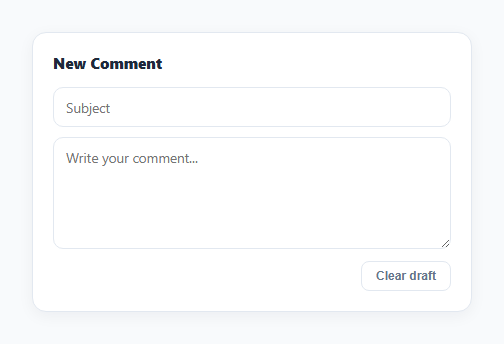
This snippet is a short comment composer (subject field plus textarea) that automatically saves what the user types to localStorage as they type, and restores it if they leave and come back.
Debounced saving
Every input event on either field calls scheduleAutosave(), which clears any pending setTimeout and starts a new one at DEBOUNCE_MS (500ms). This means saveDraft() only actually runs once typing pauses for half a second, rather than on every single keystroke — avoiding a write to localStorage on every character while the user is actively typing.
What gets saved and how
saveDraft() bundles both field values into one object and writes it with localStorage.setItem(STORAGE_KEY, JSON.stringify(draft)). On page load, restoreDraft() reads that key back with localStorage.getItem, wraps the JSON.parse call in a try/catch so a corrupted or missing value never throws, and — if valid — populates both fields from the parsed object.
Visible save feedback
After each successful save, a small green "Draft saved" status line fades in via a .as-visible class and fades back out automatically after 2 seconds, using a second timer that's cleared and restarted on every save so rapid typing doesn't cause the message to flicker on and off mid-sentence.
Clearing the draft
The "Clear draft" button empties both fields, cancels any pending debounced save, and calls localStorage.removeItem(STORAGE_KEY) so no stale draft is left behind to reappear on the next visit.
Step by step
How to Use
- 1Load the snippetClick "Draft Autosave Form" in the sidebar to load its HTML, CSS, and JS into the editor panels. The preview updates instantly.
- 2Edit the codeModify any panel — HTML, CSS, or JS. The preview refreshes as you type. Use Reset in each panel header to restore the original.
- 3Preview on devicesClick the Mobile (375px), Tablet (768px), or Desktop buttons in the preview header to check responsiveness.
- 4Export in your formatClick "HTML" to download a standalone file, "JSX" for a React component, "Tailwind" for a React + Tailwind CSS component, "Tailwind HTML" for a standalone HTML file with Tailwind CDN, "Vue" for a Vue 3 SFC with <template>/<script setup>/<style scoped>, or "Angular" for a standalone Angular .component.ts file. "Copy all" copies the full code to clipboard.
- 5Save your versionClick "Save as", type a name, and press Enter. Your snippet saves to IndexedDB and appears in the Saved tab.
Real-world uses
Common Use Cases
Got questions?
Frequently Asked Questions
Saving on every keystroke would mean a localStorage write per character typed, which is wasteful. Debouncing with setTimeout/clearTimeout ensures the save only happens once the user pauses typing for 500ms, batching rapid input into a single write.
restoreDraft() wraps the JSON.parse call in a try/catch. If parsing fails or the stored value is not an object, the catch block silently does nothing and the form simply starts empty instead of throwing an error.
No — each time it appears, a fresh 2-second hide timer is set and any previous hide timer is cleared first, so rapid saves reset the timer instead of stacking multiple fade-outs.
It clears the pending debounce timer first, then immediately empties both fields and calls localStorage.removeItem, so there is no delay and no risk of a stale scheduled save overwriting the cleared state afterward.