Source Code
<div class="drp-card">
  <div class="drp-head">
    <span class="drp-label">Price range</span>
    <span class="drp-readout" id="drpReadout">$120 – $640</span>
  </div>

  <div class="drp-bars" id="drpBars" aria-hidden="true"></div>

  <div class="drp-slider" id="drpSlider">
    <div class="drp-track"></div>
    <div class="drp-fill" id="drpFill"></div>
    <input class="drp-input drp-min" id="drpMin" type="range" min="0" max="1000" step="10" value="120" aria-label="Minimum price">
    <input class="drp-input drp-max" id="drpMax" type="range" min="0" max="1000" step="10" value="640" aria-label="Maximum price">
  </div>

  <div class="drp-fields">
    <label class="drp-field"><span>Min</span><div class="drp-box"><i>$</i><input id="drpMinNum" type="number" min="0" max="1000" value="120"></div></label>
    <span class="drp-dash"></span>
    <label class="drp-field"><span>Max</span><div class="drp-box"><i>$</i><input id="drpMaxNum" type="number" min="0" max="1000" value="640"></div></label>
  </div>

  <button class="drp-apply" type="button" id="drpApply">Show results</button>
</div>
* { box-sizing: border-box; margin: 0; padding: 0; }
body { font-family: system-ui, -apple-system, sans-serif; background: #f1f5f9; min-height: 100vh; display: flex; align-items: center; justify-content: center; padding: 32px; }
.drp-card { width: 100%; max-width: 340px; background: #fff; border: 1px solid #e8edf3; border-radius: 16px; padding: 22px 22px 20px; box-shadow: 0 14px 40px rgba(15, 23, 42, 0.08); }
.drp-head { display: flex; align-items: baseline; justify-content: space-between; margin-bottom: 16px; }
.drp-label { font-size: 14px; font-weight: 700; color: #0f172a; }
.drp-readout { font-size: 13px; font-weight: 700; color: #6366f1; }
.drp-bars { display: flex; align-items: flex-end; gap: 2px; height: 40px; margin-bottom: 6px; padding: 0 6px; }
.drp-bar { flex: 1; background: #e2e8f0; border-radius: 2px 2px 0 0; transition: background 0.2s; }
.drp-bar.in { background: #c7d2fe; }
.drp-slider { position: relative; height: 30px; }
.drp-track { position: absolute; top: 50%; left: 6px; right: 6px; height: 5px; transform: translateY(-50%); background: #e2e8f0; border-radius: 999px; }
.drp-fill { position: absolute; top: 50%; height: 5px; transform: translateY(-50%); background: #6366f1; border-radius: 999px; }
.drp-input { position: absolute; top: 0; left: 0; width: 100%; height: 30px; margin: 0; background: none; pointer-events: none; -webkit-appearance: none; appearance: none; }
.drp-input::-webkit-slider-thumb {
-webkit-appearance: none; appearance: none;
width: 20px; height: 20px; border-radius: 50%;
background: #fff; border: 2.5px solid #6366f1; cursor: grab;
pointer-events: auto; box-shadow: 0 2px 8px rgba(99, 102, 241, 0.35);
transition: transform 0.1s;
}
.drp-input::-webkit-slider-thumb:active { cursor: grabbing; transform: scale(1.12); }
.drp-input::-moz-range-thumb {
width: 20px; height: 20px; border-radius: 50%;
background: #fff; border: 2.5px solid #6366f1; cursor: grab;
pointer-events: auto; box-shadow: 0 2px 8px rgba(99, 102, 241, 0.35);
}
.drp-fields { display: flex; align-items: center; gap: 10px; margin-top: 18px; }
.drp-field { flex: 1; }
.drp-field span { display: block; font-size: 11px; font-weight: 600; color: #94a3b8; margin-bottom: 4px; text-transform: uppercase; letter-spacing: 0.04em; }
.drp-box { display: flex; align-items: center; border: 1.5px solid #e2e8f0; border-radius: 9px; padding: 0 10px; transition: border-color 0.15s; }
.drp-box:focus-within { border-color: #6366f1; }
.drp-box i { font-style: normal; font-size: 13px; color: #94a3b8; }
.drp-box input { width: 100%; border: none; outline: none; padding: 9px 4px; font-family: inherit; font-size: 14px; color: #0f172a; -moz-appearance: textfield; }
.drp-box input::-webkit-outer-spin-button, .drp-box input::-webkit-inner-spin-button { -webkit-appearance: none; margin: 0; }
.drp-dash { width: 10px; height: 1.5px; background: #cbd5e1; margin-top: 18px; }
.drp-apply { width: 100%; margin-top: 18px; padding: 12px; background: #6366f1; color: #fff; border: none; border-radius: 11px; font-family: inherit; font-size: 14px; font-weight: 700; cursor: pointer; transition: background 0.15s; }
.drp-apply:hover { background: #4f46e5; }const MIN = 0, MAX = 1000, GAP = 50;
const minR = document.getElementById('drpMin');
const maxR = document.getElementById('drpMax');
const minN = document.getElementById('drpMinNum');
const maxN = document.getElementById('drpMaxNum');
const fill = document.getElementById('drpFill');
const readout = document.getElementById('drpReadout');
const barsWrap = document.getElementById('drpBars');
// A small histogram of how many items fall in each price band
const HIST = [3, 6, 10, 14, 18, 16, 12, 9, 6, 4, 2, 1];
const bars = HIST.map(h => {
const bar = document.createElement('div');
bar.className = 'drp-bar';
bar.style.height = (10 + h * 4) + '%';
barsWrap.appendChild(bar);
return bar;
});
function clampPair(changed) {
let lo = +minR.value, hi = +maxR.value;
if (changed === 'min' && lo > hi - GAP) { lo = hi - GAP; minR.value = lo; }
if (changed === 'max' && hi < lo + GAP) { hi = lo + GAP; maxR.value = hi; }
return [lo, hi];
}
function render(lo, hi) {
const pctLo = ((lo - MIN) / (MAX - MIN)) * 100;
const pctHi = ((hi - MIN) / (MAX - MIN)) * 100;
// Inset by 6px on each side to align with the track padding
fill.style.left = 'calc(' + pctLo + '% + ' + (6 - pctLo * 0.12) + 'px)';
fill.style.right = 'calc(' + (100 - pctHi) + '% + ' + (6 - (100 - pctHi) * 0.12) + 'px)';
readout.textContent = '$' + lo + ' – $' + hi;
minN.value = lo; maxN.value = hi;
const band = (MAX - MIN) / HIST.length;
bars.forEach((bar, i) => {
const center = MIN + band * i + band / 2;
bar.classList.toggle('in', center >= lo && center <= hi);
});
}
function fromSlider(changed) { const [lo, hi] = clampPair(changed); render(lo, hi); }
minR.addEventListener('input', () => fromSlider('min'));
maxR.addEventListener('input', () => fromSlider('max'));
function fromNumber() {
let lo = Math.max(MIN, Math.min(+minN.value || MIN, MAX));
let hi = Math.max(MIN, Math.min(+maxN.value || MAX, MAX));
if (lo > hi - GAP) lo = hi - GAP;
minR.value = lo; maxR.value = hi;
render(lo, hi);
}
minN.addEventListener('change', fromNumber);
maxN.addEventListener('change', fromNumber);
document.getElementById('drpApply').addEventListener('click', () => {
document.getElementById('drpApply').textContent = 'Showing $' + minR.value + '–$' + maxR.value;
setTimeout(() => { document.getElementById('drpApply').textContent = 'Show results'; }, 1600);
});
render(+minR.value, +maxR.value);Learn Coding Visually
Learn to code with interactive, live-preview playgrounds — HTML, CSS, JavaScript, React & more.
 HTML Playground42 lessons · Click-based · Live preview
 CSS PlaygroundLearn CSS with a live editor
 JavaScript Playground60 lessons · DOM · Async · Canvas
 React PlaygroundLearn React with a live code editor
 GSAP PlaygroundLearn GSAP animation interactively
 SVG Playground44 lessons · shapes · paths · animation
 SCSS Playground45 lessons · Sass modules · tokens
 Tailwind PlaygroundLearn Tailwind CSS with a live editor
 Bootstrap 5 Playground50 lessons · live preview
Dual Range Price Filter — Free HTML CSS JS Snippet
Dual Range Price Filter · Forms · Plain HTML, CSS & JS · Live preview
What's included
Features
About this UI Snippet
Dual Range Price Filter — Two-Thumb Range Slider with Histogram and Synced Inputs
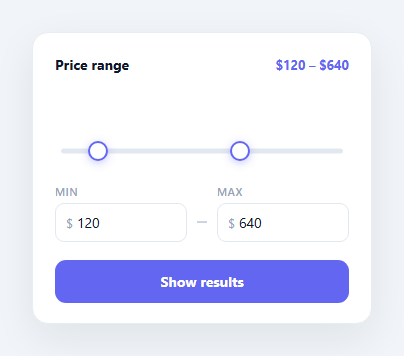
Filtering by price is one of the most-used controls in any store or marketplace, and the expected interface is a two-thumb range slider: drag the left handle to set the minimum, the right handle for the maximum, with the selected band highlighted between them. This component builds that control properly — overlaid native range inputs for real accessibility, a distribution histogram above the track, synced number inputs below, minimum-gap clamping so the thumbs cannot cross, and a live readout — all in HTML, CSS, and vanilla JavaScript with no slider library.
Two native inputs, one slider
The dual-thumb effect is achieved by stacking two native <input type="range"> elements in the same space, both spanning the full track. Using real range inputs (rather than divs and mouse math) means the control inherits keyboard support, screen-reader semantics, and touch handling for free. The trick that makes them usable together is pointer-events: none on the inputs with pointer-events: auto re-enabled only on the thumbs (::-webkit-slider-thumb and ::-moz-range-thumb). That way clicks on the track pass through to whichever thumb is nearest, and each thumb stays independently draggable even though the two inputs overlap completely.
Preventing the thumbs from crossing
Without a guard, you could drag the minimum past the maximum and invert the range. clampPair() enforces a minimum gap (GAP = 50): when the min thumb moves, it is capped at max - GAP; when the max thumb moves, it is floored at min + GAP. The capped value is written back to the input immediately, so the thumb visibly stops rather than letting the values cross and then snapping back. This keeps the selected range always valid and always at least one band wide.
The highlighted fill
The indigo fill between the thumbs is a positioned element whose left and right are computed from each value as a percentage of the range. A small per-side correction (6 - pct * 0.12 pixels) accounts for the track's 6px horizontal padding and the thumb's radius, so the coloured fill lines up under the centres of the thumbs rather than drifting at the extremes — the detail that separates a polished dual slider from one where the fill is visibly off near the ends.
The distribution histogram
Above the slider sits a small bar histogram generated from a HIST array — a count of how many items fall in each price band. As the range changes, every bar whose centre lies inside the selected range gets an .in class and brightens to the accent tint, while out-of-range bars stay grey. This "price distribution" visual — popularised by Airbnb's price filter — helps users see where most options are priced before they choose, so they do not accidentally filter out the bulk of the inventory.
Two-way sync with number inputs
Below the slider are Min and Max number inputs with dollar prefixes. They stay in sync both ways: dragging a thumb updates the numbers via render(), and typing a number (on change) clamps it to the bounds and the gap, updates the slider thumbs, and re-renders. The number inputs hide their spinner arrows for a clean look and let users type an exact figure when dragging is imprecise. The live readout in the header ($120 – $640) updates on every change so the current selection is always legible.
Customisation
Set MIN, MAX, the step on the inputs, and GAP (the minimum distance between thumbs) to fit your price domain. Replace the HIST array with your real per-band item counts to make the histogram meaningful. Swap the #6366f1 accent used by the thumbs, fill, and histogram, and wire the "Show results" button to your real filtering query using minR.value and maxR.value.
Build with AI
Build, Understand, Optimize, and Extend It With AI
Rather than puzzling out the overlapping inputs yourself, paste this snippet's HTML, CSS, and JS into an AI coding assistant like Claude and ask it to explain exactly how pointer-events: none on the range inputs combined with pointer-events: auto only on their thumb pseudo-elements lets two fully overlapping sliders both stay independently draggable, and why clampPair() writes the corrected value back to the input immediately instead of just adjusting the rendered fill. The same assistant can help optimize it, for instance checking whether the per-side correction formula in render() (6 minus pct times 0.12) generalizes correctly if the track padding or thumb size changes. It's also useful for extending the filter: ask it to add currency formatting for non-dollar locales, make the histogram clickable to jump the nearest thumb to that band, or persist the selected range to the URL query string so filtered results are shareable. Treat the code less like a finished artifact and more like a starting point for a conversation.
Prompt to recreate it
Copy this into your AI assistant of choice to build the effect from scratch, or as a jumping-off point for your own variant:
Build a dual-thumb price range filter in plain HTML, CSS, and JavaScript using two overlapping native range inputs — no slider library.

Requirements:
- Two native input type=range elements stacked in exactly the same position, both spanning the full width of the track, with pointer-events disabled on the inputs themselves but re-enabled specifically on their thumb (the browser-specific slider-thumb pseudo-element) so clicks pass through to whichever thumb is nearest while each thumb remains independently draggable.
- A visual fill element positioned between the two thumbs whose left and right edges are computed as percentages of the current min and max values relative to the slider's overall min/max range, with a small pixel correction so the fill's edges align under the thumb centers rather than drifting at the extreme ends.
- A clamping function that enforces a minimum gap between the two values: moving the low thumb past (high value minus the gap) must cap it there, and moving the high thumb past (low value plus the gap) must floor it there, writing the corrected value back to the slider immediately so the thumb visibly stops rather than crossing and snapping back.
- A small bar-chart histogram rendered above the slider from an array of counts per price band, where each bar's CSS class changes to a highlighted state when that band's center point falls within the currently selected range.
- Two number input fields (for typing an exact min and max) that stay in two-way sync with the sliders: dragging a thumb updates the number fields, and typing a value into a number field (on change, clamped to the same bounds and gap) moves the corresponding slider thumb and updates the fill and histogram.
- A live text readout showing the current selected range (e.g. "$120 to $640") that updates on every change from either input method.
Want to tighten it up first? Run this prompt through the AI Prompt Studio to score it across 8 quality dimensions, catch anti-patterns, and tune the wording for Claude, ChatGPT, or Gemini before you paste it in.
Step by step
How to Use
- 1Paste the HTML, CSS, and JSA price-range card renders with a histogram, a two-thumb slider, synced Min/Max number inputs, and a live readout.
- 2Drag a thumbThe fill between the thumbs and the header readout update live, and histogram bars inside the range brighten.
- 3Try to cross the thumbsThey stop at a fixed minimum gap so the minimum can never pass the maximum and the range stays valid.
- 4Type an exact valueEnter a number in the Min or Max field; it clamps to the bounds and gap and moves the matching thumb.
- 5Set your price domainEdit MIN, MAX, step, and GAP, and replace the HIST array with your real per-band item counts.
- 6Wire up resultsConnect the Show results button to your filter query using the current minR.value and maxR.value.
Real-world uses
Common Use Cases
Got questions?
Frequently Asked Questions
Native range inputs give you keyboard control (arrow keys), focus, touch dragging, and screen-reader announcements for free — recreating all of that with divs and pointer events is a lot of code and easy to get wrong. The only trick needed is pointer-events: none on the inputs with pointer-events: auto on their thumbs, so the two overlapping inputs each stay draggable. This keeps the control accessible by default.
clampPair() enforces a minimum gap: when the min input changes it is capped at max - GAP, and when the max input changes it is floored at min + GAP, writing the corrected value straight back to the input so the thumb stops visibly. Adjust the GAP constant for the smallest range you want to allow — set it to the step size if you only need to prevent exact crossing.
Range thumbs are inset from the track edges by roughly their radius, and the track here has 6px of horizontal padding. The render() function applies a small per-side correction (6 - pct * 0.12 px) so the fill's edges track the thumb centres across the whole range instead of drifting near the ends. Tune that factor if your thumb size or track padding differs.
Replace the HIST array with your actual counts of items per price band — one number per bar, in order from low to high price. The bars' heights scale to those counts, and render() marks a bar .in when its band centre falls within the selected range. Use as many entries as you want bars; the band width is computed from (MAX - MIN) / HIST.length.
Keep [min, max] in state. Render two range inputs bound to those values with onChange/onInput handlers that apply the gap clamp before setting state. Compute the fill's left/right and the histogram .in flags from the state during render. The number inputs are controlled inputs that clamp on change. All the CSS — overlaid inputs, thumb styling, fill, histogram — ports unchanged; only the clamp/sync logic moves into your handlers.