Source Code
<div class="npf-card">
  <div class="npf-head">
    <h3>Notifications</h3>
    <p>Choose how you want to be notified for each type of event.</p>
  </div>

  <div class="npf-grid-head">
    <span></span>
    <span class="npf-chan" title="Email">✉<small>Email</small></span>
    <span class="npf-chan" title="Push">🔔<small>Push</small></span>
    <span class="npf-chan" title="SMS">💬<small>SMS</small></span>
  </div>

  <div class="npf-rows" id="npfRows"></div>

  <div class="npf-foot">
    <span class="npf-status" id="npfStatus">All changes saved</span>
    <button type="button" class="npf-save" id="npfSave" disabled>Save changes</button>
  </div>
</div>*{box-sizing:border-box;margin:0;padding:0}
body{font-family:system-ui,-apple-system,sans-serif;background:#f1f5f9;min-height:100vh;display:flex;align-items:flex-start;justify-content:center;padding:40px 24px}
.npf-card{background:#fff;border-radius:16px;padding:24px;width:100%;max-width:440px;box-shadow:0 18px 44px rgba(15,23,42,.1)}
.npf-head h3{font-size:17px;font-weight:800;color:#0f172a}
.npf-head p{font-size:12.5px;color:#64748b;margin:3px 0 18px;line-height:1.5}
.npf-grid-head,.npf-row{display:grid;grid-template-columns:1fr 48px 48px 48px;align-items:center;gap:4px}
.npf-grid-head{padding-bottom:10px;border-bottom:1px solid #f1f5f9;margin-bottom:6px}
.npf-chan{display:flex;flex-direction:column;align-items:center;font-size:15px;color:#94a3b8}
.npf-chan small{font-size:9.5px;font-weight:700;margin-top:2px;text-transform:uppercase;letter-spacing:.02em}
.npf-row{padding:11px 0;border-bottom:1px solid #f8fafc}
.npf-row:last-child{border-bottom:none}
.npf-label{font-size:13px;font-weight:700;color:#1e293b}
.npf-label small{display:block;font-size:11px;font-weight:500;color:#94a3b8;margin-top:1px}
.npf-toggle{justify-self:center;position:relative;width:38px;height:22px;border-radius:999px;background:#e2e8f0;border:none;cursor:pointer;transition:background .2s}
.npf-toggle.on{background:#6366f1}
.npf-toggle::after{content:'';position:absolute;top:2px;left:2px;width:18px;height:18px;border-radius:50%;background:#fff;box-shadow:0 1px 3px rgba(0,0,0,.2);transition:transform .2s}
.npf-toggle.on::after{transform:translateX(16px)}
.npf-foot{display:flex;align-items:center;justify-content:space-between;margin-top:18px;padding-top:16px;border-top:1px solid #f1f5f9}
.npf-status{font-size:12px;font-weight:600;color:#94a3b8}
.npf-status.dirty{color:#d97706}
.npf-status.saved{color:#16a34a}
.npf-save{background:#6366f1;color:#fff;border:none;border-radius:9px;padding:9px 18px;font-size:13px;font-weight:700;cursor:pointer;transition:background .15s,opacity .15s}
.npf-save:hover:not(:disabled){background:#4f46e5}
.npf-save:disabled{opacity:.45;cursor:not-allowed}var CHANNELS = ['email', 'push', 'sms'];
var EVENTS = [
{ id: 'mentions', label: 'Mentions & replies', sub: 'When someone mentions or replies to you', prefs: { email: true, push: true, sms: false } },
{ id: 'comments', label: 'Comments', sub: 'New comments on your items', prefs: { email: true, push: false, sms: false } },
{ id: 'digest', label: 'Weekly digest', sub: 'A summary of activity each week', prefs: { email: true, push: false, sms: false } },
{ id: 'security', label: 'Security alerts', sub: 'New logins and password changes', prefs: { email: true, push: true, sms: true } },
{ id: 'billing', label: 'Billing', sub: 'Invoices, receipts, and renewals', prefs: { email: true, push: false, sms: false } },
{ id: 'product', label: 'Product updates', sub: 'New features and announcements', prefs: { email: false, push: false, sms: false } },
];
var rows = document.getElementById('npfRows');
var saveBtn = document.getElementById('npfSave');
var statusEl = document.getElementById('npfStatus');
var saved = JSON.stringify(EVENTS.map(function (e) { return e.prefs; }));
function render() {
rows.innerHTML = EVENTS.map(function (ev, ri) {
var toggles = CHANNELS.map(function (ch) {
return '<button type="button" class="npf-toggle' + (ev.prefs[ch] ? ' on' : '') + '" data-r="' + ri + '" data-c="' + ch + '" role="switch" aria-checked="' + ev.prefs[ch] + '" aria-label="' + ev.label + ' via ' + ch + '"></button>';
}).join('');
return '<div class="npf-row"><div class="npf-label">' + ev.label + '<small>' + ev.sub + '</small></div>' + toggles + '</div>';
}).join('');
checkDirty();
}
function checkDirty() {
var now = JSON.stringify(EVENTS.map(function (e) { return e.prefs; }));
var dirty = now !== saved;
saveBtn.disabled = !dirty;
statusEl.textContent = dirty ? 'Unsaved changes' : 'All changes saved';
statusEl.className = 'npf-status' + (dirty ? ' dirty' : '');
}
rows.addEventListener('click', function (e) {
var t = e.target.closest('.npf-toggle');
if (!t) return;
var ev = EVENTS[+t.dataset.r];
ev.prefs[t.dataset.c] = !ev.prefs[t.dataset.c];
t.classList.toggle('on', ev.prefs[t.dataset.c]);
t.setAttribute('aria-checked', ev.prefs[t.dataset.c]);
checkDirty();
});
saveBtn.addEventListener('click', function () {
// Persist EVENTS preferences to your backend here.
saved = JSON.stringify(EVENTS.map(function (e) { return e.prefs; }));
checkDirty();
statusEl.textContent = '✓ Saved'; statusEl.className = 'npf-status saved';
});
render();Learn Coding Visually
Learn to code with interactive, live-preview playgrounds — HTML, CSS, JavaScript, React & more.
 HTML Playground42 lessons · Click-based · Live preview
 CSS PlaygroundLearn CSS with a live editor
 JavaScript Playground60 lessons · DOM · Async · Canvas
 React PlaygroundLearn React with a live code editor
 GSAP PlaygroundLearn GSAP animation interactively
 SVG Playground44 lessons · shapes · paths · animation
 SCSS Playground45 lessons · Sass modules · tokens
 Tailwind PlaygroundLearn Tailwind CSS with a live editor
 Bootstrap 5 Playground50 lessons · live preview
Notification Preferences — Channel Toggle Matrix UI
Notification Preferences · Forms · Plain HTML, CSS & JS · Live preview
What's included
Features
About this UI Snippet
Notification Preferences — Per-Event Email / Push / SMS Toggle Matrix
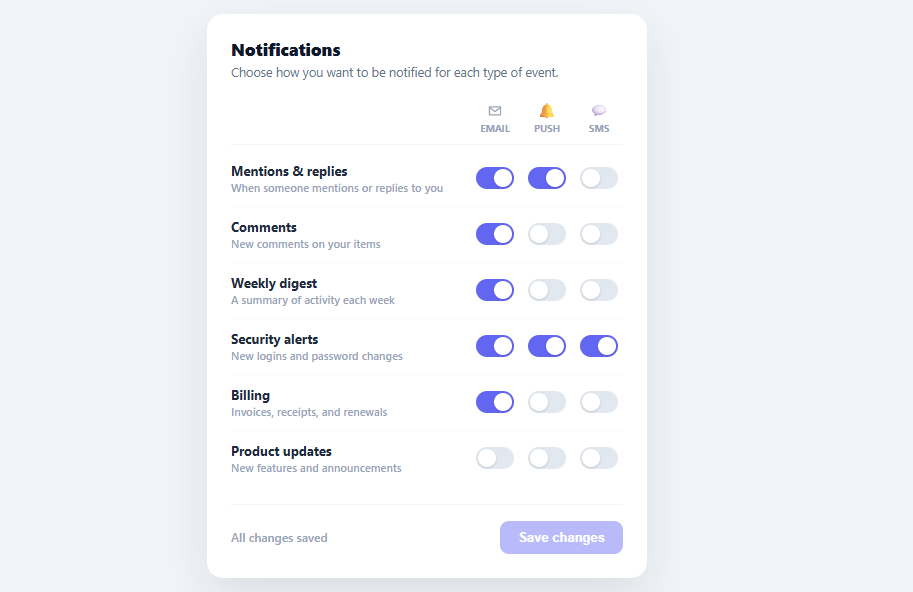
Every app with notifications eventually needs a preferences screen where users control *what* they're notified about and *how* — a grid of event types crossed with delivery channels (email, push, SMS). Done as a clear matrix, it lets people opt out of noise without turning everything off, which keeps the important notifications welcome. This snippet builds that preference matrix in plain HTML, CSS, and vanilla JavaScript: per-event toggles for each channel, a save gate that activates only when something changes, and accessible switch semantics.
A matrix, not a flat list
The layout is a grid: each row is an event type (Mentions, Comments, Security alerts, Billing…), and three columns are the delivery channels (Email, Push, SMS), each cell a toggle. This matrix is far clearer than a flat list of "Email me about X" checkboxes, because it lets the user see and set the whole picture at once — "I want security alerts on every channel but product updates on none" is two glances and a few taps. The column headers carry channel icons so the grid reads quickly even on a narrow screen.
Dirty-state save gate
The Save button stays disabled until the user actually changes something, and a status line reflects the state: "All changes saved" → "Unsaved changes" (amber) the moment a toggle differs from the saved snapshot → "✓ Saved" (green) after saving. This is implemented by comparing a JSON snapshot of the current preferences against the last-saved snapshot, so the dirty check is exact — toggling something and toggling it back correctly returns to "saved" with the button disabled again. This honest dirty-tracking is what prevents both pointless empty saves and the anxiety of not knowing whether your changes took.
Accessible toggle switches
Each toggle is a real <button> with role="switch" and aria-checked reflecting its state, plus an aria-label naming both the event and the channel ("Security alerts via SMS") — so a screen reader announces exactly what each of the eighteen toggles controls, which a grid of unlabeled switches completely fails to convey. The switch is styled as the familiar sliding pill (track + thumb) with a transform-animated thumb, so it's visually obvious and GPU-cheap.
Data-driven and snapshot-saved
The whole matrix renders from an EVENTS array, each event carrying a prefs object of channel → boolean. Adding an event type or a channel is a data edit. On save, the current preferences are captured as the new saved snapshot (and in a real app, sent to your backend) — the FAQs cover wiring that persistence. Because state lives in the data and the UI is its projection, the toggles, the dirty check, and the save all stay consistent automatically.
Sensible defaults matter
The starting preferences model good defaults — security and billing default to more channels (you want those), while product updates default to off (opt-in marketing) — because the defaults are what most users keep. A well-designed preferences screen still starts from defaults that respect attention: critical notifications on, promotional ones off, so the user only adjusts the exceptions. Swap the EVENTS and CHANNELS for your app's real notification types and delivery methods and it's ready.
Build with AI
Build, Understand, Optimize, and Extend It With AI
Instead of tracing the dirty-check by hand, paste this snippet's HTML, CSS, and JS into an AI coding assistant like Claude and ask it to explain exactly why checkDirty() compares a full JSON snapshot of every event's prefs rather than tracking a simple "something changed" boolean, and what would go wrong with a naive boolean flag if a user toggled a switch and then toggled it right back. The same assistant can help optimize it, for instance asking whether re-stringifying the entire EVENTS array on every single toggle click would still be fast with dozens of event rows and multiple channels, or whether the aria-label string concatenation for each of the eighteen toggles could be generated more efficiently. It's also useful for extending the matrix: ask it to add a "select all for this channel" column-header toggle, group events into labeled sections (account, billing, marketing), or persist changes optimistically with a rollback if the save API call fails. Treat the code less like a finished artifact and more like a starting point for a conversation.
Prompt to recreate it
Copy this into your AI assistant of choice to build the effect from scratch, or as a jumping-off point for your own variant:
Build a "notification preferences" matrix in plain HTML, CSS, and JavaScript — a grid of event types crossed with delivery channels, each cell a toggle — no form library.

Requirements:
- Render entirely from a data array where each event object has an id, a label, a sub-description, and a prefs object mapping channel names (e.g. email, push, sms) to booleans; render the grid so each event is a row and each channel is a column, generated dynamically from the data (not hardcoded per-row markup).
- Every toggle cell must be a real button with role="switch", an aria-checked attribute reflecting its current boolean, and an aria-label that names both the specific event and the specific channel it controls (not a generic label).
- Clicking a toggle must flip only that one event's one channel boolean in the underlying data model, then update that toggle's visual and ARIA state.
- Maintain a "saved" snapshot of the preferences taken at load time (and again after each save); after every toggle click, compare the full current state against that snapshot (not a simple changed-flag) to determine whether there are unsaved changes, and use that exact comparison to enable/disable a Save button and to display one of three status messages: "all changes saved" (nothing differs), "unsaved changes" (something differs), or a "saved" confirmation immediately after a successful save.
- Toggling a switch and then toggling it back to its original value must correctly return the UI to the "all changes saved" state with Save disabled again — the dirty check must be exact, not a one-way flag.
- Clicking Save must update the saved snapshot to the current state and show the "saved" confirmation status; leave a clear comment showing where a real API call would be made.
Want to tighten it up first? Run this prompt through the AI Prompt Studio to score it across 8 quality dimensions, catch anti-patterns, and tune the wording for Claude, ChatGPT, or Gemini before you paste it in.
Step by step
How to Use
- 1Paste HTML, CSS, and JSA notifications matrix renders with event rows and Email / Push / SMS toggle columns; Save is disabled.
- 2Toggle a preferenceTap any switch — the status changes to "Unsaved changes" (amber) and the Save button enables.
- 3Revert a changeToggle it back to the saved value — the status returns to "All changes saved" and Save disables again.
- 4SaveClick Save — the status shows "✓ Saved" and the current state becomes the new baseline.
- 5Edit events and channelsChange the EVENTS array (label, sub, prefs) and CHANNELS to match your app's notification types.
- 6Persist to your backendIn the save handler, send the EVENTS preferences to your API instead of only snapshotting locally.
Real-world uses
Common Use Cases
Got questions?
Frequently Asked Questions
In the save handler, send the EVENTS preferences (or a compact { eventId: { email, push, sms } } map) to your API via fetch, show a saving state, and on success update the saved snapshot to the new values so the dirty check resets. On load, fetch the user's saved preferences and initialize EVENTS from them, then snapshot that as the baseline so unmodified screens show "All changes saved".
It compares a JSON.stringify snapshot of the current preferences against the snapshot taken at the last save. Any difference means "dirty" (enable Save, show the amber status); identical means "clean" (disable Save). Because it's a full-state comparison, toggling a switch and toggling it back correctly returns to the clean state — unlike a naive "any change happened" flag that would stay dirty.
A toggle that visually slides on/off is semantically a switch, and role="switch" with aria-checked tells assistive tech to announce it as "on/off" rather than "checked/unchecked", matching its appearance and behavior. Pairing it with an aria-label that names both the event and the channel ("Billing via email") is essential here, since a bare switch in a grid gives a screen-reader user no context about what it controls.
Default critical and transactional notifications on (security alerts, billing, mentions) since users expect and need them, and default promotional or low-urgency ones off (product updates, marketing) as opt-in. Most users keep the defaults, so respecting their attention by not pre-enabling noise both improves the experience and aligns with consent best practices for marketing channels.
In React, hold the preferences in useState and compute the dirty flag by comparing to a saved ref, rendering toggles from the data; in Vue, use a reactive object with a computed dirty value; in Angular, use a component model with a getter. The toggle, snapshot-compare, and ARIA logic port unchanged — only the per-toggle re-render and the save API call move into the framework.