
Learn Coding Visually
Learn to code with interactive, live-preview playgrounds — HTML, CSS, JavaScript, React & more.
 HTML Playground42 lessons · Click-based · Live preview
 CSS PlaygroundLearn CSS with a live editor
 JavaScript Playground60 lessons · DOM · Async · Canvas
 React PlaygroundLearn React with a live code editor
 GSAP PlaygroundLearn GSAP animation interactively
 SVG Playground44 lessons · shapes · paths · animation
 SCSS Playground45 lessons · Sass modules · tokens
 Tailwind PlaygroundLearn Tailwind CSS with a live editor
 Bootstrap 5 Playground50 lessons · live preview
Leaflet Custom HTML Markers and Popups — Free HTML CSS JS Snippet
Leaflet Custom HTML Markers and Popups · Misc · Plain HTML, CSS & JS · Live preview
What's included
Features
About this UI Snippet
Leaflet Custom HTML Markers and Popups — Beyond the Default Pin
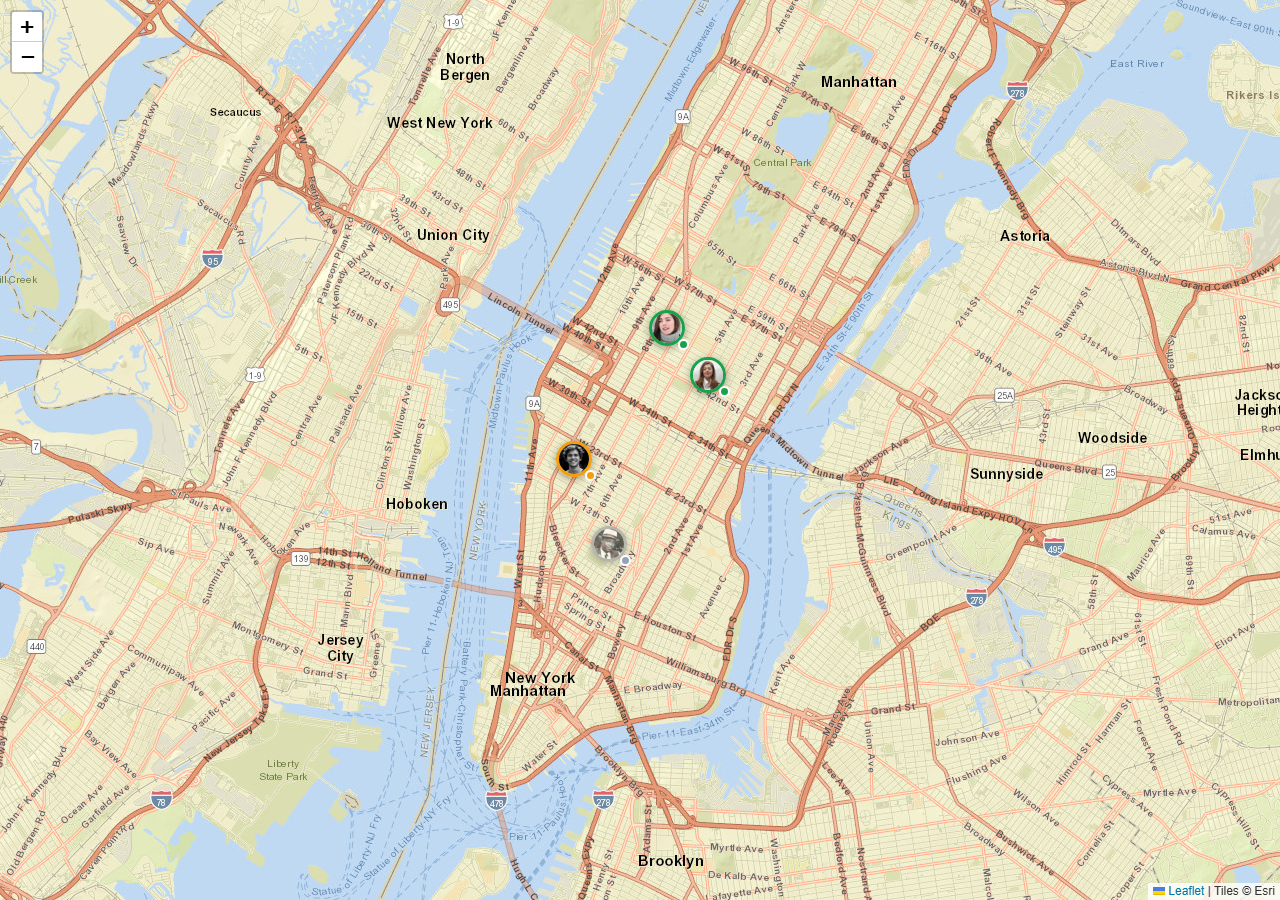
Leaflet's default marker is a single static image — fine for a plain location pin, useless for showing a person's avatar, an online/offline status, or anything that needs more than one visual layer. L.divIcon replaces the marker's image entirely with arbitrary HTML, and bindPopup accepts arbitrary HTML too — together they turn a Leaflet marker from a pin into a small interactive component.
divIcon renders real HTML as the marker, not the popup
The distinction matters: an L.Icon can only ever be one image URL. An L.divIcon renders whatever HTML string you give it — here, an avatar <img>, a colored ring driven by a status class, and a small dot badge layered with absolute positioning — directly as the marker on the map, before any popup is even opened.
iconAnchor and popupAnchor have to agree with the new shape
A default marker's classic teardrop shape has its "pointing" tip at a specific known offset, which Leaflet accounts for automatically. A custom divIcon is just a box, so iconAnchor (which point of the box sits on the actual coordinate) and popupAnchor (where the popup opens relative to that) both have to be set explicitly — get them wrong and the marker visually floats away from where it's actually pinned, or the popup opens overlapping the marker instead of above it.
The popup's button needs a listener bound on every open, not once
This is the detail that's easy to get wrong: Leaflet doesn't keep popup DOM permanently in the page — it constructs the popup's content fresh (or reuses a detached element) each time openPopup runs. A click listener attached once at page load, before the popup content exists in the DOM, would silently never fire. The fix is binding it inside a popupopen event handler, which runs exactly when the actual button element exists on the page.
Status drives both the marker ring and the popup badge from one field
Each person's status field is read twice — once to pick a CSS class for the marker's ring and dot color, once to pick the popup card's status label and badge color — so the two views can never show conflicting states for the same person.
Reusing it
This is the base pattern for any "live map of things with state" — delivery drivers, field technicians, IoT devices, online users — swap the avatar and status scheme for whatever your data actually represents; the divIcon/popup mechanics stay identical.
Build with AI
Build, Understand, Optimize, and Extend It With AI
You don't have to discover the popup-timing issue the hard way. Paste this snippet's HTML, CSS, and JS into an AI coding assistant like Claude and ask it to explain exactly why a click listener attached once at page load would silently fail to fire on a Leaflet popup's button, and why binding it inside a popupopen event handler fixes it. The same assistant can help optimize it — ask whether rebuilding each divIcon's full HTML string on every status change is efficient enough for a map with hundreds of live-updating markers, or whether toggling a CSS class on an existing element would be cheaper. It's also useful for extending the effect: ask it to add marker clustering for a larger dataset, a live-updating position (say, from a WebSocket) that smoothly animates the marker to its new location, or a filter that shows only markers matching a selected status. Treat the code less like a finished artifact and more like a starting point for a conversation.
Prompt to recreate it
Copy this into your AI assistant of choice to build the effect from scratch, or as a jumping-off point for your own variant:
Build a Leaflet map with custom HTML markers showing an avatar photo and a live status indicator, plus rich interactive popups, using Leaflet.js (load Leaflet's CSS and JS from a CDN, no other library), in plain HTML, CSS, and JavaScript.

Requirements:
- Maintain an array of person objects, each with a name, a role, a status (e.g. online, busy, offline), an avatar image URL, and latitude/longitude coordinates.
- Render each person as a custom HTML-based marker (not the library's default image-based marker) showing their avatar photo inside a colored ring plus a small status dot badge, where the ring and dot color both depend on that person's status field.
- Set the custom marker's anchor points correctly so it visually sits on the correct coordinate and its popup opens in the correct position relative to it, since a custom HTML marker does not have the same built-in anchor point as the library's default pin shape.
- Bind each marker to a popup showing a richer HTML card: the person's name, role, a status badge matching the marker's status color and a human-readable label, and a real clickable button.
- Make the popup's button actually interactive — clicking it should change its own text to a confirmation and disable it — and ensure this works reliably by binding the click listener at the correct point in the popup's lifecycle (when its content is actually present in the DOM), not once at page load before the popup has ever been opened.
- Use free OpenStreetMap tile layers so the demo requires no API key.
Want to tighten it up first? Run this prompt through the AI Prompt Studio to score it across 8 quality dimensions, catch anti-patterns, and tune the wording for Claude, ChatGPT, or Gemini before you paste it in.
Source Code
<div class="hm-map" id="hmMap"></div>*{box-sizing:border-box;margin:0;padding:0}
body{font-family:system-ui,-apple-system,sans-serif}
.hm-map{width:100%;height:100vh;min-height:480px}
/* The div icon itself -- a small avatar pin with a category-colored ring
and a live/offline dot, none of which a default Leaflet marker can show. */
.hm-pin{width:40px;height:40px;position:relative}
.hm-pin-avatar{width:36px;height:36px;border-radius:50%;object-fit:cover;border:3px solid #fff;box-shadow:0 2px 8px rgba(0,0,0,.35);display:block}
.hm-pin.online .hm-pin-avatar{border-color:#16a34a}
.hm-pin.busy .hm-pin-avatar{border-color:#f59e0b}
.hm-pin.offline .hm-pin-avatar{border-color:#94a3b8;filter:grayscale(1);opacity:.7}
.hm-pin-dot{position:absolute;bottom:0;right:0;width:11px;height:11px;border-radius:50%;border:2px solid #fff}
.hm-pin.online .hm-pin-dot{background:#16a34a}
.hm-pin.busy .hm-pin-dot{background:#f59e0b}
.hm-pin.offline .hm-pin-dot{background:#94a3b8}
/* The popup's inner content -- fully custom HTML, not the plain-text default. */
.hm-card{width:200px;font-family:inherit}
.hm-card-name{font-size:14px;font-weight:800;color:#0f172a}
.hm-card-role{font-size:11.5px;color:#94a3b8;margin-bottom:8px}
.hm-card-status{display:inline-flex;align-items:center;gap:5px;font-size:11px;font-weight:700;padding:3px 8px;border-radius:99px;margin-bottom:8px}
.hm-card-status.online{background:#e8f7ee;color:#16a34a}
.hm-card-status.busy{background:#fdf3e3;color:#b45309}
.hm-card-status.offline{background:#f1f5f9;color:#64748b}
.hm-card-btn{width:100%;padding:7px;border:none;border-radius:7px;background:#6366f1;color:#fff;font:700 12px system-ui;cursor:pointer}
.hm-card-btn:hover{background:#5457e5}
.leaflet-popup-content-wrapper{border-radius:12px}
.leaflet-popup-content{margin:12px}var PEOPLE = [
{ name: 'Ada Chen', role: 'Field Technician', status: 'online', lat: 40.758, lng: -73.985, avatar: 'https://i.pravatar.cc/80?img=5' },
{ name: 'Marco Reyes', role: 'Driver', status: 'busy', lat: 40.741, lng: -74.001, avatar: 'https://i.pravatar.cc/80?img=12' },
{ name: 'Priya Nair', role: 'Inspector', status: 'online', lat: 40.752, lng: -73.978, avatar: 'https://i.pravatar.cc/80?img=32' },
{ name: 'Tom Baker', role: 'Support Lead', status: 'offline', lat: 40.730, lng: -73.995, avatar: 'https://i.pravatar.cc/80?img=51' },
];
var map = L.map('hmMap').setView([40.745, -73.99], 13);
L.tileLayer('https://server.arcgisonline.com/ArcGIS/rest/services/World_Street_Map/MapServer/tile/{z}/{y}/{x}', {
attribution: 'Tiles © Esri',
maxZoom: 19,
}).addTo(map);
// L.divIcon renders arbitrary HTML as the marker itself -- not just the
// popup -- which is what makes an avatar photo with a status ring and dot
// possible. A default L.Icon can only ever be a single static image.
function pinFor(person) {
return L.divIcon({
className: '',
html: '<div class="hm-pin ' + person.status + '">' +
'<img class="hm-pin-avatar" src="' + person.avatar + '" alt="">' +
'<span class="hm-pin-dot"></span></div>',
iconSize: [40, 40],
iconAnchor: [20, 40],
popupAnchor: [0, -38],
});
}
function cardFor(person) {
var statusLabel = person.status === 'online' ? 'Online now' : person.status === 'busy' ? 'On a job' : 'Offline';
return '<div class="hm-card">' +
'<div class="hm-card-name">' + person.name + '</div>' +
'<div class="hm-card-role">' + person.role + '</div>' +
'<div class="hm-card-status ' + person.status + '">' + statusLabel + '</div>' +
'<button class="hm-card-btn" type="button">Message ' + person.name.split(' ')[0] + '</button>' +
'</div>';
}
PEOPLE.forEach(function (person) {
var marker = L.marker([person.lat, person.lng], { icon: pinFor(person) }).addTo(map);
marker.bindPopup(cardFor(person));
// The button inside the popup is real, event-bound HTML -- Leaflet
// detaches and reattaches popup content per open, so the listener has to
// be (re)bound every time the popup actually opens, not once at page load.
marker.on('popupopen', function (e) {
var btn = e.popup.getElement().querySelector('.hm-card-btn');
if (btn) {
btn.addEventListener('click', function () {
btn.textContent = 'Message sent \u2713';
btn.disabled = true;
});
}
});
});Step by step
How to Use
- 1Add the Leaflet CDNLoad leaflet.css and leaflet.js before the snippet's JS runs.
- 2Paste HTML, CSS, and JSFour avatar markers render with colored status rings.
- 3Click a markerA rich popup card opens with name, role, and status.
- 4Click "Message" in the popupThe button updates to a sent confirmation and disables.
- 5Compare the status colorsGreen online, amber busy, gray offline on both marker and card.
- 6Zoom or panCustom markers behave exactly like normal Leaflet markers.
Real-world uses
Common Use Cases
Got questions?
Frequently Asked Questions
Leaflet's default marker uses L.Icon, which can only display a single static image at a fixed size. L.divIcon instead accepts an arbitrary HTML string as the marker's content, which is what makes layering an avatar photo, a colored status ring, and a small badge dot possible — none of that is achievable with a plain image-based icon.
Leaflet's built-in teardrop-shaped marker has a known, fixed point where it "touches down" on the map, which the library accounts for automatically. A custom divIcon is just a rectangular HTML box with no inherent anchor point, so you have to specify iconAnchor (which pixel of that box sits on the real coordinate) and popupAnchor (where the popup should open relative to that) yourself, or the marker will appear offset from its real position.
Leaflet doesn't keep every popup's DOM permanently rendered on the page — it builds or reuses the popup's content specifically when openPopup runs, which for a marker means when the user clicks it. A listener attached before that moment is binding to an element that doesn't exist in the document yet. Binding the listener inside a popupopen event handler instead runs the binding code at the exact moment the real button element is in the DOM.
Read the status value from the same data object in both places — the pinFor function reads person.status to pick the marker's CSS class, and cardFor reads the same person.status to pick the popup's badge color and label. Because both functions read from one shared object rather than two separately maintained values, they can never disagree about a given person's current status.
Build the divIcon's HTML string (or use a library-specific Leaflet wrapper's marker-content API) from your framework's own templating, keep status and other live data in component state, and re-create or update the icon when that state changes. Bind popup interactivity the same way — inside a popupopen handler — since the underlying DOM timing issue exists regardless of framework.