

Learn Coding Visually
Learn to code with interactive, live-preview playgrounds — HTML, CSS, JavaScript, React & more.
 HTML Playground42 lessons · Click-based · Live preview
 CSS PlaygroundLearn CSS with a live editor
 JavaScript Playground60 lessons · DOM · Async · Canvas
 React PlaygroundLearn React with a live code editor
 GSAP PlaygroundLearn GSAP animation interactively
 SVG Playground44 lessons · shapes · paths · animation
 SCSS Playground45 lessons · Sass modules · tokens
 Tailwind PlaygroundLearn Tailwind CSS with a live editor
 Bootstrap 5 Playground50 lessons · live preview
Flatpickr Date Range with Presets — Free HTML CSS JS Snippet
Flatpickr Date Range with Presets · Forms · Plain HTML, CSS & JS · Live preview
What's included
Features
About this UI Snippet
Flatpickr Date Range with Presets — Presets That Actually Set the Calendar
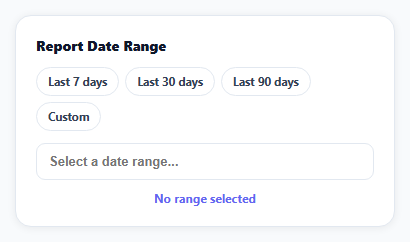
A "Last 7 days" button that only updates some summary text — without moving the actual calendar's selected range — is a trap: the moment someone opens the calendar to double-check or extend the range, it shows something inconsistent with what the button claimed. This snippet's presets drive Flatpickr's real internal selection through its own API, so there's only ever one source of truth for what range is selected.
mode: 'range' turns two clicks into one connected selection
Flatpickr's range mode changes click behavior: the first click sets a start date, the second sets an end date, and every date in between renders with an inRange class automatically — no manual date-comparison logic needed to determine which days fall inside the selected span.
Presets call setDate, not just a text update
Clicking "Last 7 days" computes real start/end Date objects and calls fp.setDate([start, end], true) — the second argument tells Flatpickr to also fire its onChange callback as if the user had picked those dates directly. That's what keeps the input's displayed text, the calendar's internal selection, and the summary line all in agreement; a version that only updated the summary text would silently drift from the calendar's real state the moment anyone opened it.
Both preset dates are zeroed to midnight, deliberately
maxDate: 'today' resolves internally to today at 00:00:00, but new Date() carries the current time of day — call end.setHours(0, 0, 0, 0) and skip that step, and an end date built from new Date() at, say, 2:30 PM compares as *after* that midnight cutoff and gets silently rejected, leaving only the start date selected with no error. Zeroing both start and end to midnight before calling setDate is what keeps every preset's end date valid against maxDate every time, regardless of what time of day the button happens to be clicked.
"Custom" clears state deliberately, presets don't fight each other
Clicking "Custom" calls fp.clear() and opens the calendar for a fresh manual pick — starting from a clean slate rather than leaving a stale preset range half-visible underneath. Conversely, manually opening the calendar and picking dates (without touching a preset button) triggers an onOpen hook that deactivates whichever preset button was highlighted, since a hand-picked range shouldn't visually claim to be "Last 30 days" once it no longer matches.
The active preset button reflects real, not assumed, state
setActivePreset is the single function that moves the .active class, called both after a preset click and after the calendar opens for manual editing — so the highlighted button and the actual selected range can't drift apart from two different code paths managing the same visual state independently.
Reusing it
Swap the day counts (7/30/90) for whatever ranges your report or filter actually needs — quarters, a fiscal year, "month to date" — the setDate + onChange wiring stays identical since it only depends on computing two Date objects.
Build with AI
Build, Understand, Optimize, and Extend It With AI
You don't have to work out how to keep preset buttons and a real calendar selection in sync. Paste this snippet's HTML, CSS, and JS into an AI coding assistant like Claude and ask it to explain exactly why calling setDate with the fireChangeEvent flag set to true is necessary for a preset button to produce the same state as a manual selection, rather than just updating the visible input text. The same assistant can help optimize it — ask whether the onOpen-based logic for deselecting the active preset button correctly handles every case, such as opening the calendar without changing the selection at all. It's also useful for extending the effect: ask it to add a "compare to previous period" toggle that also selects the equivalent prior range, persist the selected range in the URL query string, or add month/quarter presets alongside the day-count ones. Treat the code less like a finished artifact and more like a starting point for a conversation.
Prompt to recreate it
Copy this into your AI assistant of choice to build the effect from scratch, or as a jumping-off point for your own variant:
Build a date-range input with quick preset buttons using the Flatpickr library's range selection mode (load Flatpickr's CSS and JS from a CDN, no other library), in plain HTML, CSS, and JavaScript.

Requirements:
- Render a text input that opens a calendar configured for range selection (clicking two dates selects a start and end date, with every date in between visually highlighted as part of the range), with a maximum selectable date of today.
- Add preset buttons above the input for common ranges (for example Last 7 days, Last 30 days, Last 90 days) plus a Custom option.
- Clicking a preset button must compute the correct start and end dates for that range and apply them to the actual calendar's selection state (not just display matching text elsewhere on the page), so that opening the calendar afterward shows the real, correctly highlighted range that matches the preset that was clicked.
- Clicking the Custom button should clear any existing selection and open the calendar for the user to manually pick a new range from a clean state.
- Visually mark whichever preset button (if any) matches the currently active selection as active/selected, and remove that active state automatically if the user manually opens the calendar to pick a different range that no longer corresponds to any preset.
- Display a summary below the input showing the selected start date, end date, and the total number of days in the range once both dates are chosen.
Want to tighten it up first? Run this prompt through the AI Prompt Studio to score it across 8 quality dimensions, catch anti-patterns, and tune the wording for Claude, ChatGPT, or Gemini before you paste it in.
Source Code
<div class="dr-wrap">
  <div class="dr-card">
    <div class="dr-title">Report Date Range</div>
    <div class="dr-presets" id="drPresets">
      <button type="button" data-days="7">Last 7 days</button>
      <button type="button" data-days="30">Last 30 days</button>
      <button type="button" data-days="90">Last 90 days</button>
      <button type="button" data-days="custom">Custom</button>
    </div>
    <input type="text" id="drInput" class="dr-input" placeholder="Select a date range...">
    <div class="dr-summary" id="drSummary">No range selected</div>
  </div>
</div>*{box-sizing:border-box;margin:0;padding:0}
body{font-family:system-ui,-apple-system,sans-serif;background:#f8fafc;min-height:100vh;display:flex;align-items:center;justify-content:center;padding:24px}
.dr-wrap{width:100%;max-width:380px}
.dr-card{background:#fff;border-radius:16px;padding:20px;box-shadow:0 1px 8px rgba(0,0,0,.07);border:1px solid #e2e8f0}
.dr-title{font-size:14px;font-weight:800;color:#0f172a;margin-bottom:12px}
.dr-presets{display:flex;gap:6px;flex-wrap:wrap;margin-bottom:12px}
.dr-presets button{padding:6px 11px;border-radius:99px;border:1.5px solid #e2e8f0;background:#fff;color:#334155;font:700 11.5px system-ui;cursor:pointer}
.dr-presets button.active{border-color:#6366f1;background:#eef2ff;color:#4338ca}
.dr-presets button:hover:not(.active){background:#f8fafc}
.dr-input{width:100%;padding:10px 12px;border:1.5px solid #e2e8f0;border-radius:9px;font-size:13px;color:#0f172a;font-weight:600;outline:none;cursor:pointer}
.dr-input:focus{border-color:#6366f1}
.dr-summary{margin-top:10px;font-size:12px;color:#6366f1;font-weight:700;text-align:center}
.flatpickr-day.inRange{background:#eef2ff!important;border-color:#eef2ff!important;box-shadow:-5px 0 0 #eef2ff,5px 0 0 #eef2ff!important}
.flatpickr-day.startRange,.flatpickr-day.endRange{background:#6366f1!important;border-color:#6366f1!important;color:#fff!important}var input = document.getElementById('drInput');
var summary = document.getElementById('drSummary');
var presetsWrap = document.getElementById('drPresets');
var customBtn = presetsWrap.querySelector('[data-days="custom"]');
function fmt(d) { return d.toLocaleDateString('en-US', { month: 'short', day: 'numeric' }); }
var fp = flatpickr(input, {
mode: 'range',
dateFormat: 'M j, Y',
maxDate: 'today',
onChange: function (selectedDates) {
if (selectedDates.length === 2) {
var days = Math.round((selectedDates[1] - selectedDates[0]) / 86400000) + 1;
summary.textContent = fmt(selectedDates[0]) + ' \u2192 ' + fmt(selectedDates[1]) + ' (' + days + ' days)';
}
},
});
function setActivePreset(btn) {
presetsWrap.querySelectorAll('button').forEach(function (b) { b.classList.remove('active'); });
if (btn) btn.classList.add('active');
}
presetsWrap.querySelectorAll('button[data-days]').forEach(function (btn) {
btn.addEventListener('click', function () {
var days = btn.getAttribute('data-days');
if (days === 'custom') {
setActivePreset(btn);
fp.clear();
summary.textContent = 'Pick a custom range below';
fp.open();
return;
}
// A preset click sets flatpickr's OWN selected range via setDate, so the
// calendar UI, the input text, and the summary all agree -- clicking
// "Last 7 days" and then opening the calendar shows the real 7-day
// range highlighted, not just a summary text that happens to match.
// Both dates are zeroed to midnight -- maxDate: 'today' resolves to
// today at 00:00:00, and an "end" Date carrying the current time-of-day
// would compare as AFTER that cutoff and get silently rejected, leaving
// only the start date selected.
var end = new Date();
end.setHours(0, 0, 0, 0);
var start = new Date(end);
start.setDate(end.getDate() - (Number(days) - 1));
fp.setDate([start, end], true);
setActivePreset(btn);
});
});
// Manually opening the calendar and picking a custom range should deselect
// whichever preset button was active, since the range no longer necessarily
// matches any preset.
fp.config.onOpen.push(function () {
if (document.activeElement !== customBtn) setActivePreset(null);
});Step by step
How to Use
- 1Add the Flatpickr CDNLoad flatpickr.min.css and flatpickr.min.js before the snippet's JS runs.
- 2Paste HTML, CSS, and JSA date input renders with four preset buttons above it.
- 3Click "Last 7 days"The input fills in and the summary shows the exact range.
- 4Open the calendarThe real 7-day span is highlighted, matching the summary.
- 5Click "Custom"The range clears and the calendar opens for manual picking.
- 6Pick two dates manuallyThe active preset button deselects since it no longer matches.
Real-world uses
Common Use Cases
Got questions?
Frequently Asked Questions
Calling fp.setDate([start, end], true) updates Flatpickr's actual internal selection state, its calendar UI highlighting, and its input field text all at once — the true second argument also fires the same onChange callback a manual selection would trigger. If the preset only updated the summary text directly, the calendar's own state would silently disagree the moment anyone opened it to inspect or adjust the range.
Setting mode: 'range' changes Flatpickr's click handling so the first click records a start date and the second records an end date, and Flatpickr itself applies an inRange CSS class to every date falling between them at render time. No application code has to compare dates to figure out which days count as "in range" — that logic is entirely internal to range mode.
fp.clear() resets the current selection before opening the calendar for a manual pick, so the user starts with a genuinely empty range instead of one preset's dates still highlighted while they try to select a different, unrelated range. Without clearing first, the previous preset's range could visually linger and be confusing to build on top of.
A function is registered on Flatpickr's onOpen hook that removes the active class from whatever preset button is currently highlighted whenever the calendar is opened for manual interaction. This prevents a stale visual claim — like a "Last 30 days" button staying highlighted — from persisting once the user has manually changed the selection to a range that no longer matches that preset.
Add a new button with a data-days attribute (or a custom identifier for a non-day-count range like "This quarter"), and extend the click handler's logic to compute the appropriate start and end Date objects for that preset before calling fp.setDate([start, end], true) exactly as the existing presets do. The active-button and range-highlighting logic works unchanged for any additional preset.
This happens if the end date isn't zeroed to midnight before calling setDate. maxDate: 'today' resolves internally to today at 00:00:00, but a plain new Date() carries whatever time it currently is — if that's any time after midnight (which it always is), the end date compares as later than maxDate and Flatpickr silently rejects it, leaving only the start date selected with no visible error. Calling setHours(0, 0, 0, 0) on both dates before setDate is what avoids this.