Learn Coding Visually
Learn to code with interactive, live-preview playgrounds — HTML, CSS, JavaScript, React & more.
 HTML Playground42 lessons · Click-based · Live preview
 CSS PlaygroundLearn CSS with a live editor
 JavaScript Playground60 lessons · DOM · Async · Canvas
 React PlaygroundLearn React with a live code editor
 GSAP PlaygroundLearn GSAP animation interactively
 SVG Playground44 lessons · shapes · paths · animation
 SCSS Playground45 lessons · Sass modules · tokens
 Tailwind PlaygroundLearn Tailwind CSS with a live editor
 Bootstrap 5 Playground50 lessons · live preview
FullCalendar Drag-to-Reschedule Week View — Free HTML CSS JS Snippet
FullCalendar Drag-to-Reschedule Week View · Dashboards · Plain HTML, CSS & JS · Live preview
What's included
Features
About this UI Snippet
FullCalendar Drag-to-Reschedule Week View — Two Distinct Drag Gestures, Two Distinct Hooks
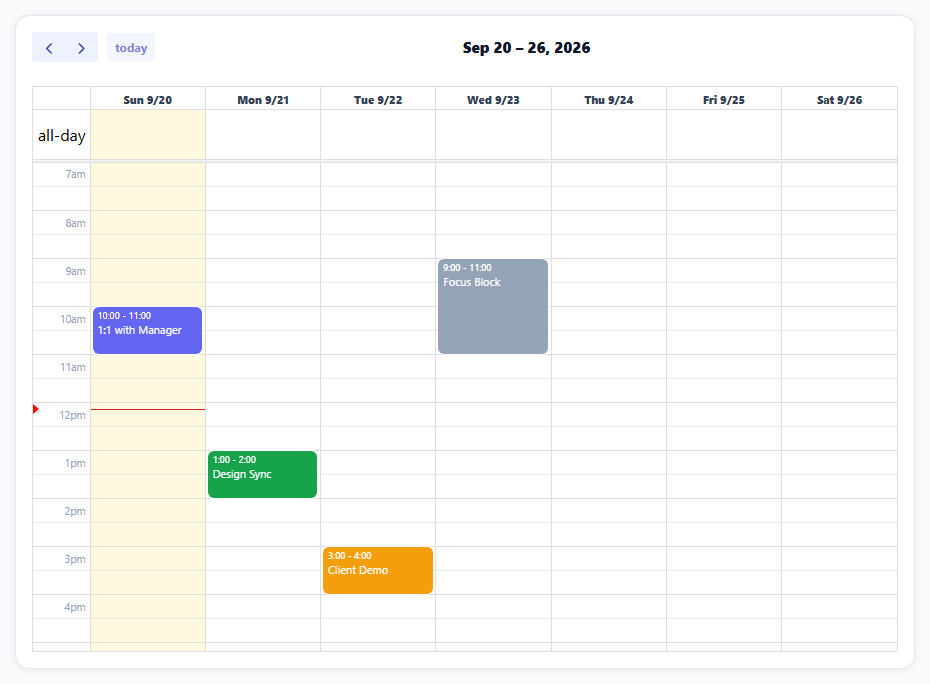
A calendar someone can actually use for planning their week needs drag-and-drop rescheduling, not just a read-only grid — and FullCalendar draws a real distinction between two different drag gestures that a casual glance might treat as one: moving an event to a new time slot, and resizing an event's duration by dragging its edge. Handling them correctly means using the two separate hooks FullCalendar provides for each.
editable and eventDurationEditable turn on two different gestures
editable: true is what makes events draggable to a new day or time at all. eventDurationEditable: true is a separate flag that additionally lets a user grab an event's bottom edge and drag it to change how long the event lasts. Both are on here, but a calendar that only wants rescheduling without duration changes would set the first without the second.
eventDrop and eventResize are genuinely different callbacks
Moving an event (dragging its body to a new slot) fires eventDrop; changing its duration (dragging an edge) fires the separate eventResize callback. Treating them as one event would miss the actual distinction a user is making — "I want this at a different time" versus "I want this to run longer or shorter" — and this snippet's two handlers report each with different, contextually correct messages (a new time for a move, a new duration for a resize).
FullCalendar has already performed the change by the time the hook fires
Both eventDrop and eventResize fire *after* FullCalendar has already updated its internal event model and the visible grid — the handler's job is only to read info.event's new start/end and react (here, showing a toast), not to calculate or apply the move itself. This is what makes the handlers this short: there's no manual date-math or DOM update to perform.
The toast reuses one show function with a reset timer
showToast clears any existing hide timer before starting a new one on every call — dragging a second event while the first toast is still visible correctly restarts the 2.6-second display window instead of the first timer prematurely hiding the second toast's message mid-display.
Reusing it
Both handlers receive real Date objects on info.event, which is exactly what you'd PATCH back to a real scheduling API — swap the showToast calls for an actual save request, and optionally use info.revert() (available on both callbacks) to roll back the drag visually if that save request fails.
Build with AI
Build, Understand, Optimize, and Extend It With AI
You don't have to work out the difference between FullCalendar's drag interactions by trial and error. Paste this snippet's HTML, CSS, and JS into an AI coding assistant like Claude and ask it to explain exactly why eventDrop and eventResize are separate callbacks representing different user gestures, and why neither handler needs to perform any date calculation since FullCalendar has already applied the change to its internal model before either fires. The same assistant can help optimize it — ask whether the toast notification pattern is the best feedback mechanism here, or whether a real production version should instead show a pending/saving state while an actual API call is in flight, with revert() as the failure path. It's also useful for extending the effect: ask it to persist rescheduled events to a real backend with a revert-on-failure pattern, add a confirmation dialog before allowing a move that would create a scheduling conflict, or restrict which days/times events can be dragged into using FullCalendar's constraint options. Treat the code less like a finished artifact and more like a starting point for a conversation.
Prompt to recreate it
Copy this into your AI assistant of choice to build the effect from scratch, or as a jumping-off point for your own variant:
Build a draggable, resizable week-view calendar using the FullCalendar library (load FullCalendar's global bundle from a CDN, no other library), in plain HTML, CSS, and JavaScript.

Requirements:
- Render a time-grid week view with several sample events at different times across different days, restricted to a reasonable visible time range (for example 7 AM to 8 PM), with a live indicator line showing the current time.
- Enable dragging events to a different day or time slot, and separately enable resizing an event's duration by dragging its edge — these are two distinct interactions and must be enabled independently.
- Handle the event-moved case and the event-resized case with two separate callback functions (not one combined handler), since the calendar library fires distinct events for each interaction. Do not manually recalculate or reapply the event's new start/end time in either handler — the library will have already updated its internal state and the visible grid by the time your handler runs; your handler should only read and react to the already-updated result.
- On a successful move, show a temporary toast notification confirming the event's new day and time. On a successful resize, show a toast confirming the event's new duration in minutes.
- Make the toast notification's dismiss timer reset properly if a second action happens while an earlier toast is still visible, so a rapid second action doesn't cut off the first toast's display time or leave the toast in a broken state.
Want to tighten it up first? Run this prompt through the AI Prompt Studio to score it across 8 quality dimensions, catch anti-patterns, and tune the wording for Claude, ChatGPT, or Gemini before you paste it in.
Source Code
<div class="dw-wrap">
  <div class="dw-toast" id="dwToast"></div>
  <div id="dwCal"></div>
</div>*{box-sizing:border-box;margin:0;padding:0}
body{font-family:system-ui,-apple-system,sans-serif;background:#f8fafc;padding:20px}
.dw-wrap{max-width:900px;margin:0 auto;background:#fff;border-radius:14px;padding:16px;box-shadow:0 1px 8px rgba(0,0,0,.07);border:1px solid #e2e8f0;position:relative}
#dwCal .fc-toolbar-title{font-size:15px!important;font-weight:800;color:#0f172a}
#dwCal .fc-button{background:#eef2ff!important;border:none!important;color:#4338ca!important;font-weight:700!important;text-transform:none!important;box-shadow:none!important;font-size:12px!important}
#dwCal .fc-button:hover{background:#e0e4ff!important}
#dwCal .fc-timegrid-slot-label{font-size:10.5px;color:#94a3b8}
#dwCal .fc-col-header-cell-cushion{font-size:11px;color:#334155;font-weight:800}
#dwCal .fc-event{border:none;border-radius:6px;font-size:11px;padding:1px 4px}
#dwCal .fc-timegrid-now-indicator-line{border-color:#dc2626}
.dw-toast{position:absolute;top:14px;right:14px;background:#0f172a;color:#fff;font:700 12px system-ui;padding:9px 14px;border-radius:9px;opacity:0;transform:translateY(-8px);transition:opacity .25s,transform .25s;pointer-events:none;z-index:10;max-width:260px}
.dw-toast.show{opacity:1;transform:translateY(0)}function atHour(dayOffset, hour, minute) {
var d = new Date();
d.setDate(d.getDate() + dayOffset);
d.setHours(hour, minute || 0, 0, 0);
return d;
}
var EVENTS = [
{ id: '1', title: '1:1 with Manager', start: atHour(0, 10), end: atHour(0, 10.5 * 1), color: '#6366f1' },
{ id: '2', title: 'Design Sync', start: atHour(1, 13), end: atHour(1, 14), color: '#16a34a' },
{ id: '3', title: 'Client Demo', start: atHour(2, 15), end: atHour(2, 16), color: '#f59e0b' },
{ id: '4', title: 'Focus Block', start: atHour(3, 9), end: atHour(3, 11), color: '#94a3b8' },
];
// Fix the 10.5-hour math above into real minutes (avoids float hour edge cases).
EVENTS[0].end = atHour(0, 11, 0);
var toast = document.getElementById('dwToast');
var toastTimer = null;
function showToast(msg) {
toast.textContent = msg;
toast.classList.add('show');
clearTimeout(toastTimer);
toastTimer = setTimeout(function () { toast.classList.remove('show'); }, 2600);
}
function describeMove(event) {
var opts = { weekday: 'short', hour: 'numeric', minute: '2-digit' };
return event.title + ' moved to ' + event.start.toLocaleString('en-US', opts);
}
var calendar = new FullCalendar.Calendar(document.getElementById('dwCal'), {
initialView: 'timeGridWeek',
height: 620,
nowIndicator: true,
headerToolbar: { left: 'prev,next today', center: 'title', right: '' },
slotMinTime: '07:00:00',
slotMaxTime: '20:00:00',
editable: true,
eventDurationEditable: true,
events: EVENTS,
// eventDrop fires after FullCalendar has ALREADY moved the event and
// updated its internal model -- this handler only has to read the result
// and report it, not perform the move itself.
eventDrop: function (info) {
showToast(describeMove(info.event));
},
// eventResize is the separate hook for a duration change via dragging an
// edge -- distinct from eventDrop, which only fires for a full move.
eventResize: function (info) {
var mins = Math.round((info.event.end - info.event.start) / 60000);
showToast(info.event.title + ' resized to ' + mins + ' min');
},
});
calendar.render();Step by step
How to Use
- 1Add the FullCalendar CDNLoad the FullCalendar global bundle before the snippet's JS runs.
- 2Paste HTML, CSS, and JSA week time-grid renders with four sample events.
- 3Drag an event to a new timeIt moves and a toast confirms the new time.
- 4Drag an event's bottom edgeIts duration changes and a toast confirms the new length.
- 5Try both quickly in a rowEach toast gets its own full 2.6-second display window.
- 6Navigate weeksUse Prev/Next/Today in the toolbar.
Real-world uses
Common Use Cases
Got questions?
Frequently Asked Questions
editable: true is the option that allows an event to be dragged to a different day or time slot at all. eventDurationEditable: true is a separate, independent option that additionally allows a user to grab an event's edge and drag it to change how long the event lasts. A calendar could enable one without the other — for example, allowing rescheduling but not letting events be lengthened or shortened.
They represent two genuinely different user actions: eventDrop fires when an event is moved to a different time slot (dragging its body), while eventResize fires when an event's duration is changed (dragging one of its edges). Keeping them as distinct callbacks lets each one respond with contextually appropriate feedback — reporting a new time for a move versus a new duration for a resize — rather than having to inspect the event afterward to guess which kind of change actually happened.
No — by the time eventDrop (or eventResize) fires, FullCalendar has already updated its internal event data and the visible calendar grid to reflect the new time or duration. The handler's job is only to read the already-updated info.event object and react to the change (such as showing a confirmation or saving it to a backend), not to calculate or apply the move itself.
Inside eventDrop or eventResize, send info.event.start (and info.event.end for a resize) to your scheduling API, using info.event.id to identify which event changed. If the save request fails, call info.revert() — provided on both callback's info object — to visually roll the calendar back to the event's previous position, since FullCalendar has already applied the change optimistically in the UI.
Without clearing the previous timer first, dragging a second event while an earlier toast is still visible would start a second hide-timer alongside the first, and whichever fires first would hide the toast — potentially cutting off the second message's display time. Calling clearTimeout on the stored timer reference before starting a new one ensures each new toast always gets its own full, uninterrupted display duration.