Learn Coding Visually
Learn to code with interactive, live-preview playgrounds — HTML, CSS, JavaScript, React & more.
 HTML Playground42 lessons · Click-based · Live preview
 CSS PlaygroundLearn CSS with a live editor
 JavaScript Playground60 lessons · DOM · Async · Canvas
 React PlaygroundLearn React with a live code editor
 GSAP PlaygroundLearn GSAP animation interactively
 SVG Playground44 lessons · shapes · paths · animation
 SCSS Playground45 lessons · Sass modules · tokens
 Tailwind PlaygroundLearn Tailwind CSS with a live editor
 Bootstrap 5 Playground50 lessons · live preview
FullCalendar Agenda List with Filters — Free HTML CSS JS Snippet
FullCalendar Agenda List with Filters · Dashboards · Plain HTML, CSS & JS · Live preview
What's included
Features
About this UI Snippet
FullCalendar Agenda List with Filters — Swapping the Source, Not Hiding Rows
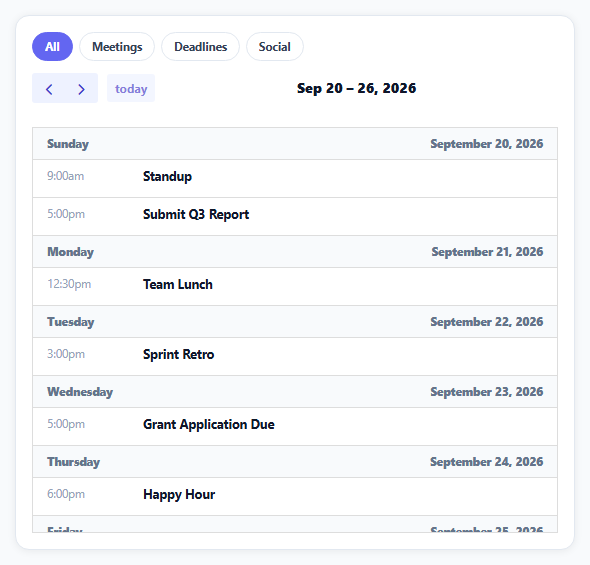
An agenda/list view groups events by day automatically — useful for a scannable upcoming-events feed, but it means filtering by category can't just hide and show individual <li>-style rows, because hiding rows would leave stale day headers behind for days whose only events just got filtered out. This snippet filters by replacing FullCalendar's entire event source instead, letting the library recompute everything correctly from scratch.
initialView: 'listWeek' groups by day automatically
FullCalendar's list view renders a day-header row for each date that has at least one event, followed by that day's events — this grouping-by-day behavior is built into the view type itself, not something this snippet's code constructs.
Filtering removes and re-adds the whole event source
Each filter chip's click handler calls calendar.removeAllEvents() followed by calendar.addEventSource(filtered) with a freshly-filtered array — rather than trying to individually hide DOM rows for non-matching events. That matters specifically for a grouped list view: if "Deadlines" filters out every event on a given day, that day's header row needs to disappear too, and recomputing the whole rendered list from a smaller dataset is what makes that happen correctly and automatically.
noEventsContent handles the all-filtered-out case natively
When a filter matches zero events, FullCalendar's list view has a documented behavior for showing a customizable empty-state message (noEventsContent) rather than rendering a blank white box — this snippet sets that message once at initialization, and it applies correctly no matter which filter produces zero results.
category lives in extendedProps, same pattern as the month-view modal
Like the month-view event-modal snippet elsewhere in this collection, the category used for filtering isn't one of FullCalendar's built-in event fields — it's a custom value stored in extendedProps at event-creation time, read back out by the filter's .filter() call on the original array.
The chip's active state is simple because there's only one filter dimension
With a single active category at a time, toggling .active is just "remove from all, add to the clicked one" — a multi-select filter (several categories active simultaneously) would need the filter predicate to check membership in a set rather than equality against one value, but the swap-the-event-source approach itself would still apply unchanged.
Reusing it
Swap the category filter for any other event attribute — priority, assignee, location — stored the same way in extendedProps, and the remove/re-add filtering pattern keeps working since it never depends on what the filter predicate actually checks.
Build with AI
Build, Understand, Optimize, and Extend It With AI
You don't have to work out how to filter a grouped list view correctly on your own. Paste this snippet's HTML, CSS, and JS into an AI coding assistant like Claude and ask it to explain exactly why removing all events and re-adding a filtered subset is more reliable for a day-grouped list view than hiding individual event rows with CSS, particularly regarding stale day headers. The same assistant can help optimize it — ask whether removeAllEvents/addEventSource causes any visible flicker on a large dataset, and whether there's a way to update the event source more surgically for better performance. It's also useful for extending the effect: ask it to support multiple simultaneously active category filters instead of just one, add a text search box that filters by title in addition to category, or persist the selected filter in the URL so a shared link preserves it. Treat the code less like a finished artifact and more like a starting point for a conversation.
Prompt to recreate it
Copy this into your AI assistant of choice to build the effect from scratch, or as a jumping-off point for your own variant:
Build a filterable agenda-style list calendar view using the FullCalendar library's list view (load FullCalendar's global bundle from a CDN, no other library), in plain HTML, CSS, and JavaScript.

Requirements:
- Define a list of sample events spanning about a week, each with a title, a start date/time, a color, and a category (such as meeting, deadline, or social) stored as custom event data rather than one of the library's built-in fields.
- Render the events using the library's list/agenda view, which should automatically group events under a header for each day that has at least one event.
- Render filter buttons/chips above the calendar for "All" plus each distinct category, with the currently active filter visually highlighted and only one filter active at a time.
- When a filter is clicked, update the calendar to show only events matching that category, implemented by fully removing the calendar's current events and adding back only the filtered subset (not by hiding individual event elements with CSS), so that day headers for dates with no remaining matching events are also correctly removed rather than left behind empty.
- Configure a custom message to display when the currently active filter matches zero events, using the list view's own built-in empty-state mechanism.
- Ensure that changing the filter does not reset which week or date range the calendar is currently displaying.
Want to tighten it up first? Run this prompt through the AI Prompt Studio to score it across 8 quality dimensions, catch anti-patterns, and tune the wording for Claude, ChatGPT, or Gemini before you paste it in.
Source Code
<div class="al-wrap">
  <div class="al-filters" id="alFilters">
    <button type="button" class="al-chip active" data-cat="all">All</button>
    <button type="button" class="al-chip" data-cat="meeting">Meetings</button>
    <button type="button" class="al-chip" data-cat="deadline">Deadlines</button>
    <button type="button" class="al-chip" data-cat="social">Social</button>
  </div>
  <div id="alCal"></div>
</div>*{box-sizing:border-box;margin:0;padding:0}
body{font-family:system-ui,-apple-system,sans-serif;background:#f8fafc;padding:20px}
.al-wrap{max-width:560px;margin:0 auto;background:#fff;border-radius:14px;padding:16px;box-shadow:0 1px 8px rgba(0,0,0,.07);border:1px solid #e2e8f0}
.al-filters{display:flex;gap:6px;margin-bottom:12px;flex-wrap:wrap}
.al-chip{padding:6px 12px;border-radius:99px;border:1.5px solid #e2e8f0;background:#fff;color:#334155;font:700 11.5px system-ui;cursor:pointer}
.al-chip.active{border-color:#6366f1;background:#6366f1;color:#fff}
.al-chip:hover:not(.active){background:#f8fafc}
#alCal .fc-toolbar-title{font-size:14px!important;font-weight:800;color:#0f172a}
#alCal .fc-button{background:#eef2ff!important;border:none!important;color:#4338ca!important;font-weight:700!important;text-transform:none!important;box-shadow:none!important;font-size:12px!important}
#alCal .fc-button:hover{background:#e0e4ff!important}
#alCal .fc-list-event-dot{border-color:transparent!important}
#alCal .fc-list-day-cushion{background:#f8fafc!important;font-size:11.5px;font-weight:800;color:#64748b}
#alCal .fc-list-event-title{font-size:12.5px;font-weight:700;color:#0f172a}
#alCal .fc-list-event-time{font-size:11.5px;color:#94a3b8}
#alCal .fc-list-empty{font-size:12.5px;color:#94a3b8;padding:24px 0}function dayOffset(n, h, m) {
var d = new Date();
d.setDate(d.getDate() + n);
d.setHours(h, m || 0, 0, 0);
return d;
}
var ALL_EVENTS = [
{ title: 'Standup', start: dayOffset(0, 9), color: '#6366f1', extendedProps: { category: 'meeting' } },
{ title: 'Submit Q3 Report', start: dayOffset(0, 17), color: '#dc2626', extendedProps: { category: 'deadline' } },
{ title: 'Team Lunch', start: dayOffset(1, 12, 30), color: '#f59e0b', extendedProps: { category: 'social' } },
{ title: 'Sprint Retro', start: dayOffset(2, 15), color: '#6366f1', extendedProps: { category: 'meeting' } },
{ title: 'Grant Application Due', start: dayOffset(3, 17), color: '#dc2626', extendedProps: { category: 'deadline' } },
{ title: 'Happy Hour', start: dayOffset(4, 18), color: '#f59e0b', extendedProps: { category: 'social' } },
{ title: 'Client Kickoff', start: dayOffset(5, 10), color: '#6366f1', extendedProps: { category: 'meeting' } },
];
var calendar = new FullCalendar.Calendar(document.getElementById('alCal'), {
initialView: 'listWeek',
height: 460,
headerToolbar: { left: 'prev,next today', center: 'title', right: '' },
noEventsContent: 'No events match this filter',
events: ALL_EVENTS,
});
calendar.render();
var filtersEl = document.getElementById('alFilters');
filtersEl.querySelectorAll('.al-chip').forEach(function (chip) {
chip.addEventListener('click', function () {
filtersEl.querySelectorAll('.al-chip').forEach(function (c) { c.classList.remove('active'); });
chip.classList.add('active');
var cat = chip.getAttribute('data-cat');
// Filtering by fully replacing the calendar's event source is simpler
// and more reliable than trying to show/hide already-rendered list
// rows -- FullCalendar's own list view recomputes its day groupings
// and empty-state message correctly every time from fresh data.
var filtered = cat === 'all' ? ALL_EVENTS : ALL_EVENTS.filter(function (e) { return e.extendedProps.category === cat; });
calendar.removeAllEvents();
calendar.addEventSource(filtered);
});
});Step by step
How to Use
- 1Add the FullCalendar CDNLoad the FullCalendar global bundle before the snippet's JS runs.
- 2Paste HTML, CSS, and JSA week agenda list renders, grouped by day, with filter chips above it.
- 3Click "Meetings"Only meeting events show, days with none disappear entirely.
- 4Click a filter with zero matches on some daysThose day headers vanish along with their events.
- 5Click "All"The full unfiltered agenda returns.
- 6Navigate weeksThe active filter stays applied across navigation.
Real-world uses
Common Use Cases
Got questions?
Frequently Asked Questions
The list view automatically groups events under a day-header row for each date that has at least one event. If a filter hid individual event rows with CSS but left the underlying event data in place, a day whose only events got filtered out would still show its now-empty day header. Removing all events and adding back only the filtered set lets FullCalendar recompute the day grouping from scratch, so headers for days with zero matching events correctly disappear too.
FullCalendar's list view has a built-in noEventsContent option, set once when the calendar is initialized, that displays a custom message whenever there are no events to show in the current view. Because filtering works by fully replacing the event source, an empty filtered array correctly triggers this built-in empty state automatically — there's no separate empty-state check needed in the filter logic itself.
Category is stored in each event's extendedProps object at the point the sample events are defined — extendedProps is FullCalendar's designated place for any custom data beyond its built-in fields like title, start, and color. The filter's .filter() call reads e.extendedProps.category directly off the original array to decide which events belong in the current filtered set.
No — removeAllEvents() only clears the event data, not the calendar's current date range or view. Calling addEventSource() with the newly filtered events re-renders the list for whatever week is currently being viewed, so switching a filter while browsing a future week keeps that same week in view with the new filter applied.
Change the filter chips to toggle independently (each one adding or removing itself from a set of active categories) instead of only one being active at a time, and update the filter predicate to check whether an event's category is included in that set rather than strictly equal to one value. The underlying removeAllEvents/addEventSource swap pattern would apply completely unchanged.