Learn Coding Visually
Learn to code with interactive, live-preview playgrounds — HTML, CSS, JavaScript, React & more.
 HTML Playground42 lessons · Click-based · Live preview
 CSS PlaygroundLearn CSS with a live editor
 JavaScript Playground60 lessons · DOM · Async · Canvas
 React PlaygroundLearn React with a live code editor
 GSAP PlaygroundLearn GSAP animation interactively
 SVG Playground44 lessons · shapes · paths · animation
 SCSS Playground45 lessons · Sass modules · tokens
 Tailwind PlaygroundLearn Tailwind CSS with a live editor
 Bootstrap 5 Playground50 lessons · live preview
FullCalendar Resource Timeline (Rooms/Staff) — Free HTML CSS JS Snippet
FullCalendar Resource Timeline (Rooms/Staff) · Dashboards · Plain HTML, CSS & JS · Live preview
What's included
Features
About this UI Snippet
FullCalendar Resource Timeline — Two Axes, Not One
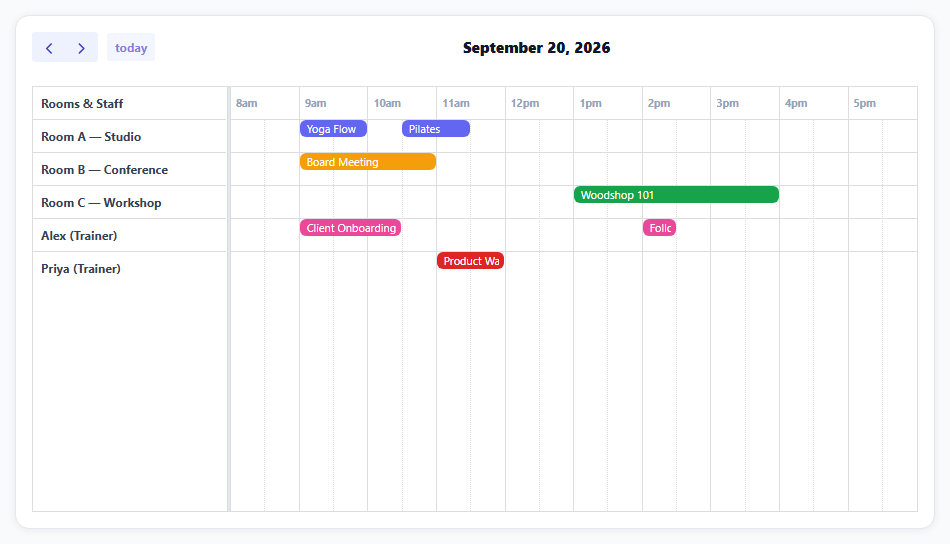
A regular calendar has one axis: time. A resource timeline — the view behind every room-booking system, staff scheduler, or equipment-reservation tool — has two: time across the top, and a set of independent rows (rooms, staff, equipment) down the side. Getting an event onto the right row isn't automatic; it needs a second FullCalendar plugin and one extra field per event.
Resources are a distinct concept from events
The resources array (rooms and staff, in this snippet) defines the timeline's rows, entirely separately from the events array that defines what's scheduled. This separation matters: a room with zero events booked still shows up as an empty row, and adding a new room means adding one resource object — no event data has to change.
resourceId is the field that actually places an event on its row
Every event here carries a resourceId alongside its normal start/end — that's the one additional field beyond a standard FullCalendar event that a *resource* timeline specifically requires. Without it, FullCalendar has no way to know Room A's yoga class belongs on Room A's row rather than Room B's or nowhere at all.
Three separate plugin bundles, loaded in a specific order
Resource views aren't part of FullCalendar's core bundle — they're part of the Scheduler suite (resource, resource-timeline, resource-daygrid, resource-timegrid, and timeline plugins together), which for CDN/global usage ships as one combined script under the separate fullcalendar-scheduler package rather than as individually-loaded plugin files. That single script already includes the core, so no other FullCalendar script tag is needed alongside it. Skip it and resourceTimelineDay simply isn't a recognized view.
getResources() is how a click handler finds which row an event belongs to
info.event.getResources() returns the array of resource objects (usually just one) that a clicked event is assigned to — the correct way to answer "which room was this?" from inside a click handler, rather than trying to cross-reference the event's resourceId back against the RESOURCES array by hand.
Reusing it
Swap rooms and trainers for any other resource type — vehicles, equipment, support agents, hotel rooms — the two-array structure (resources for rows, events with resourceId for bookings) and the click-handling pattern stay identical.
Build with AI
Build, Understand, Optimize, and Extend It With AI
You don't have to work out the resource-versus-event data model split on your own. Paste this snippet's HTML, CSS, and JS into an AI coding assistant like Claude and ask it to explain exactly how the resources array defines the timeline's rows independently of the events array, and why each event's resourceId field is what actually places it on the correct row rather than its start and end time alone. The same assistant can help optimize it — ask whether the combined fullcalendar-scheduler bundle is the right choice if the project only ever needs this one view, versus a bundler-based setup importing only the specific plugins actually used. It's also useful for extending the effect: ask it to make events draggable between resource rows (reassigning a booking to a different room by dragging it), add a resource grouping feature (grouping rooms by floor, or staff by department), or fetch both resources and events from a real backend API. Treat the code less like a finished artifact and more like a starting point for a conversation.
Prompt to recreate it
Copy this into your AI assistant of choice to build the effect from scratch, or as a jumping-off point for your own variant:
Build a resource timeline calendar (rooms and staff schedules shown as rows against a shared time axis) using the FullCalendar library's Scheduler plugin suite (load the combined FullCalendar Scheduler global bundle from a CDN, no other library), in plain HTML, CSS, and JavaScript.

Requirements:
- Define a list of resources (for example several rooms and staff members), each with an id and a display name, that will appear as independent rows in the timeline regardless of whether they have any bookings.
- Define a list of events (bookings), each with a title, a start time, an end time, a color, and — critically — a resourceId field identifying which resource row that specific booking belongs to.
- Render a single-day resource-timeline view with time displayed horizontally across the top (restricted to a reasonable business-hours range) and every resource shown as its own row down the side, with each event rendered as a colored block on the correct row at the correct time.
- On clicking a booking, show which resource that specific booking belongs to by reading it from the calendar library's own resource-lookup method on the clicked event (not by manually searching your resources list for a matching id).
- Style the timeline's toolbar, row labels, and event blocks to match a clean custom design rather than the library's default unstyled appearance.
Want to tighten it up first? Run this prompt through the AI Prompt Studio to score it across 8 quality dimensions, catch anti-patterns, and tune the wording for Claude, ChatGPT, or Gemini before you paste it in.
Source Code
<div class="rt-wrap"><div id="rtCal"></div></div>*{box-sizing:border-box;margin:0;padding:0}
body{font-family:system-ui,-apple-system,sans-serif;background:#f8fafc;padding:20px}
.rt-wrap{max-width:920px;margin:0 auto;background:#fff;border-radius:14px;padding:16px;box-shadow:0 1px 8px rgba(0,0,0,.07);border:1px solid #e2e8f0;overflow-x:auto}
#rtCal .fc-toolbar-title{font-size:15px!important;font-weight:800;color:#0f172a}
#rtCal .fc-button{background:#eef2ff!important;border:none!important;color:#4338ca!important;font-weight:700!important;text-transform:none!important;box-shadow:none!important;font-size:12px!important}
#rtCal .fc-button:hover{background:#e0e4ff!important}
#rtCal .fc-datagrid-cell-cushion{font-size:12px;font-weight:700;color:#334155}
#rtCal .fc-resource-timeline-divider{background:#e2e8f0}
#rtCal .fc-event{border:none;border-radius:6px;font-size:11px;padding:1px 5px}
#rtCal .fc-timeline-slot-cushion{font-size:10.5px;color:#94a3b8}// Resources are the ROWS of a timeline view -- each one an independent
// lane an event can be assigned to via resourceId, distinct from the
// TIME columns which every resource shares.
var RESOURCES = [
{ id: 'r1', title: 'Room A \u2014 Studio' },
{ id: 'r2', title: 'Room B \u2014 Conference' },
{ id: 'r3', title: 'Room C \u2014 Workshop' },
{ id: 'r4', title: 'Alex (Trainer)' },
{ id: 'r5', title: 'Priya (Trainer)' },
];
function atHour(hour, minute) {
var d = new Date();
d.setHours(hour, minute || 0, 0, 0);
return d;
}
var EVENTS = [
{ resourceId: 'r1', title: 'Yoga Flow', start: atHour(9), end: atHour(10), color: '#6366f1' },
{ resourceId: 'r1', title: 'Pilates', start: atHour(10, 30), end: atHour(11, 30), color: '#6366f1' },
{ resourceId: 'r2', title: 'Board Meeting', start: atHour(9), end: atHour(11), color: '#f59e0b' },
{ resourceId: 'r3', title: 'Woodshop 101', start: atHour(13), end: atHour(16), color: '#16a34a' },
{ resourceId: 'r4', title: 'Client Onboarding', start: atHour(9), end: atHour(10, 30), color: '#ec4899' },
{ resourceId: 'r4', title: 'Follow-up Call', start: atHour(14), end: atHour(14, 30), color: '#ec4899' },
{ resourceId: 'r5', title: 'Product Walkthrough', start: atHour(11), end: atHour(12), color: '#dc2626' },
];
var calendar = new FullCalendar.Calendar(document.getElementById('rtCal'), {
schedulerLicenseKey: 'CC-Attribution-NonCommercial-NoDerivatives',
initialView: 'resourceTimelineDay',
height: 480,
headerToolbar: { left: 'prev,next today', center: 'title', right: '' },
slotMinTime: '08:00:00',
slotMaxTime: '18:00:00',
resourceAreaWidth: '22%',
resourceAreaHeaderContent: 'Rooms & Staff',
resources: RESOURCES,
events: EVENTS,
// A resource-timeline event needs BOTH a time range (start/end, same as
// any calendar event) AND a resourceId -- the second is what places it
// on the correct row rather than just somewhere on the shared time axis.
eventClick: function (info) {
alert(info.event.title + ' \u2014 ' + info.event.getResources()[0].title);
},
});
calendar.render();Step by step
How to Use
- 1Add the FullCalendar Scheduler CDNOne combined script — core plus every resource plugin.
- 2Paste HTML, CSS, and JSFive rooms/staff render as rows with bookings across the day.
- 3Scan across a rowSee that person or room's full schedule for the day at a glance.
- 4Click a bookingAn alert confirms its title and which resource it belongs to.
- 5Compare two rowsSee gaps and overlaps in availability side by side.
- 6Navigate daysUse Prev/Next/Today in the toolbar.
Real-world uses
Common Use Cases
Got questions?
Frequently Asked Questions
A resource timeline has two independent axes — time and resource row — and a plain start/end time only positions an event horizontally along the time axis. resourceId is the field that tells FullCalendar which row (which specific room or staff member) the event belongs to vertically; without it, a resource-timeline view has no way to know where on the resource axis to place the event at all.
Resource-based views are not part of FullCalendar's core functionality — they belong to the separate Scheduler suite of plugins (resource, resource-timeline, resource-daygrid, resource-timegrid, and timeline). For CDN/global usage, that whole suite plus the core calendar ships as one combined script under the fullcalendar-scheduler package, which is simpler than trying to load several individual plugin files in the right dependency order. Using the plain fullcalendar bundle instead would leave resourceTimelineDay unrecognized as a view.
It still renders as a full row in the timeline, simply empty across the entire visible time range. Because resources and events are two separate arrays, a resource's row exists purely based on being listed in the resources array — it does not require any events to be present in order to show up.
Inside an eventClick handler, call info.event.getResources(), which returns the array of resource objects that specific event is currently assigned to (typically containing just one resource for a single-resource timeline). This is the correct, built-in way to answer "which room or person is this" rather than manually searching the original RESOURCES array for a matching id.
Replace the RESOURCES array with your real rooms, staff, or equipment (each just needs an id and a title at minimum), and replace the EVENTS array with real bookings fetched from your backend, making sure each booking event includes the resourceId matching one of your resource ids. The rendering, row assignment, and click handling all work unchanged once both arrays contain real data in the same shape.