

Learn Coding Visually
Learn to code with interactive, live-preview playgrounds — HTML, CSS, JavaScript, React & more.
 HTML Playground42 lessons · Click-based · Live preview
 CSS PlaygroundLearn CSS with a live editor
 JavaScript Playground60 lessons · DOM · Async · Canvas
 React PlaygroundLearn React with a live code editor
 GSAP PlaygroundLearn GSAP animation interactively
 SVG Playground44 lessons · shapes · paths · animation
 SCSS Playground45 lessons · Sass modules · tokens
 Tailwind PlaygroundLearn Tailwind CSS with a live editor
 Bootstrap 5 Playground50 lessons · live preview
Flatpickr Time Picker with Step Intervals — Free HTML CSS JS Snippet
Flatpickr Time Picker with Step Intervals · Forms · Plain HTML, CSS & JS · Live preview
What's included
Features
About this UI Snippet
Flatpickr Time Picker with Step Intervals — Why Changing the Step Means Reinitializing
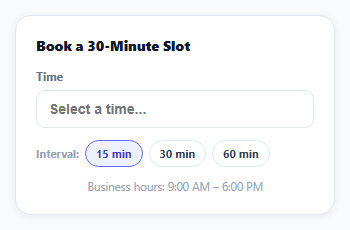
A time-only picker constrained to business hours, in fixed intervals, is a common booking-flow need — but the interval itself is often something a user should be able to change (someone booking a quick call wants 15-minute granularity, someone booking a half-day block doesn't). The subtlety here isn't the picker itself, it's that Flatpickr's minute-step setting can't be changed on a live instance.
minuteIncrement is read once, at construction time
Flatpickr reads its minuteIncrement option when the instance is created and uses it to build the time UI's scroll steps — there's no supported method to change that increment on an already-running instance. Attempting to mutate fp.config.minuteIncrement directly after the fact would leave the rendered time-selector UI out of sync with the new value.
The fix is destroy-and-recreate, not a config mutation
Each step button's click handler calls fp.destroy() — Flatpickr's own cleanup method, which removes its DOM and event listeners cleanly — and then calls initPicker again with the new increment, producing a fresh instance. This is the correct, supported way to change a construction-time-only option, and it's cheap enough to do on every button click since a time-only picker's DOM is small.
enableTime plus noCalendar makes it a pure time picker
enableTime: true adds the time UI; noCalendar: true removes the date grid entirely, leaving only hour/minute/AM-PM columns — the correct combination when a flow (like this slot-booking card) already knows the date and only needs a time.
minTime and maxTime enforce business hours structurally
Rather than validating a selected time after the fact and showing an error, minTime: '09:00' and maxTime: '18:00' constrain which times are even scrollable to select in the first place — the picker can't produce an out-of-hours value at all, which is a stronger guarantee than post-hoc validation.
defaultDate carries over the previous selection where possible
When recreating the picker after a step change, defaultDate: input.value || null attempts to preserve whatever time was already typed in the input, so switching from 15-minute to 30-minute steps doesn't silently clear a selection the user already made (though the newly-selected time will snap to the new interval's nearest valid step going forward).
Reusing it
This pattern — destroy, reinitialize with new options — is the general fix any time a Flatpickr option needs to change that isn't covered by its set() API (which does support many options live); check Flatpickr's docs for which options are live-settable before reaching for a full reinit.
Build with AI
Build, Understand, Optimize, and Extend It With AI
You don't have to discover the construction-time-only option limitation through trial and error. Paste this snippet's HTML, CSS, and JS into an AI coding assistant like Claude and ask it to explain exactly why minuteIncrement requires destroying and recreating the Flatpickr instance to change, while other options can be updated live via Flatpickr's set() method, and how to tell which category a given option falls into. The same assistant can help optimize it — ask whether destroying and recreating the instance on every interval button click has any noticeable performance cost worth avoiding, and whether the defaultDate carry-over correctly handles every edge case (like an empty input). It's also useful for extending the effect: ask it to make business hours vary by day of the week, disable already-booked time slots fetched from an API, or add a duration selector that also adjusts the maxTime dynamically to prevent bookings that would run past closing. Treat the code less like a finished artifact and more like a starting point for a conversation.
Prompt to recreate it
Copy this into your AI assistant of choice to build the effect from scratch, or as a jumping-off point for your own variant:
Build a time-only picker constrained to business hours with switchable step intervals using the Flatpickr library (load Flatpickr's CSS and JS from a CDN, no other library), in plain HTML, CSS, and JavaScript.

Requirements:
- Configure the picker to show only a time selector (no calendar/date grid), using 12-hour format with AM/PM, restricted to a fixed range of business hours (for example 9:00 AM to 6:00 PM) so that times outside that range cannot be selected at all in the picker UI itself, not merely rejected after selection.
- Add three buttons for different time-step intervals (for example 15, 30, and 60 minutes) with one marked active by default, and visually mark whichever one is currently selected.
- Since the minute-step interval is set only when the picker instance is created and cannot be changed on a live instance, implement switching intervals by properly destroying the existing picker instance (using the library's own cleanup method) and creating a new one configured with the newly selected interval — do not attempt to mutate the interval on the existing instance directly.
- When recreating the picker after an interval change, attempt to preserve whatever time value was already entered in the input field, rather than always clearing it back to empty.
- Keep the picker's business-hours restriction and time format consistent across every interval option.
Want to tighten it up first? Run this prompt through the AI Prompt Studio to score it across 8 quality dimensions, catch anti-patterns, and tune the wording for Claude, ChatGPT, or Gemini before you paste it in.
Source Code
<div class="tp-wrap">
  <div class="tp-card">
    <div class="tp-title">Book a 30-Minute Slot</div>
    <label class="tp-field">Time
      <input type="text" id="tpInput" placeholder="Select a time...">
    </label>
    <div class="tp-step-group">
      <span class="tp-step-label">Interval:</span>
      <button type="button" class="tp-step active" data-step="15">15 min</button>
      <button type="button" class="tp-step" data-step="30">30 min</button>
      <button type="button" class="tp-step" data-step="60">60 min</button>
    </div>
    <div class="tp-summary" id="tpSummary">Business hours: 9:00 AM – 6:00 PM</div>
  </div>
</div>*{box-sizing:border-box;margin:0;padding:0}
body{font-family:system-ui,-apple-system,sans-serif;background:#f8fafc;min-height:100vh;display:flex;align-items:center;justify-content:center;padding:24px}
.tp-wrap{width:100%;max-width:320px}
.tp-card{background:#fff;border-radius:16px;padding:20px;box-shadow:0 1px 8px rgba(0,0,0,.07);border:1px solid #e2e8f0}
.tp-title{font-size:14px;font-weight:800;color:#0f172a;margin-bottom:14px}
.tp-field{display:flex;flex-direction:column;gap:6px;font-size:11.5px;font-weight:700;color:#64748b}
.tp-field input{padding:10px 12px;border:1.5px solid #e2e8f0;border-radius:9px;font-size:14px;color:#0f172a;font-weight:700;outline:none;cursor:pointer}
.tp-field input:focus{border-color:#6366f1}
.tp-step-group{display:flex;align-items:center;gap:6px;margin-top:12px;flex-wrap:wrap}
.tp-step-label{font-size:11px;font-weight:700;color:#94a3b8}
.tp-step{padding:5px 10px;border-radius:99px;border:1.5px solid #e2e8f0;background:#fff;color:#334155;font:700 11px system-ui;cursor:pointer}
.tp-step.active{border-color:#6366f1;background:#eef2ff;color:#4338ca}
.tp-summary{margin-top:12px;font-size:11.5px;color:#94a3b8;text-align:center}var input = document.getElementById('tpInput');
var stepButtons = document.querySelectorAll('.tp-step');
// Flatpickr's minuteIncrement is read once at init time -- changing the step
// interval afterward means destroying and recreating the instance, which is
// why the step buttons re-init rather than trying to mutate config in place.
function initPicker(minuteIncrement) {
return flatpickr(input, {
enableTime: true,
noCalendar: true,
dateFormat: 'h:i K',
time_24hr: false,
minTime: '09:00',
maxTime: '18:00',
minuteIncrement: minuteIncrement,
defaultDate: input.value || null,
});
}
var fp = initPicker(15);
stepButtons.forEach(function (btn) {
btn.addEventListener('click', function () {
stepButtons.forEach(function (b) { b.classList.remove('active'); });
btn.classList.add('active');
var step = Number(btn.getAttribute('data-step'));
fp.destroy();
fp = initPicker(step);
});
});Step by step
How to Use
- 1Add the Flatpickr CDNLoad flatpickr.min.css and flatpickr.min.js before the snippet's JS runs.
- 2Paste HTML, CSS, and JSA time-only picker renders limited to 9 AM–6 PM.
- 3Click the time inputA scrollable time selector opens in 15-minute steps.
- 4Click "30 min" or "60 min"The picker rebuilds with the new step interval.
- 5Try scrolling past 6:00 PMTimes outside business hours are not selectable.
- 6Select a time, then change the intervalThe typed value is preserved where possible.
Real-world uses
Common Use Cases
Got questions?
Frequently Asked Questions
Flatpickr reads minuteIncrement once when an instance is constructed and uses it to build the scrollable time UI at that point — it is not one of the options that can be changed on a live instance via Flatpickr's set() API. Calling fp.destroy() to clean up the existing instance and then creating a new one with the desired increment is the correct, supported way to apply a construction-time-only option change.
noCalendar: true tells Flatpickr not to render the date grid at all as part of its own logic, which also correctly adjusts related internal behavior (like what a selected "date" represents when only time matters). Hiding the calendar with CSS while leaving noCalendar off would leave the date grid present in the DOM and in Flatpickr's internal state, just visually hidden — a fragile approach that could cause inconsistent behavior.
Setting minTime and maxTime constrains which times are scrollable and selectable within the time picker UI itself — a user physically cannot scroll the hour or minute columns to an out-of-range value. A validation-after-selection approach would let a user pick any time first and then show an error, which is both a worse experience and leaves a window where an invalid value briefly exists in the input.
The reinitialization passes defaultDate: input.value || null, which attempts to carry over whatever value was already typed or selected in the input field when the new instance is created. The one caveat is that if the previously selected time doesn't align with the new interval's steps (e.g. a time selected at a 15-minute step being carried into a 60-minute-step picker), Flatpickr will snap it to the nearest valid step for the new increment.
Replace the fixed minTime/maxTime strings with values computed from your actual business-hours or availability data (which could vary by day of week or by resource), and re-run initPicker whenever that availability data changes, the same way the step-interval buttons already trigger a reinitialization. The destroy-and-recreate pattern applies identically regardless of what's driving the new min/max values.