Learn Coding Visually
Learn to code with interactive, live-preview playgrounds — HTML, CSS, JavaScript, React & more.
 HTML Playground42 lessons · Click-based · Live preview
 CSS PlaygroundLearn CSS with a live editor
 JavaScript Playground60 lessons · DOM · Async · Canvas
 React PlaygroundLearn React with a live code editor
 GSAP PlaygroundLearn GSAP animation interactively
 SVG Playground44 lessons · shapes · paths · animation
 SCSS Playground45 lessons · Sass modules · tokens
 Tailwind PlaygroundLearn Tailwind CSS with a live editor
 Bootstrap 5 Playground50 lessons · live preview
Dual-Hold Safety Button — Free Two-Button Confirm JS Snippet
Dual-Hold Safety Button · Buttons · Plain HTML, CSS & JS · Live preview
What's included
Features
About this UI Snippet
Dual-Hold Safety Button — Two-Button Arm-and-Fire Pattern for Dangerous Actions
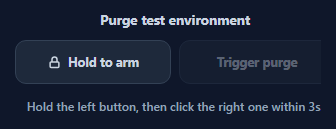
A dual-hold safety button borrows a pattern from physical industrial machinery: pressing one control alone does nothing, because a second, separate control must be held down at the same time to "arm" the action before it can actually fire. This snippet adapts that two-hand safety idea to software — a guard button on the left must be held to arm a short time window, during which a distinct trigger button on the right becomes clickable. It sits between a plain confirm dialog and a hold to confirm button in how much deliberate intent it demands, and is aimed at the rare, genuinely dangerous actions where even a single accidental click on a lone button is unacceptable.
Two controls, two different jobs
The left .dh-arm button is a momentary guard: it does nothing on its own except unlock the right button for as long as it is held, via Pointer Events pointerdown/pointerup. The right .dh-fire button starts disabled in the DOM and only has its disabled attribute cleared while armed is true — it is a completely separate element with its own click handler, not a state swapped into the same button. This structural separation is what makes the pattern meaningfully different from a single button that just requires a long press: an attacker script (or an accidental double-tap) firing one synthetic click event cannot trigger the action, because two independent interactions on two independent elements are both required.
A time-boxed arming window, not an indefinite unlock
Holding the guard doesn't unlock the trigger forever — arm() starts a setTimeout for ARM_WINDOW_MS (3 seconds) that calls disarm(true) if the trigger isn't clicked in time, re-disabling it and showing an "arming window expired" message. This closes the gap where a user could arm the control, walk away, and leave a dangerous action clickable indefinitely; the two gestures have to happen close together in time, not just in some order.
Releasing the guard disarms immediately
pointerup, pointercancel, and a guarded pointerleave all call disarm(false) the instant the guard button is released — there is no grace period. This mirrors the physical safety control it's modeled on: the moment the operator's hand comes off the guard, the trigger goes dead, regardless of how much of the 3-second window remained.
A single fired flag prevents any re-entry
Once fire() runs, it sets fired = true and both arm() and disarm() check that flag and return early — so releasing the guard after firing can't "disarm" a completed action, and the trigger button is permanently disabled and visually locked into its completed state until the whole component is reset by the surrounding page.
Build with AI
Build, Understand, Optimize, and Extend It With AI
Paste this snippet's HTML, CSS, and JS into an AI coding assistant like Claude and ask it to explain exactly why using two structurally separate buttons is meaningfully safer against accidental or scripted activation than a single button combining a hold gesture and a click, and how the fired flag prevents any re-entry into the arm/disarm cycle after a successful trigger. It's also a good candidate for extension — ask the assistant to add a visible countdown ring on the guard button showing how much of the 3-second arming window remains, require the guard to be held with a completely different pointer than the one clicking the trigger (true two-hand detection via distinct pointerId tracking) for an even stricter version, or add a resetSafetyButton() helper that cleanly restores the whole component to its initial state after firing.
Prompt to recreate it
Copy this into your AI assistant of choice to build the effect from scratch, or as a jumping-off point for your own variant:
Build a "dual-hold safety" button pair in plain HTML, CSS, and JavaScript using the Pointer Events API — no libraries.

Requirements:
- Two visually and structurally separate buttons: a left "guard" button and a right "trigger" button. The trigger button must start with its native disabled attribute set to true.
- Pressing and holding the guard button (via pointerdown, with setPointerCapture called using the event's pointerId) must arm the control: enable the trigger button and visually mark the guard as armed.
- While armed, clicking the trigger button must fire a one-time action: lock the trigger into a visually distinct "fired" state, disable it again, and prevent any further arm or fire attempts from having any effect, even if the guard is pressed again.
- Releasing the guard button (pointerup, pointercancel, or the pointer leaving the button while held) before the trigger is clicked must immediately disarm the control — re-disabling the trigger button with no delay or grace period.
- The armed state must automatically expire after a fixed, easily-configurable time window (e.g. 3 seconds) if the trigger is not clicked in time, re-disabling the trigger and showing a message that the arming window expired.
- Use a status message area that clearly reflects each state: idle, armed with time remaining, expired, and fired — with distinct styling for each.
Want to tighten it up first? Run this prompt through the AI Prompt Studio to score it across 8 quality dimensions, catch anti-patterns, and tune the wording for Claude, ChatGPT, or Gemini before you paste it in.
Source Code
<div class="dh-wrap">
  <p class="dh-title">Purge test environment</p>
  <div class="dh-pair">
    <button type="button" class="dh-btn dh-arm" id="dhArm">
      <svg width="15" height="15" viewBox="0 0 24 24" fill="none" stroke="currentColor" stroke-width="2.4"><rect x="5" y="11" width="14" height="9" rx="1.5"/><path d="M8 11V7a4 4 0 0 1 8 0v4"/></svg>
      Hold to arm
    </button>
    <button type="button" class="dh-btn dh-fire" id="dhFire" disabled>
      Trigger purge
    </button>
  </div>
  <p class="dh-status" id="dhStatus">Hold the left button, then click the right one within 3s.</p>
</div>
* { box-sizing: border-box; margin: 0; padding: 0; }
body { font-family: system-ui, -apple-system, sans-serif; background: #0f172a; color: #e2e8f0; display: flex; justify-content: center; align-items: center; min-height: 100vh; padding: 24px; }
.dh-wrap { text-align: center; width: 100%; max-width: 320px; }
.dh-title { font-size: 13.5px; font-weight: 700; color: #cbd5e1; margin-bottom: 12px; }
.dh-pair { display: flex; gap: 8px; }
.dh-btn {
flex: 1; border: 1.5px solid #334155; border-radius: 11px; background: #1e293b; color: #cbd5e1;
font-family: inherit; font-size: 12.5px; font-weight: 700; padding: 13px 10px;
cursor: pointer; display: flex; align-items: center; justify-content: center; gap: 6px;
user-select: none; -webkit-user-select: none; touch-action: none;
transition: background 0.15s, border-color 0.15s, color 0.15s;
}
.dh-arm.armed { background: #78350f; border-color: #f59e0b; color: #fde68a; }
.dh-fire:disabled { opacity: 0.4; cursor: not-allowed; }
.dh-fire.ready { background: #7f1d1d; border-color: #dc2626; color: #fecaca; }
.dh-fire.ready:hover { background: #991b1b; }
.dh-fire.fired { background: #14532d; border-color: #16a34a; color: #bbf7d0; }
.dh-status { margin-top: 14px; font-size: 12px; color: #94a3b8; font-weight: 600; min-height: 16px; }
.dh-status.ready { color: #fbbf24; }
.dh-status.fired { color: #4ade80; }
.dh-status.expired { color: #f87171; }var armBtn = document.getElementById('dhArm');
var fireBtn = document.getElementById('dhFire');
var status = document.getElementById('dhStatus');
var ARM_WINDOW_MS = 3000;
var armed = false;
var expireTimer = null;
var fired = false;
// This mirrors a physical two-hand safety control: one hand must keep a
// guard held down while the other hand presses the actual trigger. Neither
// button alone can fire the action, and letting go of the guard immediately
// disarms it.
function arm() {
if (fired) return;
armed = true;
armBtn.classList.add('armed');
fireBtn.disabled = false;
fireBtn.classList.add('ready');
status.textContent = 'Armed \u2014 click "Trigger purge" within 3s.';
status.className = 'dh-status ready';
clearTimeout(expireTimer);
expireTimer = setTimeout(disarm, ARM_WINDOW_MS);
}
function disarm(expired) {
if (fired) return;
armed = false;
armBtn.classList.remove('armed');
fireBtn.disabled = true;
fireBtn.classList.remove('ready');
clearTimeout(expireTimer);
if (expired) {
status.textContent = 'Arming window expired \u2014 hold again to retry.';
status.className = 'dh-status expired';
} else {
status.textContent = 'Disarmed. Hold the left button, then click the right one within 3s.';
status.className = 'dh-status';
}
}
function fire() {
if (!armed || fired) return;
fired = true;
clearTimeout(expireTimer);
armBtn.classList.remove('armed');
fireBtn.classList.remove('ready');
fireBtn.classList.add('fired');
fireBtn.disabled = true;
fireBtn.textContent = 'Purge triggered';
status.textContent = 'Action confirmed \u2014 purge is running.';
status.className = 'dh-status fired';
}
armBtn.addEventListener('pointerdown', function (e) {
armBtn.setPointerCapture(e.pointerId);
arm();
});
armBtn.addEventListener('pointerup', function () { disarm(false); });
armBtn.addEventListener('pointercancel', function () { disarm(false); });
armBtn.addEventListener('pointerleave', function () { if (armed) disarm(false); });
fireBtn.addEventListener('click', fire);Step by step
How to Use
- 1Press and hold the left buttonPointer Events capture the press; the guard button turns amber and the right trigger button becomes enabled.
- 2Click the right button while still holdingYou do not need to release the guard to click the trigger — both can be true at once, which is what "dual-hold" actually verifies.
- 3Watch the 3-second arming windowIf the trigger is not clicked within ARM_WINDOW_MS, the guard automatically disarms and shows an expired message.
- 4Release the guard to cancelLetting go of the left button before clicking the trigger immediately disarms it, with no grace period.
- 5See the fired stateA successful trigger locks the right button into a green "Purge triggered" state and ignores further input.
- 6Wire your real actionPut the actual dangerous operation inside fire(), which only ever runs once armed and only once per arming cycle.
Real-world uses
Common Use Cases
Got questions?
Frequently Asked Questions
Using two structurally independent elements means the trigger genuinely cannot be activated by a single interaction, whether that is a script dispatching one synthetic click or an accidental double-tap. A single button juggling both a hold and a click on the same element is more prone to being satisfied by one combined gesture than two people or two deliberate independent actions.
disarm(false) fires immediately from the pointerup, pointercancel, or pointerleave handlers, re-disabling the trigger button with no grace period. You must press and hold the guard again to get a fresh arming window.
Without a time limit, arming the control and then walking away (while still somehow holding pointer capture, or if the design allowed a toggle-arm instead of hold-arm) would leave a dangerous trigger clickable indefinitely. ARM_WINDOW_MS forces the two gestures to happen close together in time, not just in the right order.
No. fire() sets a fired flag that both arm() and disarm() check and return early on, so the trigger button is permanently disabled and visually locked into its completed state after firing, immune to any further arm/disarm cycling.
Yes. It uses Pointer Events with setPointerCapture on the guard button, which unifies mouse, touch, and pen input and keeps receiving the release event even if a finger drifts slightly off the button during the hold.
Reset the fired, armed flags to false, clear any pending expireTimer, remove the fired/armed/ready CSS classes, restore the trigger button's disabled attribute and original label text, and reset the status message — wrap this in a resetSafetyButton() function called from wherever your app needs to reuse the control.