Source Code
<canvas id="productCanvas"></canvas>
<div class="pv-panel">
  <button id="pvAutoBtn" class="pv-btn active">Auto-rotate: On</button>
  <div class="pv-swatches">
    <button class="pv-swatch" style="--c:#f43f5e" data-color="#f43f5e"></button>
    <button class="pv-swatch" style="--c:#3b82f6" data-color="#3b82f6"></button>
    <button class="pv-swatch" style="--c:#22c55e" data-color="#22c55e"></button>
    <button class="pv-swatch" style="--c:#fbbf24" data-color="#fbbf24"></button>
  </div>
</div>*{box-sizing:border-box;margin:0;padding:0}
html,body{width:100%;height:100%;overflow:hidden;background:radial-gradient(60% 60% at 50% 40%,#1c1f2b,#08090d)}
#productCanvas{display:block;width:100%;height:100%;cursor:grab}
#productCanvas:active{cursor:grabbing}
.pv-panel{position:fixed;left:50%;bottom:22px;transform:translateX(-50%);display:flex;align-items:center;gap:14px;padding:10px 16px;border-radius:999px;background:rgba(15,17,26,0.7);border:1px solid rgba(255,255,255,0.1);backdrop-filter:blur(8px)}
.pv-btn{padding:7px 14px;border-radius:999px;border:1px solid rgba(255,255,255,0.15);background:transparent;color:#cbd5e1;font:12.5px system-ui,sans-serif;font-weight:600;cursor:pointer}
.pv-btn.active{background:rgba(96,165,250,0.25);border-color:rgba(96,165,250,0.5);color:#dbeafe}
.pv-swatches{display:flex;gap:7px}
.pv-swatch{width:22px;height:22px;border-radius:50%;border:2px solid rgba(255,255,255,0.35);background:var(--c);cursor:pointer;transition:transform .15s}
.pv-swatch:hover{transform:scale(1.15)}const canvas = document.getElementById('productCanvas');
const renderer = new THREE.WebGLRenderer({ canvas, antialias: true });
renderer.setPixelRatio(Math.min(window.devicePixelRatio, 2));
const scene = new THREE.Scene();
const camera = new THREE.PerspectiveCamera(42, 1, 0.1, 50);
camera.position.set(0, 0.6, 6.2);
const controls = new THREE.OrbitControls(camera, renderer.domElement);
controls.enableDamping = true;
controls.dampingFactor = 0.07;
controls.minDistance = 4;
controls.maxDistance = 10;
controls.autoRotate = true;
controls.autoRotateSpeed = 2.2;
// Classic three-point studio lighting: a bright key light, a dim fill
// light on the opposite side to soften shadows, and a rim light behind
// the product to separate it from the dark background.
scene.add(new THREE.AmbientLight(0x334155, 0.5));
const key = new THREE.DirectionalLight(0xffffff, 1.4);
key.position.set(4, 5, 5);
scene.add(key);
const fill = new THREE.DirectionalLight(0x93c5fd, 0.5);
fill.position.set(-5, 1, 3);
scene.add(fill);
const rim = new THREE.PointLight(0xffffff, 1.2, 20);
rim.position.set(-2, 2, -5);
scene.add(rim);
// A soft, non-reflective ground disc catches a hint of the product's
// color and light, grounding the object rather than letting it float
// in an obviously empty void.
const ground = new THREE.Mesh(
new THREE.CircleGeometry(4, 48),
new THREE.MeshStandardMaterial({ color: 0x14161f, roughness: 1 })
);
ground.rotation.x = -Math.PI / 2;
ground.position.y = -1.6;
scene.add(ground);
const geometry = new THREE.TorusKnotGeometry(1, 0.34, 180, 24);
const material = new THREE.MeshStandardMaterial({ color: 0x3b82f6, metalness: 0.55, roughness: 0.28 });
const product = new THREE.Mesh(geometry, material);
scene.add(product);
document.querySelectorAll('.pv-swatch').forEach(btn => {
btn.addEventListener('click', () => material.color.set(btn.dataset.color));
});
const autoBtn = document.getElementById('pvAutoBtn');
autoBtn.addEventListener('click', () => {
controls.autoRotate = !controls.autoRotate;
autoBtn.classList.toggle('active', controls.autoRotate);
autoBtn.textContent = 'Auto-rotate: ' + (controls.autoRotate ? 'On' : 'Off');
});
function resize() {
const w = canvas.clientWidth, h = canvas.clientHeight;
renderer.setSize(w, h, false);
camera.aspect = w / h;
camera.updateProjectionMatrix();
}
function animate() {
requestAnimationFrame(animate);
controls.update();
renderer.render(scene, camera);
}
resize();
window.addEventListener('resize', resize);
animate();Learn Coding Visually
Learn to code with interactive, live-preview playgrounds — HTML, CSS, JavaScript, React & more.
 HTML Playground42 lessons · Click-based · Live preview
 CSS PlaygroundLearn CSS with a live editor
 JavaScript Playground60 lessons · DOM · Async · Canvas
 React PlaygroundLearn React with a live code editor
 GSAP PlaygroundLearn GSAP animation interactively
 SVG Playground44 lessons · shapes · paths · animation
 SCSS Playground45 lessons · Sass modules · tokens
 Tailwind PlaygroundLearn Tailwind CSS with a live editor
 Bootstrap 5 Playground50 lessons · live preview
Three.js Product Viewer — Draggable 3D Showcase With Color Swatches
Three.js Product Viewer · Animations · Plain HTML, CSS & JS · Live preview
What's included
Features
About this UI Snippet
How to Build a Three.js Product Viewer With Studio Lighting and Color Swatches
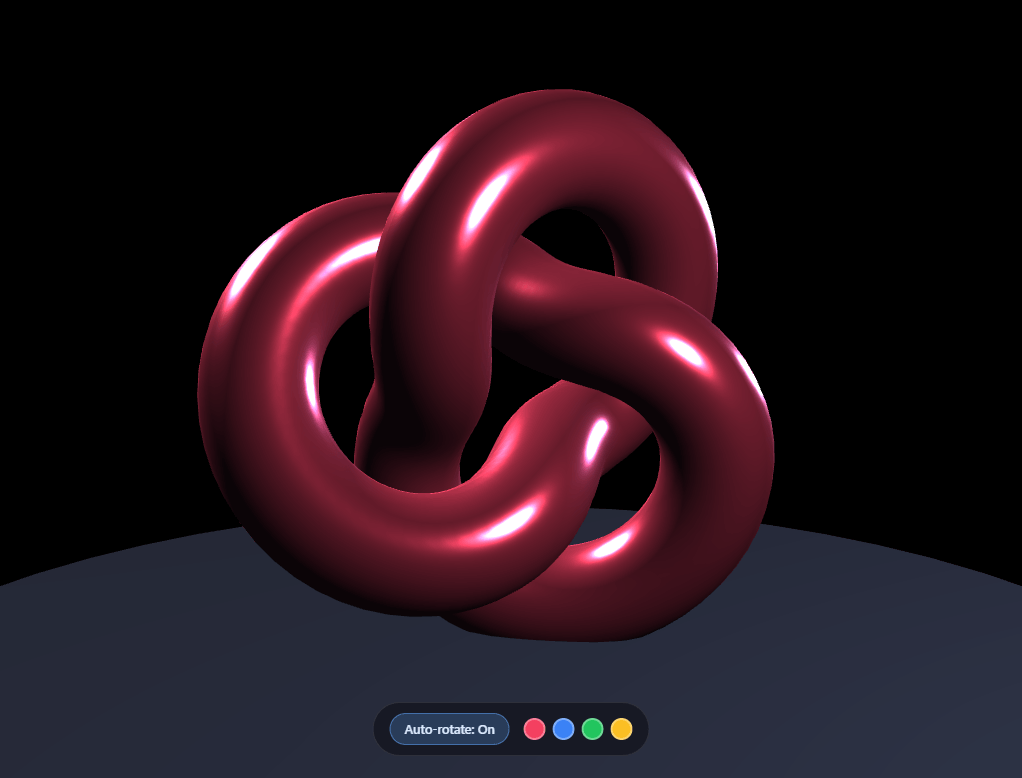
The Three.js Product Viewer snippet renders a metallic 3D object under proper studio lighting, lets visitors drag to inspect it from any angle, tap color swatches to recolor it live, and toggle auto-rotation on or off — the same interaction pattern used by real e-commerce 3D product configurators, built with core Three.js and its OrbitControls addon loaded from a CDN.
Three-point lighting, not a single flat light
A single light source on any metallic object produces harsh, unconvincing shading — either a blown-out highlight or a mostly-black silhouette. This snippet uses the classic photography three-point setup translated into WebGL lights: a bright DirectionalLight key light establishes the main highlight and shadow direction, a dim, cool-tinted fill light on the opposite side softens the shadow so it doesn't go pure black, and a rim PointLight positioned behind the object catches its silhouette edge, separating it visually from the dark background. This is the actual reason the product reads as a real, dimensional object rather than a flat cutout, and it's the single biggest lighting lesson in this snippet.
A grounding disc, not an empty void
A large, dark, matte CircleGeometry disc sits beneath the product, angled flat and positioned just below it. It never needs its own texture or reflection — its only job is to catch a hint of ambient light and give the product something to visually "sit on," which reads as far more grounded than an object floating in an obviously empty black scene.
Live material recoloring via swatch buttons
Each color swatch button is wired to a single line: material.color.set(hexValue). Because the MeshStandardMaterial's color is a live, mutable THREE.Color object, changing it doesn't require rebuilding the mesh, recompiling any shader, or reloading anything — the very next rendered frame simply reflects the new color under the exact same three-point lighting setup.
OrbitControls' autoRotate as a toggleable property, not a separate system
Rather than writing a custom rotation increment in the animation loop, the snippet leans on OrbitControls' own built-in autoRotate boolean and autoRotateSpeed property — both of which the same controls.update() call already handles every frame. The toggle button does nothing more than flip that one boolean, which means auto-rotation and manual dragging never fight each other: grabbing the canvas and dragging always instantly overrides the auto-rotation, and letting go resumes it smoothly thanks to the existing damping.
A TorusKnotGeometry stands in for "the product"
The demo object is a TorusKnotGeometry — a continuously twisting tube — chosen specifically because its complex, non-symmetrical curvature shows off lighting, metalness, and rotation far more clearly than a plain sphere or cube would. In a real product page you'd swap this for an imported GLTF model; every lighting, control, and recoloring technique here applies identically regardless of what geometry sits in that spot.
Where this pattern is used in production
This exact combination — three-point lighting, a grounding plane, OrbitControls with damping and toggleable auto-rotate, and live material property changes — is the backbone of nearly every real 3D product configurator on the web, from sneaker customizers to furniture previews. Pair it conceptually with a color wheel picker for a full 2D-plus-3D product customization flow, or contrast its studio presentation against the more playful, ambient look of the morphing blob snippet.
Build with AI
Build, Understand, Optimize, and Extend It With AI
You do not have to guess at proper 3D lighting setup through trial and error. Paste this snippet's HTML, CSS, and JS into an AI coding assistant like Claude and ask it to explain exactly what role each of the key, fill, and rim lights plays and why removing any one of them would make the product look flatter or harsher, or how OrbitControls' autoRotate property interacts with manual dragging without any extra conflict-resolution code. The same assistant can help optimize it, for instance checking whether the ground disc's shadow could be replaced with a real baked shadow map for more realism, or whether the lighting setup could be tuned differently for a matte versus a glossy product. It is also useful for extending the viewer: ask it to load a real GLTF model instead of the torus knot placeholder, add a price tag or "Add to cart" button anchored to the product's screen position, or support swapping between multiple product variants instead of just recoloring one. Treat the code less like a finished artifact and more like a starting point for a conversation.
Prompt to recreate it
Copy this into your AI assistant of choice to build the effect from scratch, or as a jumping-off point for your own variant:
Build a draggable "3D product viewer" in plain HTML, CSS, and JavaScript using Three.js and its OrbitControls addon, both loaded from a CDN (no bundler, no build step).

Requirements:
- A full-viewport canvas with a WebGLRenderer sized to match it, updated on window resize including camera aspect ratio, plus OrbitControls with damping enabled, a bounded min/max zoom distance, and a toggleable built-in auto-rotate feature.
- Light the scene with a proper three-point setup: a bright directional key light, a dimmer, differently-tinted directional fill light positioned on the opposite side to soften shadows without eliminating them, and a point or directional rim light positioned behind the product to separate its silhouette from the background, plus a small amount of ambient light.
- Add a large, flat, dark, non-glossy disc beneath the product (angled to lie flat, like a floor) purely to ground the object visually — it does not need any texture, reflection, or shadow map.
- Render one product mesh with a metallic MeshStandardMaterial (a TorusKnotGeometry or similar geometry with complex curvature works well to show off lighting and shape).
- Add a row of at least four color swatch buttons; clicking a swatch must change the product material's color property directly and instantly, with no geometry or shader changes.
- Add a separate button that toggles the OrbitControls auto-rotate feature on and off, and update the button's label or appearance to reflect the current state.
- Ensure manual dragging on the canvas always works immediately regardless of the auto-rotate toggle's state, using OrbitControls' own built-in behavior rather than custom conflict-resolution logic.
Want to tighten it up first? Run this prompt through the AI Prompt Studio to score it across 8 quality dimensions, catch anti-patterns, and tune the wording for Claude, ChatGPT, or Gemini before you paste it in.
Step by step
How to Use
- 1Load both CDN scriptsAdd three.min.js and OrbitControls.js from the CDN panel, in that order.
- 2Paste HTML, CSS, and JSThe product appears immediately under studio lighting, auto-rotating on a grounding disc.
- 3Drag to inspectClick and drag to rotate manually; release and it resumes auto-rotating after a moment.
- 4Tap a color swatchClick any of the four color dots to recolor the product material instantly.
- 5Toggle auto-rotateClick the pill button to turn automatic rotation on or off entirely.
- 6Swap in your own geometryReplace TorusKnotGeometry with any other Three.js geometry or an imported model to showcase a different product.
Real-world uses
Common Use Cases
Got questions?
Frequently Asked Questions
A single light on a metallic surface produces either a harsh blown-out highlight or a nearly black silhouette on the shadowed side. The key light establishes the main highlight, the dim fill light on the opposite side softens that shadow without eliminating it, and the rim light behind the object catches its edge to separate it from the dark background — the standard three-point lighting setup borrowed directly from photography and film.
Each swatch button calls material.color.set() with that swatch's hex value. Because a MeshStandardMaterial's color property is a live, mutable THREE.Color object, changing it takes effect on the very next rendered frame — no mesh rebuild, shader recompile, or geometry change is required.
The toggle button only flips OrbitControls' own built-in autoRotate boolean, which the existing controls.update() call already respects every frame. Because OrbitControls treats a manual drag as taking priority automatically, grabbing and rotating the canvas by hand always works instantly regardless of the auto-rotate state, and releasing it resumes auto-rotation smoothly.
The dark, matte CircleGeometry disc beneath the product exists purely to give it something to visually rest on. Without it, the object appears to float in an obviously empty black void; with it, the scene reads as a real studio or stage, even though the disc itself is a completely flat, untextured surface.
Yes. Any Three.js geometry, or a model imported via a loader such as GLTFLoader, can replace the TorusKnotGeometry mesh directly — every lighting, control, and material-recoloring technique in this snippet applies identically regardless of what geometry occupies that position in the scene.
Yes. Click JSX for a React component, Vue for a Vue 3 SFC, Angular for a standalone component, or Tailwind for a React + Tailwind CSS utility-class version. Pass the available colors and geometry as props, set up the renderer and controls inside a mount effect, and call controls.dispose() plus renderer.dispose() on cleanup so the WebGL context and drag listeners are released when the component unmounts.