
Learn Coding Visually
Learn to code with interactive, live-preview playgrounds — HTML, CSS, JavaScript, React & more.
 HTML Playground42 lessons · Click-based · Live preview
 CSS PlaygroundLearn CSS with a live editor
 JavaScript Playground60 lessons · DOM · Async · Canvas
 React PlaygroundLearn React with a live code editor
 GSAP PlaygroundLearn GSAP animation interactively
 SVG Playground44 lessons · shapes · paths · animation
 SCSS Playground45 lessons · Sass modules · tokens
 Tailwind PlaygroundLearn Tailwind CSS with a live editor
 Bootstrap 5 Playground50 lessons · live preview
Color Wheel Picker HTML CSS JS — HSL Canvas Picker
Color Wheel Picker · Forms · Plain HTML, CSS & JS · Live preview
What's included
Features
About this UI Snippet
How to Build an HSL Color Wheel Picker on HTML5 Canvas
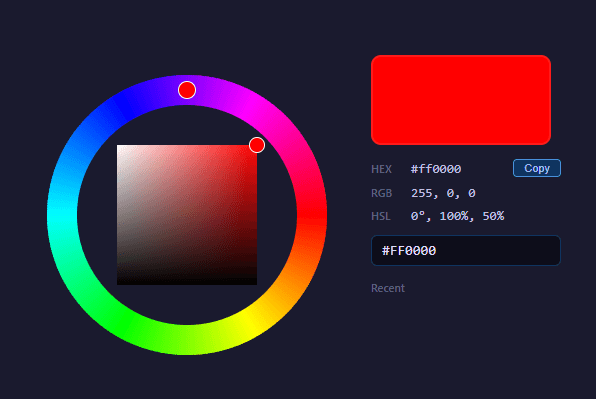
A color wheel picker lets users choose a color by dragging a handle around a circular hue ring and then refining saturation and brightness inside an inner square — the layout popularized by Photoshop and many design tools. This implementation is drawn entirely on a single HTML5 Canvas with the 2D API, and it converts freely between HSL, RGB and hex so users can read or type any format. Here is how every part works.
Drawing the hue ring
The outer ring represents hue from 0° to 360°. It is drawn as 360 thin wedge segments in a loop. For each integer angle a, the code computes a start and end angle in radians, draws a filled triangle-pie slice from the center out to RING_OUTER with ctx.moveTo(cx, cy) followed by ctx.arc, and fills it with hsl(a, 100%, 50%). Drawing one wedge per degree (with a half-degree overlap to avoid seams) produces a smooth rainbow. After the full disc is painted, a circle of the background color is drawn at RING_INNER radius to "punch out" the middle, leaving just the ring band. This subtractive technique is simpler than computing an annulus path.
Drawing the saturation-brightness square
The inner square shows all saturation and brightness values for the currently selected hue. It is built from two overlaid createLinearGradient fills, the classic two-gradient method:
First, a horizontal gradient runs from white on the left to the pure hue (hsl(hue, 100%, 50%)) on the right — this is the saturation axis. Then a vertical gradient runs from transparent at the top to solid black at the bottom — this is the brightness axis. Painting the second over the first multiplicatively darkens the lower rows, so the top-left corner is white, the top-right is the saturated hue, and the entire bottom edge is black. Any point in the square maps to a unique saturation (x position) and brightness (y position) for that hue.
Hit testing clicks: polar and Cartesian
When the user presses on the canvas, the code converts the pointer to canvas coordinates and measures the distance from the center with Math.sqrt(dx*dx + dy*dy). If that distance falls between RING_INNER and RING_OUTER, the click is on the hue ring and dragging is set to 'hue'. If instead the point lies within the square's half-size box on both axes, dragging is set to 'sb'. This is polar hit testing for the ring and Cartesian hit testing for the square.
While dragging the ring, hue is recovered from the angle: hue = (atan2(dy, dx) * 180/PI + 90 + 360) % 360. The atan2 gives the angle of the pointer around the center; the +90 offset aligns 0° to the top, and the modulo keeps it in range. While dragging the square, saturation and brightness are read directly from the normalized x and y within the square and clamped to the 0–1 range. Every move calls updateUI, which redraws the wheel with both handles and refreshes the text readouts.
The color math: HSL, RGB and hex
The picker works internally in an HSV/HSB-like saturation-brightness space for the square, but outputs standard CSS HSL, RGB and hex. hslToRgb implements the well-known conversion using the chroma helper: it defines k(n) = (n + h/30) % 12, computes a = s * min(l, 1-l), and derives each channel as l - a * max(-1, min(k(n)-3, 9-k(n), 1)) for the appropriate n per channel. This compact formulation avoids the long six-case branch of the traditional algorithm.
rgbToHex maps each channel to a two-digit hex string with toString(16).padStart(2, '0'). The reverse, hexToHsl, slices the hex string, parses each pair with parseInt(..., 16), normalizes to 0–1, finds the min and max channels to get lightness, derives saturation from the chroma, and computes hue from whichever channel is the maximum — the standard RGB-to-HSL routine. Because the square uses brightness rather than lightness, getCurrentColor converts the internal saturation-brightness pair into HSL lightness before producing the displayed values, and setFromHex does the inverse so a pasted hex positions both handles correctly.
Recent colors and input
Every time a drag ends or a hex is entered, addRecent pushes the color to the front of a recentColors array, de-duplicates it, and trims to eight swatches. renderRecent rebuilds the swatch row, each clickable to restore that color via setFromHex. The hex input accepts a typed value on Enter, normalizes a missing leading #, and feeds it through the same conversion path. A copy button writes the current hex to the clipboard with navigator.clipboard.writeText.
Because everything is rendered on canvas and computed with plain math, the picker is fully self-contained, works with mouse, touch and pen through Pointer Events with setPointerCapture, and can be themed or resized just by changing a few constants.
Build with AI
Build, Understand, Optimize, and Extend It With AI
You don't have to derive the polar-versus-Cartesian hit testing yourself to see why it works. Paste this snippet's HTML, CSS, and JS into an AI coding assistant like Claude and ask it to explain exactly why the hue ring is drawn as 360 separate wedge slices instead of a single conic gradient, and how atan2 turns a pointer position back into a hue angle. The same assistant can help optimize it — for instance asking whether the ring needs to be fully redrawn on every pointermove event or whether only the handle positions need to move on top of a cached wheel image. It's also useful for extending the picker: ask it to add an alpha/opacity slider alongside hue and saturation-brightness, support arrow-key nudging of the selected hue for accessibility, or swap the saturation-brightness square for an HSL-native square so lightness and hue stay in the same color model throughout. Treat the code less like a finished artifact and more like a starting point for a conversation.
Prompt to recreate it
Copy this into your AI assistant of choice to build the effect from scratch, or as a jumping-off point for your own variant:
Build an HSL/HSB color wheel picker in plain HTML, CSS, and JavaScript rendered entirely on an HTML5 canvas using the 2D context — no canvas libraries, no color-picker packages.

Requirements:
- Draw a circular hue ring by filling 360 individual thin pie-slice wedges from the center outward, one per degree with a slight angular overlap to avoid seams, each filled with its own hsl(angle, 100%, 50%) color, then punch out the middle by filling a smaller concentric circle in the background color to leave only an annular band.
- Draw a saturation-brightness square inside the ring using two overlaid canvas linear gradients: a horizontal gradient from white to the currently selected pure hue for saturation, and a vertical gradient from transparent to black for brightness, so every point in the square maps to a unique saturation/brightness combination for the active hue.
- Implement hit testing that distinguishes the two draggable regions: measure the pointer's distance from the canvas center to detect ring clicks (between the inner and outer ring radius), and check both axes against the square's half-size bounds separately to detect square clicks.
- While dragging the ring, recompute hue from the pointer angle using atan2, converting radians to degrees, offsetting so 0 degrees sits at the top, and wrapping with modulo 360. While dragging the square, compute saturation and brightness as the normalized, clamped x and y position within the square.
- Support pointer, touch, and pen input uniformly using Pointer Events with setPointerCapture so dragging keeps tracking even if the pointer leaves the canvas bounds.
- Convert between the internal saturation/brightness space and standard HSL, RGB, and hex on every update, and display all three formats live plus a color preview swatch.
- Maintain a deduplicated, most-recent-first history of the last several picked colors as clickable swatches, and support typing a hex value directly to reposition both handles.
Want to tighten it up first? Run this prompt through the AI Prompt Studio to score it across 8 quality dimensions, catch anti-patterns, and tune the wording for Claude, ChatGPT, or Gemini before you paste it in.
Source Code
<div class="app">
  <div class="picker-wrap">
    <canvas id="wheelCanvas" width="320" height="320"></canvas>
    <div class="preview-panel">
      <div id="preview" class="preview-swatch"></div>
      <div class="values">
        <div class="val-row">
          <span class="val-label">HEX</span>
          <span id="hexVal" class="val-text">#ff0000</span>
          <button id="copyBtn" class="copy-btn">Copy</button>
        </div>
        <div class="val-row">
          <span class="val-label">RGB</span>
          <span id="rgbVal" class="val-text">255, 0, 0</span>
        </div>
        <div class="val-row">
          <span class="val-label">HSL</span>
          <span id="hslVal" class="val-text">0°, 100%, 50%</span>
        </div>
        <div class="hex-input-row">
          <input type="text" id="hexInput" placeholder="#ff0000" maxlength="7" spellcheck="false">
        </div>
      </div>
      <div class="recent-label">Recent</div>
      <div id="recentColors" class="recent-colors"></div>
    </div>
  </div>
</div>
* { margin: 0; padding: 0; box-sizing: border-box; }
body { background: #1a1a2e; color: #e0e0e0; font-family: system-ui, sans-serif; min-height: 100vh; display: flex; align-items: center; justify-content: center; }
.app { padding: 20px; }
.picker-wrap { display: flex; gap: 24px; align-items: flex-start; flex-wrap: wrap; justify-content: center; }
#wheelCanvas { cursor: crosshair; border-radius: 50%; }
.preview-panel { display: flex; flex-direction: column; gap: 14px; min-width: 180px; }
.preview-swatch { width: 180px; height: 90px; border-radius: 10px; border: 2px solid rgba(255,255,255,0.1); background: red; transition: background 0.1s; }
.values { display: flex; flex-direction: column; gap: 8px; }
.val-row { display: flex; align-items: center; gap: 8px; }
.val-label { font-size: 11px; font-weight: 600; color: #606080; min-width: 32px; }
.val-text { font-size: 13px; color: #c0c0e0; font-family: monospace; flex: 1; }
.copy-btn {
padding: 2px 10px; background: #0f3460; border: 1px solid #4a90d9;
border-radius: 4px; color: #a0c0ff; font-size: 11px; cursor: pointer; transition: all 0.15s;
}
.copy-btn:hover { background: #4a90d9; color: #fff; }
.hex-input-row { margin-top: 4px; }
#hexInput {
width: 100%; padding: 6px 10px; background: #0d0d1a; border: 1px solid #0f3460;
border-radius: 6px; color: #e0e0ff; font-family: monospace; font-size: 14px;
outline: none; text-transform: uppercase;
}
#hexInput:focus { border-color: #4a90d9; }
.recent-label { font-size: 11px; color: #606080; font-weight: 600; }
.recent-colors { display: flex; flex-wrap: wrap; gap: 6px; }
.recent-swatch {
width: 28px; height: 28px; border-radius: 6px; cursor: pointer;
border: 2px solid transparent; transition: border-color 0.15s;
}
.recent-swatch:hover { border-color: rgba(255,255,255,0.4); }const canvas = document.getElementById('wheelCanvas');
const ctx = canvas.getContext('2d');
const W = canvas.width, H = canvas.height;
const cx = W/2, cy = H/2;
const RING_OUTER = 140, RING_INNER = 110;
const SQ_SIZE = 140;
let hue = 0, sat = 1, bri = 1;
let dragging = null;
let recentColors = [];
function hslToRgb(h, s, l) {
s /= 100; l /= 100;
const k = n => (n + h/30) % 12;
const a = s * Math.min(l, 1-l);
const f = n => l - a * Math.max(-1, Math.min(k(n)-3, Math.min(9-k(n), 1)));
return [Math.round(f(0)*255), Math.round(f(8)*255), Math.round(f(4)*255)];
}
function rgbToHex(r, g, b) {
return '#' + [r,g,b].map(v => v.toString(16).padStart(2,'0')).join('');
}
function hexToHsl(hex) {
hex = hex.replace('#','');
if (hex.length !== 6) return null;
const r = parseInt(hex.slice(0,2),16)/255;
const g = parseInt(hex.slice(2,4),16)/255;
const b = parseInt(hex.slice(4,6),16)/255;
const max = Math.max(r,g,b), min = Math.min(r,g,b);
let h2, s2, l2 = (max+min)/2;
if (max === min) { h2 = s2 = 0; }
else {
const d = max-min;
s2 = l2 > 0.5 ? d/(2-max-min) : d/(max+min);
switch(max) {
case r: h2 = (g-b)/d + (g<b?6:0); break;
case g: h2 = (b-r)/d + 2; break;
default: h2 = (r-g)/d + 4;
}
h2 /= 6;
}
return [h2*360, s2*100, l2*100];
}
function drawWheel() {
// Draw hue ring
for (let a = 0; a < 360; a++) {
const start = (a-0.5) * Math.PI/180;
const end = (a+1) * Math.PI/180;
ctx.beginPath();
ctx.moveTo(cx, cy);
ctx.arc(cx, cy, RING_OUTER, start, end);
ctx.closePath();
ctx.fillStyle = `hsl(${a},100%,50%)`;
ctx.fill();
}
// Punch inner hole
ctx.beginPath();
ctx.arc(cx, cy, RING_INNER, 0, Math.PI*2);
ctx.fillStyle = '#1a1a2e';
ctx.fill();
// Draw SB square
const half = SQ_SIZE/2;
const sq = ctx.createLinearGradient(cx-half, cy, cx+half, cy);
sq.addColorStop(0, '#fff');
sq.addColorStop(1, `hsl(${hue},100%,50%)`);
ctx.fillStyle = sq;
ctx.fillRect(cx-half, cy-half, SQ_SIZE, SQ_SIZE);
const sq2 = ctx.createLinearGradient(cx, cy-half, cx, cy+half);
sq2.addColorStop(0, 'rgba(0,0,0,0)');
sq2.addColorStop(1, '#000');
ctx.fillStyle = sq2;
ctx.fillRect(cx-half, cy-half, SQ_SIZE, SQ_SIZE);
// Hue handle on ring
const angle = (hue - 90) * Math.PI / 180;
const rm = (RING_OUTER + RING_INNER) / 2;
const hx = cx + Math.cos(angle)*rm;
const hy = cy + Math.sin(angle)*rm;
ctx.beginPath();
ctx.arc(hx, hy, 8, 0, Math.PI*2);
ctx.strokeStyle = '#fff';
ctx.lineWidth = 2;
ctx.stroke();
ctx.fillStyle = `hsl(${hue},100%,50%)`;
ctx.fill();
// SB handle
const sx = cx - half + sat * SQ_SIZE;
const sy = cy - half + (1-bri) * SQ_SIZE;
ctx.beginPath();
ctx.arc(sx, sy, 7, 0, Math.PI*2);
ctx.strokeStyle = '#fff';
ctx.lineWidth = 2;
ctx.stroke();
ctx.fillStyle = getCurrentHex();
ctx.fill();
}
function getCurrentHex() {
const l = bri * (1 - sat/2);
const s2 = l === 0 || l === 1 ? 0 : (bri-l)/Math.min(l,1-l);
const [r,g,b] = hslToRgb(hue, s2*100, l*100);
return rgbToHex(r,g,b);
}
function getCurrentColor() {
const l = bri * (1 - sat/2);
const s2 = l === 0 || l === 1 ? 0 : (bri-l)/Math.min(l,1-l);
return { h: hue, s: s2*100, l: l*100 };
}
function updateUI() {
drawWheel();
const hex = getCurrentHex();
const c = getCurrentColor();
const [r,g,b] = hslToRgb(c.h, c.s, c.l);
document.getElementById('preview').style.background = hex;
document.getElementById('hexVal').textContent = hex;
document.getElementById('rgbVal').textContent = `${r}, ${g}, ${b}`;
document.getElementById('hslVal').textContent = `${Math.round(c.h)}°, ${Math.round(c.s)}%, ${Math.round(c.l)}%`;
document.getElementById('hexInput').value = hex;
}
function addRecent(hex) {
if (recentColors[0] === hex) return;
recentColors = [hex, ...recentColors.filter(c => c !== hex)].slice(0, 8);
renderRecent();
}
function renderRecent() {
const el = document.getElementById('recentColors');
el.innerHTML = '';
recentColors.forEach(c => {
const sw = document.createElement('div');
sw.className = 'recent-swatch';
sw.style.background = c;
sw.title = c;
sw.addEventListener('click', () => setFromHex(c));
el.appendChild(sw);
});
}
function setFromHex(hex) {
const res = hexToHsl(hex);
if (!res) return;
const [h, s, l] = res;
hue = h;
sat = s > 0 ? (1 - l/50 / (1 + Math.abs(1 - l/50))) : 0;
// Simplified: convert HSL to SB space
const maxL = (1 - s/100/2);
const minL = (s/100/2);
bri = (l/100 + minL) / (1 - s/100/2 + minL) || 0;
sat = s > 0 ? (2 - 2*l/100/(bri||1)) / 2 : 0;
sat = Math.max(0, Math.min(1, sat));
bri = Math.max(0, Math.min(1, bri));
updateUI();
}
canvas.addEventListener('pointerdown', e => {
canvas.setPointerCapture(e.pointerId);
const r = canvas.getBoundingClientRect();
const mx = (e.clientX - r.left) * (W / r.width);
const my = (e.clientY - r.top) * (H / r.height);
const dx = mx - cx, dy = my - cy;
const dist = Math.sqrt(dx*dx + dy*dy);
const half = SQ_SIZE/2;
if (dist >= RING_INNER && dist <= RING_OUTER) {
dragging = 'hue';
} else if (Math.abs(dx) <= half && Math.abs(dy) <= half) {
dragging = 'sb';
}
handleMove(mx, my);
});
canvas.addEventListener('pointermove', e => {
if (!dragging) return;
const r = canvas.getBoundingClientRect();
handleMove((e.clientX - r.left) * (W/r.width), (e.clientY - r.top) * (H/r.height));
});
canvas.addEventListener('pointerup', () => {
if (dragging) {
addRecent(getCurrentHex());
dragging = null;
}
});
function handleMove(mx, my) {
const dx = mx - cx, dy = my - cy;
if (dragging === 'hue') {
hue = (Math.atan2(dy, dx) * 180/Math.PI + 90 + 360) % 360;
} else if (dragging === 'sb') {
const half = SQ_SIZE/2;
sat = Math.max(0, Math.min(1, (mx - (cx-half)) / SQ_SIZE));
bri = Math.max(0, Math.min(1, 1 - (my - (cy-half)) / SQ_SIZE));
}
updateUI();
}
document.getElementById('copyBtn').addEventListener('click', () => {
const hex = document.getElementById('hexVal').textContent;
navigator.clipboard.writeText(hex).catch(() => {});
document.getElementById('copyBtn').textContent = 'Copied!';
setTimeout(() => document.getElementById('copyBtn').textContent = 'Copy', 1500);
});
document.getElementById('hexInput').addEventListener('keydown', e => {
if (e.key === 'Enter') {
const val = e.target.value.startsWith('#') ? e.target.value : '#' + e.target.value;
setFromHex(val);
addRecent(val);
}
});
updateUI();Step by step
How to Use
- 1Pick a hueDrag the handle around the outer ring to choose the base color from the full 360-degree spectrum.
- 2Refine the shadeDrag inside the inner square to set saturation horizontally and brightness vertically for the chosen hue.
- 3Read the valuesSee the live HEX, RGB and HSL readouts update as you move the handles.
- 4Type a hex codeEnter a hex value and press Enter to position both handles to that exact color.
- 5Copy the colorClick Copy to put the current hex code on your clipboard.
- 6Reuse recent colorsClick any swatch in the recent colors row to instantly restore that color.
Real-world uses
Common Use Cases
Got questions?
Frequently Asked Questions
Canvas gradients cannot follow a circular path, so a conic rainbow is approximated by filling one thin pie slice per degree with its HSL color. A slight angular overlap between slices prevents visible seams.
Two linear gradients are layered: a horizontal white-to-hue gradient for saturation and a vertical transparent-to-black gradient for brightness. Overlaying them makes every point in the square a unique saturation and brightness for the current hue.
The angle of the pointer relative to the center is computed with atan2, converted to degrees, offset so 0 degrees is at the top, and wrapped with modulo 360. The distance from center confirms the click was inside the ring band.
The square works in saturation-brightness (HSB/HSV) space, but the readouts and hex output use HSL. The code converts between them so the displayed HSL values and any pasted hex map correctly onto the handle positions.
Yes. It uses Pointer Events with setPointerCapture, so dragging works identically with mouse, touch and pen, and the handle keeps tracking even if the pointer leaves the canvas mid-drag.