You Might Also Like
Learn Coding Visually
Learn to code with interactive, live-preview playgrounds — HTML, CSS, JavaScript, React & more.
 HTML Playground42 lessons · Click-based · Live preview
 CSS PlaygroundLearn CSS with a live editor
 JavaScript Playground60 lessons · DOM · Async · Canvas
 React PlaygroundLearn React with a live code editor
 GSAP PlaygroundLearn GSAP animation interactively
 SVG Playground44 lessons · shapes · paths · animation
 SCSS Playground45 lessons · Sass modules · tokens
 Tailwind PlaygroundLearn Tailwind CSS with a live editor
 Bootstrap 5 Playground50 lessons · live preview
Two-Factor Authentication Setup Flow — Free 2FA Onboarding Snippet
Two-Factor Authentication Setup Flow · Forms · Plain HTML, CSS & JS · Live preview
What's included
Features
About this UI Snippet
Two-Factor Authentication Setup Flow — QR Step, Code Verification, Backup Codes
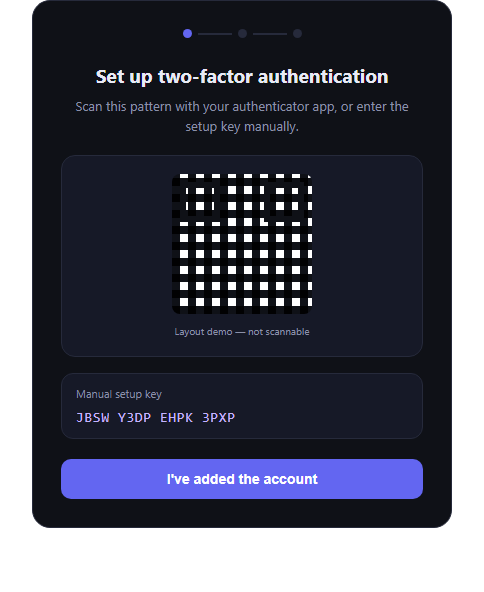
The two-factor authentication setup flow is the security-onboarding sequence every account-settings page needs: link an authenticator app, confirm it works with a live code, and hand over backup codes for recovery. This snippet builds the full 3-step flow in plain HTML, CSS, and JavaScript.
Step 1 — link the authenticator app
The first panel shows a CSS-grid pattern standing in for a QR code, clearly labeled "Layout demo — not scannable" so nobody mistakes it for a real generated code — this snippet focuses on the flow and interaction, not on QR encoding. Beside it, a manual setup key is shown in monospace for apps that support typed entry instead of scanning, which is exactly how real authenticator apps like Google Authenticator or Authy present this step.
Step 2 — verify with a live code
Six individual digit inputs auto-advance as you type, support backspace-to-go-back, and accept a full 6-digit paste (splitting it across all six boxes) — the same interaction pattern as OTP input. Clicking "Verify and enable" validates the code is exactly six digits with a regex (/^[0-9]{6}$/); an invalid or incomplete code shows an inline error and highlights the offending boxes instead of silently failing.
Step 3 — backup codes
On successful verification, generateBackupCode() produces 8 codes in the familiar XXXX-XXXX format using a restricted character set (no ambiguous 0/O/1/I) — the standard pattern security tools use for backup/recovery codes. A "Copy backup codes" button copies all 8 to the clipboard at once with a brief "Copied!" confirmation.
Progress indicator
Three dots at the top track which step is active and which are completed, giving users a clear sense of how much of the setup remains — the same lightweight indicator pattern used in stepper flows.
Customizing it
Wire step 1's QR area to a real QR-generation library or backend-rendered image, connect step 2's verification to your actual TOTP backend instead of a format check, and persist the backup codes server-side rather than only showing them once. Pair it with a passkey login flow or an OTP verification card for a complete auth-security suite.
Build with AI
Build, Understand, Optimize, and Extend It With AI
Multi-step security flows have a lot of small correctness details — auto-advancing focus, paste handling, format validation, one-time-visible secrets — so it's worth pasting this snippet's HTML, CSS, and JS into an AI coding assistant like Claude and asking it to walk through how the OTP digit inputs handle paste versus individual keystrokes, why the verify button checks a strict 6-digit regex before advancing, and where the backup-code generation would need to change (server-side generation, hashed storage, cryptographically secure randomness) to be production-safe rather than a UI demo. It's also useful for extending the flow: ask it to add a "resend/regenerate codes" action, a warning state if a user tries to leave the backup-codes step without acknowledging they've saved them, or how to wire step 1's placeholder into a real QR code library like qrcode.js while keeping the rest of the flow's state machine intact.
Prompt to recreate it
Copy this into your AI assistant of choice to build the effect from scratch, or as a jumping-off point for your own variant:
Build a "two-factor authentication setup flow" in plain HTML, CSS, and JavaScript — no dependencies, no CDN — with 3 steps and a progress indicator.

Requirements:
- Step 1: show a CSS-only pattern standing in for a QR code, clearly labeled as a layout placeholder (not a real scannable code), plus a manual setup key shown in a monospace font as an alternative to scanning. A button advances to step 2.
- Step 2: six individual digit input boxes for a 6-digit verification code. Typing a digit auto-advances focus to the next box; backspace on an empty box moves focus back; pasting a full 6-digit string splits it across all six boxes. A "Verify and enable" button validates the joined value is exactly 6 numeric digits with a regex — show an inline error and highlight invalid boxes if not, and only advance to step 3 on a valid code.
- Step 3: a success state (checkmark, confirmation heading) showing 8 generated backup codes in "XXXX-XXXX" format using a character set that excludes ambiguous characters like 0/O/1/I, laid out in a grid. Include a "copy backup codes" button that copies all 8 codes to the clipboard with a brief confirmation.
- Show a 3-dot progress indicator at the top that highlights the current and completed steps.
- Dark-theme friendly, keyboard-accessible, framework-agnostic.
Want to tighten it up first? Run this prompt through the AI Prompt Studio to score it across 8 quality dimensions, catch anti-patterns, and tune the wording for Claude, ChatGPT, or Gemini before you paste it in.
Step by step
How to Use
- 1Paste HTML, CSS, and JSStep 1 (QR/key) renders first with a progress indicator.
- 2Click "I've added the account"Advances to the 6-digit code entry step.
- 3Type or paste a codeDigits auto-advance; backspace moves back; paste fills all boxes.
- 4Click "Verify and enable"A non-6-digit code shows an inline error; a valid one advances.
- 5View backup codes8 codes render on the success step; copy them with one click.
Real-world uses
Common Use Cases
Got questions?
Frequently Asked Questions
No — it's a CSS-grid pattern explicitly labeled "Layout demo — not scannable" so it's never mistaken for a functional QR code. This snippet demonstrates the setup flow's structure and interactions; wire a real QR-generation library or backend-rendered image into that slot for production use.
On clicking "Verify and enable", the six digit inputs are joined and checked against /^[0-9]{6}$/. If it doesn't match (incomplete or non-numeric), an inline error message appears and the invalid boxes get a red outline; a fully valid 6-digit string advances to the backup-codes step. In production, this check would happen against a real TOTP verification on your backend.
The demo uses Math.random() for simplicity, which is fine for a UI prototype but not for production secrets. A real implementation should generate backup codes server-side with a cryptographically secure random source and store only hashed versions, showing the plaintext codes to the user exactly once.
Yes — pasting into any digit box splits the pasted text across all six inputs starting from that box, matching how authenticator codes are typically copied and pasted from another app.
Track the current step and each digit's value in component state, derive the joined code and validity from that state, and conditionally render each panel based on the step instead of toggling tfa-active classes directly. The backup-code generation and clipboard logic port over unchanged.