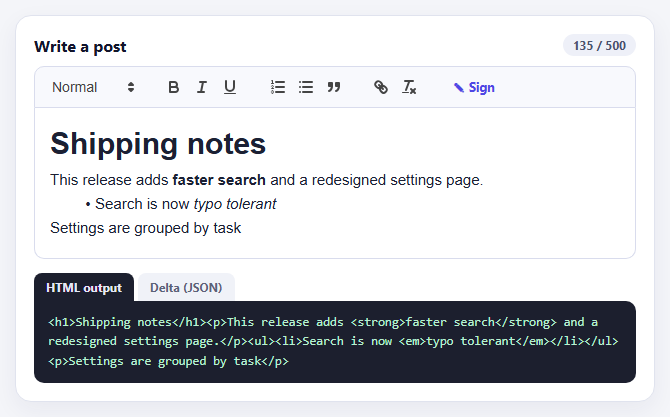
Quill Rich Text Editor with Custom Toolbar and Character Limit
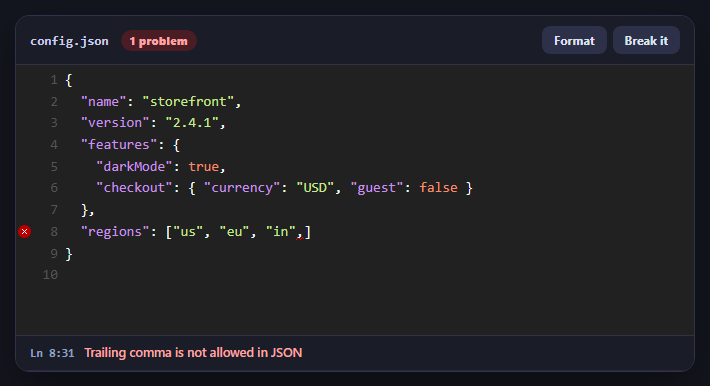
CodeMirror JSON Editor with Validation Gutter
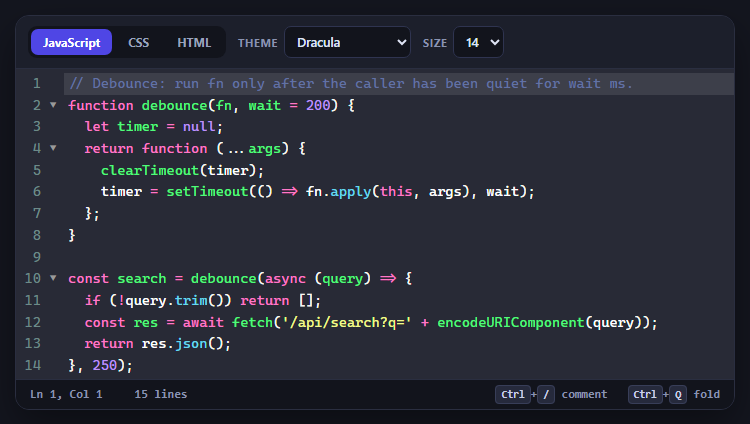
CodeMirror Code Editor with Line Numbers, Folding and Themes
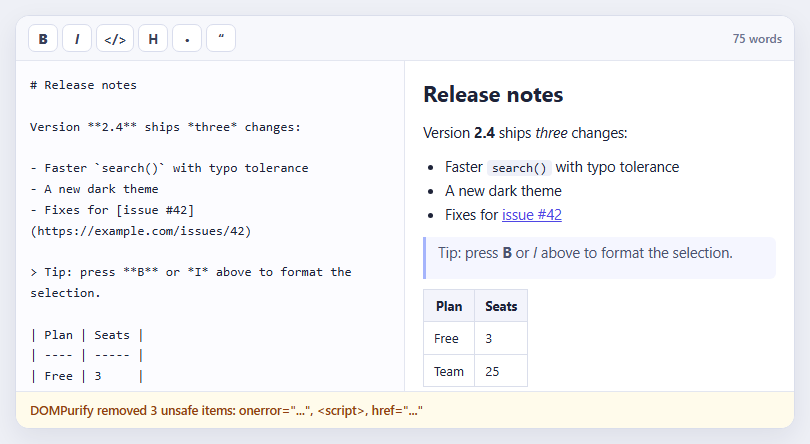
Marked + DOMPurify Live Markdown Preview
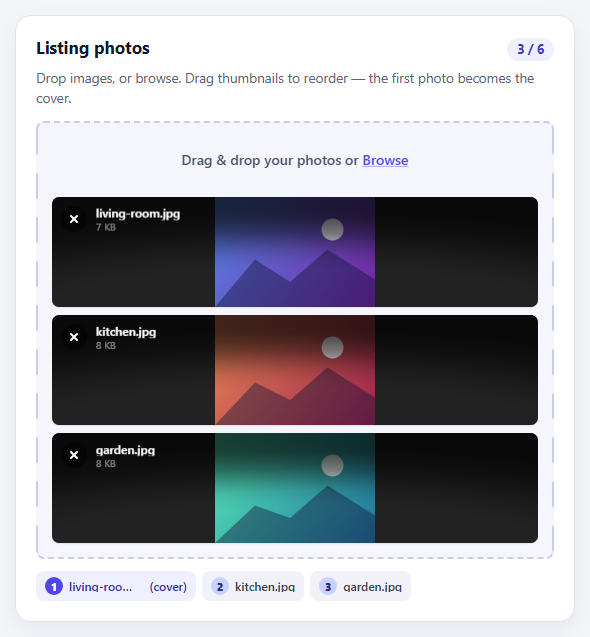
FilePond Image Upload with Preview and Reorder
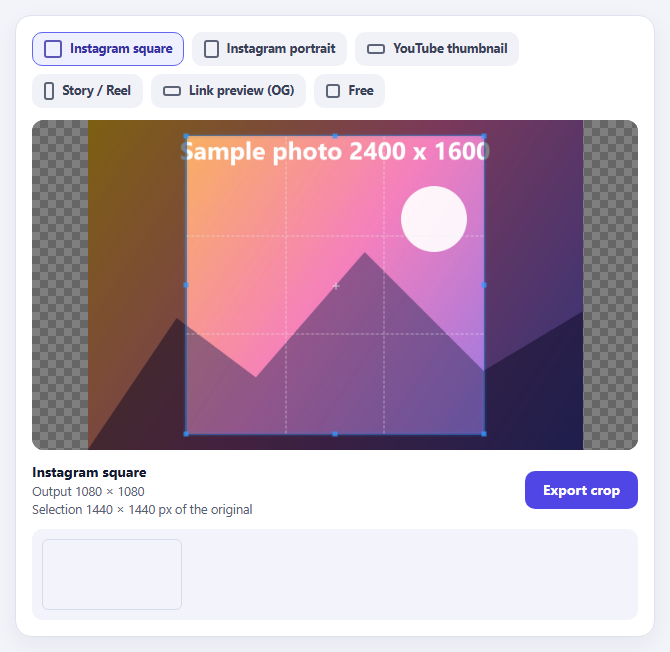
Cropper.js Aspect-Ratio Presets for Social Posts
Learn Coding Visually
Learn to code with interactive, live-preview playgrounds — HTML, CSS, JavaScript, React & more.
 HTML Playground42 lessons · Click-based · Live preview
 CSS PlaygroundLearn CSS with a live editor
 JavaScript Playground60 lessons · DOM · Async · Canvas
 React PlaygroundLearn React with a live code editor
 GSAP PlaygroundLearn GSAP animation interactively
 SVG Playground44 lessons · shapes · paths · animation
 SCSS Playground45 lessons · Sass modules · tokens
 Tailwind PlaygroundLearn Tailwind CSS with a live editor
 Bootstrap 5 Playground50 lessons · live preview
Passkey Login — Free HTML CSS JS WebAuthn UI Snippet
Passkey Login · Forms · Plain HTML, CSS & JS · Live preview
What's included
Features
About this UI Snippet
Passkey Login — Passwordless Sign-In UI with WebAuthn Detection and Email Fallback
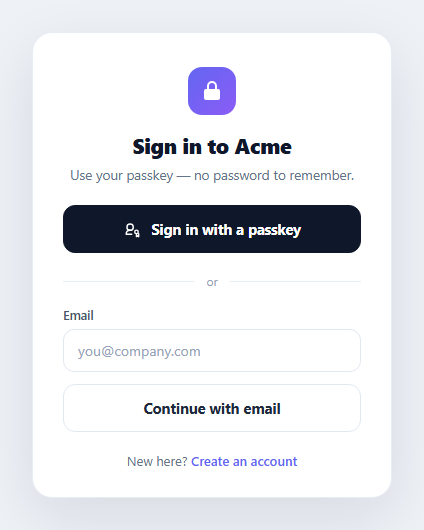
Passwords are being replaced. Apple, Google, and Microsoft now ship passkeys — cryptographic credentials backed by Face ID, Touch ID, or Windows Hello — and modern login screens lead with a "Sign in with a passkey" button, keeping email as a fallback. This component is the front-end of that flow: a clean sign-in card with a primary passkey button that shows an authenticator-prompt loading state, a divider, an email field wired for passkey autofill, a fallback button, and a success toast. It is built in plain HTML, CSS, and vanilla JavaScript, and it feature-detects the real WebAuthn API so the demo behaves the way a production screen would.
The passkey-first layout
The card puts the passwordless path first: a fingerprint-style passkey button as the prominent dark primary action, an "or" divider, then the traditional email path below it as the secondary option. This ordering reflects the current best practice from the FIDO Alliance and the big platform vendors — surface the faster, phishing-resistant method, but never strand users who have not set up a passkey yet. The card has a gradient lock logo, a title, a subtitle that sets expectations ("no password to remember"), and a footer link to account creation.
Feature-detecting WebAuthn
When the passkey button is clicked, the script checks typeof window.PublicKeyCredential !== 'undefined' — the canonical way to detect whether the browser supports the Web Authentication API. In a real implementation this is the gate before calling navigator.credentials.get() with a server-issued challenge. Here it drives the demo's two outcomes: a "verified" toast when passkeys are supported, and a "not supported here" toast when they are not, so you can see both branches. This mirrors how you would progressively enhance a real login: show the passkey button only when the API exists, and fall back to email-and-password otherwise.
The authenticator-prompt loading state
Clicking the passkey button adds a .loading class to the card. Pure CSS then hides the button's icon and label and reveals a spinning SVG, communicating that the browser is waiting on the platform authenticator (the Face ID / Touch ID / Windows Hello system dialog). The button's pointer-events are disabled during this state so it cannot be double-triggered. A setTimeout simulates the 1.5-second authenticator round-trip; in production this period is exactly when navigator.credentials.get() is awaiting the user's biometric confirmation.
Passkey autofill on the email field
The email input carries autocomplete="username webauthn". That webauthn token is what enables "conditional UI" — browsers that support it will surface available passkeys directly in the email field's autofill dropdown, so a returning user can pick their passkey without even pressing the button. Including the token costs nothing on browsers that ignore it and unlocks the smoothest passkey experience on those that support it.
The success toast
Feedback is delivered through a pill toast pinned to the bottom of the card. It starts translated 80px down and transparent; adding a .show class slides it up and fades it in with a cubic-bezier spring, and a setTimeout hides it after 2.6 seconds. The toast has role="status" and aria-live="polite" so screen readers announce the result without stealing focus. The timer is cleared on each trigger so rapid clicks never leave it stuck.
Wiring to a real backend
To make this functional, replace the setTimeout with the real ceremony: fetch a challenge from your server, call navigator.credentials.get({ publicKey: { challenge, ... } }), and POST the resulting assertion back for verification. Keep the same UI states — add .loading before the call, remove it after, and show a success or error toast based on the response. Swap the #6366f1 / #0f172a palette and the logo for your brand, and edit the title and subtitle to match your product.
Build with AI
Build, Understand, Optimize, and Extend It With AI
You don't have to piece together the WebAuthn flow from scratch on your own. Paste this snippet's HTML, CSS, and JS into an AI coding assistant like Claude and ask it to explain exactly what the window.PublicKeyCredential feature check is protecting against, and why the email input's autocomplete value of "username webauthn" specifically enables conditional UI passkey autofill in supporting browsers. The same assistant can help you optimize it, for example checking whether isUserVerifyingPlatformAuthenticatorAvailable should gate the button's visibility before the user even clicks it, or whether the loading and toast timers are cleared correctly under rapid repeat clicks. It's also useful for extending the effect: ask it to wire the setTimeout stub up to a real navigator.credentials.get() call against a server-issued challenge, add an error state for a rejected or cancelled biometric prompt, or add a "manage passkeys" list to account settings. Treat the code less like a finished artifact and more like a starting point for a conversation.
Prompt to recreate it
Copy this into your AI assistant of choice to build the effect from scratch, or as a jumping-off point for your own variant:
Build a passwordless "sign in with a passkey" login card in plain HTML, CSS, and vanilla JavaScript that mirrors a real WebAuthn-based flow, with email as a fallback path — no frameworks, no backend required for the demo.

Requirements:
- A card with a primary "Sign in with a passkey" button as the dominant action, a visual divider, then a labeled email input and a secondary "Continue with email" button below it as the fallback path.
- The email input must carry autocomplete="username webauthn" so browsers that support conditional UI can surface saved passkeys directly in its autofill dropdown.
- On clicking the passkey button, feature-detect real WebAuthn support with a check like typeof window.PublicKeyCredential !== 'undefined', and branch the resulting message on whether it's supported.
- While the passkey ceremony is "in progress" (simulate this with a roughly 1.5 second delay standing in for navigator.credentials.get()), the button must enter a loading state driven by a single CSS class: hide its icon and label, show a spinning SVG icon, and disable further clicks via pointer-events.
- Show the result (success or unsupported) in an accessible toast pinned to the bottom of the card, using role="status" and aria-live="polite", animating in with a transform and opacity transition and auto-hiding after a few seconds, with any pending hide timer cleared on each new trigger so rapid re-clicks never leave it stuck.
- Document in a code comment exactly where a real implementation would fetch a challenge from the server and call navigator.credentials.get({ publicKey: { challenge, ... } }), replacing the setTimeout stub, while keeping the same loading and toast states around that async call.
Want to tighten it up first? Run this prompt through the AI Prompt Studio to score it across 8 quality dimensions, catch anti-patterns, and tune the wording for Claude, ChatGPT, or Gemini before you paste it in.
Source Code
<div class="pk-card" id="pkCard">
  <div class="pk-logo">
    <svg viewBox="0 0 24 24" aria-hidden="true"><path d="M12 2a5 5 0 0 0-5 5v3H6a2 2 0 0 0-2 2v7a2 2 0 0 0 2 2h12a2 2 0 0 0 2-2v-7a2 2 0 0 0-2-2h-1V7a5 5 0 0 0-5-5zm-3 8V7a3 3 0 0 1 6 0v3H9z"/></svg>
  </div>
  <h1 class="pk-title">Sign in to Acme</h1>
  <p class="pk-sub">Use your passkey — no password to remember.</p>

  <button class="pk-btn pk-primary" id="pkPasskey" type="button">
    <svg class="pk-ico" viewBox="0 0 24 24" aria-hidden="true"><circle cx="9" cy="9" r="4"/><path d="M9 13c-3 0-5 2-5 5h7"/><circle cx="17" cy="15" r="2.2"/><path d="M17 17.2V21l1.4-1 1.4 1v-3.8"/></svg>
    <span class="pk-btn-label">Sign in with a passkey</span>
    <svg class="pk-spinner" viewBox="0 0 24 24" aria-hidden="true"><path d="M21 12a9 9 0 1 1-6.2-8.5"/></svg>
  </button>

  <div class="pk-divider"><span>or</span></div>

  <label class="pk-field">
    <span class="pk-field-label">Email</span>
    <input class="pk-input" type="email" placeholder="you@company.com" autocomplete="username webauthn">
  </label>
  <button class="pk-btn pk-ghost" type="button">Continue with email</button>

  <p class="pk-foot">New here? <a href="#">Create an account</a></p>

  <div class="pk-toast" id="pkToast" role="status" aria-live="polite">
    <svg viewBox="0 0 24 24" aria-hidden="true"><polyline points="20 6 9 17 4 12"/></svg>
    <span id="pkToastText">Passkey verified</span>
  </div>
</div>
* { box-sizing: border-box; margin: 0; padding: 0; }
body { font-family: system-ui, -apple-system, sans-serif; background: #eef2f7; min-height: 100vh; display: flex; align-items: center; justify-content: center; padding: 28px; }
.pk-card {
position: relative;
width: 100%; max-width: 360px;
background: #fff;
border: 1px solid #e8edf3;
border-radius: 20px;
padding: 34px 30px 28px;
box-shadow: 0 20px 60px rgba(15, 23, 42, 0.1);
text-align: center;
}
.pk-logo {
width: 48px; height: 48px; margin: 0 auto 16px;
display: flex; align-items: center; justify-content: center;
background: linear-gradient(135deg, #6366f1, #8b5cf6);
border-radius: 14px;
}
.pk-logo svg { width: 24px; height: 24px; fill: #fff; }
.pk-title { font-size: 21px; font-weight: 800; color: #0f172a; letter-spacing: -0.01em; }
.pk-sub { font-size: 13.5px; color: #64748b; margin-top: 6px; }
.pk-btn {
position: relative;
width: 100%;
display: flex; align-items: center; justify-content: center; gap: 9px;
padding: 13px;
border-radius: 12px;
font-family: inherit; font-size: 14.5px; font-weight: 700;
cursor: pointer;
transition: background 0.18s, border-color 0.18s, transform 0.1s, opacity 0.18s;
}
.pk-btn:active { transform: scale(0.985); }
.pk-primary { margin-top: 22px; background: #0f172a; color: #fff; border: 1px solid #0f172a; }
.pk-primary:hover { background: #1e293b; }
.pk-ico { width: 19px; height: 19px; fill: none; stroke: currentColor; stroke-width: 1.8; stroke-linecap: round; stroke-linejoin: round; }
.pk-spinner { width: 18px; height: 18px; fill: none; stroke: currentColor; stroke-width: 2.4; stroke-linecap: round; display: none; animation: pkSpin 0.7s linear infinite; }
@keyframes pkSpin { to { transform: rotate(360deg); } }
.pk-card.loading .pk-primary { pointer-events: none; }
.pk-card.loading .pk-ico,
.pk-card.loading .pk-btn-label { display: none; }
.pk-card.loading .pk-spinner { display: block; }
.pk-divider { display: flex; align-items: center; gap: 12px; margin: 20px 0 18px; color: #94a3b8; font-size: 12px; }
.pk-divider::before, .pk-divider::after { content: ''; flex: 1; height: 1px; background: #e8edf3; }
.pk-field { display: block; text-align: left; }
.pk-field-label { display: block; font-size: 12.5px; font-weight: 600; color: #475569; margin-bottom: 6px; }
.pk-input {
width: 100%; padding: 11px 14px;
border: 1.5px solid #e2e8f0; border-radius: 11px;
font-family: inherit; font-size: 14px; color: #0f172a; outline: none;
transition: border-color 0.15s, box-shadow 0.15s;
}
.pk-input::placeholder { color: #94a3b8; }
.pk-input:focus { border-color: #6366f1; box-shadow: 0 0 0 3px rgba(99, 102, 241, 0.12); }
.pk-ghost { margin-top: 12px; background: #fff; color: #1e293b; border: 1.5px solid #e2e8f0; }
.pk-ghost:hover { border-color: #cbd5e1; background: #f8fafc; }
.pk-foot { font-size: 13px; color: #64748b; margin-top: 20px; }
.pk-foot a { color: #6366f1; font-weight: 600; text-decoration: none; }
.pk-foot a:hover { text-decoration: underline; }
.pk-toast {
position: absolute; left: 50%; bottom: 18px;
transform: translate(-50%, 80px);
display: flex; align-items: center; gap: 8px;
padding: 10px 16px;
background: #059669; color: #fff;
border-radius: 999px;
font-size: 13px; font-weight: 600;
box-shadow: 0 8px 24px rgba(5, 150, 105, 0.35);
opacity: 0; pointer-events: none;
transition: transform 0.4s cubic-bezier(0.32, 0.72, 0, 1), opacity 0.3s;
}
.pk-toast svg { width: 16px; height: 16px; fill: none; stroke: currentColor; stroke-width: 3; stroke-linecap: round; stroke-linejoin: round; }
.pk-toast.show { transform: translate(-50%, 0); opacity: 1; }const card = document.getElementById('pkCard');
const passkeyBtn = document.getElementById('pkPasskey');
const toast = document.getElementById('pkToast');
const toastText = document.getElementById('pkToastText');
let toastTimer = null;
function showToast(msg) {
toastText.textContent = msg;
toast.classList.add('show');
clearTimeout(toastTimer);
toastTimer = setTimeout(() => toast.classList.remove('show'), 2600);
}
passkeyBtn.addEventListener('click', () => {
// Feature-detect the real WebAuthn API so the demo mirrors a production check
const supported = typeof window.PublicKeyCredential !== 'undefined';
card.classList.add('loading');
// Simulate the platform authenticator prompt (Face ID / Touch ID / Windows Hello)
setTimeout(() => {
card.classList.remove('loading');
if (supported) {
showToast('Passkey verified — signing in');
} else {
showToast('Passkeys not supported here');
}
}, 1500);
});Step by step
How to Use
- 1Paste the HTML, CSS, and JSA sign-in card renders with a "Sign in with a passkey" button, an email fallback, and a footer link.
- 2Click the passkey buttonThe button enters a loading state — icon and label hide, a spinner appears — simulating the Face ID / Touch ID / Windows Hello prompt.
- 3See the result toastAfter ~1.5s a toast slides up confirming the passkey was verified, or noting passkeys are unsupported if the browser lacks WebAuthn.
- 4Try the email pathType an email and click "Continue with email" as the fallback; the field is tagged for passkey autofill (autocomplete="username webauthn").
- 5Connect a real backendReplace the setTimeout with a challenge fetch and navigator.credentials.get(), keeping the same loading and toast states.
- 6Theme itSwap the dark/indigo palette and the lock logo, and edit the title and subtitle to match your product.
Real-world uses
Common Use Cases
Got questions?
Frequently Asked Questions
No — it is the front-end UI and flow only. The click handler feature-detects WebAuthn and simulates the authenticator prompt with a timeout so you can see the loading and success states. To make it functional, fetch a challenge from your server, call navigator.credentials.get({ publicKey: { challenge } }), and send the returned assertion back for verification, keeping the same .loading and toast states around that async call.
The webauthn token enables "conditional UI": browsers that support it surface the user's available passkeys directly in the email field's autofill dropdown, so a returning user can sign in by selecting a passkey without clicking the button. Browsers that do not support it simply treat the field as a normal username input, so the token is safe to include everywhere.
Wrap the button's display in the same check the handler uses: if (typeof window.PublicKeyCredential === 'undefined') hide the passkey button and show only the email path. For the best signal, also await PublicKeyCredential.isUserVerifyingPlatformAuthenticatorAvailable(), which confirms a built-in authenticator (Face ID, Touch ID, Windows Hello) is actually present before you promote the passkey option.
Not every user has set up a passkey, and not every browser or device supports them yet. Best practice is progressive enhancement: lead with passkeys where available, but always provide a working alternative (email link, OTP, or password) so nobody is locked out. The fallback button here represents that path.
Hold loading and toast booleans in state and bind them to the .loading and .show classes. Put the WebAuthn ceremony in an async click handler: set loading true, await navigator.credentials.get(), then set loading false and toggle the toast based on success. Clear the toast timeout in a cleanup (useEffect return / onUnmounted / ngOnDestroy). The card markup and all CSS states port unchanged — only the async flow and state move into the framework.