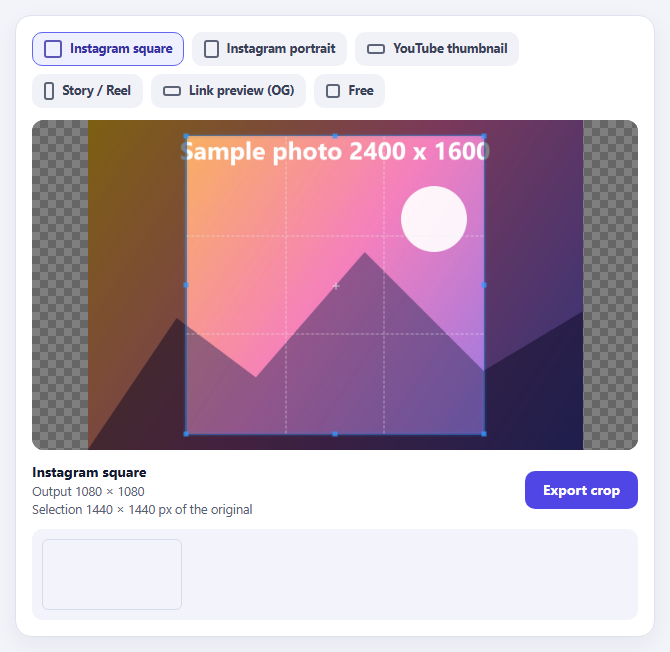
Cropper.js Aspect-Ratio Presets for Social Posts
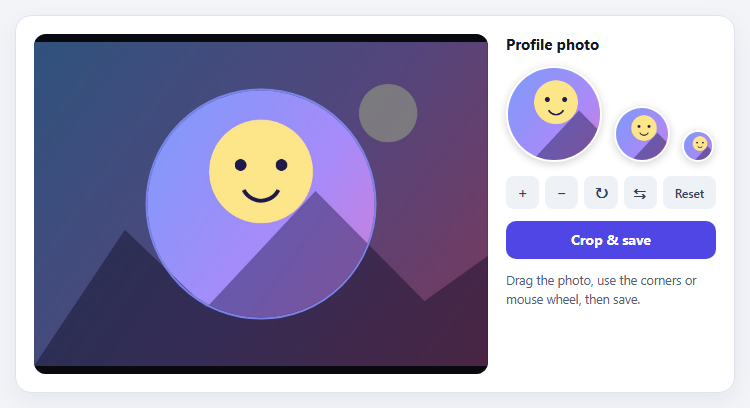
Cropper.js Avatar Crop with Live Circular Preview
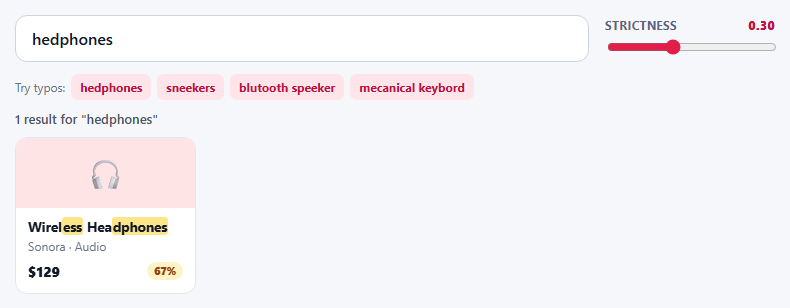
Fuse.js Typo-Tolerant Product Search with Threshold Tuning
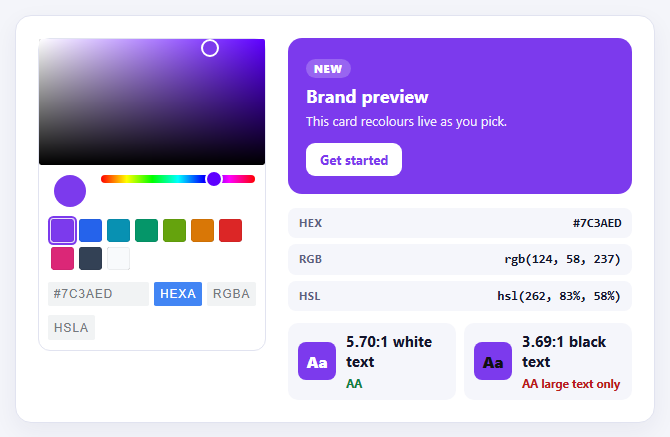
Pickr Inline Color Picker with Swatches and Contrast Check
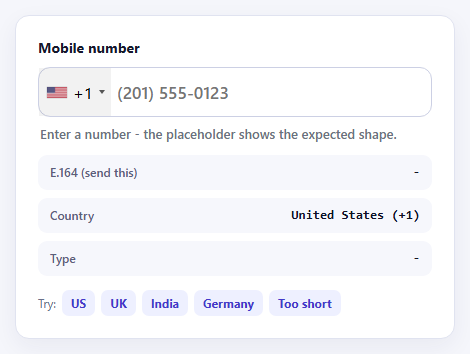
intl-tel-input International Phone Field with Validation
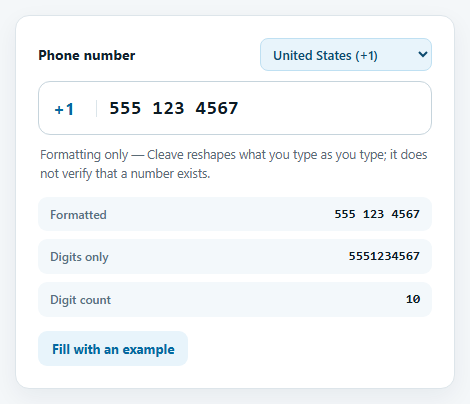
Cleave.js Phone Number Input by Country
Learn Coding Visually
Learn to code with interactive, live-preview playgrounds — HTML, CSS, JavaScript, React & more.
 HTML Playground42 lessons · Click-based · Live preview
 CSS PlaygroundLearn CSS with a live editor
 JavaScript Playground60 lessons · DOM · Async · Canvas
 React PlaygroundLearn React with a live code editor
 GSAP PlaygroundLearn GSAP animation interactively
 SVG Playground44 lessons · shapes · paths · animation
 SCSS Playground45 lessons · Sass modules · tokens
 Tailwind PlaygroundLearn Tailwind CSS with a live editor
 Bootstrap 5 Playground50 lessons · live preview
Cropper.js Aspect Ratio Presets — Free JS Snippet
Cropper.js Aspect-Ratio Presets for Social Posts · Forms · Plain HTML, CSS & JS · Live preview
What's included
Features
About this UI Snippet
Cropper.js Aspect-Ratio Presets — HTML, CSS & JavaScript
Every social platform wants a different rectangle. Instagram takes 1:1 or 4:5, YouTube thumbnails are 16:9, Stories and Reels are 9:16 and link previews use the roughly 1.91:1 Open Graph shape. Marketers and editors reframe the same photo several times a week, and a tool that makes them do it with a free-form box and a calculator is a tool they stop using. A preset bar turns that into one click per destination.
Cropper.js supports this directly: aspectRatio in the options locks the crop box to a ratio, and setAspectRatio() changes it at runtime. Passing NaN removes the lock entirely, which is how the "Free" preset is implemented — an easy detail to miss, because the documentation describes NaN as "free ratio" rather than showing a constant. Each preset in the snippet is data — a ratio plus the exact pixel size the platform expects — so adding a destination means adding a line to an array, not writing new logic.
There is an important distinction between the crop and the export. The crop box selects a region of the original, whatever its pixel size; the export decides the output resolution. Calling getCroppedCanvas({ width, height }) resamples the selection to the preset's dimensions, so a 2400 × 1600 source cropped for a 1080 × 1350 portrait post comes out at exactly 1080 × 1350 with high-quality smoothing. The live line under the preview shows the selection size in source pixels through the crop event, which is what warns you when a selection is so small that upscaling will look soft.
The preset buttons draw a proportional outline icon for each ratio, computed from the ratio itself, and use aria-pressed so the active preset is exposed to assistive technology as well as shown visually. The result panel demonstrates the final canvas at its real dimensions, scaled down for display. In a production tool the canvas would be sent on with toBlob() and a fetch upload rather than displayed.
Build with AI
Build, Understand, Optimize, and Extend It With AI
Ask an AI assistant like Claude to add a file picker or drag-and-drop for loading real photos, a JPEG quality slider with a live size estimate, or a batch export that renders every preset at once.
Prompt to recreate it
Copy this into your AI assistant of choice to build the effect from scratch, or as a jumping-off point for your own variant:
Build an aspect-ratio preset cropper with Cropper.js 1.6 loaded from a CDN (script and CSS).

Requirements:
- Define presets as data: Instagram square 1:1 (1080x1080), portrait 4:5 (1080x1350), YouTube 16:9 (1280x720), Story 9:16 (1080x1920), link preview 1.91:1 (1200x630) and a Free preset using NaN.
- Render a button per preset with a proportional outline icon and aria-pressed for the active one; clicking calls setAspectRatio().
- Show the selection size in source pixels from the crop event, and the target output size.
- Export with getCroppedCanvas({ width, height, imageSmoothingQuality: 'high' }) and show the result with its dimensions.
- Generate the sample image on a canvas so no files are required.
Want to tighten it up first? Run this prompt through the AI Prompt Studio to score it across 8 quality dimensions, catch anti-patterns, and tune the wording for Claude, ChatGPT, or Gemini before you paste it in.
Source Code
<div class="sp-wrap">
<div class="sp-presets" id="spPresets" role="group" aria-label="Aspect ratio presets"></div>
<div class="sp-stage"><img id="spImg" alt="Photo to crop"></div>
<div class="sp-foot">
<div class="sp-info">
<b id="spName">Instagram square</b>
<span id="spSize">Output 1080 × 1080</span>
<span id="spSel">Selection -</span>
</div>
<button type="button" class="sp-go" id="spGo">Export crop</button>
</div>
<div class="sp-result" id="spResult" hidden><canvas id="spCanvas"></canvas><span id="spResText"></span></div>
</div>body { background: #f3f4f9; padding: 20px; font-family: system-ui, sans-serif; }
.sp-wrap { max-width: 640px; margin: 0 auto; background: #fff; border: 1px solid #dfe2ee; border-radius: 16px; padding: 16px; box-shadow: 0 8px 24px rgba(30,30,80,.06); }
.sp-presets { display: flex; flex-wrap: wrap; gap: 8px; margin-bottom: 12px; }
.sp-presets button { display: flex; align-items: center; gap: 8px; font: 700 12.5px/1.1 system-ui, sans-serif; color: #384057; background: #f0f2f8; border: 1.5px solid transparent; border-radius: 10px; padding: 7px 11px; cursor: pointer; }
.sp-presets button:hover { background: #e6e9f4; }
.sp-presets button[aria-pressed="true"] { background: #eef0ff; border-color: #6366f1; color: #3730a3; }
.sp-box { display: inline-block; border: 2px solid currentColor; border-radius: 3px; opacity: .8; }
.sp-stage { height: 330px; background: #10141f; border-radius: 12px; overflow: hidden; }
.sp-stage img { display: block; max-width: 100%; }
.sp-foot { display: flex; justify-content: space-between; align-items: center; gap: 12px; margin-top: 12px; flex-wrap: wrap; }
.sp-info { display: flex; flex-direction: column; gap: 2px; font-size: 12.5px; color: #566074; }
.sp-info b { font-size: 14px; color: #141a2e; }
.sp-go { font: 700 14px/1 system-ui, sans-serif; color: #fff; background: #4f46e5; border: 0; border-radius: 10px; padding: 12px 18px; cursor: pointer; }
.sp-go:hover { background: #4338ca; }
.sp-result { display: flex; align-items: center; gap: 12px; margin-top: 12px; padding: 10px; background: #f3f4fb; border-radius: 10px; font-size: 12.5px; color: #48506a; }
.sp-result canvas { max-height: 80px; max-width: 140px; border-radius: 6px; border: 1px solid #d7dbee; }// Each preset = a ratio plus the pixel size the platform actually wants.
const PRESETS = [
{ id: 'sq', name: 'Instagram square', ratio: 1, w: 1080, h: 1080 },
{ id: 'port', name: 'Instagram portrait', ratio: 4 / 5, w: 1080, h: 1350 },
{ id: 'yt', name: 'YouTube thumbnail', ratio: 16 / 9, w: 1280, h: 720 },
{ id: 'story', name: 'Story / Reel', ratio: 9 / 16, w: 1080, h: 1920 },
{ id: 'link', name: 'Link preview (OG)', ratio: 1.91, w: 1200, h: 630 },
{ id: 'free', name: 'Free', ratio: NaN, w: 0, h: 0 }, // NaN = no constraint
];
function makePhoto(w, h) {
const c = document.createElement('canvas'); c.width = w; c.height = h;
const x = c.getContext('2d');
const g = x.createLinearGradient(0, 0, w, h);
g.addColorStop(0, '#fbbf24'); g.addColorStop(0.5, '#f472b6'); g.addColorStop(1, '#6366f1');
x.fillStyle = g; x.fillRect(0, 0, w, h);
x.fillStyle = 'rgba(255,255,255,.92)'; x.beginPath(); x.arc(w * 0.7, h * 0.3, h * 0.1, 0, 7); x.fill();
x.fillStyle = 'rgba(24,20,70,.5)';
x.beginPath(); x.moveTo(0, h); x.lineTo(w * 0.18, h * 0.6); x.lineTo(w * 0.34, h * 0.78); x.lineTo(w * 0.56, h * 0.4); x.lineTo(w * 0.8, h * 0.76); x.lineTo(w, h * 0.58); x.lineTo(w, h); x.fill();
x.fillStyle = '#fff'; x.font = '700 ' + Math.round(h * 0.075) + 'px system-ui, sans-serif'; x.textAlign = 'center';
x.fillText('Sample photo 2400 x 1600', w / 2, h * 0.12);
return c.toDataURL('image/jpeg', 0.9);
}
const img = document.getElementById('spImg');
img.src = makePhoto(2400, 1600);
const bar = document.getElementById('spPresets');
let current = PRESETS[0];
function boxIcon(r) {
const w = isNaN(r) ? 14 : r >= 1 ? 18 : 18 * r;
const h = isNaN(r) ? 14 : r >= 1 ? 18 / r : 18;
return '<span class="sp-box" style="width:' + w + 'px;height:' + h + 'px"></span>';
}
bar.innerHTML = PRESETS.map(function (p) {
return '<button type="button" data-id="' + p.id + '" aria-pressed="' + (p === current) + '">' + boxIcon(p.ratio) + p.name + '</button>';
}).join('');
const cropper = new Cropper(img, {
aspectRatio: current.ratio,
viewMode: 1,
autoCropArea: 0.9,
responsive: true,
crop: function (e) {
document.getElementById('spSel').textContent = 'Selection ' + Math.round(e.detail.width) + ' × ' + Math.round(e.detail.height) + ' px of the original';
},
});
function choose(p) {
current = p;
cropper.setAspectRatio(p.ratio); // NaN removes the lock
bar.querySelectorAll('button').forEach(function (b) { b.setAttribute('aria-pressed', String(b.dataset.id === p.id)); });
document.getElementById('spName').textContent = p.name;
document.getElementById('spSize').textContent = p.w ? 'Output ' + p.w + ' × ' + p.h : 'Output at selection size';
}
bar.addEventListener('click', function (e) {
const b = e.target.closest('button');
if (b) choose(PRESETS.filter(function (p) { return p.id === b.dataset.id; })[0]);
});
document.getElementById('spGo').addEventListener('click', function () {
const opts = current.w ? { width: current.w, height: current.h, imageSmoothingQuality: 'high' } : { imageSmoothingQuality: 'high' };
const out = cropper.getCroppedCanvas(opts);
if (!out) return;
const cv = document.getElementById('spCanvas');
cv.width = out.width; cv.height = out.height;
cv.getContext('2d').drawImage(out, 0, 0);
document.getElementById('spResult').hidden = false;
document.getElementById('spResText').textContent = 'Exported ' + out.width + ' × ' + out.height + ' px, ready to post.';
});Step by step
How to Use
- 1Choose a presetClick Instagram portrait, YouTube thumbnail, Story or Link preview. The crop box snaps to that ratio.
- 2Adjust the cropDrag the box or its handles to frame the subject; the ratio stays locked.
- 3Read the sizesThe footer shows the output size for the preset and the selection size in original pixels.
- 4ExportPress Export crop to render the selection at the platform's exact pixel dimensions.
- 5Go freeChoose Free to remove the ratio lock and draw any shape you like.
Real-world uses
Common Use Cases
Got questions?
Frequently Asked Questions
Call setAspectRatio(NaN). NaN means a free ratio, so the crop box can take any shape.
The crop selects a region of the original. getCroppedCanvas with width and height then scales that region to the size you want to publish.
It tells you how many original pixels you have. A very small selection exported at 1080 pixels will be upscaled and look soft.
Add an object to the PRESETS array with its ratio and output width and height. The buttons and icons are generated from it.
Call canvas.toBlob() with a type and quality, then send the blob in a FormData body with fetch.
Yes. Cropper.js supports touch dragging and pinch to zoom on the crop area.
Yes. Use the JSX, Vue, Angular or Tailwind export buttons on this page to convert the markup and styles. The behaviour comes from Cropper.js, so in a framework project install it with npm install cropperjs instead of the CDN tag, create it in useEffect / onMounted / ngAfterViewInit once the image has loaded, and release it with destroy() when the component unmounts.