Learn Coding Visually
Learn to code with interactive, live-preview playgrounds — HTML, CSS, JavaScript, React & more.
 HTML Playground42 lessons · Click-based · Live preview
 CSS PlaygroundLearn CSS with a live editor
 JavaScript Playground60 lessons · DOM · Async · Canvas
 React PlaygroundLearn React with a live code editor
 GSAP PlaygroundLearn GSAP animation interactively
 SVG Playground44 lessons · shapes · paths · animation
 SCSS Playground45 lessons · Sass modules · tokens
 Tailwind PlaygroundLearn Tailwind CSS with a live editor
 Bootstrap 5 Playground50 lessons · live preview
Tom Select Tag Input with Create-on-Type — Free JS Snippet
Tom Select Tag Input with Create-on-Type · Forms · Plain HTML, CSS & JS · Live preview
What's included
Features
About this UI Snippet
Tom Select Tag Input with Create-on-Type — HTML, CSS & JavaScript
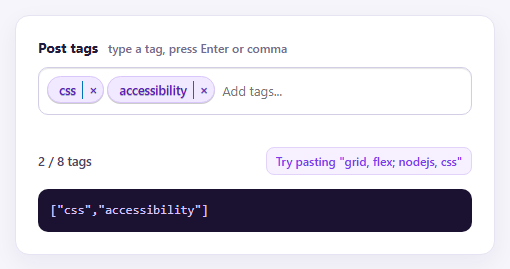
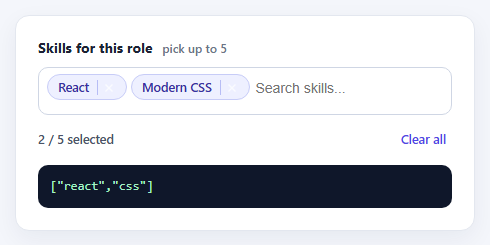
A tag input has two jobs that pull in opposite directions. It should suggest existing tags so people converge on the same vocabulary, and it should let them invent new ones when nothing fits. Get the first job wrong and you end up with "js", "javascript" and "JavaScript" as three separate tags. Get the second wrong and the input feels locked. Tom Select handles both through its create option, and this snippet shows the parts around it that decide whether the result is clean data.
The create option accepts a function, not just true. Here it normalises whatever was typed — trim, lowercase, spaces to dashes — before returning the new item, so "Design Systems" and "design systems" collapse into one tag instead of two. createFilter runs first and decides whether a create row is offered at all: two to twenty characters, lowercase letters, digits and dashes. When the filter rejects the text, Enter simply does nothing, which feels like a bug, so a type listener explains the reason in a status line beneath the field.
The rest of the configuration is about behaviour people notice. persist: false stops newly created tags from being added to the option list, so they do not clutter suggestions after being removed. splitOn lets a pasted string like "grid, flex; nodejs" become three tags in one gesture instead of one long, invalid tag. createOnBlur turns text left in the box into a tag when focus moves away, which prevents the common "I typed it but it did not save" problem. maxItems caps the list and the counter and message make the limit visible.
The output panel prints tom.items, the same plain array of strings a form handler would receive. Because the field is initialised on a text input with a comma delimiter, it also submits as "css,accessibility" in a normal form post, so it works without any JavaScript on the server side beyond splitting the string.
Build with AI
Build, Understand, Optimize, and Extend It With AI
Ask an AI assistant like Claude to add tag colours by category, show usage counts next to suggested tags, or load suggestions from an API with the load callback.
Prompt to recreate it
Copy this into your AI assistant of choice to build the effect from scratch, or as a jumping-off point for your own variant:
Build a tag input with Tom Select 2 (complete build) loaded from a CDN on a text input.

Requirements:
- Use the remove_button and clear_button plugins, a comma delimiter, persist: false and createOnBlur: true.
- Provide a create() function that trims, lowercases and dashes the typed text, plus a createFilter that only allows 2-20 chars of a-z, 0-9 and dashes.
- Use the type event to show a helpful message when the current text would be rejected.
- Set splitOn so pasting "a, b; c" creates three tags, and maxItems to 8 with a live counter.
- Print tomSelect.items as JSON below the field, and render a custom "Add <term>..." create row with option_create.
Want to tighten it up first? Run this prompt through the AI Prompt Studio to score it across 8 quality dimensions, catch anti-patterns, and tune the wording for Claude, ChatGPT, or Gemini before you paste it in.
Source Code
<div class="ts-card">
  <label class="ts-label" for="tsTags">Post tags <span class="ts-hint">type a tag, press Enter or comma</span></label>
  <input id="tsTags" type="text" value="css,accessibility" autocomplete="off">
  <p class="ts-msg" id="tsMsg" role="status"></p>
  <div class="ts-meta">
    <span id="tsCount">2 / 8 tags</span>
    <button type="button" class="ts-paste" id="tsPaste">Try pasting "grid, flex; nodejs, css"</button>
  </div>
  <pre class="ts-out" id="tsOut"></pre>
</div>
body { background: #f6f5fb; padding: 24px; font-family: system-ui, sans-serif; }
.ts-card { max-width: 480px; margin: 0 auto; background: #fff; border: 1px solid #e6e3f2; border-radius: 14px; padding: 22px; box-shadow: 0 8px 24px rgba(40,20,80,.06); }
.ts-label { display: block; font-weight: 700; font-size: 14px; color: #211a3a; margin-bottom: 10px; }
.ts-hint { font-weight: 500; color: #746c8c; font-size: 12px; margin-left: 6px; }
.ts-card .ts-wrapper.multi .ts-control { border-radius: 10px; border-color: #d3cee6; padding: 8px; min-height: 48px; }
.ts-card .ts-wrapper.multi.focus .ts-control { border-color: #7c3aed; box-shadow: 0 0 0 3px rgba(124,58,237,.16); }
.ts-card .ts-wrapper.multi .ts-control > div { background: #f1e9ff; border: 1px solid #d9c6fb; color: #5b21b6; border-radius: 999px; font-weight: 600; font-size: 12.5px; padding: 3px 4px 3px 11px; }
.ts-card .ts-wrapper.multi .ts-control > div.active { background: #e4d3ff; border-color: #b794f6; color: #4c1d95; }
.ts-card .plugin-remove_button .remove { border-left: 0; border-radius: 999px; color: #7c3aed; margin-left: 4px; padding: 0 6px; }
.ts-card .ts-dropdown { border-radius: 10px; border-color: #d3cee6; box-shadow: 0 10px 24px rgba(40,20,80,.12); z-index: 5; }
.ts-card .ts-dropdown .active { background: #f1e9ff; color: #4c1d95; }
.ts-card .ts-dropdown .create { color: #5b21b6; }
.ts-msg { min-height: 18px; margin: 8px 2px 0; font-size: 12.5px; color: #b45309; }
.ts-meta { display: flex; justify-content: space-between; align-items: center; margin-top: 6px; font-size: 12.5px; color: #4b4463; font-weight: 600; }
.ts-paste { font: inherit; font-size: 12px; font-weight: 600; color: #7c3aed; background: #f6f0ff; border: 1px solid #e2d3fb; border-radius: 8px; padding: 5px 9px; cursor: pointer; }
.ts-paste:hover { background: #ece0ff; }
.ts-out { margin: 14px 0 0; padding: 12px; border-radius: 10px; background: #1a1230; color: #d6c4ff; font: 12.5px/1.5 ui-monospace, Menlo, monospace; white-space: pre-wrap; word-break: break-word; }const MAX = 8;
const VALID = /^[a-z0-9][a-z0-9-]{1,19}$/; // 2-20 chars, lowercase, digits, dashes
const msg = document.getElementById('tsMsg');
const countEl = document.getElementById('tsCount');
const outEl = document.getElementById('tsOut');
const tom = new TomSelect('#tsTags', {
plugins: ['remove_button', 'clear_button'],
delimiter: ',',
persist: false, // created tags are not kept as future options
create: function (input) { // normalise before it becomes an item
const v = input.trim().toLowerCase().replace(/\s+/g, '-');
return { value: v, text: v };
},
createFilter: function (input) {
return VALID.test(input.trim().toLowerCase().replace(/\s+/g, '-'));
},
createOnBlur: true,
maxItems: MAX,
splitOn: /[,;\n]+/, // pasting "a, b; c" becomes three tags
options: ['css', 'javascript', 'accessibility', 'react', 'performance', 'html', 'typescript', 'testing', 'design-systems'].map(function (t) { return { value: t, text: t }; }),
items: ['css', 'accessibility'],
placeholder: 'Add tags...',
render: {
option_create: function (data, escape) {
return '<div class="create">Add <strong>' + escape(data.input) + '</strong>…</div>';
},
no_results: function () {
return '<div class="no-results">No matching tags — press Enter to create one</div>';
},
},
});
function sync() {
const v = tom.items;
countEl.textContent = v.length + ' / ' + MAX + ' tags';
outEl.textContent = JSON.stringify(v);
}
// Explain why Enter does nothing instead of failing silently.
tom.on('type', function (str) {
const clean = str.trim().toLowerCase().replace(/\s+/g, '-');
if (clean && !VALID.test(clean) && !tom.options[clean]) {
msg.textContent = clean.length < 2 ? 'Tags need at least 2 characters.'
: clean.length > 20 ? 'Tags can be at most 20 characters.'
: 'Use letters, numbers and dashes only.';
} else {
msg.textContent = '';
}
});
tom.on('change', function () { msg.textContent = ''; sync(); });
tom.on('item_add', function () { if (tom.items.length >= MAX) msg.textContent = 'Tag limit reached.'; });
document.getElementById('tsPaste').addEventListener('click', function () {
'grid, flex; nodejs, css'.split(/[,;\n]+/).forEach(function (t) {
const v = t.trim();
if (v) { tom.addOption({ value: v, text: v }); tom.addItem(v); }
});
});
sync();Step by step
How to Use
- 1Add an existing tagClick the field and pick "javascript" from the dropdown, or type "java" and press Enter.
- 2Create a new tagType "web components". A create row appears; press Enter and the tag is saved as web-components.
- 3Try an invalid tagType a single letter, or something with symbols. Enter does nothing and the status line explains why.
- 4Paste a listClick the paste button to add several comma and semicolon separated tags at once.
- 5Reach the capAdd eight tags. The counter updates and further additions are blocked with a message.
Real-world uses
Common Use Cases
Got questions?
Frequently Asked Questions
Normalise inside the create function (lowercase and trim) so both spellings produce the same value; Tom Select then treats it as an existing item.
createFilter rejected it. This snippet listens for the type event and shows the reason so users are not left guessing.
Use tomSelect.items for an array of values, or read the original input, which holds them joined by the delimiter.
Yes. Set splitOn to a regular expression such as /[,;\n]+/ and each part becomes its own tag.
It stops created items being added to the dropdown options, so removed one-off tags do not reappear as suggestions.
Yes. The underlying input holds the tags as a delimited string, so it submits like any text field.
Yes. Use the JSX, Vue, Angular or Tailwind export buttons on this page to convert the markup and styles. The behaviour comes from Tom Select, so in a framework project install it with npm install tom-select instead of the CDN tag, create it in useEffect / onMounted / ngAfterViewInit on the input, and release it with destroy() when the component unmounts.