FilePond Image Upload with Preview and Reorder
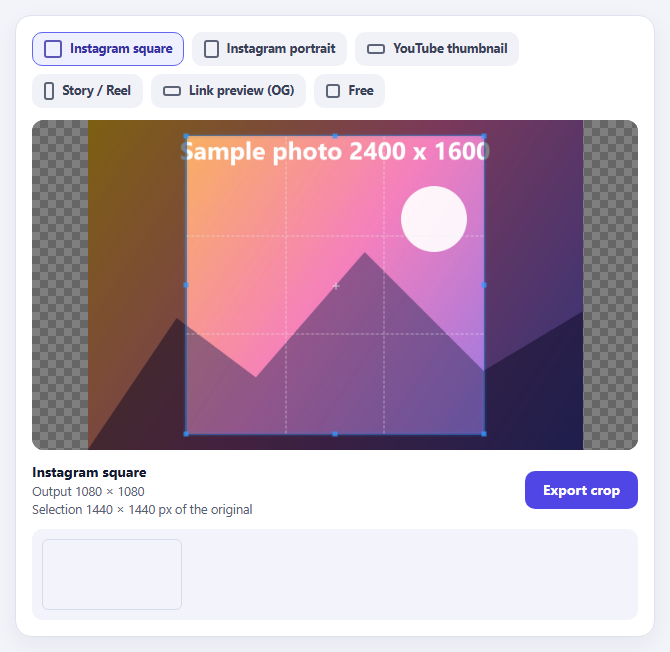
Cropper.js Aspect-Ratio Presets for Social Posts

Cropper.js Avatar Crop with Live Circular Preview
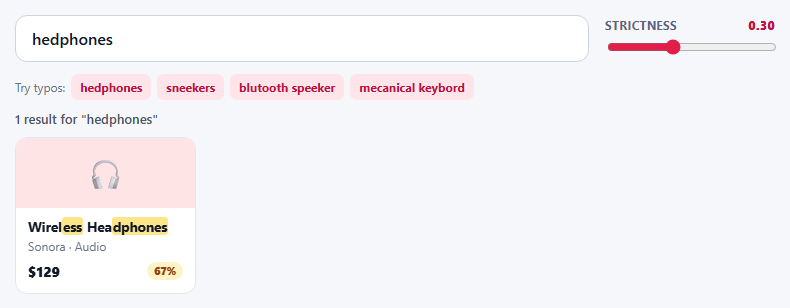
Fuse.js Typo-Tolerant Product Search with Threshold Tuning
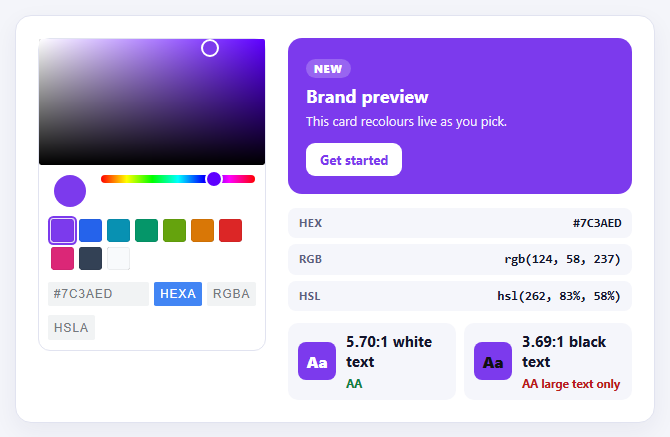
Pickr Inline Color Picker with Swatches and Contrast Check
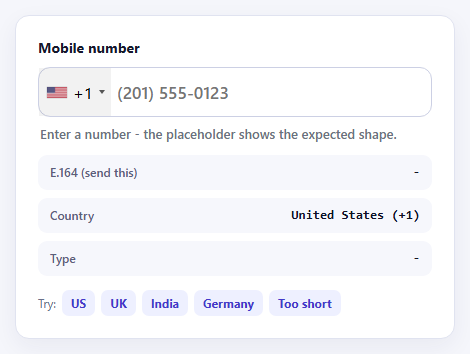
intl-tel-input International Phone Field with Validation
Learn Coding Visually
Learn to code with interactive, live-preview playgrounds — HTML, CSS, JavaScript, React & more.
 HTML Playground42 lessons · Click-based · Live preview
 CSS PlaygroundLearn CSS with a live editor
 JavaScript Playground60 lessons · DOM · Async · Canvas
 React PlaygroundLearn React with a live code editor
 GSAP PlaygroundLearn GSAP animation interactively
 SVG Playground44 lessons · shapes · paths · animation
 SCSS Playground45 lessons · Sass modules · tokens
 Tailwind PlaygroundLearn Tailwind CSS with a live editor
 Bootstrap 5 Playground50 lessons · live preview
FilePond Image Upload with Reorder — Free JS Snippet
FilePond Image Upload with Preview and Reorder · Forms · Plain HTML, CSS & JS · Live preview
What's included
Features
About this UI Snippet
FilePond Image Upload with Preview and Reorder — HTML, CSS & JavaScript
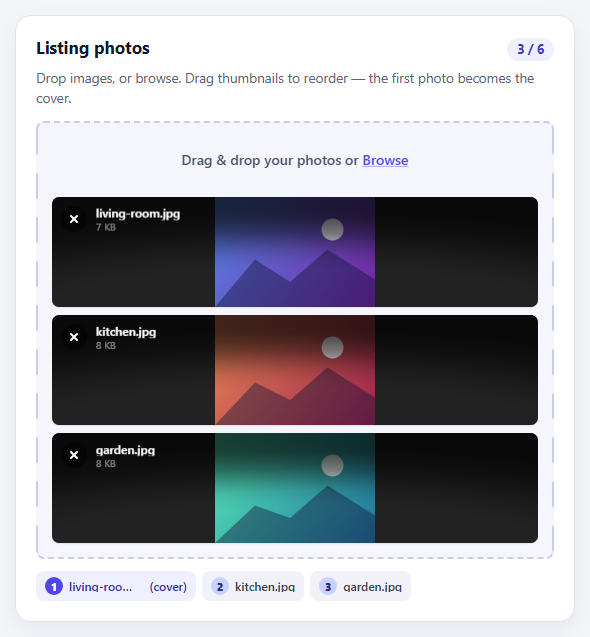
A plain file input is functional and unfriendly: no preview, no progress, no way to tell whether the file you picked is the one you meant, and nothing to help you change your mind. FilePond replaces it with a proper upload component — drag-and-drop, thumbnails, remove buttons, animations — while remaining a genuine form field underneath. This snippet uses it for a common real-world job, a listing-photo uploader where the order matters because the first image becomes the cover.
FilePond's power comes from its plug-in model. The core library handles files, states and the UI shell; image previews and type validation are separate plug-ins that must be registered before an instance is created — FilePond.registerPlugin(FilePondPluginImagePreview, FilePondPluginFileValidateType). Skipping this step is the most common mistake: options such as imagePreviewHeight and acceptedFileTypes are silently ignored without the plug-ins that read them. The demo loads each plug-in's script, plus the CSS for the core and the preview plug-in, from a CDN.
Reordering is a single option: allowReorder: true lets users drag items up and down, and the reorderfiles event fires when they do. The snippet listens to that event along with addfile, removefile and updatefiles to redraw a numbered "upload order" strip beneath the field, marking position one as the cover. That order is also the order in which the files will be submitted, which is the whole point of letting people arrange them.
Two options define how the upload works with forms. instantUpload: false keeps files on the client until the surrounding form is submitted, rather than firing a request per file the moment it is added. storeAsFile: true writes the selected files back into a real file input so a normal multipart form post includes them, with no server endpoint or custom upload code required for the simplest case; for API-style uploads you would configure server processing instead. maxFiles enforces the cap of six, acceptedFileTypes restricts to images, and labelFileTypeNotAllowed gives a clear rejection message. Three generated sample photos are added at startup so the drag handles are visible straight away.
Build with AI
Build, Understand, Optimize, and Extend It With AI
Ask an AI assistant like Claude to add image resizing and cropping with the image-transform plug-in, wire the field to a real upload endpoint with progress bars, or add EXIF orientation correction.
Prompt to recreate it
Copy this into your AI assistant of choice to build the effect from scratch, or as a jumping-off point for your own variant:
Build a multi-image upload field with FilePond 4 loaded from a CDN (core script and CSS, image preview plug-in script and CSS, file-validate-type plug-in).

Requirements:
- Register FilePondPluginImagePreview and FilePondPluginFileValidateType before calling FilePond.create on a file input.
- Set allowMultiple, allowReorder, maxFiles: 6, acceptedFileTypes for PNG/JPEG/WebP/GIF, instantUpload: false and storeAsFile: true, with a custom label and file-type-rejected message.
- Show a live "n / 6" counter and a numbered upload-order strip that marks the first file as the cover, updated on addfile, removefile and reorderfiles events.
- Pre-load three generated sample images with pond.addFiles so reordering can be seen straight away.
Want to tighten it up first? Run this prompt through the AI Prompt Studio to score it across 8 quality dimensions, catch anti-patterns, and tune the wording for Claude, ChatGPT, or Gemini before you paste it in.
Source Code
<div class="fu-card">
<div class="fu-head">
<h3>Listing photos</h3>
<span class="fu-count" id="fuCount">0 / 6</span>
</div>
<p class="fu-sub">Drop images, or browse. Drag thumbnails to reorder — the first photo becomes the cover.</p>
<input type="file" id="fuInput" class="filepond" name="photos" multiple accept="image/*">
<div class="fu-order" id="fuOrder" aria-live="polite"></div>
</div>body { background: #f4f5f9; padding: 22px; font-family: system-ui, sans-serif; }
.fu-card { max-width: 560px; margin: 0 auto; background: #fff; border: 1px solid #e0e3ee; border-radius: 16px; padding: 20px; box-shadow: 0 8px 24px rgba(30,30,80,.06); }
.fu-head { display: flex; justify-content: space-between; align-items: baseline; }
.fu-head h3 { margin: 0; font-size: 17px; color: #12152b; }
.fu-count { font: 700 12.5px/1 system-ui, sans-serif; color: #4338ca; background: #eef0ff; border-radius: 999px; padding: 5px 10px; font-variant-numeric: tabular-nums; }
.fu-sub { margin: 6px 0 14px; font-size: 13.5px; line-height: 1.5; color: #5b6279; }
.filepond--root { font-family: system-ui, sans-serif; margin-bottom: 0; }
.filepond--panel-root { background: #f5f6fc; border: 2px dashed #c9cdea; border-radius: 12px; }
.filepond--drop-label { color: #4a5270; }
.filepond--drop-label label { font-size: 14px; font-weight: 600; }
.filepond--label-action { color: #4f46e5; text-decoration-color: #a5b4fc; }
.filepond--item-panel { background: #4f46e5; }
[data-filepond-item-state*='error'] .filepond--item-panel, [data-filepond-item-state*='invalid'] .filepond--item-panel { background: #dc2626; }
.filepond--file-info-main { font-weight: 600; }
.fu-order { margin-top: 12px; display: flex; flex-wrap: wrap; gap: 6px; }
.fu-chip { display: inline-flex; align-items: center; gap: 6px; font: 600 12px/1 system-ui, sans-serif; color: #384057; background: #f0f2f8; border-radius: 8px; padding: 6px 9px; max-width: 160px; }
.fu-chip b { display: grid; place-items: center; width: 18px; height: 18px; border-radius: 50%; background: #c7d2fe; color: #312e81; font-size: 11px; flex: none; }
.fu-chip.cover { background: #eef0ff; color: #3730a3; }
.fu-chip.cover b { background: #4f46e5; color: #fff; }
.fu-chip span { overflow: hidden; text-overflow: ellipsis; white-space: nowrap; }FilePond.registerPlugin(FilePondPluginImagePreview, FilePondPluginFileValidateType);
const MAX = 6;
const order = document.getElementById('fuOrder');
const count = document.getElementById('fuCount');
const pond = FilePond.create(document.getElementById('fuInput'), {
allowMultiple: true,
allowReorder: true, // drag a file up or down to change its position
maxFiles: MAX,
acceptedFileTypes: ['image/png', 'image/jpeg', 'image/webp', 'image/gif'],
labelFileTypeNotAllowed: 'Images only',
fileValidateTypeLabelExpectedTypes: 'PNG, JPG, WebP or GIF',
imagePreviewHeight: 110,
itemInsertLocation: 'after',
instantUpload: false, // keep files local until the form is submitted
storeAsFile: true, // put the files back into a real <input> so a normal form post includes them
labelIdle: 'Drag & drop your photos or <span class="filepond--label-action">Browse</span>',
credits: false,
});
function refresh() {
const files = pond.getFiles();
count.textContent = files.length + ' / ' + MAX;
order.innerHTML = files.map(function (f, i) {
const name = f.filename.replace(/</g, '<');
return '<span class="fu-chip' + (i === 0 ? ' cover' : '') + '"><b>' + (i + 1) + '</b><span>' + name + '</span>' + (i === 0 ? ' (cover)' : '') + '</span>';
}).join('');
}
['addfile', 'removefile', 'reorderfiles', 'updatefiles'].forEach(function (ev) { pond.on(ev, refresh); });
// Pre-load a few generated photos so the reorder handles are visible immediately.
function makePhoto(i, label) {
const hues = [[220, 280], [20, 340], [160, 200]][i];
const c = document.createElement('canvas'); c.width = 640; c.height = 440;
const x = c.getContext('2d');
const g = x.createLinearGradient(0, 0, 640, 440);
g.addColorStop(0, 'hsl(' + hues[0] + ',75%,62%)'); g.addColorStop(1, 'hsl(' + hues[1] + ',65%,38%)');
x.fillStyle = g; x.fillRect(0, 0, 640, 440);
x.fillStyle = 'rgba(255,255,255,.88)'; x.beginPath(); x.arc(470, 130, 44, 0, 7); x.fill();
x.fillStyle = 'rgba(15,20,55,.42)';
x.beginPath(); x.moveTo(0, 440); x.lineTo(160, 250 + i * 20); x.lineTo(300, 340); x.lineTo(450, 210); x.lineTo(640, 330); x.lineTo(640, 440); x.fill();
return new Promise(function (resolve) {
c.toBlob(function (blob) { resolve(new File([blob], label, { type: 'image/jpeg' })); }, 'image/jpeg', 0.85);
});
}
Promise.all([makePhoto(0, 'living-room.jpg'), makePhoto(1, 'kitchen.jpg'), makePhoto(2, 'garden.jpg')])
.then(function (files) { return pond.addFiles(files); })
.then(refresh);
refresh();Step by step
How to Use
- 1See the pre-loaded photosThree sample images appear as thumbnails, numbered in the order strip below with the first marked as the cover.
- 2Reorder themDrag a thumbnail up or down. The numbered strip updates to show the new upload order and cover.
- 3Add your ownDrop image files onto the field, or click Browse. Non-image files are rejected with a clear message.
- 4Hit the limitAdd up to six photos. The counter shows the total and further files are refused.
- 5Remove oneUse the remove button on a thumbnail; the strip and counter update immediately.
Real-world uses
Common Use Cases
Got questions?
Frequently Asked Questions
Options like imagePreviewHeight and acceptedFileTypes belong to plug-ins. Call FilePond.registerPlugin with those plug-ins before FilePond.create.
Set allowReorder: true and listen for the reorderfiles event, then read the new order with pond.getFiles().
It places the selected files back into a real file input, so a standard form submission includes them without a custom upload server.
Leave instantUpload on and configure the server option with process and revert endpoints or functions.
Register FilePondPluginFileValidateType and set acceptedFileTypes, e.g. ["image/png", "image/jpeg"], plus a custom label.
Set maxFiles. FilePond refuses additional files once the limit is reached.
Yes. Use the JSX, Vue, Angular or Tailwind export buttons on this page to convert the markup and styles. The behaviour comes from FilePond, so in a framework project install it with npm install filepond filepond-plugin-image-preview filepond-plugin-file-validate-type (or react-filepond / vue-filepond / ngx-filepond) instead of the CDN tag, register the plug-ins once, then create the pond in an effect, and release it with destroy() when the component unmounts.