Learn Coding Visually
Learn to code with interactive, live-preview playgrounds — HTML, CSS, JavaScript, React & more.
 HTML Playground42 lessons · Click-based · Live preview
 CSS PlaygroundLearn CSS with a live editor
 JavaScript Playground60 lessons · DOM · Async · Canvas
 React PlaygroundLearn React with a live code editor
 GSAP PlaygroundLearn GSAP animation interactively
 SVG Playground44 lessons · shapes · paths · animation
 SCSS Playground45 lessons · Sass modules · tokens
 Tailwind PlaygroundLearn Tailwind CSS with a live editor
 Bootstrap 5 Playground50 lessons · live preview
OTP Verification Screen — 2FA Code Input UI
OTP Verification Screen · Forms · Plain HTML, CSS & JS · Live preview
What's included
Features
About this UI Snippet
OTP Verification Screen — Auto-Advancing Code Boxes with Resend Timer
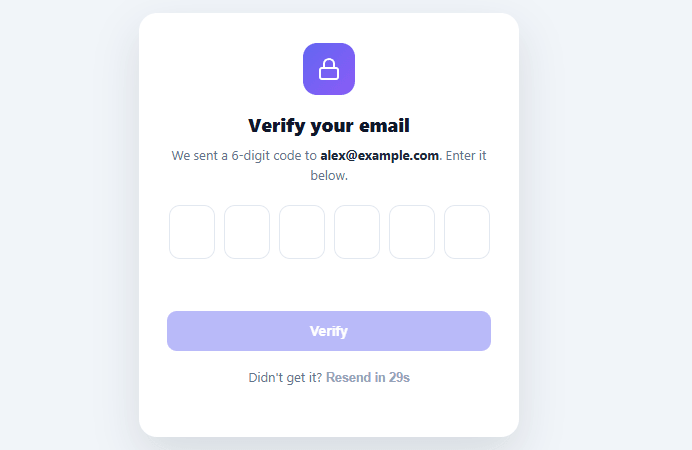
Entering a one-time passcode is a high-friction moment in any sign-in or sign-up flow — the user is switching between their inbox or SMS and your form, and every fumbled keystroke risks abandonment. A well-built OTP screen removes that friction: digits auto-advance, a pasted code fills every box at once, and the form submits itself the moment all six are entered. This snippet builds that complete verification screen in plain HTML, CSS, and vanilla JavaScript.
Auto-advance and backspace navigation
Each of the six boxes holds a single digit. Typing a number moves focus to the next box automatically, and pressing Backspace in an empty box jumps to the previous one — so the user never has to manually tab between fields. Arrow keys move left and right too. Non-numeric input is stripped on the fly (inputmode="numeric" also brings up the number pad on mobile), so the field only ever contains digits. This auto-advance behavior is what makes entering a six-digit code feel like typing one number rather than filling six separate inputs.
Paste the whole code at once
The single most important convenience: pasting "123456" (or a code copied from an email) into any box fills all six. The paste handler extracts the digits, distributes them across the inputs, focuses the next empty box, and — if the paste completed the code — submits immediately. Combined with the autocomplete="one-time-code" attribute (which lets iOS and Android offer the SMS code above the keyboard), this means a user can often verify in a single tap.
Auto-submit when complete
The moment the sixth digit lands — whether typed or pasted — verify() runs automatically, so there's no separate "now click Verify" step in the common case. The explicit Verify button remains for accessibility and as a fallback, but the happy path is hands-off. This is the behavior users expect from modern auth flows and it measurably reduces drop-off at the verification step.
Clear success and error feedback
A correct code turns the boxes green with a "Verified!" status and locks the inputs. An incorrect code shakes the boxes (a short translateX keyframe), shows an error message, then clears and refocuses the first box so the user can retry without manually deleting six digits. The shake is a well-established pattern for "wrong input, try again" that reads instantly without needing to read the text.
Resend with a cooldown
A "Resend code" button sits below, gated by a live 30-second countdown ("Resend in 27s") so a user can't spam resend requests — the same anti-abuse pattern a real auth backend enforces server-side. Resending clears the boxes, resets the state, and restarts the timer. This handles the genuinely common case where the first code never arrives, without letting it become a way to hammer your SMS/email provider.
Production notes
The demo checks against a hardcoded code; a real build replaces that with a fetch to your verification endpoint and shows the success or error state from its response. The verification must always happen server-side — a client-side comparison is purely for the demo. The component exposes the entered code and the verify hook cleanly, so wiring it to Auth0, Firebase, Supabase, or your own backend is a one-function change.
Build with AI
Build, Understand, Optimize, and Extend It With AI
You don't have to trace every branch of this state machine by hand. Paste this snippet's HTML, CSS, and JS into an AI coding assistant like Claude and ask it to explain exactly how the code decides to call verify automatically once code().length hits six, including from both typing and pasting, or how startCooldown's setInterval keeps the resend button's countdown text and disabled state in sync without drifting. The same assistant can help optimize it too, for instance asking whether clearInterval is being called reliably enough to avoid stacking multiple timers if resend gets clicked in quick succession. It is also a fast way to extend the flow: ask it to add a visible countdown ring around the verify button, support voice-read-back of the entered digits for accessibility, or swap the hardcoded CORRECT check for a real fetch call with proper loading and network-error states. Treat the code less like a finished artifact and more like a starting point for a conversation.
Prompt to recreate it
Copy this into your AI assistant of choice to build the effect from scratch, or as a jumping-off point for your own variant:
Build a 6-digit "OTP verification screen" in plain HTML, CSS, and JavaScript, with no framework and no input-mask library.

Requirements:
- Six single-character input boxes, each with inputmode numeric, and the first one carrying autocomplete one-time-code so mobile browsers can offer to autofill an SMS code.
- Typing a digit must strip non-numeric characters, advance focus to the next box, and check after every keystroke whether all six boxes are now filled — if so, call the verification function automatically without waiting for a button click.
- Support ArrowLeft and ArrowRight to move focus between boxes, and Backspace on an empty box to move focus to the previous box.
- A paste handler must intercept the paste event, extract only digits from the clipboard text, distribute them across the six boxes starting from the first, focus the next empty box (or the last box if all are filled), and trigger auto-verification if the pasted value completes all six digits.
- On successful verification, all six boxes must switch to a success visual style and become disabled, and a success message must appear; on failure, the boxes must play a shake animation, show an error message, then after a short delay automatically clear all six boxes and refocus the first one.
- Include a "Resend code" button that starts disabled with a live countdown (e.g. "Resend in 30s" ticking down once per second via setInterval), re-enabling itself and resetting its label only once the countdown reaches zero, and clicking it must clear the boxes, reset any error/success state, and restart the countdown.
Want to tighten it up first? Run this prompt through the AI Prompt Studio to score it across 8 quality dimensions, catch anti-patterns, and tune the wording for Claude, ChatGPT, or Gemini before you paste it in.
Step by step
How to Use
- 1Paste HTML, CSS, and JSA verification screen renders with six code boxes; the first is focused and a resend countdown starts.
- 2Type the codeEnter digits — focus auto-advances, and when all six are filled the form verifies automatically (try 123456).
- 3Or paste itPaste a 6-digit code into any box — all six fill at once and it auto-submits.
- 4See error handlingEnter a wrong code — the boxes shake red, show an error, then clear and refocus for a retry.
- 5Resend after the cooldownWait out the 30-second timer, then click "Resend code" to reset and get a new code.
- 6Connect your auth backendReplace the hardcoded CORRECT check in verify() with a fetch to your server's verification endpoint.
Real-world uses
Common Use Cases
Got questions?
Frequently Asked Questions
Replace the hardcoded CORRECT comparison in verify() with a fetch POST to your verification endpoint, sending the entered code; show the success state on a 200 and the error state on a rejection. Verification must happen server-side — a client-side check is only for the demo, since anyone can read the expected code in the page source.
The paste handler intercepts the clipboard text, strips non-digits, takes the first six, and assigns one to each input in order, then focuses the next empty box. If the pasted value completes the code it auto-submits. This works no matter which box receives the paste, so the user can paste anywhere.
The autocomplete="one-time-code" attribute on the first input lets iOS and Android suggest the most recent SMS code above the keyboard for one-tap entry, and inputmode="numeric" brings up the number pad. For the autofill to match, the SMS should follow the platform's format (including your domain on iOS), which is configured in how you send the message, not the markup.
Once all six digits are entered there's no ambiguity about intent, so submitting automatically removes a redundant step and measurably cuts drop-off at the verification stage. The explicit Verify button stays as an accessible fallback and for users who paste a partial code, but the common path is hands-off.
In React, hold an array of six digit values in useState and refs for focus management, advancing focus in the onChange handler and verifying when full; in Vue, use a reactive array with template refs; in Angular, use a FormArray and ViewChildren. The auto-advance, paste, and cooldown logic port directly — only focus management uses each framework's ref mechanism.