
Learn Coding Visually
Learn to code with interactive, live-preview playgrounds — HTML, CSS, JavaScript, React & more.
 HTML Playground42 lessons · Click-based · Live preview
 CSS PlaygroundLearn CSS with a live editor
 JavaScript Playground60 lessons · DOM · Async · Canvas
 React PlaygroundLearn React with a live code editor
 GSAP PlaygroundLearn GSAP animation interactively
 SVG Playground44 lessons · shapes · paths · animation
 SCSS Playground45 lessons · Sass modules · tokens
 Tailwind PlaygroundLearn Tailwind CSS with a live editor
 Bootstrap 5 Playground50 lessons · live preview
Drawing Canvas HTML CSS JS — Free Drawing Board
Drawing Canvas · Animations · Plain HTML, CSS & JS · Live preview
What's included
Features
About this UI Snippet
How to Build a Drawing Canvas with HTML5 Canvas and JavaScript
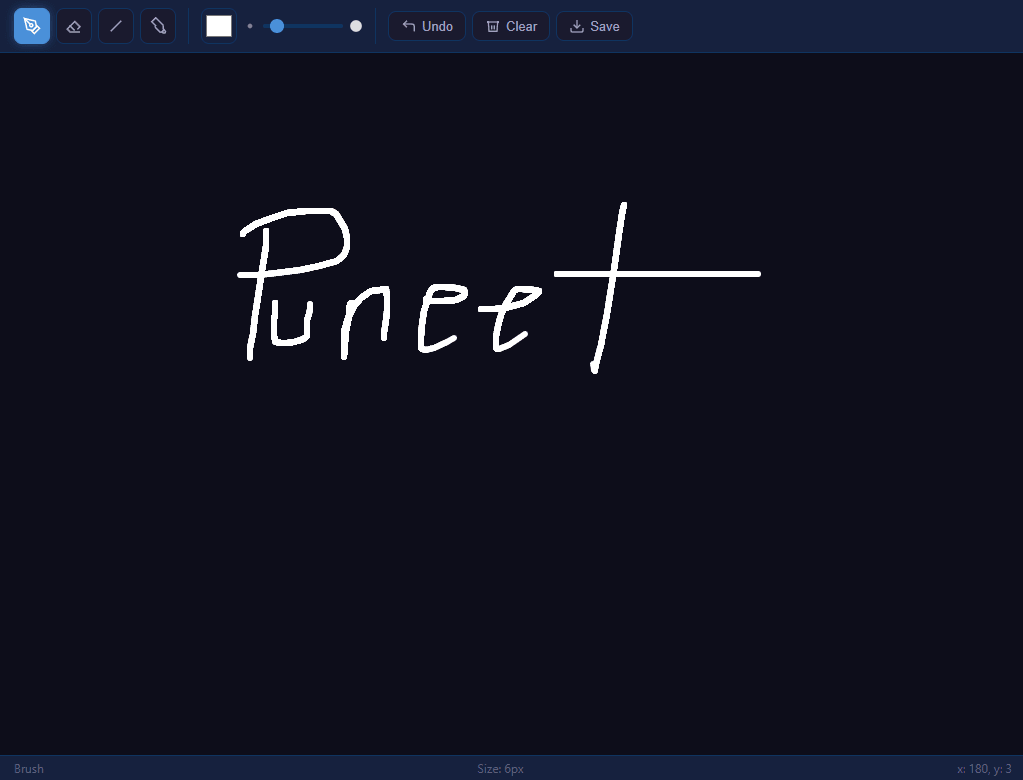
A drawing canvas is a paint-style sketch surface where the user draws freehand strokes with the mouse, finger or stylus, switches between tools like brush, eraser, line and fill bucket, picks colors and brush sizes, undoes mistakes and exports the result as a PNG. This walkthrough explains exactly how the component is built using the HTML5 Canvas 2D API, the Pointer Events API and a small set of pixel-level algorithms, with no external libraries.
The two-canvas architecture
The board uses two stacked <canvas> elements inside a relatively positioned wrapper. The first, mainCanvas, holds the committed artwork. The second, overlayCanvas, sits directly on top with pointer-events: none and is used only as a live preview surface for the line tool, so a rubber-band line can be redrawn every frame without disturbing the real drawing underneath. Both are absolutely positioned at top: 0; left: 0 and sized to 100% of the wrapper, while their internal bitmap resolution is set in JavaScript to match the CSS pixel size.
A critical detail is the resize handler. Setting canvas.width or canvas.height clears the bitmap, so before resizing we snapshot the current image with mainCanvas.toDataURL(), set the new dimensions, repaint the dark background, then load the snapshot into an Image and drawImage it back. This preserves artwork across window resizes. The 2D context is obtained with getContext('2d'); for components that read pixels frequently you would pass { willReadFrequently: true } to hint the browser to keep the buffer in system memory rather than the GPU.
Pointer Events and coordinate mapping
All input is handled through the Pointer Events API (pointerdown, pointermove, pointerup) rather than separate mouse and touch listeners, so a single code path covers mouse, touch and pen. On pointerdown we call mainCanvas.setPointerCapture(e.pointerId) so the element keeps receiving move and up events even when the pointer leaves the canvas mid-stroke — this prevents broken lines when you drag fast past the edge.
Because the canvas bitmap resolution can differ from its displayed CSS size, raw client coordinates must be scaled. The getPos helper reads getBoundingClientRect() and computes x = (e.clientX - rect.left) * (canvas.width / rect.width), mapping screen space into bitmap space so strokes land under the cursor exactly even on high-DPI displays or after resizing.
The tool state machine
A single tool string variable ('brush', 'eraser', 'line', 'fill') drives behavior. setTool updates this variable, toggles the .active class on the toolbar buttons and updates the status label. On each pointerdown the handler branches on tool:
For brush and eraser, we begin a path with ctx.beginPath() and ctx.moveTo(x, y), then on every pointermove we lineTo the new point and stroke(), building a continuous polyline. lineCap and lineJoin are set to round so segments blend into a smooth stroke. The eraser is simply a brush that sets ctx.globalCompositeOperation = 'destination-out', which makes drawing operations remove existing pixels (turning alpha to zero) instead of painting color over them. The brush resets the mode back to source-over.
The line tool and the overlay
The line tool demonstrates why the overlay exists. On pointerdown we record startX, startY. On pointermove we clear the overlay and draw a fresh preview line from the start point to the current point on overlayCanvas only. The user sees the line stretch and rotate in real time, but the main artwork is untouched. On pointerup we clear the overlay and commit the final line to mainCanvas. This is the classic two-layer rubber-band pattern used in vector editors.
The flood fill algorithm
The fill bucket is the most interesting piece. floodFill grabs the entire pixel buffer with ctx.getImageData(0, 0, w, h), giving a flat Uint8ClampedArray where every pixel occupies four bytes (R, G, B, A). It samples the target color at the clicked pixel using the index formula idx = (py * width + px) * 4. If the target color already equals the fill color, it returns early to avoid an infinite loop.
It then runs an iterative stack-based flood fill (an explicit stack instead of recursion to avoid blowing the call stack on large regions). Starting from the clicked pixel, it pops a coordinate, checks bounds, compares that pixel's four channels against the target color, and if they match, overwrites them with the fill color and pushes the four orthogonal neighbors. When the stack empties, the modified buffer is written back with ctx.putImageData(imgData, 0, 0). The fill color comes from hexToRgba, which slices the hex string and parseInt(..., 16) each channel.
Undo via snapshots
Undo is implemented as a bounded history array of data URLs. Before any destructive action (saveHistory) we push mainCanvas.toDataURL() and shift() off the oldest entry once we exceed MAX_HISTORY (20) to cap memory. Undo pop()s the latest snapshot, loads it into an Image, clears the canvas and drawImages it back. Storing full PNG snapshots is simple and robust; a more memory-efficient alternative would store ImageData and putImageData, trading higher RAM for instant restores with no decode step.
Exporting the drawing
Download uses the canvas-to-anchor pattern: create an <a> element, set a.download = 'drawing.png' and a.href = mainCanvas.toDataURL(), then call a.click() to trigger the browser save dialog. toDataURL() defaults to PNG which preserves transparency from the eraser. For very large canvases, canvas.toBlob() with URL.createObjectURL() avoids building a huge base64 string in memory.
Together these techniques — stacked canvases, pointer capture, composite operations, an explicit-stack flood fill and data-URL snapshots — produce a fully functional, dependency-free drawing board you can drop into any page.
Build with AI
Build, Understand, Optimize, and Extend It With AI
Instead of tracing the pixel algorithm by hand, paste this snippet's HTML, CSS, and JS into an AI coding assistant like Claude and ask it to explain exactly why floodFill uses an explicit stack array instead of a recursive function, and how the getPos coordinate scaling by canvas.width divided by the bounding rect's width keeps strokes aligned under the cursor even when the canvas's CSS size differs from its bitmap resolution. The same assistant can help you optimize it, for instance checking whether storing full toDataURL PNG snapshots for undo is worth the memory cost compared to storing raw ImageData, especially as MAX_HISTORY grows. It's also useful for extending the tool: ask it to add a fill-tolerance threshold so flood fill doesn't leak through anti-aliased edges, support a rectangle or ellipse shape tool using the same overlay-canvas rubber-band pattern as the line tool, or add pressure-sensitive line width for stylus input. Treat the code less like a finished artifact and more like a starting point for a conversation.
Prompt to recreate it
Copy this into your AI assistant of choice to build the effect from scratch, or as a jumping-off point for your own variant:
Build a drawing canvas application in plain HTML, CSS, and JavaScript using the Canvas 2D API and the Pointer Events API — no drawing library.

Requirements:
- Two stacked, identically-sized canvas elements: a main canvas holding the committed artwork, and a second overlay canvas on top with pointer-events disabled, used only to preview an in-progress straight line without touching the main artwork until the user releases the pointer.
- Handle all input through pointerdown, pointermove, and pointerup (not separate mouse and touch listeners), calling setPointerCapture on pointerdown so a fast drag that leaves the canvas bounds mid-stroke still continues receiving move events instead of producing a broken line.
- Convert every pointer event's client coordinates into canvas bitmap coordinates by scaling through the ratio of the canvas's internal width/height to its displayed bounding-rect width/height, so strokes land exactly under the cursor regardless of how the canvas is sized by CSS or scaled for high-DPI screens.
- Implement a brush tool that begins a path on pointerdown and extends it with lineTo plus stroke on every pointermove, and an eraser tool that behaves identically except it sets the canvas context's globalCompositeOperation to destination-out so strokes remove existing pixels instead of painting over them.
- Implement a flood fill tool using getImageData to read the full pixel buffer, an iterative stack-based algorithm (explicit array used as a stack, not recursion) that compares each pixel's four RGBA channel values against the clicked pixel's original color and replaces matching connected pixels with the new fill color, then writes the modified buffer back with putImageData.
- Implement undo as a capped history array: before every destructive action, push a snapshot of the canvas taken with toDataURL, discarding the oldest snapshot once a maximum history length is exceeded, and restore the most recent snapshot by loading it into an Image element and redrawing it onto a cleared canvas.
- Preserve the artwork across window resizes by snapshotting the canvas before changing its width/height (which otherwise clears the bitmap) and redrawing the snapshot back after the resize, and implement a PNG export using toDataURL and a generated anchor element with a download attribute.
Want to tighten it up first? Run this prompt through the AI Prompt Studio to score it across 8 quality dimensions, catch anti-patterns, and tune the wording for Claude, ChatGPT, or Gemini before you paste it in.
Source Code
<div class="app">
  <div class="toolbar">
    <div class="tool-group">
      <button class="tool-btn active" id="btn-brush" title="Brush">
        <svg width="18" height="18" viewBox="0 0 24 24" fill="none" stroke="currentColor" stroke-width="2"><path d="M12 19l7-7 3 3-7 7-3-3z"/><path d="M18 13l-1.5-7.5L2 2l3.5 14.5L13 18l5-5z"/><path d="M2 2l7.586 7.586"/><circle cx="11" cy="11" r="2"/></svg>
      </button>
      <button class="tool-btn" id="btn-eraser" title="Eraser">
        <svg width="18" height="18" viewBox="0 0 24 24" fill="none" stroke="currentColor" stroke-width="2"><path d="M20 20H7L3 16l10-10 7 7-3.5 3.5"/><path d="M6.0001 11L13 18"/></svg>
      </button>
      <button class="tool-btn" id="btn-line" title="Line">
        <svg width="18" height="18" viewBox="0 0 24 24" fill="none" stroke="currentColor" stroke-width="2"><line x1="5" y1="19" x2="19" y2="5"/></svg>
      </button>
      <button class="tool-btn" id="btn-fill" title="Fill Bucket">
        <svg width="18" height="18" viewBox="0 0 24 24" fill="none" stroke="currentColor" stroke-width="2"><path d="M19 11L8.93 1 3.62 6.31l5.1 5.1a2 2 0 0 0 0 2.83l5.66 5.66a2 2 0 0 0 2.83 0l1.79-1.79a2 2 0 0 0 0-2.83L19 11"/><path d="M20 17c0 0 2 1.5 2 2.5a2 2 0 0 1-4 0c0-1 2-2.5 2-2.5z"/></svg>
      </button>
    </div>
    <div class="tool-group">
      <input type="color" id="colorPicker" value="#ffffff" title="Color">
      <div class="size-group">
        <svg width="14" height="14" viewBox="0 0 24 24" fill="currentColor" style="opacity:0.5"><circle cx="12" cy="12" r="4"/></svg>
        <input type="range" id="sizeSlider" min="2" max="40" value="6" title="Brush Size">
        <svg width="14" height="14" viewBox="0 0 24 24" fill="currentColor"><circle cx="12" cy="12" r="10"/></svg>
      </div>
    </div>
    <div class="tool-group">
      <button class="action-btn" id="btn-undo" title="Undo">
        <svg width="16" height="16" viewBox="0 0 24 24" fill="none" stroke="currentColor" stroke-width="2"><polyline points="9 14 4 9 9 4"/><path d="M20 20v-7a4 4 0 0 0-4-4H4"/></svg>
        Undo
      </button>
      <button class="action-btn" id="btn-clear" title="Clear">
        <svg width="16" height="16" viewBox="0 0 24 24" fill="none" stroke="currentColor" stroke-width="2"><polyline points="3 6 5 6 21 6"/><path d="M19 6l-1 14H6L5 6"/><path d="M10 11v6m4-6v6"/></svg>
        Clear
      </button>
      <button class="action-btn" id="btn-download" title="Download PNG">
        <svg width="16" height="16" viewBox="0 0 24 24" fill="none" stroke="currentColor" stroke-width="2"><path d="M21 15v4a2 2 0 0 1-2 2H5a2 2 0 0 1-2-2v-4"/><polyline points="7 10 12 15 17 10"/><line x1="12" y1="15" x2="12" y2="3"/></svg>
        Save
      </button>
    </div>
  </div>
  <div class="canvas-wrap">
    <canvas id="mainCanvas"></canvas>
    <canvas id="overlayCanvas"></canvas>
  </div>
  <div class="status-bar">
    <span id="toolLabel">Brush</span>
    <span id="sizeLabel">Size: 6px</span>
    <span id="posLabel">x: 0, y: 0</span>
  </div>
</div>
* { margin: 0; padding: 0; box-sizing: border-box; }
body { background: #1a1a2e; color: #e0e0e0; font-family: system-ui, sans-serif; height: 100vh; overflow: hidden; }
.app { display: flex; flex-direction: column; height: 100vh; }
.toolbar {
display: flex; align-items: center; gap: 12px; padding: 8px 14px;
background: #16213e; border-bottom: 1px solid #0f3460;
flex-wrap: wrap;
}
.tool-group {
display: flex; align-items: center; gap: 6px;
padding-right: 12px; border-right: 1px solid #0f3460;
}
.tool-group:last-child { border-right: none; }
.tool-btn {
width: 36px; height: 36px; border: 1px solid #0f3460; border-radius: 8px;
background: #1a1a2e; color: #a0a0c0; cursor: pointer;
display: flex; align-items: center; justify-content: center;
transition: all 0.15s;
}
.tool-btn:hover { background: #0f3460; color: #e0e0ff; border-color: #4a90d9; }
.tool-btn.active { background: #4a90d9; color: #fff; border-color: #4a90d9; box-shadow: 0 0 10px rgba(74,144,217,0.4); }
.action-btn {
display: flex; align-items: center; gap: 5px; padding: 6px 12px;
border: 1px solid #0f3460; border-radius: 8px; background: #1a1a2e;
color: #a0a0c0; cursor: pointer; font-size: 13px; transition: all 0.15s;
}
.action-btn:hover { background: #0f3460; color: #e0e0ff; border-color: #4a90d9; }
#colorPicker {
width: 36px; height: 36px; border: 1px solid #0f3460; border-radius: 8px;
background: none; cursor: pointer; padding: 2px;
}
.size-group { display: flex; align-items: center; gap: 6px; }
#sizeSlider {
width: 80px; accent-color: #4a90d9;
-webkit-appearance: none; height: 4px; border-radius: 2px; background: #0f3460; cursor: pointer;
}
#sizeSlider::-webkit-slider-thumb { -webkit-appearance: none; width: 14px; height: 14px; border-radius: 50%; background: #4a90d9; cursor: pointer; }
.canvas-wrap {
flex: 1; position: relative; overflow: hidden;
}
#mainCanvas, #overlayCanvas {
position: absolute; top: 0; left: 0; width: 100%; height: 100%;
}
#overlayCanvas { pointer-events: none; }
.status-bar {
display: flex; justify-content: space-between; padding: 4px 14px;
background: #16213e; border-top: 1px solid #0f3460;
font-size: 12px; color: #606080;
}const mainCanvas = document.getElementById('mainCanvas');
const overlay = document.getElementById('overlayCanvas');
const ctx = mainCanvas.getContext('2d');
const octx = overlay.getContext('2d');
const toolLabel = document.getElementById('toolLabel');
const sizeLabel = document.getElementById('sizeLabel');
const posLabel = document.getElementById('posLabel');
const colorPicker = document.getElementById('colorPicker');
const sizeSlider = document.getElementById('sizeSlider');
let tool = 'brush';
let drawing = false;
let startX = 0, startY = 0;
let history = [];
const MAX_HISTORY = 20;
function resize() {
const wrap = mainCanvas.parentElement;
const w = wrap.clientWidth;
const h = wrap.clientHeight;
const saved = mainCanvas.toDataURL();
mainCanvas.width = w; mainCanvas.height = h;
overlay.width = w; overlay.height = h;
ctx.fillStyle = '#0d0d1a';
ctx.fillRect(0, 0, w, h);
const img = new Image();
img.onload = () => ctx.drawImage(img, 0, 0);
img.src = saved;
}
resize();
window.addEventListener('resize', resize);
function saveHistory() {
if (history.length >= MAX_HISTORY) history.shift();
history.push(mainCanvas.toDataURL());
}
function setTool(t) {
tool = t;
document.querySelectorAll('.tool-btn').forEach(b => b.classList.remove('active'));
document.getElementById('btn-' + t).classList.add('active');
const labels = { brush: 'Brush', eraser: 'Eraser', line: 'Line', fill: 'Fill' };
toolLabel.textContent = labels[t] || t;
mainCanvas.style.cursor = 'crosshair';
}
document.getElementById('btn-brush').addEventListener('click', () => setTool('brush'));
document.getElementById('btn-eraser').addEventListener('click', () => setTool('eraser'));
document.getElementById('btn-line').addEventListener('click', () => setTool('line'));
document.getElementById('btn-fill').addEventListener('click', () => setTool('fill'));
sizeSlider.addEventListener('input', () => {
sizeLabel.textContent = 'Size: ' + sizeSlider.value + 'px';
});
document.getElementById('btn-undo').addEventListener('click', () => {
if (!history.length) return;
const img = new Image();
img.onload = () => {
ctx.clearRect(0, 0, mainCanvas.width, mainCanvas.height);
ctx.drawImage(img, 0, 0);
};
img.src = history.pop();
});
document.getElementById('btn-clear').addEventListener('click', () => {
saveHistory();
ctx.fillStyle = '#0d0d1a';
ctx.fillRect(0, 0, mainCanvas.width, mainCanvas.height);
});
document.getElementById('btn-download').addEventListener('click', () => {
const a = document.createElement('a');
a.download = 'drawing.png';
a.href = mainCanvas.toDataURL();
a.click();
});
function getPos(e) {
const r = mainCanvas.getBoundingClientRect();
const x = (e.clientX - r.left) * (mainCanvas.width / r.width);
const y = (e.clientY - r.top) * (mainCanvas.height / r.height);
return { x, y };
}
function floodFill(x, y, fillColor) {
const imgData = ctx.getImageData(0, 0, mainCanvas.width, mainCanvas.height);
const data = imgData.data;
const px = Math.floor(x), py = Math.floor(y);
const idx = (py * mainCanvas.width + px) * 4;
const tr = data[idx], tg = data[idx+1], tb = data[idx+2], ta = data[idx+3];
const [fr, fg, fb, fa] = fillColor;
if (tr === fr && tg === fg && tb === fb && ta === fa) return;
const stack = [[px, py]];
const w = mainCanvas.width, h = mainCanvas.height;
while (stack.length) {
const [cx, cy] = stack.pop();
const ci = (cy * w + cx) * 4;
if (cx < 0 || cy < 0 || cx >= w || cy >= h) continue;
if (data[ci] !== tr || data[ci+1] !== tg || data[ci+2] !== tb || data[ci+3] !== ta) continue;
data[ci] = fr; data[ci+1] = fg; data[ci+2] = fb; data[ci+3] = fa;
stack.push([cx+1,cy],[cx-1,cy],[cx,cy+1],[cx,cy-1]);
}
ctx.putImageData(imgData, 0, 0);
}
function hexToRgba(hex) {
const r = parseInt(hex.slice(1,3),16);
const g = parseInt(hex.slice(3,5),16);
const b = parseInt(hex.slice(5,7),16);
return [r, g, b, 255];
}
mainCanvas.addEventListener('pointerdown', e => {
mainCanvas.setPointerCapture(e.pointerId);
const { x, y } = getPos(e);
if (tool === 'fill') {
saveHistory();
floodFill(x, y, hexToRgba(colorPicker.value));
return;
}
saveHistory();
drawing = true;
startX = x; startY = y;
if (tool === 'brush' || tool === 'eraser') {
ctx.beginPath();
ctx.moveTo(x, y);
if (tool === 'eraser') {
ctx.globalCompositeOperation = 'destination-out';
} else {
ctx.globalCompositeOperation = 'source-over';
ctx.strokeStyle = colorPicker.value;
}
ctx.lineWidth = +sizeSlider.value;
ctx.lineCap = 'round';
ctx.lineJoin = 'round';
}
});
mainCanvas.addEventListener('pointermove', e => {
const { x, y } = getPos(e);
posLabel.textContent = 'x: ' + Math.floor(x) + ', y: ' + Math.floor(y);
if (!drawing) return;
if (tool === 'brush' || tool === 'eraser') {
ctx.lineTo(x, y);
ctx.stroke();
} else if (tool === 'line') {
octx.clearRect(0, 0, overlay.width, overlay.height);
octx.beginPath();
octx.moveTo(startX, startY);
octx.lineTo(x, y);
octx.strokeStyle = colorPicker.value;
octx.lineWidth = +sizeSlider.value;
octx.lineCap = 'round';
octx.stroke();
}
});
mainCanvas.addEventListener('pointerup', e => {
if (!drawing) return;
drawing = false;
const { x, y } = getPos(e);
if (tool === 'line') {
octx.clearRect(0, 0, overlay.width, overlay.height);
ctx.globalCompositeOperation = 'source-over';
ctx.beginPath();
ctx.moveTo(startX, startY);
ctx.lineTo(x, y);
ctx.strokeStyle = colorPicker.value;
ctx.lineWidth = +sizeSlider.value;
ctx.lineCap = 'round';
ctx.stroke();
}
ctx.globalCompositeOperation = 'source-over';
});Step by step
How to Use
- 1Pick a toolClick brush, eraser, line or fill bucket in the toolbar. The active tool is highlighted and shown in the status bar.
- 2Set color and sizeChoose a color with the native color input and drag the size slider to set stroke width from 2 to 40 pixels.
- 3Draw on the canvasPress and drag to paint freehand. For the line tool, drag to preview a straight line, then release to commit it.
- 4Fill regionsSelect the fill bucket and click any enclosed area to flood it with the current color using a pixel-matching algorithm.
- 5Undo or clearUse Undo to step back through the last 20 snapshots, or Clear to reset the whole board to the background color.
- 6Export your artClick Save to download the canvas as a PNG via a generated data URL anchor.
Real-world uses
Common Use Cases
Got questions?
Frequently Asked Questions
The overlay canvas previews the in-progress line tool every frame without redrawing or corrupting the committed artwork. When the pointer is released, the final line is drawn once onto the main canvas and the overlay is cleared.
It sets ctx.globalCompositeOperation to destination-out. In that mode, drawing operations subtract alpha from existing pixels instead of painting color, effectively erasing. The brush resets the mode back to source-over.
Each snapshot is a full PNG captured with toDataURL, which is simple and reliable. Restoring loads the image and redraws it. For lower memory you could store ImageData objects and use putImageData instead, at the cost of higher RAM usage.
The flood fill matches exact RGBA values. Anti-aliased stroke edges contain semi-transparent pixels that do not match the target color, so fills can bleed through soft boundaries. Drawing fully opaque outlines or adding a color tolerance threshold avoids this.
The pointer coordinates are scaled by canvas.width / boundingRect.width, mapping CSS pixels into the canvas bitmap resolution so the painted point always lands directly under the cursor.
Yes. The JSX, Vue, Angular, and Tailwind exports convert the markup automatically. In React, grab the canvas through a ref, set up the 2D context and pointer listeners in useEffect with cleanup, and keep tool, colour, and brush size in state read by the stroke handlers.