
Learn Coding Visually
Learn to code with interactive, live-preview playgrounds — HTML, CSS, JavaScript, React & more.
 HTML Playground42 lessons · Click-based · Live preview
 CSS PlaygroundLearn CSS with a live editor
 JavaScript Playground60 lessons · DOM · Async · Canvas
 React PlaygroundLearn React with a live code editor
 GSAP PlaygroundLearn GSAP animation interactively
 SVG Playground44 lessons · shapes · paths · animation
 SCSS Playground45 lessons · Sass modules · tokens
 Tailwind PlaygroundLearn Tailwind CSS with a live editor
 Bootstrap 5 Playground50 lessons · live preview
Pattern Lock HTML CSS JS — Android Gesture PIN
Pattern Lock · Forms · Plain HTML, CSS & JS · Live preview
What's included
Features
About this UI Snippet
How to Build an Android-Style Pattern Lock on HTML5 Canvas
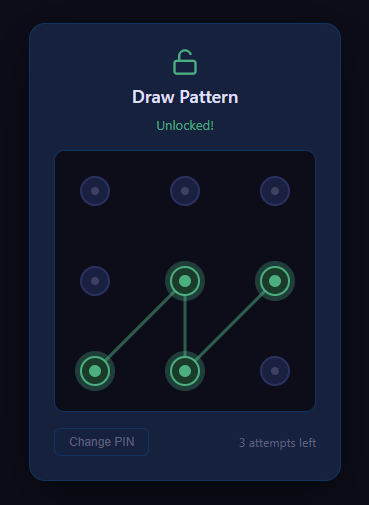
A pattern lock is the 3x3 grid of dots you connect with a single gesture to unlock an Android phone. This recreation draws the nine dots and the connecting path on an HTML5 Canvas, tracks the drag with the Pointer Events API, validates the traced sequence against a stored pattern, and adds real-world touches like an attempt counter, a lockout after too many failures, shake feedback and a two-step change-PIN flow. It is pure JavaScript and canvas — no libraries. Here is how it works.
Laying out and drawing the dots
The nine dots are positioned on a regular grid. Their center coordinates are computed from the canvas size, an outer padding and the spacing between columns and rows, then stored in an array of {x, y, index} objects. Each render pass clears the canvas and redraws every dot as a filled circle with ctx.arc, drawing a larger faint outer ring and a smaller solid inner core so selected dots can be highlighted by enlarging or recoloring the core. Keeping dot positions in an array makes both drawing and hit testing trivial.
Mapping pointer position to canvas space
All interaction uses Pointer Events so mouse, touch and stylus share one code path. On pointerdown the gesture begins; on pointermove the current path is extended; on pointerup the pattern is evaluated. Because the canvas can be displayed at a different size than its bitmap, every pointer event is converted to canvas-relative coordinates using getBoundingClientRect: subtract the rect's left/top from clientX/clientY and scale by the ratio of canvas pixel size to displayed size. This guarantees the gesture lines up with the dots on any screen.
Hit testing dots during the drag
As the pointer moves, the code checks whether it is near an unvisited dot. For each dot it measures the Euclidean distance from the pointer to the dot center, Math.hypot(px - dot.x, py - dot.y), and if that distance is within a generous threshold — roughly the dot radius plus a snap radius — and the dot is not already in the path, the dot's index is pushed onto the path array and the dot is marked selected. The snap radius makes the lock forgiving, so users do not have to hit dots precisely. Each newly captured dot is the next vertex of the unlock pattern.
Drawing the connecting path
On every move the canvas is redrawn: the dots first, then a polyline connecting the centers of all dots currently in path in order, then a final segment from the last captured dot to the live pointer position so the line appears to follow the finger. The stroke uses a rounded lineCap and lineJoin and a glowing color. This live trailing segment is what makes the gesture feel responsive and continuous.
Validating the pattern
When the pointer is released, the traced path array of dot indices is compared against the stored correct pattern. Validation is a simple element-by-element array comparison after a length check — the sequences must match exactly, since order is part of the secret. On success the path turns green and an unlocked state is shown. On failure the path turns red, a CSS shake animation is applied to the card by toggling a class, the attempt counter increments, and after a short setTimeout the canvas resets to the neutral state ready for another try.
Lockout after repeated failures
To mimic real device security, an attempt counter tracks consecutive failures. Once it reaches a limit, the lock enters a temporary lockout: input is disabled, a countdown message is shown, and a setTimeout re-enables input after a delay while resetting the counter. This demonstrates a basic brute-force mitigation pattern entirely on the client.
The change-PIN flow
Setting a new pattern is a deliberate two-step confirmation, exactly like a phone. The user first draws a candidate pattern, which is held in a temporary variable; the UI then prompts them to draw it again to confirm. If the second trace matches the first, the new pattern becomes the stored secret and the UI returns to the locked state; if they differ, an error is shown and the flow restarts. Requiring two matching traces prevents the user from locking themselves out with a mis-drawn pattern. A small state variable ('verify', 'set-first', 'set-confirm') drives which mode the release handler is in.
Why these techniques matter
The component is a compact demonstration of canvas hit testing with distance math, Pointer Events with proper coordinate mapping, building an ordered selection during a drag, array-equality validation, and timed UI states for feedback and lockout. The same patterns underpin signature pads, gesture games and any drag-to-connect interface. Everything is self-contained, themeable through a few constants, and works identically across mouse and touch.
Build with AI
Build, Understand, Optimize, and Extend It With AI
You don't have to work through the collision math and state machine by hand. Paste this snippet's HTML, CSS, and JS into an AI coding assistant like Claude and ask it to explain exactly how the pointer-to-canvas coordinate mapping in toCanvas handles a canvas whose displayed size differs from its bitmap size, or how the changePinStep variable turns one release handler into a three-mode state machine. The same assistant can help optimize it, for example checking whether the getDotAt distance check could be simplified for a fixed 3x3 grid, or whether the lockout timer and pattern state interact safely if a user starts a new gesture mid-countdown. It's also useful for extending the effect: ask it to support a 4x4 or 5x5 dot grid, add a subtle haptic-style pulse on each captured dot, or persist the stored pattern to localStorage so it survives a page reload. Treat the code less like a finished artifact and more like a starting point for a conversation.
Prompt to recreate it
Copy this into your AI assistant of choice to build the effect from scratch, or as a jumping-off point for your own variant:
Build an Android-style 9-dot pattern lock in plain HTML, CSS, and vanilla JavaScript using the HTML5 Canvas 2D API and the Pointer Events API — no libraries, no touch-specific event handling separate from pointer events.

Requirements:
- Render a 3x3 grid of dots on a canvas, with each dot's center position computed from the canvas size and stored in an array of objects alongside an index and a visual state (idle, active, error, success).
- On pointerdown, hit-test the nine dots by Euclidean distance from the pointer to each dot's center; if the pointer is within a generous snap radius of an unvisited dot, start a gesture path with that dot's index and mark it visited.
- On pointermove during the drag, continue hit-testing for new unvisited dots to append to the path in order, and redraw every frame: the connecting polyline between all captured dots, plus one extra live segment from the last captured dot to the current pointer position so the line visibly follows the pointer.
- Convert every pointer event's clientX/clientY into canvas-space coordinates using getBoundingClientRect and the ratio between the canvas's pixel dimensions and its displayed CSS size, so the gesture lines up with the dots regardless of how the canvas is scaled on the page.
- On pointerup, compare the captured path array element-by-element against a stored correct pattern; require a minimum of 4 dots. On mismatch, flash the path and dots red with a CSS shake animation on the card, increment a wrong-attempt counter, and after 3 consecutive failures disable input entirely and run a 10-second countdown before resetting the counter.
- Add a "Change PIN" flow that requires the user to draw a new pattern twice in a row with matching results before it replaces the stored pattern, showing an error and returning to the normal unlock mode if the two draws don't match.
Want to tighten it up first? Run this prompt through the AI Prompt Studio to score it across 8 quality dimensions, catch anti-patterns, and tune the wording for Claude, ChatGPT, or Gemini before you paste it in.
Source Code
<div class="app">
  <div class="lock-card">
    <div class="card-header">
      <div id="lockIcon" class="lock-icon">
        <svg id="iconLocked" width="28" height="28" viewBox="0 0 24 24" fill="none" stroke="currentColor" stroke-width="2"><rect x="3" y="11" width="18" height="11" rx="2"/><path d="M7 11V7a5 5 0 0 1 10 0v4"/></svg>
        <svg id="iconUnlocked" width="28" height="28" viewBox="0 0 24 24" fill="none" stroke="currentColor" stroke-width="2" style="display:none"><rect x="3" y="11" width="18" height="11" rx="2"/><path d="M7 11V7a5 5 0 0 1 9.9-1"/></svg>
      </div>
      <h2 id="statusTitle">Draw Pattern</h2>
      <p id="statusMsg" class="status-msg">Connect at least 4 dots</p>
    </div>
    <canvas id="lockCanvas" width="260" height="260"></canvas>
    <div class="card-footer">
      <button id="changePinBtn" class="footer-btn">Change PIN</button>
      <span id="attemptsLeft" class="attempts">3 attempts left</span>
    </div>
    <div id="timerBar" class="timer-bar" style="display:none">
      <span>Locked. Try again in </span><span id="timerCount">10</span><span>s</span>
    </div>
  </div>
</div>
* { margin: 0; padding: 0; box-sizing: border-box; }
body { background: #0d0d1a; font-family: system-ui, sans-serif; min-height: 100vh; display: flex; align-items: center; justify-content: center; }
.app { padding: 20px; }
.lock-card {
background: #16213e; border: 1px solid #0f3460; border-radius: 16px;
padding: 24px; display: flex; flex-direction: column; align-items: center; gap: 16px;
box-shadow: 0 20px 60px rgba(0,0,0,0.5);
}
.card-header { text-align: center; display: flex; flex-direction: column; align-items: center; gap: 8px; }
.lock-icon { color: #4a90d9; transition: color 0.3s; }
.lock-icon.success { color: #4caf80; }
.lock-icon.error { color: #e05555; animation: shake 0.4s ease; }
@keyframes shake {
0%,100%{transform:translateX(0)}
20%{transform:translateX(-8px)}
40%{transform:translateX(8px)}
60%{transform:translateX(-6px)}
80%{transform:translateX(6px)}
}
h2 { font-size: 18px; color: #e0e0ff; font-weight: 600; }
.status-msg { font-size: 13px; color: #606080; min-height: 18px; }
.status-msg.success { color: #4caf80; }
.status-msg.error { color: #e05555; }
#lockCanvas { cursor: crosshair; border-radius: 10px; background: #0d0d1a; border: 1px solid #0f3460; touch-action: none; }
.card-footer { width: 100%; display: flex; justify-content: space-between; align-items: center; }
.footer-btn {
padding: 6px 14px; background: transparent; border: 1px solid #0f3460;
border-radius: 6px; color: #606080; font-size: 12px; cursor: pointer; transition: all 0.15s;
}
.footer-btn:hover { border-color: #4a90d9; color: #a0c0ff; }
.attempts { font-size: 12px; color: #606080; }
.timer-bar {
width: 100%; text-align: center; font-size: 13px; color: #e07070;
background: #2a1a1a; border: 1px solid #4a2020; border-radius: 8px; padding: 8px;
}const canvas = document.getElementById('lockCanvas');
const ctx = canvas.getContext('2d');
const W = canvas.width, H = canvas.height;
const COLS = 3, ROWS = 3;
const PAD = 40;
const HIT_RADIUS = 28;
const dots = [];
for (let r = 0; r < ROWS; r++) {
for (let c = 0; c < COLS; c++) {
dots.push({
x: PAD + c * ((W - PAD*2) / 2),
y: PAD + r * ((H - PAD*2) / 2),
idx: r*COLS+c,
state: 'idle', // idle|active|error|success
});
}
}
const CORRECT_PATTERN = [0,1,2,5,8,7,6];
let pattern = [];
let dragging = false;
let pointerX = 0, pointerY = 0;
let wrongAttempts = 0;
let locked = false;
let changePinMode = false;
let changePinStep = 0;
let newPatternFirst = [];
let currentPattern = [...CORRECT_PATTERN];
const statusTitle = document.getElementById('statusTitle');
const statusMsg = document.getElementById('statusMsg');
const attemptsLeft = document.getElementById('attemptsLeft');
const lockIcon = document.getElementById('lockIcon');
const timerBar = document.getElementById('timerBar');
const timerCount = document.getElementById('timerCount');
function draw() {
ctx.clearRect(0, 0, W, H);
// Draw connection lines
if (pattern.length > 1) {
ctx.beginPath();
ctx.moveTo(dots[pattern[0]].x, dots[pattern[0]].y);
for (let i = 1; i < pattern.length; i++) ctx.lineTo(dots[pattern[i]].x, dots[pattern[i]].y);
const stateColors = { idle: '#4a90d9', error: '#e05555', success: '#4caf80' };
ctx.strokeStyle = (dots[pattern[0]].state === 'error') ? 'rgba(224,85,85,0.5)' : (dots[pattern[0]].state === 'success') ? 'rgba(76,175,128,0.5)' : 'rgba(74,144,217,0.4)';
ctx.lineWidth = 3;
ctx.lineJoin = 'round';
ctx.stroke();
}
// Draw live line to pointer
if (dragging && pattern.length > 0) {
const last = dots[pattern[pattern.length-1]];
ctx.beginPath();
ctx.moveTo(last.x, last.y);
ctx.lineTo(pointerX, pointerY);
ctx.strokeStyle = 'rgba(74,144,217,0.3)';
ctx.lineWidth = 2;
ctx.stroke();
}
// Draw dots
dots.forEach(d => {
const colors = {
idle: { fill: '#1a2040', stroke: '#2a3060', glow: null },
active: { fill: '#1a3a6e', stroke: '#4a90d9', glow: 'rgba(74,144,217,0.3)' },
error: { fill: '#3a1a1a', stroke: '#e05555', glow: 'rgba(224,85,85,0.3)' },
success: { fill: '#1a3a2a', stroke: '#4caf80', glow: 'rgba(76,175,128,0.3)' },
};
const c = colors[d.state] || colors.idle;
if (c.glow) {
ctx.beginPath();
ctx.arc(d.x, d.y, 20, 0, Math.PI*2);
ctx.fillStyle = c.glow;
ctx.fill();
}
ctx.beginPath();
ctx.arc(d.x, d.y, 14, 0, Math.PI*2);
ctx.fillStyle = c.fill;
ctx.fill();
ctx.strokeStyle = c.stroke;
ctx.lineWidth = 2;
ctx.stroke();
if (d.state !== 'idle') {
ctx.beginPath();
ctx.arc(d.x, d.y, 6, 0, Math.PI*2);
ctx.fillStyle = c.stroke;
ctx.fill();
} else {
ctx.beginPath();
ctx.arc(d.x, d.y, 4, 0, Math.PI*2);
ctx.fillStyle = '#404060';
ctx.fill();
}
});
}
draw();
function getRect() { return canvas.getBoundingClientRect(); }
function toCanvas(e) {
const r = getRect();
return {
x: (e.clientX - r.left) * (W / r.width),
y: (e.clientY - r.top) * (H / r.height),
};
}
function getDotAt(x, y) {
for (const d of dots) {
const dx = d.x - x, dy = d.y - y;
if (Math.sqrt(dx*dx+dy*dy) < HIT_RADIUS) return d;
}
return null;
}
canvas.addEventListener('pointerdown', e => {
if (locked) return;
e.preventDefault();
canvas.setPointerCapture(e.pointerId);
const { x, y } = toCanvas(e);
const dot = getDotAt(x, y);
if (dot) {
dragging = true;
pattern = [dot.idx];
dot.state = 'active';
pointerX = dot.x; pointerY = dot.y;
draw();
}
});
canvas.addEventListener('pointermove', e => {
if (!dragging) return;
e.preventDefault();
const { x, y } = toCanvas(e);
pointerX = x; pointerY = y;
const dot = getDotAt(x, y);
if (dot && !pattern.includes(dot.idx)) {
pattern.push(dot.idx);
dot.state = 'active';
}
draw();
});
canvas.addEventListener('pointerup', e => {
if (!dragging) return;
dragging = false;
evaluatePattern();
});
function resetDots() {
dots.forEach(d => d.state = 'idle');
pattern = [];
}
function evaluatePattern() {
if (pattern.length < 4) {
flashError('Connect at least 4 dots');
return;
}
if (changePinMode) {
if (changePinStep === 0) {
newPatternFirst = [...pattern];
dots.forEach((d, i) => { if (pattern.includes(i)) d.state = 'active'; });
draw();
setTimeout(() => {
resetDots(); draw();
statusMsg.textContent = 'Draw again to confirm';
changePinStep = 1;
}, 600);
} else {
if (JSON.stringify(pattern) === JSON.stringify(newPatternFirst)) {
currentPattern = [...pattern];
changePinMode = false; changePinStep = 0;
flashSuccess('PIN changed!');
statusTitle.textContent = 'Draw Pattern';
} else {
flashError("Patterns don't match");
changePinMode = false; changePinStep = 0;
statusTitle.textContent = 'Draw Pattern';
}
}
return;
}
if (JSON.stringify(pattern) === JSON.stringify(currentPattern)) {
flashSuccess('Unlocked!');
wrongAttempts = 0;
attemptsLeft.textContent = '3 attempts left';
} else {
wrongAttempts++;
const left = 3 - wrongAttempts;
if (left <= 0) {
locked = true;
timerBar.style.display = 'block';
let t = 10;
timerCount.textContent = t;
const iv = setInterval(() => {
t--;
timerCount.textContent = t;
if (t <= 0) {
clearInterval(iv);
locked = false;
wrongAttempts = 0;
timerBar.style.display = 'none';
attemptsLeft.textContent = '3 attempts left';
statusTitle.textContent = 'Draw Pattern';
setMsg('');
}
}, 1000);
flashError('Too many attempts. Wait 10s');
} else {
attemptsLeft.textContent = left + ' attempt' + (left === 1 ? '' : 's') + ' left';
flashError('Incorrect pattern');
}
}
}
function setMsg(msg, cls) {
statusMsg.textContent = msg;
statusMsg.className = 'status-msg' + (cls ? ' ' + cls : '');
}
function flashSuccess(msg) {
dots.forEach(d => { if (pattern.includes(d.idx)) d.state = 'success'; });
draw();
lockIcon.className = 'lock-icon success';
document.getElementById('iconLocked').style.display = 'none';
document.getElementById('iconUnlocked').style.display = 'block';
setMsg(msg, 'success');
setTimeout(() => {
resetDots(); draw();
lockIcon.className = 'lock-icon';
document.getElementById('iconLocked').style.display = 'block';
document.getElementById('iconUnlocked').style.display = 'none';
setMsg('Connect at least 4 dots');
}, 1500);
}
function flashError(msg) {
dots.forEach(d => { if (pattern.includes(d.idx)) d.state = 'error'; });
draw();
lockIcon.className = 'lock-icon error';
setMsg(msg, 'error');
setTimeout(() => {
resetDots(); draw();
lockIcon.className = 'lock-icon';
if (!locked) setMsg('Connect at least 4 dots');
}, 1500);
}
document.getElementById('changePinBtn').addEventListener('click', () => {
if (locked) return;
changePinMode = true;
changePinStep = 0;
resetDots(); draw();
statusTitle.textContent = 'Change PIN';
setMsg('Draw new pattern');
});Step by step
How to Use
- 1Trace the patternPress and drag across the dots in order to draw your unlock gesture in one stroke.
- 2Release to submitLift the pointer to validate the traced sequence against the stored pattern.
- 3Read the feedbackA green path confirms success; a red path with a shake means it did not match.
- 4Mind the attemptsAfter several wrong tries the lock temporarily disables input as a lockout.
- 5Change the PINUse change PIN, draw a new pattern, then redraw it to confirm and save.
- 6Tune the snapAdjust the dot and snap radius constants in the JS to make hits more or less forgiving.
Real-world uses
Common Use Cases
Got questions?
Frequently Asked Questions
On each pointer move it measures the distance from the pointer to every dot center. If a dot is within the dot radius plus a snap radius and is not already in the path, its index is added to the gesture sequence.
Every move redraws the canvas: the connected dots, then a live segment from the last captured dot to the current pointer position. That trailing segment makes the path appear to track the finger continuously.
The traced array of dot indices is compared element by element to the stored pattern after a length check. Because order matters, the sequences must match exactly for the unlock to succeed.
An attempt counter increments on each wrong try. After it reaches a threshold the lock disables input, shows a countdown, and a timer re-enables it later while resetting the counter, mimicking brute-force protection.
A two-step confirmation ensures you can reliably reproduce the new pattern. The first trace is held temporarily and the second must match it before it is saved, preventing accidental lockout from a mis-drawn gesture.
Yes. Click JSX for React, Vue for a Vue 3 SFC, Angular for a standalone component, or Tailwind for utility classes. In React, attach pointer listeners in useEffect, keep the selected dot sequence in a ref during the drag, and commit it to state on pointerup to trigger validation.