Source Code
<div class="wrap">
<div class="toolbar">
<label class="upload-btn" id="upload-label">
<svg width="16" height="16" viewBox="0 0 24 24" fill="none" stroke="currentColor" stroke-width="2.2" stroke-linecap="round" stroke-linejoin="round"><path d="M21 15v4a2 2 0 0 1-2 2H5a2 2 0 0 1-2-2v-4"/><polyline points="17 8 12 3 7 8"/><line x1="12" y1="3" x2="12" y2="15"/></svg>
Upload Image
<input type="file" id="file-input" accept="image/*" />
</label>
<span class="dims" id="dims"></span>
<div class="actions" id="actions" style="display:none">
<button class="btn btn-primary" id="crop-btn">
<svg width="14" height="14" viewBox="0 0 24 24" fill="none" stroke="currentColor" stroke-width="2.2" stroke-linecap="round"><path d="M6 2v14a2 2 0 0 0 2 2h14"/><path d="M18 22V8a2 2 0 0 0-2-2H2"/></svg>
Crop
</button>
<button class="btn btn-ghost" id="reset-btn">Reset</button>
</div>
</div>
<div class="stage-outer" id="stage-outer" style="display:none">
<div class="stage" id="stage">
<img id="source-img" alt="Source" draggable="false" />
<!-- dark mask sides -->
<div class="mask mask-top" id="mask-top"></div>
<div class="mask mask-bottom" id="mask-bottom"></div>
<div class="mask mask-left" id="mask-left"></div>
<div class="mask mask-right" id="mask-right"></div>
<!-- crop box -->
<div class="crop-box" id="crop-box">
<!-- rule-of-thirds lines -->
<div class="grid-line gl-v1"></div>
<div class="grid-line gl-v2"></div>
<div class="grid-line gl-h1"></div>
<div class="grid-line gl-h2"></div>
<!-- 8 handles -->
<div class="handle" data-dir="nw"></div>
<div class="handle" data-dir="n"></div>
<div class="handle" data-dir="ne"></div>
<div class="handle" data-dir="e"></div>
<div class="handle" data-dir="se"></div>
<div class="handle" data-dir="s"></div>
<div class="handle" data-dir="sw"></div>
<div class="handle" data-dir="w"></div>
</div>
</div>
</div>
<div class="drop-zone" id="drop-zone">
<svg width="40" height="40" viewBox="0 0 24 24" fill="none" stroke="#c7d2fe" stroke-width="1.5" stroke-linecap="round" stroke-linejoin="round"><rect x="3" y="3" width="18" height="18" rx="3"/><circle cx="8.5" cy="8.5" r="1.5"/><polyline points="21 15 16 10 5 21"/></svg>
<p>Drag & drop an image here</p>
<p class="sub">or click <strong>Upload Image</strong> above</p>
</div>
<div class="result-wrap" id="result-wrap" style="display:none">
<div class="result-label">Cropped result</div>
<img id="result-img" alt="Cropped result" />
<a class="btn btn-primary download-btn" id="download-btn">
<svg width="14" height="14" viewBox="0 0 24 24" fill="none" stroke="currentColor" stroke-width="2.2" stroke-linecap="round" stroke-linejoin="round"><path d="M21 15v4a2 2 0 0 1-2 2H5a2 2 0 0 1-2-2v-4"/><polyline points="7 10 12 15 17 10"/><line x1="12" y1="15" x2="12" y2="3"/></svg>
Download
</a>
</div>
</div>* { box-sizing: border-box; margin: 0; padding: 0; }
body { font-family: system-ui, sans-serif; background: #f8fafc; min-height: 100vh; display: flex; align-items: flex-start; justify-content: center; padding: 32px 16px; }
.wrap { width: 100%; max-width: 680px; display: flex; flex-direction: column; gap: 16px; }
/* Toolbar */
.toolbar { display: flex; align-items: center; gap: 10px; flex-wrap: wrap; }
.upload-btn { display: inline-flex; align-items: center; gap: 7px; padding: 9px 16px; background: #fff; border: 1.5px solid #e2e8f0; border-radius: 9px; font-size: 13px; font-weight: 600; color: #374151; cursor: pointer; transition: border-color 0.15s, box-shadow 0.15s; user-select: none; }
.upload-btn:hover { border-color: #6366f1; color: #6366f1; }
.upload-btn input[type="file"] { display: none; }
.dims { font-size: 12px; color: #94a3b8; font-variant-numeric: tabular-nums; margin-left: auto; }
.actions { display: flex; gap: 8px; }
.btn { display: inline-flex; align-items: center; gap: 6px; padding: 9px 16px; border-radius: 9px; font-size: 13px; font-weight: 600; cursor: pointer; border: none; transition: background 0.15s, opacity 0.15s; text-decoration: none; }
.btn-primary { background: #6366f1; color: #fff; }
.btn-primary:hover { background: #4f46e5; }
.btn-ghost { background: #f1f5f9; color: #64748b; }
.btn-ghost:hover { background: #e2e8f0; }
/* Drop zone */
.drop-zone { border: 2px dashed #c7d2fe; border-radius: 16px; padding: 56px 32px; text-align: center; color: #94a3b8; transition: background 0.15s, border-color 0.15s; }
.drop-zone.over { background: rgba(99,102,241,0.05); border-color: #6366f1; }
.drop-zone p { margin-top: 14px; font-size: 14px; color: #64748b; }
.drop-zone .sub { margin-top: 4px; font-size: 12px; color: #94a3b8; }
/* Stage */
.stage-outer { border-radius: 12px; overflow: hidden; background: #0f172a; line-height: 0; }
.stage { position: relative; display: inline-block; width: 100%; }
.stage img#source-img { display: block; width: 100%; height: auto; user-select: none; pointer-events: none; }
/* Masks */
.mask { position: absolute; background: rgba(0,0,0,0.45); pointer-events: none; }
.mask-top { top: 0; left: 0; right: 0; }
.mask-bottom { bottom: 0; left: 0; right: 0; }
.mask-left { position: absolute; }
.mask-right { position: absolute; }
/* Crop box */
.crop-box { position: absolute; border: 1.5px dashed #fff; cursor: move; box-sizing: border-box; }
/* Rule-of-thirds grid lines */
.grid-line { position: absolute; background: rgba(255,255,255,0.25); pointer-events: none; }
.gl-v1 { top: 0; bottom: 0; left: 33.333%; width: 1px; }
.gl-v2 { top: 0; bottom: 0; left: 66.666%; width: 1px; }
.gl-h1 { left: 0; right: 0; top: 33.333%; height: 1px; }
.gl-h2 { left: 0; right: 0; top: 66.666%; height: 1px; }
/* Handles */
.handle { position: absolute; width: 10px; height: 10px; background: #fff; border: 2px solid #6366f1; border-radius: 2px; z-index: 2; }
.handle[data-dir="nw"] { top: -5px; left: -5px; cursor: nw-resize; }
.handle[data-dir="n"] { top: -5px; left: calc(50% - 5px); cursor: n-resize; }
.handle[data-dir="ne"] { top: -5px; right: -5px; cursor: ne-resize; }
.handle[data-dir="e"] { top: calc(50% - 5px); right: -5px; cursor: e-resize; }
.handle[data-dir="se"] { bottom: -5px; right: -5px; cursor: se-resize; }
.handle[data-dir="s"] { bottom: -5px; left: calc(50% - 5px); cursor: s-resize; }
.handle[data-dir="sw"] { bottom: -5px; left: -5px; cursor: sw-resize; }
.handle[data-dir="w"] { top: calc(50% - 5px); left: -5px; cursor: w-resize; }
/* Result */
.result-wrap { display: flex; flex-direction: column; align-items: flex-start; gap: 12px; padding: 16px; background: #fff; border: 1px solid #e2e8f0; border-radius: 12px; }
.result-label { font-size: 12px; font-weight: 600; color: #94a3b8; text-transform: uppercase; letter-spacing: 0.06em; }
.result-wrap img { max-width: 100%; border-radius: 8px; box-shadow: 0 2px 12px rgba(0,0,0,0.1); }
.download-btn { margin-top: 4px; }const MIN = 40;
let crop = { x: 0, y: 0, w: 0, h: 0 };
let drag = null; // { type:'move'|'resize', dir, startX, startY, startCrop }
let imgNaturalW = 0, imgNaturalH = 0;
const fileInput = document.getElementById('file-input');
const dropZone = document.getElementById('drop-zone');
const stageOuter = document.getElementById('stage-outer');
const stage = document.getElementById('stage');
const sourceImg = document.getElementById('source-img');
const cropBox = document.getElementById('crop-box');
const dimsEl = document.getElementById('dims');
const actionsEl = document.getElementById('actions');
const resultWrap = document.getElementById('result-wrap');
const resultImg = document.getElementById('result-img');
const downloadBtn = document.getElementById('download-btn');
/* — File loading — */
fileInput.addEventListener('change', e => { if (e.target.files[0]) loadFile(e.target.files[0]); });
document.getElementById('crop-btn').addEventListener('click', cropImage);
document.getElementById('reset-btn').addEventListener('click', resetTool);
dropZone.addEventListener('dragover', e => { e.preventDefault(); dropZone.classList.add('over'); });
dropZone.addEventListener('dragleave', () => dropZone.classList.remove('over'));
dropZone.addEventListener('drop', e => {
e.preventDefault(); dropZone.classList.remove('over');
const file = e.dataTransfer.files[0];
if (file && file.type.startsWith('image/')) loadFile(file);
});
function loadFile(file) {
const reader = new FileReader();
reader.onload = ev => {
sourceImg.onload = () => {
imgNaturalW = sourceImg.naturalWidth;
imgNaturalH = sourceImg.naturalHeight;
dropZone.style.display = 'none';
stageOuter.style.display = '';
actionsEl.style.display = '';
resultWrap.style.display = 'none';
initCrop();
};
sourceImg.src = ev.target.result;
};
reader.readAsDataURL(file);
}
/* — Init crop box to 80% of stage — */
function initCrop() {
const r = stage.getBoundingClientRect();
const sw = r.width, sh = r.height;
const cw = Math.round(sw * 0.8), ch = Math.round(sh * 0.8);
crop = { x: Math.round((sw - cw) / 2), y: Math.round((sh - ch) / 2), w: cw, h: ch };
applyCrop();
}
/* — Render crop box & masks — */
function applyCrop() {
const r = stage.getBoundingClientRect();
const sw = r.width, sh = r.height;
cropBox.style.left = crop.x + 'px';
cropBox.style.top = crop.y + 'px';
cropBox.style.width = crop.w + 'px';
cropBox.style.height = crop.h + 'px';
// masks
const mt = document.getElementById('mask-top');
const mb = document.getElementById('mask-bottom');
const ml = document.getElementById('mask-left');
const mr = document.getElementById('mask-right');
mt.style.height = crop.y + 'px';
mb.style.height = (sh - crop.y - crop.h) + 'px';
ml.style.top = crop.y + 'px';
ml.style.left = '0px';
ml.style.width = crop.x + 'px';
ml.style.height = crop.h + 'px';
mr.style.top = crop.y + 'px';
mr.style.left = (crop.x + crop.w) + 'px';
mr.style.right = '0px';
mr.style.width = (sw - crop.x - crop.w) + 'px';
mr.style.height = crop.h + 'px';
// natural pixel dimensions
const scaleX = imgNaturalW / sw;
const scaleY = imgNaturalH / sh;
const pw = Math.round(crop.w * scaleX);
const ph = Math.round(crop.h * scaleY);
dimsEl.textContent = pw + ' × ' + ph + ' px';
}
/* — Mouse events — */
cropBox.addEventListener('mousedown', e => {
if (e.target.classList.contains('handle')) return;
e.preventDefault();
drag = { type: 'move', startX: e.clientX, startY: e.clientY, startCrop: { ...crop } };
});
cropBox.querySelectorAll('.handle').forEach(h => {
h.addEventListener('mousedown', e => {
e.preventDefault(); e.stopPropagation();
drag = { type: 'resize', dir: h.dataset.dir, startX: e.clientX, startY: e.clientY, startCrop: { ...crop } };
});
});
document.addEventListener('mousemove', e => {
if (!drag) return;
const r = stage.getBoundingClientRect();
const sw = r.width, sh = r.height;
const dx = e.clientX - drag.startX;
const dy = e.clientY - drag.startY;
const sc = drag.startCrop;
if (drag.type === 'move') {
let nx = sc.x + dx, ny = sc.y + dy;
nx = Math.max(0, Math.min(sw - crop.w, nx));
ny = Math.max(0, Math.min(sh - crop.h, ny));
crop.x = nx; crop.y = ny;
} else {
let { x, y, w, h } = sc;
const d = drag.dir;
if (d.includes('e')) { w = Math.max(MIN, Math.min(sw - x, sc.w + dx)); }
if (d.includes('s')) { h = Math.max(MIN, Math.min(sh - y, sc.h + dy)); }
if (d.includes('w')) {
const newW = Math.max(MIN, sc.w - dx);
x = sc.x + sc.w - newW;
w = newW;
}
if (d.includes('n')) {
const newH = Math.max(MIN, sc.h - dy);
y = sc.y + sc.h - newH;
h = newH;
}
// clamp to stage
if (x < 0) { w += x; x = 0; }
if (y < 0) { h += y; y = 0; }
if (x + w > sw) w = sw - x;
if (y + h > sh) h = sh - y;
crop = { x: Math.round(x), y: Math.round(y), w: Math.round(Math.max(MIN, w)), h: Math.round(Math.max(MIN, h)) };
}
applyCrop();
});
document.addEventListener('mouseup', () => { drag = null; });
/* — Touch support — */
function touchPoint(e) { return e.touches[0] || e.changedTouches[0]; }
cropBox.addEventListener('touchstart', e => {
if (e.target.classList.contains('handle')) return;
const t = touchPoint(e); e.preventDefault();
drag = { type: 'move', startX: t.clientX, startY: t.clientY, startCrop: { ...crop } };
}, { passive: false });
cropBox.querySelectorAll('.handle').forEach(h => {
h.addEventListener('touchstart', e => {
const t = touchPoint(e); e.preventDefault(); e.stopPropagation();
drag = { type: 'resize', dir: h.dataset.dir, startX: t.clientX, startY: t.clientY, startCrop: { ...crop } };
}, { passive: false });
});
document.addEventListener('touchmove', e => {
if (!drag) return;
const t = touchPoint(e);
const synth = { clientX: t.clientX, clientY: t.clientY };
const move = new MouseEvent('mousemove', synth);
document.dispatchEvent(move);
}, { passive: true });
document.addEventListener('touchend', () => { drag = null; });
/* — Crop to canvas — */
function cropImage() {
const r = stage.getBoundingClientRect();
const sw = r.width, sh = r.height;
const scaleX = imgNaturalW / sw;
const scaleY = imgNaturalH / sh;
const sx = Math.round(crop.x * scaleX);
const sy = Math.round(crop.y * scaleY);
const sW = Math.round(crop.w * scaleX);
const sH = Math.round(crop.h * scaleY);
const canvas = document.createElement('canvas');
canvas.width = sW;
canvas.height = sH;
const ctx = canvas.getContext('2d');
ctx.drawImage(sourceImg, sx, sy, sW, sH, 0, 0, sW, sH);
const dataURL = canvas.toDataURL('image/png');
resultImg.src = dataURL;
resultWrap.style.display = '';
downloadBtn.href = dataURL;
downloadBtn.download = 'cropped.png';
resultWrap.scrollIntoView({ behavior: 'smooth', block: 'nearest' });
}
/* — Reset — */
function resetTool() {
sourceImg.src = '';
stageOuter.style.display = 'none';
actionsEl.style.display = 'none';
resultWrap.style.display = 'none';
dropZone.style.display = '';
dimsEl.textContent = '';
fileInput.value = '';
}
/* Re-apply crop box after window resize */
window.addEventListener('resize', () => {
if (stageOuter.style.display !== 'none') {
// re-scale crop coordinates proportionally
const r = stage.getBoundingClientRect();
applyCrop();
}
});Learn Coding Visually
Learn to code with interactive, live-preview playgrounds — HTML, CSS, JavaScript, React & more.
 HTML Playground42 lessons · Click-based · Live preview
 CSS PlaygroundLearn CSS with a live editor
 JavaScript Playground60 lessons · DOM · Async · Canvas
 React PlaygroundLearn React with a live code editor
 GSAP PlaygroundLearn GSAP animation interactively
 SVG Playground44 lessons · shapes · paths · animation
 SCSS Playground45 lessons · Sass modules · tokens
 Tailwind PlaygroundLearn Tailwind CSS with a live editor
 Bootstrap 5 Playground50 lessons · live preview
Image Cropper — Free HTML CSS JS Canvas Snippet
Image Cropper · Forms · Plain HTML, CSS & JS · Live preview
What's included
Features
About this UI Snippet
Image Cropper — Canvas Crop Region, 8 Resize Handles, Semi-Transparent Mask & Live Pixel Dimensions
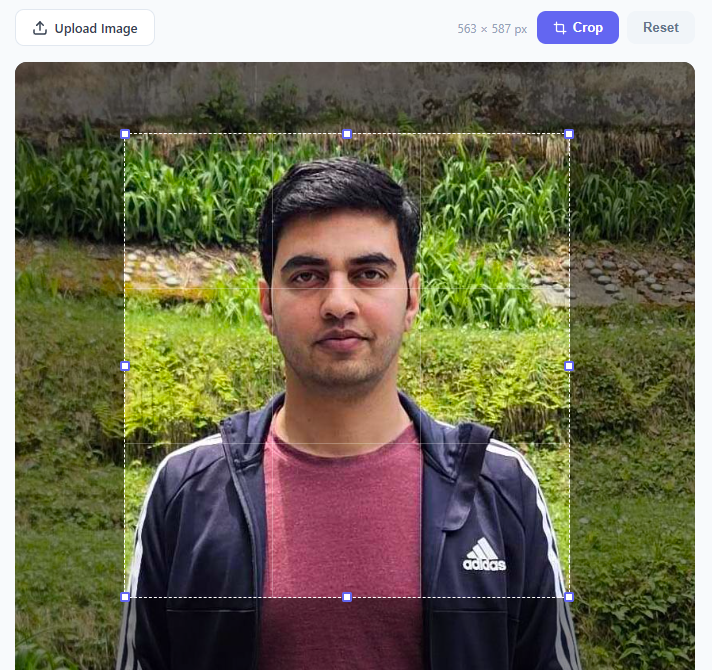
Building an image cropper from scratch is a classic JavaScript challenge that teaches mouse event handling, coordinate math, and the Canvas API in one compact component. This snippet delivers a fully working image cropper in plain HTML, CSS, and vanilla JavaScript — no Cropper.js, no third-party library. The user uploads or drag-drops an image — handy for cropping an avatar upload or pre-processing for the image filter editor — sees a draggable crop box with eight resize handles and a semi-transparent dark mask outside the crop region, and clicks Crop to extract the selected area onto a Canvas and preview the result below. A Download button saves the cropped PNG directly from the browser.
How the stage and coordinate system work
The image is displayed inside a .stage div with position: relative. The crop box is an absolutely positioned div inside the same stage, so all coordinates are relative to the stage's top-left corner. When the image loads, stage.getBoundingClientRect() gives the display width and height. The crop box x, y, w, h values are in display pixels. To convert to natural image pixels for the Canvas call, a scale factor is computed: scaleX = naturalWidth / displayWidth and scaleY = naturalHeight / displayHeight. This handles any image size regardless of how the CSS scales it.
The eight resize handles and drag logic
Each handle is a 10×10 white square with an indigo border, absolutely positioned at corners and edge midpoints using CSS. A mousedown listener on each handle records the drag direction (nw, n, ne, e, se, s, sw, w), the starting mouse position, and a snapshot of the current crop rectangle. The mousemove handler on document then applies delta changes per direction — for example, dragging the w (west) handle increases width and decreases x simultaneously so the right edge stays fixed. All resulting values are clamped to the stage bounds and to a minimum size of 40px to prevent the crop box collapsing to zero.
The semi-transparent mask overlay
Four absolutely positioned div elements — top, bottom, left, right — form the dark mask around the crop region. Their dimensions are recomputed in applyCrop() every time the crop box moves or resizes. For example, the top mask height equals crop.y; the left mask spans from crop.y to crop.y + crop.h with width crop.x. This four-mask approach is more reliable than a single SVG or CSS clip-path for interactive resizing because each mask is independently positioned with no reflow concerns.
Canvas drawImage for pixel-accurate extraction
cropImage() creates an off-screen <canvas> sized to the natural pixel dimensions of the crop region. It calls ctx.drawImage(sourceImg, sx, sy, sW, sH, 0, 0, sW, sH) — the six-argument overload that copies a source rectangle from the image onto the full canvas. The result is a full-resolution PNG even if the image was displayed at a smaller size on screen. canvas.toDataURL('image/png') produces a data URL that is set as the <img src> for the preview and as the <a href> for the download link.
Touch support and mobile use
Touch events mirror the mouse event logic. touchstart, touchmove, and touchend listeners are added to the crop box, handles, and document. The touch handler reads the first touch point's clientX / clientY and synthesises a MouseEvent to reuse the same mousemove handler. passive: false on touchstart allows preventDefault() to suppress default scroll behaviour while dragging the crop box on mobile.
Build with AI
Build, Understand, Optimize, and Extend It With AI
You don't have to trace the coordinate scaling by hand. Paste this snippet's HTML, CSS, and JS into an AI coding assistant like Claude and ask it to explain exactly how the scaleX and scaleY factors convert crop box coordinates in display pixels into natural image pixels for the canvas drawImage call, or why the west and north resize handles adjust both position and size together while east and south only adjust size. The same assistant is useful for optimizing it — ask whether synthesizing a MouseEvent from touch coordinates inside the touchmove listener (rather than sharing a single coordinate-handling function) risks subtle drift between mouse and touch behavior over time. It's just as handy for extending the cropper: ask it to add an aspect-ratio lock toggle (1:1, 4:3, 16:9) that constrains the resize math, support rotating the crop stage in 90-degree increments, or add pinch-to-zoom on touch devices before cropping. Treat the code less like a finished artifact and more like a starting point for a conversation.
Prompt to recreate it
Copy this into your AI assistant of choice to build the effect from scratch, or as a jumping-off point for your own variant:
Build an interactive image cropper in plain HTML, CSS, and JavaScript using the Canvas API for extraction — no cropping library.

Requirements:
- A file input and a drag-and-drop zone that both load a user-selected image via FileReader as a data URL and display it inside a positioned stage container.
- An absolutely-positioned crop box overlaid on the image with eight resize handles (four corners, four edge midpoints), each handle identified by a direction (like nw, n, ne, e, se, s, sw, w).
- Four separate mask divs (top, bottom, left, right) that darken everything outside the crop box, each one's position and size recalculated from the crop box's current x, y, width, and height every time the crop box changes.
- Dragging inside the crop box (but not on a handle) must move the box, clamped so it never goes outside the stage bounds. Dragging a handle must resize the box according to its direction — for example, dragging the west handle must decrease the box's x position and increase its width in a way that keeps the right edge fixed, while dragging the east handle only changes the width. All resizing must enforce a minimum width and height (e.g. 40px) and stay clamped inside the stage.
- Track the image's natural (full) pixel dimensions separately from its displayed size, and compute a scale factor between the two so that a live pixel-dimension readout (e.g. "800 x 600 px") always reflects the true output resolution of the current crop box, not its on-screen size.
- Support both mouse and touch dragging for both moving and resizing, reusing the same underlying update logic for both input types rather than duplicating the math.
- On confirming the crop, create an off-screen canvas sized to the natural-pixel crop dimensions, use the multi-argument drawImage call to copy exactly that source rectangle from the original image onto the canvas at full resolution, and provide a download link generated from the canvas's data URL.
Want to tighten it up first? Run this prompt through the AI Prompt Studio to score it across 8 quality dimensions, catch anti-patterns, and tune the wording for Claude, ChatGPT, or Gemini before you paste it in.
Step by step
How to Use
- 1Upload or drag-drop an image to startClick "Upload Image" and choose any JPEG, PNG, WebP, or GIF from your device. Alternatively drag an image file from your file manager and drop it onto the dashed drop zone. The image loads into the stage and a crop box appears at 80% of the image area.
- 2Drag the crop box to reposition itClick and drag anywhere inside the crop box (not on a handle) to move it over the part of the image you want to keep. The semi-transparent dark mask updates in real time to show which area will be cropped. The live W × H px counter in the toolbar shows the natural pixel dimensions of the current crop region.
- 3Drag the eight handles to resize the crop regionEach corner (NW, NE, SE, SW) and edge midpoint (N, E, S, W) has a white handle with an indigo border. Drag a corner to resize both width and height simultaneously. Drag an edge handle to resize only one axis while keeping the opposite edge fixed. The crop box cannot be resized smaller than 40×40 pixels or dragged outside the image boundary.
- 4Click Crop to extract the selected areaClick the indigo "Crop" button in the toolbar. An off-screen Canvas draws the selected region at full natural image resolution using ctx.drawImage() with source rectangle coordinates. The result appears below the stage as a preview image. For a 4000×3000 photo cropped to 60% of width and height, the output canvas is the correct proportional pixel size — not the display size.
- 5Download the cropped image as PNGClick "Download" below the result preview. The browser saves the file as cropped.png directly from the canvas data URL. The file is a full-quality PNG with no server upload or processing. For JPEG output, change canvas.toDataURL("image/png") to canvas.toDataURL("image/jpeg", 0.92) for ~92% quality JPEG.
- 6Click Reset to crop a different imageClick "Reset" in the toolbar to clear the current image and return to the drop zone. Upload a new image and repeat. The result preview and download link are also cleared. To add an aspect-ratio lock, check whether the drag direction is a corner and enforce w/h = targetRatio inside the mousemove handler.
Real-world uses
Common Use Cases
Got questions?
Frequently Asked Questions
In the mousemove resize handler, after computing the new w and h, add an aspect-ratio clamp. For example for 16:9: if the drag direction includes both axes (corner handle), fix one dimension and derive the other — h = Math.round(w * 9/16). For edge-only handles (n/s), also derive width from height and vice versa. For the move handler no change is needed. You can expose aspect-ratio presets (Free, 1:1, 4:3, 16:9) as buttons that set a global ratio constant and re-trigger applyCrop().
Change the toDataURL call in cropImage(): const dataURL = canvas.toDataURL("image/jpeg", 0.92). The second argument is quality from 0 to 1. For photo content 0.85-0.92 gives excellent quality at 4-6× smaller file size compared to PNG. Update the download filename to "cropped.jpg". Note that JPEG does not support transparency — if your source image has an alpha channel and you need to preserve it, keep PNG.
Replace the toDataURL call with canvas.toBlob(blob => { const fd = new FormData(); fd.append("image", blob, "cropped.png"); fetch("/upload", { method: "POST", body: fd }); }, "image/png"). toBlob() gives a binary Blob which is more efficient than the base64 data URL (base64 adds ~33% size overhead). On the server, handle the multipart upload as a regular file field named "image".
For rotation, wrap the source image in a canvas with ctx.translate(cx,cy); ctx.rotate(angle); ctx.drawImage(). Store the rotation angle in state and re-render the stage canvas on each rotation step. For zoom, use CSS transform: scale() on the source image and adjust getBoundingClientRect() values accordingly, or use a canvas-rendered zoomed image as the source. Both features are layered on top of the same crop coordinate system — the scale and rotation are applied before the crop extraction.