You Might Also Like
Learn Coding Visually
Learn to code with interactive, live-preview playgrounds — HTML, CSS, JavaScript, React & more.
 HTML Playground42 lessons · Click-based · Live preview
 CSS PlaygroundLearn CSS with a live editor
 JavaScript Playground60 lessons · DOM · Async · Canvas
 React PlaygroundLearn React with a live code editor
 GSAP PlaygroundLearn GSAP animation interactively
 SVG Playground44 lessons · shapes · paths · animation
 SCSS Playground45 lessons · Sass modules · tokens
 Tailwind PlaygroundLearn Tailwind CSS with a live editor
 Bootstrap 5 Playground50 lessons · live preview
File Dropzone — Free HTML CSS JS Drag & Drop Snippet
File Dropzone · Forms · Plain HTML, CSS & JS · Live preview
What's included
Features
About this UI Snippet
File Dropzone — dragover/drop Events, extColors Map & Click-to-Browse
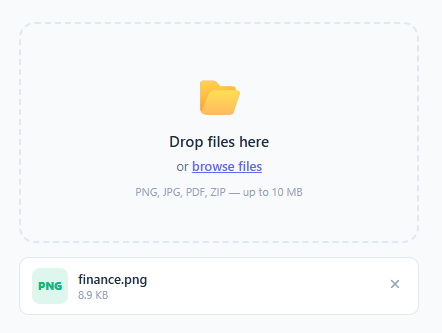
A file dropzone is a drag-and-drop upload area that also supports click-to-browse. Users drag files from their desktop onto the zone or click it to open the file picker. This is the standard upload UI for image editors, document processors, email attachments, and any file-based workflow — pair it with upload progress bars, the styled file input, or a media upload grid.
The drag events
dragover calls e.preventDefault() (required to allow drop) and adds .over to the zone — this triggers the dashed border colour change and the zone icon scale animation. dragleave removes .over. drop calls e.preventDefault() and reads e.dataTransfer.files — a FileList of dropped files.
Click-to-browse fallback
The zone has an onclick that calls input.click() on a hidden <input type="file" multiple>. This opens the OS file picker. The input's onchange handler passes this.files to the same addFiles() function — identical behaviour for both drag-and-drop and click paths.
The extColors map
extColors maps file extensions to colours: pdf → red, png/jpg → green, zip → yellow, mp4 → indigo, mp3 → violet, doc → blue. ext.toLowerCase() extracts the extension from the filename. If the extension is not in the map, a default slate colour is used. This colour is applied as an inline badge next to the filename.
File size formatting
(file.size / 1024).toFixed(1) + ' KB' formats the byte count to one decimal place.
Removing files
Each file item has a remove button. Its onclick calls item.remove() to delete the list item from the DOM.
The dragover/drop event pair
Without e.preventDefault() in the dragover handler, the browser's default action (opening the file) fires and no drop event is triggered. Always call e.preventDefault() in dragover to signal to the browser that this element accepts drops. The drop handler also calls e.preventDefault() to prevent the browser from navigating to the dropped file. e.dataTransfer.files provides the FileList of dropped files.
The visual drag-over state
The .drag-over class adds a coloured border and light background to communicate to the user that the zone is ready to accept the dropped file. This class is added in ondragover and removed in ondragleave. Adding a CSS transition: border-color 0.15s, background 0.15s to the dropzone makes the state change feel responsive.
File size and type validation
After receiving files (from drop or input change), validate before processing: const MAX_SIZE = 25 * 1024 * 1024; const ALLOWED = ['png','jpg','pdf','zip']; const valid = file.size <= MAX_SIZE && ALLOWED.includes(ext(file.name)). Show an error state for invalid files: an error badge with the reason ("File too large" or "Invalid type") instead of a progress bar. This prevents users from uploading incompatible files before the upload starts.
Build with AI
Build, Understand, Optimize, and Extend It With AI
You don't have to trace every drag event by hand to know what this zone is really doing. Paste the HTML, CSS, and JS into an AI coding assistant like Claude and ask it to explain exactly why dragover needs e.preventDefault() before drop will ever fire, and why the hidden input's onchange calls the same handleFiles function as the drop path. The same assistant is useful for optimizing it — ask whether the extColors lookup and size formatting should be memoized if the list grows into the hundreds, or whether prepend-ing new list items on every drop could be batched. It's just as good for extending the effect: have it add real upload progress per file, size and type validation against the extColors keys before the file is accepted, or drag-to-reorder on the file list. Treat the code less like a finished artifact and more like a starting point for a conversation.
Prompt to recreate it
Copy this into your AI assistant of choice to build the effect from scratch, or as a jumping-off point for your own variant:
Build a drag-and-drop file upload dropzone in plain HTML, CSS, and JavaScript — no libraries, no frameworks.

Requirements:
- A dropzone container that listens for dragover, dragleave, and drop events. The dragover handler must call e.preventDefault() and add a visual "over" class (dashed border color change plus a subtle icon scale); dragleave must remove that class; drop must call e.preventDefault(), remove the class, and read the files from e.dataTransfer.files.
- A hidden native input type="file" with multiple set, triggered by clicking the dropzone itself (input.click()), whose change event passes this.files into the exact same file-handling function used by the drop path, so both entry points behave identically.
- A function that, for every File object, extracts its extension from the filename, looks up a color from a small extension-to-color map (with a sensible default for unmapped extensions), formats the byte size into B/KB/MB with one decimal place, and prepends a new list item showing a colored extension badge, the file name, the formatted size, and a remove button that deletes just that item from the DOM on click.
- No actual network upload is required, but structure the file-handling function so a FormData-based fetch POST could be added in one place without restructuring the rest of the code.
Want to tighten it up first? Run this prompt through the AI Prompt Studio to score it across 8 quality dimensions, catch anti-patterns, and tune the wording for Claude, ChatGPT, or Gemini before you paste it in.
Step by step
How to Use
- 1Drag a file onto the zoneDrag any file from your desktop onto the dropzone in the preview. The border highlights on hover and the file appears in the list below.
- 2Click to browseClick the dropzone without dragging to open the OS file picker. Selected files appear in the same list.
- 3Add or remove file type coloursIn the JS panel, update the extColors map with your file types and brand colours.
- 4Restrict accepted file typesAdd accept="image/*,.pdf" to the hidden <input type="file"> element to filter the file picker.
- 5Wire to a real uploadIn addFiles(), create a FormData object, append each file, and call fetch("/upload", { method: "POST", body: formData }) to send files to your backend.
- 6Export in your formatClick "HTML" for a standalone file, "JSX" for a React component, or "Tailwind" for a React + Tailwind version.
Real-world uses
Common Use Cases
Got questions?
Frequently Asked Questions
The dragover handler calls e.preventDefault() — without this the browser blocks the drop. The drop handler reads e.dataTransfer.files which is a FileList of all dragged files. addFiles() iterates over it to build the file list UI.
A hidden <input type="file" multiple> is in the HTML. The zone div has onclick="document.getElementById('file-input').click()" which programmatically opens the OS file picker. The input's onchange fires with this.files when the user selects files.
Add an accept attribute to the hidden input: accept=".pdf,image/*". This filters the file picker. For drag-and-drop, check file types in addFiles(): if (!allowedTypes.includes(file.type)) return; — the accept attribute does not prevent drag drops.
In addFiles(), create a FormData: const fd = new FormData(); files.forEach(f => fd.append("files", f)); await fetch("/upload", { method: "POST", body: fd });. No Content-Type header needed — the browser sets it automatically with the boundary.
For image files (file.type.startsWith("image/")), use FileReader: const reader = new FileReader(); reader.onload = e => { const img = document.createElement("img"); img.src = e.target.result; item.prepend(img); }; reader.readAsDataURL(file);
Yes. Click "JSX" for a React component. In React, manage the files array in useState. Wire onDragOver, onDragLeave, onDrop props to the div and onChange to the input. Call setFiles(prev => [...prev, ...newFiles]) in each handler.