Learn Coding Visually
Learn to code with interactive, live-preview playgrounds — HTML, CSS, JavaScript, React & more.
 HTML Playground42 lessons · Click-based · Live preview
 CSS PlaygroundLearn CSS with a live editor
 JavaScript Playground60 lessons · DOM · Async · Canvas
 React PlaygroundLearn React with a live code editor
 GSAP PlaygroundLearn GSAP animation interactively
 SVG Playground44 lessons · shapes · paths · animation
 SCSS Playground45 lessons · Sass modules · tokens
 Tailwind PlaygroundLearn Tailwind CSS with a live editor
 Bootstrap 5 Playground50 lessons · live preview
Upload Progress — Free HTML CSS JS Snippet
Upload Progress · Loaders · Plain HTML, CSS & JS · Live preview
What's included
Features
About this UI Snippet
Upload Progress — Drag-and-Drop Zone, Per-File Progress Bars, Type Icons & Summary Bar
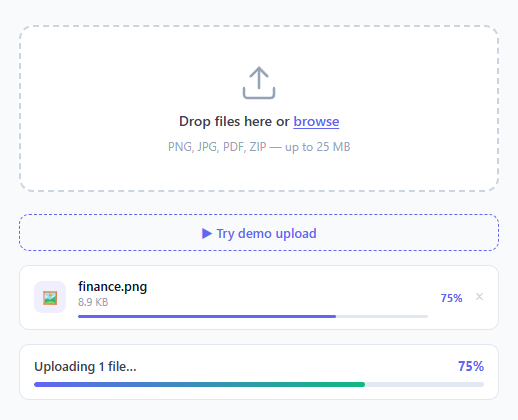
A file upload interface with drag-and-drop, per-file progress bars, and a summary progress is one of the most complex UI patterns developers need to build from scratch. This snippet provides everything: a drag-and-drop zone with visual hover feedback (see also the standalone file dropzone), multiple file selection via click or drop, per-file progress bars with file type icons and formatted sizes, individual done/error states, a remove button, and an overall summary progress bar with a completion message — all in plain HTML, CSS, and vanilla JavaScript.
The drag-and-drop zone
The dropzone listens for three events: ondragover (calls e.preventDefault() to allow drop and adds .drag-over for visual feedback), ondragleave (removes .drag-over), and ondrop (calls e.preventDefault(), removes .drag-over, and passes e.dataTransfer.files to onFiles()). Clicking the dropzone triggers the hidden file input via triggerPick(), which calls input.click(). The hidden input has the multiple attribute for multi-file selection.
File type icon detection
The EXT_ICON and EXT_CLASS maps assign emoji icons and coloured background classes based on the file extension. Image extensions get a camera emoji and indigo background. PDF gets a document emoji and red background. ZIP/RAR get a compressed emoji and amber background. Unknown extensions get a folder emoji and grey background.
Per-file progress simulation
Each file gets its own setInterval that increments the progress at a random speed (5–15% per tick, every 200ms). This simulates variable upload speeds per file. In production, replace the simulation with XHR upload.onprogress events that fire with real loaded/total values. When pct reaches 100, the interval clears, the status text changes to "✓ Done", and the class changes to .done (green).
Overall summary bar
The updateOverallPct() function reads all .fi-fill bar widths in the file list and averages them. The average percentage fills the summary bar and updates the summary percentage text. When all files complete, updateSummary() changes the label to "✓ All files uploaded".
File size formatting
fmtSize() formats bytes to KB (if under 1MB) or MB (if 1MB or above) with one decimal place — matching the file size display convention used by operating systems and most upload interfaces. The formatter correctly handles file sizes from bytes through kilobytes to megabytes, with one decimal place for readability without verbosity at smaller file sizes.
Build with AI
Build, Understand, Optimize, and Extend It With AI
Instead of tracing every listener by hand, paste this snippet's HTML, CSS, and JS into an AI coding assistant like Claude and ask it to explain exactly why updateOverallPct() reads the actual .fi-fill widths from the DOM to compute the average rather than tracking a separate running total in a variable, and what problem that avoids when a file is removed mid-upload. It's a good optimization target too — ask whether keying each file's interval and DOM lookups by a Date.now()-based id is safe if two files are added in the same millisecond, and what a more robust id scheme would look like. For extending it, have it add real file type and size validation with inline error states, wire the setInterval simulation to a real XHR upload.onprogress handler, or add pause/resume support for individual file uploads. Treat the code less like a finished artifact and more like a starting point for a conversation.
Prompt to recreate it
Copy this into your AI assistant of choice to build the effect from scratch, or as a jumping-off point for your own variant:
Build a drag-and-drop file upload interface with per-file and overall progress bars, in plain HTML, CSS, and vanilla JavaScript with no libraries.

Requirements:
- A dropzone that highlights on dragover, un-highlights on dragleave, accepts dropped files via the drop event's dataTransfer.files, and also opens a hidden multi-file input when clicked.
- For every added file, create a list item showing an icon determined by the file's extension (grouped into image/pdf/zip/other categories), the file name, a human-formatted size (KB below 1MB, MB at or above), an individual progress bar, a live percentage/status label, and a remove button.
- Simulate each file's upload independently with its own interval timer that increments that file's percentage at a randomized speed, so different files complete at different times; when a file reaches 100%, its interval must stop and its status must switch to a completed state.
- Compute an overall summary progress bar by reading the current width of every visible per-file progress bar in the DOM and averaging them — not by tracking a separate counter — so that removing a file from the list before it finishes correctly adjusts the overall average.
- Clicking a file's remove button must cancel that file's running interval before removing its DOM element, and must recompute the overall summary immediately after.
- Once every file's interval has finished (no intervals remain running) and at least one file completed, update the summary label to a completed message.
Want to tighten it up first? Run this prompt through the AI Prompt Studio to score it across 8 quality dimensions, catch anti-patterns, and tune the wording for Claude, ChatGPT, or Gemini before you paste it in.
Step by step
How to Use
- 1Click the drop zone or drag files onto itClick the zone to open the system file picker (multiple files allowed). Or drag files from your desktop onto the zone — it highlights with an indigo border and subtle background when a drag enters.
- 2Watch per-file progress and the overall summary barEach file shows its own progress bar, percentage, and status. The overall summary bar averages all file progress. When all files complete, the summary label changes to "✓ All files uploaded".
- 3Wire to a real upload endpointReplace the setInterval simulation in onFiles() with a real XHR upload: xhr.upload.onprogress = e => { pct = (e.loaded/e.total)*100; fill.style.width = pct+"%" }. Start the XHR with xhr.open("POST","/upload"); xhr.send(formData).
- 4Remove files from the listClick the × button on any file to remove it from the list. In a real upload, also cancel the in-progress XHR: xhr.abort(). Remove the file from the queued upload list.
- 5Add file size and type validationIn onFiles(), filter files before processing: const valid = [...files].filter(f => f.size <= 25*1024*1024 && allowedTypes.includes(ext(f.name))). Show an error message for rejected files: create a .file-item with .fi-status.error instead of a progress bar.
- 6Export in your formatClick "HTML" for a standalone file, "JSX" for a React component using useState for the files array and useRef for XHR instances, or "Tailwind" for a Tailwind CSS version.
Real-world uses
Common Use Cases
Got questions?
Frequently Asked Questions
Replace the setInterval simulation for each file with a real XHR upload: const xhr = new XMLHttpRequest(); xhr.upload.addEventListener("progress", e => { if (e.lengthComputable) { const pct = Math.round(e.loaded/e.total*100); fill.style.width = pct+"%"; status.textContent = pct+"%"; updateOverallPct(list, total); } }); xhr.addEventListener("load", () => { status.textContent = "✓ Done"; status.className = "fi-status done"; done++; updateSummary(done, total); }); xhr.open("POST", "/api/upload"); const fd = new FormData(); fd.append("file", f); xhr.send(fd).
In onFiles(), filter before the forEach: const valid = [...files].filter(f => { const e = ext(f.name); return allowedExts.includes(e) && f.size <= MAX_SIZE; }); const invalid = [...files].filter(f => !valid.includes(f)). For invalid files, create a .file-item with a red error status span instead of a progress bar: status.textContent = "File too large" or "Invalid type". Append these error items to the list alongside valid items.
Store each XHR in a Map keyed by file item ID: const xhrMap = new Map(); xhrMap.set(id, xhr) after creating the XHR. In removeItem(), call xhrMap.get(id)?.abort() before removing the DOM element and deleting from the Map. This stops the upload and prevents the progress callback from firing after the element is removed.
Click "JSX" to download. Manage files as an array in useState: [{id, name, size, pct, status}]. Add files in the drop/pick handler: setFiles(prev => [...prev, ...newFiles.map(toFileObj)]). Update each file's pct in the XHR progress handler: setFiles(prev => prev.map(f => f.id === id ? {...f, pct} : f)). Compute overall progress with useMemo: files.reduce((sum,f) => sum+f.pct, 0) / files.length.