Source Code
<div class="fm">
  <!-- Sidebar -->
  <aside class="sidebar">
    <div class="sidebar-header">
      <svg width="16" height="16" viewBox="0 0 24 24" fill="none" stroke="currentColor" stroke-width="2" stroke-linecap="round"><path d="M3 9l9-7 9 7v11a2 2 0 0 1-2 2H5a2 2 0 0 1-2-2z"/><polyline points="9 22 9 12 15 12 15 22"/></svg>
      My Drive
    </div>
    <nav class="tree">
      <div class="tree-item active" onclick="setActive(this)">
        <svg width="14" height="14" viewBox="0 0 24 24" fill="#f59e0b" stroke="#f59e0b" stroke-width="1.5"><path d="M22 19a2 2 0 0 1-2 2H4a2 2 0 0 1-2-2V5a2 2 0 0 1 2-2h5l2 3h9a2 2 0 0 1 2 2z"/></svg>
        <span>Projects</span>
      </div>
      <div class="tree-item" onclick="setActive(this)">
        <svg width="14" height="14" viewBox="0 0 24 24" fill="#3b82f6" stroke="#3b82f6" stroke-width="1.5"><path d="M22 19a2 2 0 0 1-2 2H4a2 2 0 0 1-2-2V5a2 2 0 0 1 2-2h5l2 3h9a2 2 0 0 1 2 2z"/></svg>
        <span>Documents</span>
      </div>
      <div class="tree-item" onclick="setActive(this)">
        <svg width="14" height="14" viewBox="0 0 24 24" fill="#10b981" stroke="#10b981" stroke-width="1.5"><path d="M22 19a2 2 0 0 1-2 2H4a2 2 0 0 1-2-2V5a2 2 0 0 1 2-2h5l2 3h9a2 2 0 0 1 2 2z"/></svg>
        <span>Designs</span>
      </div>
      <div class="tree-item" onclick="setActive(this)">
        <svg width="14" height="14" viewBox="0 0 24 24" fill="#8b5cf6" stroke="#8b5cf6" stroke-width="1.5"><path d="M22 19a2 2 0 0 1-2 2H4a2 2 0 0 1-2-2V5a2 2 0 0 1 2-2h5l2 3h9a2 2 0 0 1 2 2z"/></svg>
        <span>Archives</span>
      </div>
    </nav>

    <div class="storage-wrap">
      <div class="storage-label">
        <svg width="12" height="12" viewBox="0 0 24 24" fill="none" stroke="currentColor" stroke-width="2" stroke-linecap="round"><rect x="2" y="2" width="20" height="8" rx="2" ry="2"/><rect x="2" y="14" width="20" height="8" rx="2" ry="2"/><line x1="6" y1="6" x2="6.01" y2="6"/><line x1="6" y1="18" x2="6.01" y2="18"/></svg>
        Storage: 4.2 GB of 15 GB
      </div>
      <div class="storage-bar"><div class="storage-fill"></div></div>
    </div>
  </aside>

  <!-- Main -->
  <main class="main">
    <div class="toolbar">
      <div class="breadcrumb">
        <span class="bc-root">My Drive</span>
        <svg width="10" height="10" viewBox="0 0 24 24" fill="none" stroke="currentColor" stroke-width="2.5" stroke-linecap="round"><polyline points="9 18 15 12 9 6"/></svg>
        <span class="bc-current">Projects</span>
      </div>
      <div class="toolbar-actions">
        <button class="view-btn active" id="viewGrid" onclick="setView('grid')" title="Grid view">
          <svg width="13" height="13" viewBox="0 0 24 24" fill="none" stroke="currentColor" stroke-width="2.5" stroke-linecap="round"><rect x="3" y="3" width="7" height="7"/><rect x="14" y="3" width="7" height="7"/><rect x="3" y="14" width="7" height="7"/><rect x="14" y="14" width="7" height="7"/></svg>
        </button>
        <button class="view-btn" id="viewList" onclick="setView('list')" title="List view">
          <svg width="13" height="13" viewBox="0 0 24 24" fill="none" stroke="currentColor" stroke-width="2.5" stroke-linecap="round"><line x1="8" y1="6" x2="21" y2="6"/><line x1="8" y1="12" x2="21" y2="12"/><line x1="8" y1="18" x2="21" y2="18"/><line x1="3" y1="6" x2="3.01" y2="6"/><line x1="3" y1="12" x2="3.01" y2="12"/><line x1="3" y1="18" x2="3.01" y2="18"/></svg>
        </button>
        <button class="upload-btn" onclick="handleUpload()">
          <svg width="12" height="12" viewBox="0 0 24 24" fill="none" stroke="currentColor" stroke-width="2.5" stroke-linecap="round"><polyline points="16 16 12 12 8 16"/><line x1="12" y1="12" x2="12" y2="21"/><path d="M20.39 18.39A5 5 0 0 0 18 9h-1.26A8 8 0 1 0 3 16.3"/></svg>
          Upload
        </button>
      </div>
    </div>

    <div id="fileGrid" class="file-grid">
      <!-- Folders row -->
      <div class="file-item folder" onclick="selectItem(this)">
        <div class="file-icon">
          <svg width="32" height="32" viewBox="0 0 24 24" fill="#f59e0b" stroke="#d97706" stroke-width="1"><path d="M22 19a2 2 0 0 1-2 2H4a2 2 0 0 1-2-2V5a2 2 0 0 1 2-2h5l2 3h9a2 2 0 0 1 2 2z"/></svg>
        </div>
        <div class="file-name">Website Redesign</div>
        <div class="file-meta">12 items · 2 days ago</div>
      </div>

      <div class="file-item folder" onclick="selectItem(this)">
        <div class="file-icon">
          <svg width="32" height="32" viewBox="0 0 24 24" fill="#f59e0b" stroke="#d97706" stroke-width="1"><path d="M22 19a2 2 0 0 1-2 2H4a2 2 0 0 1-2-2V5a2 2 0 0 1 2-2h5l2 3h9a2 2 0 0 1 2 2z"/></svg>
        </div>
        <div class="file-name">Mobile App</div>
        <div class="file-meta">8 items · 1 week ago</div>
      </div>

      <!-- Files -->
      <div class="file-item" data-type="pdf" onclick="selectItem(this)">
        <div class="file-icon file-pdf">
          <svg width="24" height="28" viewBox="0 0 24 28" fill="none"><rect width="24" height="28" rx="3" fill="#ef4444"/><text x="4" y="18" font-family="system-ui" font-size="8" font-weight="800" fill="#fff">PDF</text></svg>
        </div>
        <div class="file-name">Q2 Report.pdf</div>
        <div class="file-meta">2.4 MB · Jun 10</div>
      </div>

      <div class="file-item" data-type="img" onclick="selectItem(this)">
        <div class="file-icon file-img">
          <svg width="24" height="28" viewBox="0 0 24 28" fill="none"><rect width="24" height="28" rx="3" fill="#10b981"/><circle cx="8" cy="9" r="3" fill="#fff" opacity=".6"/><path d="M0 20 L7 14 L13 18 L18 12 L24 17 L24 28 L0 28Z" fill="#fff" opacity=".4"/></svg>
        </div>
        <div class="file-name">Hero Banner.png</div>
        <div class="file-meta">1.1 MB · Jun 9</div>
      </div>

      <div class="file-item" data-type="doc" onclick="selectItem(this)">
        <div class="file-icon file-doc">
          <svg width="24" height="28" viewBox="0 0 24 28" fill="none"><rect width="24" height="28" rx="3" fill="#3b82f6"/><rect x="5" y="8" width="14" height="2" rx="1" fill="#fff" opacity=".7"/><rect x="5" y="12" width="14" height="2" rx="1" fill="#fff" opacity=".7"/><rect x="5" y="16" width="9" height="2" rx="1" fill="#fff" opacity=".7"/></svg>
        </div>
        <div class="file-name">Proposal.docx</div>
        <div class="file-meta">342 KB · Jun 8</div>
      </div>

      <div class="file-item" data-type="zip" onclick="selectItem(this)">
        <div class="file-icon file-zip">
          <svg width="24" height="28" viewBox="0 0 24 28" fill="none"><rect width="24" height="28" rx="3" fill="#8b5cf6"/><text x="4" y="18" font-family="system-ui" font-size="8" font-weight="800" fill="#fff">ZIP</text></svg>
        </div>
        <div class="file-name">assets-v2.zip</div>
        <div class="file-meta">8.7 MB · Jun 7</div>
      </div>

      <div class="file-item" data-type="js" onclick="selectItem(this)">
        <div class="file-icon file-code">
          <svg width="24" height="28" viewBox="0 0 24 28" fill="none"><rect width="24" height="28" rx="3" fill="#f59e0b"/><text x="5" y="18" font-family="system-ui" font-size="7" font-weight="800" fill="#fff">JS</text></svg>
        </div>
        <div class="file-name">bundle.min.js</div>
        <div class="file-meta">124 KB · Jun 6</div>
      </div>
    </div>
  </main>
</div>
* { box-sizing: border-box; margin: 0; padding: 0; }
body { font-family: system-ui, sans-serif; background: #f1f5f9; display: flex; align-items: stretch; justify-content: center; min-height: 100vh; padding: 20px; }
.fm { display: flex; width: 100%; max-width: 760px; height: 480px; background: #fff; border-radius: 16px; box-shadow: 0 8px 40px rgba(0,0,0,0.12); overflow: hidden; border: 1px solid #e2e8f0; }
/* Sidebar */
.sidebar { width: 180px; border-right: 1px solid #e2e8f0; display: flex; flex-direction: column; background: #f8fafc; flex-shrink: 0; }
.sidebar-header { display: flex; align-items: center; gap: 8px; padding: 16px 14px 12px; font-size: 12px; font-weight: 700; color: #374151; border-bottom: 1px solid #e2e8f0; }
.tree { padding: 8px 0; flex: 1; }
.tree-item { display: flex; align-items: center; gap: 8px; padding: 7px 14px; font-size: 12px; color: #4b5563; cursor: pointer; border-radius: 0; transition: background 0.12s; }
.tree-item:hover { background: #f0f9ff; color: #1e40af; }
.tree-item.active { background: #eff6ff; color: #1d4ed8; font-weight: 600; border-right: 2px solid #3b82f6; }
.storage-wrap { padding: 12px 14px; border-top: 1px solid #e2e8f0; }
.storage-label { display: flex; align-items: center; gap: 5px; font-size: 10px; color: #6b7280; margin-bottom: 6px; }
.storage-bar { height: 4px; background: #e5e7eb; border-radius: 2px; overflow: hidden; }
.storage-fill { height: 100%; width: 28%; background: linear-gradient(90deg, #3b82f6, #6366f1); border-radius: 2px; }
/* Main */
.main { flex: 1; display: flex; flex-direction: column; overflow: hidden; }
.toolbar { display: flex; align-items: center; justify-content: space-between; padding: 12px 16px; border-bottom: 1px solid #e2e8f0; gap: 8px; flex-shrink: 0; }
.breadcrumb { display: flex; align-items: center; gap: 5px; font-size: 12px; }
.bc-root { color: #6b7280; cursor: pointer; }
.bc-root:hover { color: #374151; }
.bc-current { color: #111827; font-weight: 700; }
.toolbar-actions { display: flex; align-items: center; gap: 4px; }
.view-btn { width: 28px; height: 28px; border: 1.5px solid #e5e7eb; border-radius: 7px; background: #fff; cursor: pointer; display: flex; align-items: center; justify-content: center; color: #6b7280; transition: all 0.12s; }
.view-btn:hover, .view-btn.active { background: #eff6ff; border-color: #bfdbfe; color: #2563eb; }
.upload-btn { display: flex; align-items: center; gap: 5px; padding: 6px 12px; background: #2563eb; color: #fff; border: none; border-radius: 8px; font-size: 11px; font-weight: 700; cursor: pointer; transition: background 0.15s; }
.upload-btn:hover { background: #1d4ed8; }
/* Grid view */
.file-grid { display: grid; grid-template-columns: repeat(4, 1fr); gap: 8px; padding: 14px 16px; overflow-y: auto; flex: 1; align-content: start; }
.file-grid.list-view { grid-template-columns: 1fr; gap: 2px; }
.file-item { border: 1.5px solid transparent; border-radius: 10px; padding: 10px 8px; text-align: center; cursor: pointer; transition: all 0.12s; }
.file-item:hover { background: #f8fafc; border-color: #e2e8f0; }
.file-item.selected { background: #eff6ff; border-color: #bfdbfe; }
.file-icon { width: 40px; height: 40px; margin: 0 auto 6px; display: flex; align-items: center; justify-content: center; }
.file-name { font-size: 10px; font-weight: 600; color: #1f2937; line-height: 1.3; word-break: break-word; margin-bottom: 2px; }
.file-meta { font-size: 9px; color: #9ca3af; }
/* List view */
.file-grid.list-view .file-item { display: flex; align-items: center; gap: 10px; text-align: left; padding: 8px 10px; border-radius: 7px; }
.file-grid.list-view .file-icon { margin: 0; width: 28px; height: 28px; flex-shrink: 0; }
.file-grid.list-view .file-icon svg { width: 18px; height: 21px; }
.file-grid.list-view .file-name { font-size: 12px; flex: 1; margin: 0; }
.file-grid.list-view .file-meta { font-size: 10px; white-space: nowrap; }function setView(v) {
const grid = document.getElementById('fileGrid');
const btnGrid = document.getElementById('viewGrid');
const btnList = document.getElementById('viewList');
if (v === 'list') {
grid.classList.add('list-view');
btnList.classList.add('active');
btnGrid.classList.remove('active');
} else {
grid.classList.remove('list-view');
btnGrid.classList.add('active');
btnList.classList.remove('active');
}
}
function selectItem(el) {
document.querySelectorAll('.file-item.selected').forEach(e => e.classList.remove('selected'));
el.classList.add('selected');
}
function setActive(el) {
document.querySelectorAll('.tree-item.active').forEach(e => e.classList.remove('active'));
el.classList.add('active');
document.querySelector('.bc-current').textContent = el.querySelector('span').textContent;
}
function handleUpload() {
const btn = document.querySelector('.upload-btn');
const orig = btn.innerHTML;
btn.innerHTML = '<svg width="12" height="12" viewBox="0 0 24 24" fill="none" stroke="currentColor" stroke-width="2.5" stroke-linecap="round"><polyline points="20 6 9 17 4 12"/></svg> Uploaded!';
btn.style.background = '#10b981';
setTimeout(() => { btn.innerHTML = orig; btn.style.background = ''; }, 1800);
}Learn Coding Visually
Learn to code with interactive, live-preview playgrounds — HTML, CSS, JavaScript, React & more.
 HTML Playground42 lessons · Click-based · Live preview
 CSS PlaygroundLearn CSS with a live editor
 JavaScript Playground60 lessons · DOM · Async · Canvas
 React PlaygroundLearn React with a live code editor
 GSAP PlaygroundLearn GSAP animation interactively
 SVG Playground44 lessons · shapes · paths · animation
 SCSS Playground45 lessons · Sass modules · tokens
 Tailwind PlaygroundLearn Tailwind CSS with a live editor
 Bootstrap 5 Playground50 lessons · live preview
What's included
Features
About this UI Snippet
File Manager UI — Sidebar Navigation, Grid/List View Toggle & Storage Bar
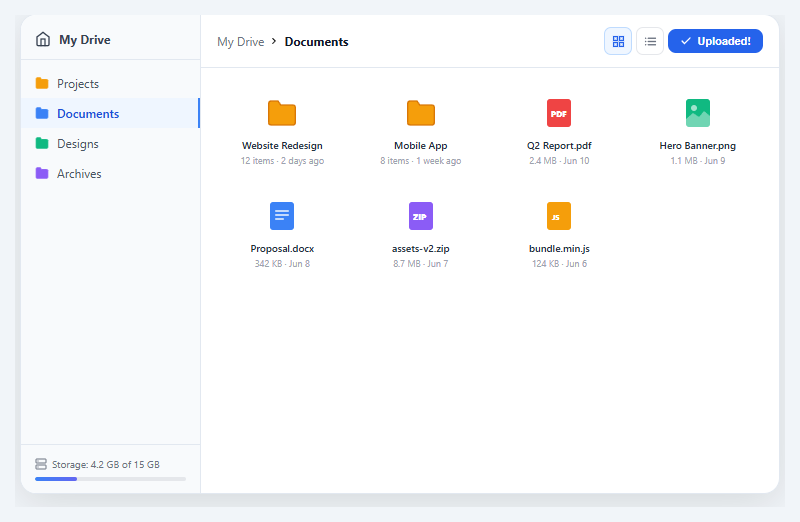
A file manager UI is one of the most complex single-component patterns in frontend development — it combines navigation, selection state, view mode toggling, file type iconography, and storage visualisation in one coherent interface. This snippet builds a compact but fully featured file manager with a sidebar folder tree, a main content area with grid/list view toggle, file type icons built from inline SVGs, breadcrumb navigation, selection state, and a storage usage bar.
Layout architecture: sidebar + main flex container
The outer .fm container is a flex row with a fixed-width sidebar (180px) and a flex-1 main area. Both stretch to the container height (480px). The sidebar uses flex-direction: column to push the storage bar to the bottom via flex: 1 on the tree nav. This is the core CSS technique for sticky-footer layouts within fixed-height containers — no absolute positioning required.
Grid/list view toggle
The file grid uses CSS Grid with grid-template-columns: repeat(4, 1fr) for grid view. Switching to list view adds the .list-view class, which overrides to grid-template-columns: 1fr and changes each .file-item from block to display:flex; align-items:center. The toggle is purely CSS-class-driven — setView() adds/removes a single class on the grid container. File icon SVGs scale from 40×40px (grid) to 28×28px (list) via the .file-grid.list-view .file-icon descendant selector.
File type icons via inline SVG
Each file type (PDF, image, doc, zip, JS) has a unique colour-coded SVG icon built inline — no icon library dependency. PDFs use red, images use green, documents use blue, zips use purple, JS files use amber. The folder icons use the standard folder path shape in yellow/orange. Using inline SVGs instead of icon fonts or external images means zero HTTP requests and no CORS issues in sandboxed preview environments.
Selection state
The selectItem() function removes the .selected class from all items then adds it to the clicked item. The .selected style uses a blue background (#eff6ff) with a blue border (#bfdbfe) — the same visual system as the sidebar active folder. Multi-select (shift-click, ctrl-click) would require tracking a selectedItems Set and toggling individual items; see the React integration note below.
Breadcrumb navigation
The breadcrumb shows the current path as "My Drive > Projects". Clicking a tree item updates the breadcrumb via setActive() which reads the folder name from the tree item's <span> text. In production, breadcrumbs would be driven by a path array maintained in component state.
Storage bar
The storage bar is a simple 4px high div with a gradient fill. The fill width (28%) represents 4.2GB of 15GB — calculated as (used/total)*100 + '%'. In React, this would be a computed style: style={{ width: ${(used/total)*100}% }}.
React integration
The main state would be: { currentFolder, viewMode, selectedItems: Set }. File data comes from an array prop or API fetch. The sidebar tree is a recursive component for nested folder structures. Grid/list toggle is useState('grid'). File icons can be a FileIcon component that maps extension to colour and shape.
See also the data table snippet for tabular file listing, the kanban board snippet for card-based layouts, and the progress wizard snippet for multi-step navigation patterns.
Build with AI
Build, Understand, Optimize, and Extend It With AI
Rather than tracing setView, selectItem, and setActive by hand, paste this snippet's HTML, CSS, and JS into an AI coding assistant like Claude and ask it to explain exactly how the .list-view class swaps the file grid from CSS Grid columns to a flex row layout via the descendant selectors, or why the sidebar's flex-direction column plus flex:1 on .tree pushes the storage bar to the bottom without absolute positioning. The same assistant can help optimize it — ask whether re-querying document.querySelectorAll('.file-item.selected') on every click matters at scale, or how selection state should be tracked once the grid is data-driven instead of static markup. It's equally useful for extending the UI: have it add multi-select with shift and ctrl click, folder drill-down with a real path stack behind the breadcrumb, or drag-and-drop upload onto the file grid. Treat the code less like a finished artifact and more like a starting point for a conversation.
Prompt to recreate it
Copy this into your AI assistant of choice to build the effect from scratch, or as a jumping-off point for your own variant:
Build a file manager UI in plain HTML, CSS, and JavaScript using CSS Grid and Flexbox for layout — no libraries, no canvas.

Requirements:
- A fixed-height flex container split into a fixed-width sidebar and a flex:1 main panel. The sidebar itself is a flex column with a header, a scrollable folder tree that takes flex:1, and a storage-usage section pinned to the bottom purely through flex layout (no absolute positioning).
- A folder tree where clicking an item removes an active class from whichever item currently has it and adds it to the clicked item, and also updates a breadcrumb element's text to that folder's name.
- A file grid that defaults to CSS Grid with four equal columns, plus a single toggle function that adds or removes one class on the grid container to switch it into a single-column list layout — list mode must restyle each item from a centered block to a left-aligned flex row with a smaller inline icon, driven entirely by that one class rather than duplicated markup.
- Each grid item represents a folder or a typed file (at least PDF, image, doc, zip, and code file types), each rendered with a distinct inline SVG icon and color, plus a name and a metadata line (size and date, or item count and date for folders).
- Click-to-select behavior where clicking any item clears the selected class from every other item and applies it only to the clicked one, visually distinguished with a colored background and border.
- A storage bar showing used-versus-total space as a proportionally-widthed filled bar inside a track.
- An upload button that, when clicked, temporarily swaps its label and icon to a checkmark and "Uploaded!" state with a color change, then reverts after roughly two seconds via setTimeout.
Want to tighten it up first? Run this prompt through the AI Prompt Studio to score it across 8 quality dimensions, catch anti-patterns, and tune the wording for Claude, ChatGPT, or Gemini before you paste it in.
Step by step
How to Use
- 1Copy HTML, CSS, and JSThe file manager renders with a sidebar folder tree on the left and a 4-column file grid on the right.
- 2Toggle grid/list viewClick the grid or list view buttons in the toolbar. The layout switches between a 4-column grid and a single-column list via a CSS class toggle.
- 3Click folders in the sidebarClicking a sidebar folder highlights it and updates the breadcrumb at the top of the main panel.
- 4Click any file or folderItems get a blue selection highlight. Only one item can be selected at a time in this implementation.
- 5Replace file dataUpdate the .file-item blocks with your own files. Change the SVG icon colour, file name, and .file-meta text for each item.
- 6Add real upload handlingReplace handleUpload() with an <input type="file"> trigger. Wire the change event to your upload API endpoint.
Real-world uses
Common Use Cases
Got questions?
Frequently Asked Questions
Maintain a selectedItems Set. On click: if ctrl/meta key held, toggle the clicked item. If shift held, select the range from the last clicked to this one. Update the UI by adding/removing .selected on all items in the Set.
Maintain a currentPath array in state. Clicking a folder pushes its name to the path and re-renders the file grid with that folder's contents. The breadcrumb renders each path segment as a clickable link that pops the path back to that level.
Add dragover and drop event listeners to the .file-grid. On dragover, prevent default and add a .drag-over highlight class. On drop, read event.dataTransfer.files and send to your upload API. Show a progress indicator per file.
Listen for contextmenu event on .file-item. Prevent default, render a positioned <div> with menu options (rename, copy, delete, share) at event.clientX/Y. Close on outside click or Escape key.
Open the Export menu (or the Test Exports preview) in the snippet toolbar. It generates a plain React component, a React + Tailwind version where the sidebar, grid, and storage-bar styles become utility classes, a Vue 3 single-file component with the view-toggle and selection logic in script setup, and an Angular standalone component. Each converter preserves the markup, the grid/list layout, and the selection behaviour — inline handlers map to the matching framework event bindings, so the file manager works identically across React, Vue, and Angular. For production, render the file grid from a files array held in component state (or fetched from your storage API) instead of the static markup, and lift the current folder path into state so the breadcrumb and drill-down stay in sync.
Add a single-click handler that opens a right-hand details panel showing the selected file name, size, type, and a preview — an <img> for images, a type icon for documents. Keep double-click for open/drill-down so single-click selection and the details view never conflict with opening a folder.