Source Code
<div class="wrap">
  <div class="chart-head">
    <h2 class="chart-title">Organisation Chart</h2>
    <span class="chart-sub">Click any manager to collapse their team</span>
  </div>
  <div class="org" id="org">
    <ul class="tree">
      <li>
        <div class="node ceo" onclick="toggle(this)">
          <div class="node-av" style="background:linear-gradient(135deg,#6366f1,#8b5cf6)">EC</div>
          <div class="node-info"><span class="node-name">Elena Carter</span><span class="node-role">CEO</span></div>
          <span class="node-count">3</span>
        </div>
        <ul>
          <li>
            <div class="node" onclick="toggle(this)">
              <div class="node-av" style="background:linear-gradient(135deg,#0ea5e9,#06b6d4)">MR</div>
              <div class="node-info"><span class="node-name">Marcus Reed</span><span class="node-role">VP Engineering</span></div>
              <span class="node-count">3</span>
            </div>
            <ul>
              <li><div class="node leaf"><div class="node-av" style="background:linear-gradient(135deg,#f59e0b,#f97316)">AT</div><div class="node-info"><span class="node-name">Aisha Tran</span><span class="node-role">Frontend Lead</span></div></div></li>
              <li><div class="node leaf"><div class="node-av" style="background:linear-gradient(135deg,#10b981,#059669)">DK</div><div class="node-info"><span class="node-name">David Kim</span><span class="node-role">Backend Lead</span></div></div></li>
              <li><div class="node leaf"><div class="node-av" style="background:linear-gradient(135deg,#ec4899,#db2777)">RP</div><div class="node-info"><span class="node-name">Rosa Pinto</span><span class="node-role">DevOps</span></div></div></li>
            </ul>
          </li>
          <li>
            <div class="node" onclick="toggle(this)">
              <div class="node-av" style="background:linear-gradient(135deg,#8b5cf6,#a855f7)">SN</div>
              <div class="node-info"><span class="node-name">Sophie Nguyen</span><span class="node-role">VP Design</span></div>
              <span class="node-count">2</span>
            </div>
            <ul>
              <li><div class="node leaf"><div class="node-av" style="background:linear-gradient(135deg,#14b8a6,#0d9488)">JM</div><div class="node-info"><span class="node-name">Jon Marsh</span><span class="node-role">Product Designer</span></div></div></li>
              <li><div class="node leaf"><div class="node-av" style="background:linear-gradient(135deg,#f43f5e,#e11d48)">LW</div><div class="node-info"><span class="node-name">Lily Wong</span><span class="node-role">UX Researcher</span></div></div></li>
            </ul>
          </li>
          <li>
            <div class="node leaf">
              <div class="node-av" style="background:linear-gradient(135deg,#64748b,#475569)">TB</div>
              <div class="node-info"><span class="node-name">Tom Baker</span><span class="node-role">VP Sales</span></div>
            </div>
          </li>
        </ul>
      </li>
    </ul>
  </div>
</div>
* { box-sizing: border-box; margin: 0; padding: 0; }
body { font-family: system-ui, sans-serif; background: #f1f5f9; min-height: 100vh; padding: 32px 20px; }
.wrap { max-width: 900px; margin: 0 auto; }
.chart-head { text-align: center; margin-bottom: 30px; }
.chart-title { font-size: 20px; font-weight: 800; color: #0f172a; }
.chart-sub { font-size: 13px; color: #94a3b8; }
.org { overflow-x: auto; padding: 10px 24px 20px; }
.tree { width: max-content; margin: 0 auto; }
.tree, .tree ul { display: flex; justify-content: center; list-style: none; position: relative; }
.tree ul { padding-top: 22px; }
/* vertical line dropping from each parent node into its children's row */
.tree ul::before { content: ''; position: absolute; top: 0; left: 50%; transform: translateX(-50%); width: 2px; height: 22px; background: #cbd5e1; }
.tree li { display: flex; flex-direction: column; align-items: center; position: relative; padding: 22px 10px 0; }
/* vertical drop from the sibling bar into this node */
.tree li::before { content: ''; position: absolute; top: 0; left: 50%; transform: translateX(-50%); width: 2px; height: 22px; background: #cbd5e1; }
/* horizontal bar joining siblings */
.tree li::after { content: ''; position: absolute; top: 0; left: 0; width: 100%; height: 2px; background: #cbd5e1; }
.tree li:first-child::after { left: 50%; width: 50%; }
.tree li:last-child::after { width: 50%; }
.tree li:only-child::after { display: none; }
/* top-level root: no connectors or gap above the CEO */
.tree > li { padding-top: 0; }
.tree > li::before, .tree > li::after { display: none; }
.tree ul.collapsed { display: none; }
.node { display: flex; align-items: center; gap: 10px; background: #fff; border: 1.5px solid #e2e8f0; border-radius: 14px; padding: 10px 14px; cursor: pointer; transition: all 0.15s; position: relative; min-width: 170px; box-shadow: 0 1px 3px rgba(0,0,0,0.04); }
.node:hover { border-color: #818cf8; box-shadow: 0 4px 14px rgba(99,102,241,0.15); transform: translateY(-1px); }
.node.leaf { cursor: default; }
.node.leaf:hover { border-color: #e2e8f0; transform: none; box-shadow: 0 1px 3px rgba(0,0,0,0.04); }
.node.ceo { border-color: #c7d2fe; background: linear-gradient(180deg,#fff,#f5f3ff); }
.node-av { width: 38px; height: 38px; border-radius: 50%; color: #fff; font-size: 13px; font-weight: 800; display: flex; align-items: center; justify-content: center; flex-shrink: 0; }
.node-info { display: flex; flex-direction: column; }
.node-name { font-size: 14px; font-weight: 700; color: #1e293b; white-space: nowrap; }
.node-role { font-size: 11px; color: #94a3b8; white-space: nowrap; }
.node-count { position: absolute; right: -8px; top: -8px; background: #6366f1; color: #fff; font-size: 10px; font-weight: 800; min-width: 20px; height: 20px; border-radius: 10px; display: flex; align-items: center; justify-content: center; padding: 0 5px; transition: background 0.15s; }
.node.collapsed-parent .node-count { background: #94a3b8; }function toggle(node) {
if (node.classList.contains('leaf')) return;
var li = node.closest('li');
var childUl = li.querySelector(':scope > ul');
if (!childUl) return;
childUl.classList.toggle('collapsed');
node.classList.toggle('collapsed-parent');
}Learn Coding Visually
Learn to code with interactive, live-preview playgrounds — HTML, CSS, JavaScript, React & more.
 HTML Playground42 lessons · Click-based · Live preview
 CSS PlaygroundLearn CSS with a live editor
 JavaScript Playground60 lessons · DOM · Async · Canvas
 React PlaygroundLearn React with a live code editor
 GSAP PlaygroundLearn GSAP animation interactively
 SVG Playground44 lessons · shapes · paths · animation
 SCSS Playground45 lessons · Sass modules · tokens
 Tailwind PlaygroundLearn Tailwind CSS with a live editor
 Bootstrap 5 Playground50 lessons · live preview
Org Chart — Free HTML CSS JS Tree Snippet
Org Chart · Layouts · Plain HTML, CSS & JS · Live preview
What's included
Features
About this UI Snippet
Org Chart — CSS Connector Tree, Collapsible Branches & Report Counts
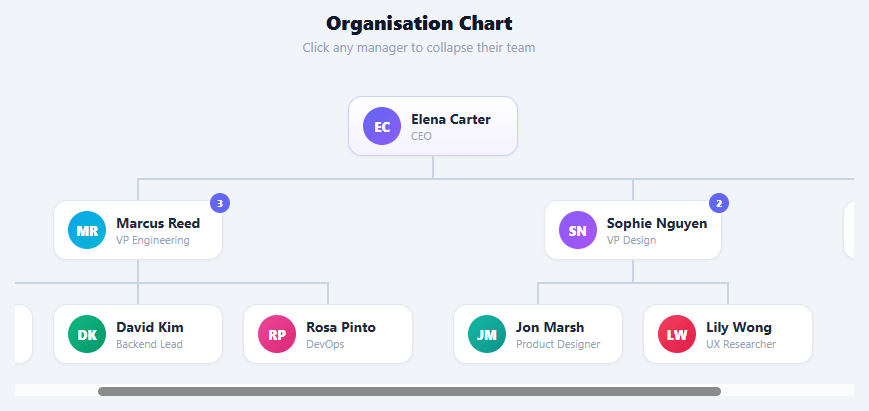
An organisation chart visualises reporting hierarchy — who reports to whom — and is a staple of HR tools, company about pages, team directories, and admin dashboards. This snippet builds a complete, collapsible org chart using nothing but nested HTML lists and CSS for the connector lines, with avatars, names, roles, direct-report count badges, and click-to-collapse branches.
The pure-CSS connector tree
The hierarchy is a nested unordered list, and the connecting lines are drawn entirely with CSS pseudo-elements — no SVG, canvas, or library. Each list item gets a vertical line above it (::before) descending from its parent, and a horizontal line (::after) that joins siblings. Clever use of :first-child and :last-child trims the horizontal line so it spans only between the outermost siblings, and :only-child hides the connectors entirely for a single report. This is the classic CSS tree technique, refined to look clean at every branch.
Centred flex layout
Each level is a flex row with justify-content: center, and each node stacks its children below it centred. This produces the symmetrical top-down org chart layout automatically — the browser handles the horizontal distribution, so adding or removing people never requires manual positioning. A horizontal scroll container handles wide charts gracefully on smaller screens.
Collapsible branches
Clicking a manager node toggles a collapsed class on its child list, hiding the entire subtree, and adds a state class to dim the report-count badge. The toggle() function uses the :scope > ul selector to target only the node's direct child list — essential in a recursive tree so collapsing one manager does not affect nested teams. Leaf nodes (individual contributors with no reports) are non-interactive.
Report-count badges
Managers show a small badge with their number of direct reports, positioned at the top-right corner of their node. The badge dims when the branch is collapsed, signalling that there is a hidden team beneath. This gives an at-a-glance sense of team size and span of control without expanding every branch.
Visual hierarchy
The CEO node gets a distinct subtle gradient and accent border to mark the root. Avatars use gradient backgrounds with initials, avoiding image dependencies. Hover lifts interactive nodes with a shadow, while leaf nodes stay flat to communicate that they are not clickable.
Build with AI
Build, Understand, Optimize, and Extend It With AI
You do not have to trace the connector geometry in your head. Paste this snippet's HTML, CSS, and JS into an AI coding assistant like Claude and ask it to explain exactly how the tree li::before and li::after pseudo-elements combine with the first-child and last-child width trimming to draw a clean horizontal sibling bar with no SVG, or why toggle uses the scope greater-than ul selector instead of a plain querySelector on a recursively nested list. The same assistant is useful for optimizing it too, for example weighing whether rendering a very deep or wide chart calls for virtualizing collapsed branches so hidden subtrees are not sitting fully in the DOM. It is equally good at extending the effect: ask it to add drag-and-drop re-parenting of a node, generate the nested lists recursively from a flat employee array with manager ids, or add keyboard navigation between sibling nodes. Treat the code less like a finished artifact and more like a starting point for a conversation.
Prompt to recreate it
Copy this into your AI assistant of choice to build the effect from scratch, or as a jumping-off point for your own variant:
Build a collapsible "org chart" tree in plain HTML and CSS, using nested unordered lists as the only structure and CSS pseudo-elements as the only connector lines — no SVG, no canvas, no charting library.

Requirements:
- The hierarchy must be marked up as nested <ul><li> lists: a manager's list item contains a nested <ul> whose <li> children are their direct reports, recursively.
- Draw a vertical line above every non-root list item using a ::before pseudo-element, and a horizontal sibling-connector line using an ::after pseudo-element on the parent <ul>'s list items. The horizontal line must be trimmed with the first-child selector so it only extends from center to the right, and with the last-child selector so it only extends from the left to center, so the joining bar spans exactly between the outermost siblings and does not overhang past them. A lone-child list item (matched with only-child) must hide both connector lines entirely.
- Lay out each level as a centered flex row so the whole tree distributes and re-centers itself automatically as nodes are added or removed, with no manual position math.
- Each manager node must be clickable and display a badge showing its number of direct reports. Clicking a manager must toggle a collapsed class on its own direct child ul only — selected using the colon-scope greater-than ul combinator so that toggling one manager's subtree never affects a nested manager's own independently-collapsed team.
- Leaf nodes (people with no reports) must not be clickable and must render with no report-count badge.
- Give the root node distinct styling from every other node so the top of the hierarchy is visually obvious.
Want to tighten it up first? Run this prompt through the AI Prompt Studio to score it across 8 quality dimensions, catch anti-patterns, and tune the wording for Claude, ChatGPT, or Gemini before you paste it in.
Step by step
How to Use
- 1Explore the hierarchyThe chart shows the full reporting structure top-down from the CEO. Each manager displays a badge with their number of direct reports.
- 2Collapse and expand teamsClick any manager node to collapse their team and hide the subtree. Click again to expand. The report-count badge dims while collapsed.
- 3Add a personAdd an <li> inside the appropriate parent's <ul>. Give it a .node with an avatar, name, and role. If they manage people, add a nested <ul> and a .node-count badge; if not, add the .leaf class.
- 4Rebuild from dataFor dynamic charts, render the nested lists from a hierarchical data array. Walk the tree recursively, emitting an <li> with a node for each person and a nested <ul> for their reports.
- 5Style and brandRecolour the connector lines, node borders, and the CEO accent. Swap avatar gradients for real profile photos by replacing the initials div with an <img>.
- 6Export for your frameworkClick "JSX" for a React component that renders the tree recursively from a data array. Click "Vue" for a Vue 3 SFC using a recursive component.
Real-world uses
Common Use Cases
Got questions?
Frequently Asked Questions
Each tree node is a list item. A ::before pseudo-element draws a short vertical line descending from the parent into the node, and a ::after draws a horizontal line that connects siblings. The horizontal line is trimmed with :first-child (line only on the right half) and :last-child (only on the left half) so the connector spans precisely between the outermost siblings. :only-child hides both lines for a lone report. This composition of pseudo-elements and position selectors creates the entire connector system in CSS alone.
The org chart is a recursively nested structure — a manager's list item contains a <ul> of reports, and those reports may contain their own <ul>s. A plain querySelector("ul") from a node would match the first descendant list anywhere in the subtree, potentially collapsing the wrong level. li.querySelector(":scope > ul") restricts the match to the node's immediate child list, so toggling collapses exactly that manager's direct team and leaves nested teams' own collapse states untouched.
If your data is a flat array where each employee has an id and a managerId, first build a tree: group employees by managerId, then recursively attach each person's reports. Starting from the root (the employee with no manager), emit an <li> with the person's node and, if they have reports, a nested <ul> containing their reports rendered the same way. This recursive render mirrors the nested-list markup the CSS expects.
Model the org as a nested data structure where each person has a reports array. Create a recursive OrgNode component that renders the person's card and, if they have reports, maps over them rendering an OrgNode for each inside a child list — the recursion produces the nested <ul> markup the CSS connectors rely on. Track collapsed node ids in state (a Set) and conditionally add the collapsed class. Reuse the exact CSS for the connector lines.