Source Code
<div class="page">
  <div class="sidebar-panel">
    <div class="panel-head">
      <div class="panel-title">
        <svg width="14" height="14" viewBox="0 0 24 24" fill="none" stroke="currentColor" stroke-width="2.2" stroke-linecap="round"><path d="M22 19a2 2 0 0 1-2 2H4a2 2 0 0 1-2-2V5a2 2 0 0 1 2-2h5l2 3h9a2 2 0 0 1 2 2z"/></svg>
        Files
      </div>
      <button class="collapse-all" onclick="collapseAll()" title="Collapse all">
        <svg width="12" height="12" viewBox="0 0 24 24" fill="none" stroke="currentColor" stroke-width="2.5" stroke-linecap="round"><polyline points="4 14 10 14 10 20"/><polyline points="20 10 14 10 14 4"/><line x1="14" y1="10" x2="21" y2="3"/><line x1="3" y1="21" x2="10" y2="14"/></svg>
      </button>
    </div>

    <ul class="tree" id="tree" role="tree">
      <li class="tree-node folder open" role="treeitem" aria-expanded="true">
        <div class="node-row" onclick="toggle(this)">
          <svg class="chevron" width="10" height="10" viewBox="0 0 24 24" fill="none" stroke="currentColor" stroke-width="3" stroke-linecap="round"><polyline points="9 18 15 12 9 6"/></svg>
          <svg class="node-icon" width="13" height="13" viewBox="0 0 24 24" fill="#f59e0b" stroke="#f59e0b" stroke-width="0"><path d="M22 19a2 2 0 0 1-2 2H4a2 2 0 0 1-2-2V5a2 2 0 0 1 2-2h5l2 3h9a2 2 0 0 1 2 2z"/></svg>
          <span class="node-label">src</span>
        </div>
        <ul class="subtree">
          <li class="tree-node folder open" role="treeitem" aria-expanded="true">
            <div class="node-row" onclick="toggle(this)">
              <svg class="chevron" width="10" height="10" viewBox="0 0 24 24" fill="none" stroke="currentColor" stroke-width="3" stroke-linecap="round"><polyline points="9 18 15 12 9 6"/></svg>
              <svg class="node-icon" width="13" height="13" viewBox="0 0 24 24" fill="#f59e0b" stroke="#f59e0b" stroke-width="0"><path d="M22 19a2 2 0 0 1-2 2H4a2 2 0 0 1-2-2V5a2 2 0 0 1 2-2h5l2 3h9a2 2 0 0 1 2 2z"/></svg>
              <span class="node-label">components</span>
            </div>
            <ul class="subtree">
              <li class="tree-node file active" role="treeitem"><div class="node-row leaf" onclick="selectFile(this)"><span class="node-icon-leaf">⚛</span><span class="node-label">Button.jsx</span></div></li>
              <li class="tree-node file" role="treeitem"><div class="node-row leaf" onclick="selectFile(this)"><span class="node-icon-leaf">⚛</span><span class="node-label">Card.jsx</span></div></li>
              <li class="tree-node file" role="treeitem"><div class="node-row leaf" onclick="selectFile(this)"><span class="node-icon-leaf">⚛</span><span class="node-label">Modal.jsx</span></div></li>
            </ul>
          </li>
          <li class="tree-node folder" role="treeitem" aria-expanded="false">
            <div class="node-row" onclick="toggle(this)">
              <svg class="chevron" width="10" height="10" viewBox="0 0 24 24" fill="none" stroke="currentColor" stroke-width="3" stroke-linecap="round"><polyline points="9 18 15 12 9 6"/></svg>
              <svg class="node-icon" width="13" height="13" viewBox="0 0 24 24" fill="#f59e0b" stroke="#f59e0b" stroke-width="0"><path d="M22 19a2 2 0 0 1-2 2H4a2 2 0 0 1-2-2V5a2 2 0 0 1 2-2h5l2 3h9a2 2 0 0 1 2 2z"/></svg>
              <span class="node-label">pages</span>
              <span class="node-count">3</span>
            </div>
            <ul class="subtree">
              <li class="tree-node file" role="treeitem"><div class="node-row leaf" onclick="selectFile(this)"><span class="node-icon-leaf">📄</span><span class="node-label">index.js</span></div></li>
              <li class="tree-node file" role="treeitem"><div class="node-row leaf" onclick="selectFile(this)"><span class="node-icon-leaf">📄</span><span class="node-label">about.js</span></div></li>
              <li class="tree-node file" role="treeitem"><div class="node-row leaf" onclick="selectFile(this)"><span class="node-icon-leaf">📄</span><span class="node-label">api.js</span></div></li>
            </ul>
          </li>
          <li class="tree-node file" role="treeitem"><div class="node-row leaf" onclick="selectFile(this)"><span class="node-icon-leaf">🎨</span><span class="node-label">globals.css</span></div></li>
        </ul>
      </li>
      <li class="tree-node file" role="treeitem"><div class="node-row leaf" onclick="selectFile(this)"><span class="node-icon-leaf">⚙️</span><span class="node-label">package.json</span></div></li>
      <li class="tree-node file" role="treeitem"><div class="node-row leaf" onclick="selectFile(this)"><span class="node-icon-leaf">📝</span><span class="node-label">README.md</span></div></li>
    </ul>
  </div>
</div>
* { box-sizing: border-box; margin: 0; padding: 0; }
body { font-family: system-ui, sans-serif; background: #f8fafc; min-height: 100vh; display: flex; align-items: center; justify-content: center; padding: 32px 24px; }
.page { width: 100%; max-width: 280px; }
.sidebar-panel { background: #fff; border-radius: 14px; border: 1px solid #e2e8f0; overflow: hidden; box-shadow: 0 2px 12px rgba(0,0,0,0.06); }
.panel-head { display: flex; align-items: center; justify-content: space-between; padding: 12px 14px; border-bottom: 1px solid #f1f5f9; }
.panel-title { display: flex; align-items: center; gap: 6px; font-size: 13px; font-weight: 700; color: #0f172a; }
.panel-title svg { color: #6366f1; }
.collapse-all { background: none; border: none; color: #94a3b8; cursor: pointer; padding: 3px; border-radius: 5px; display: flex; align-items: center; transition: color 0.12s, background 0.12s; }
.collapse-all:hover { color: #6366f1; background: rgba(99,102,241,0.08); }
/* Tree */
.tree { list-style: none; padding: 8px 0; user-select: none; }
.subtree { list-style: none; overflow: hidden; max-height: 1000px; transition: max-height 0.25s ease; }
.subtree.closed { max-height: 0; }
.tree-node { }
.node-row { display: flex; align-items: center; gap: 5px; padding: 5px 14px; cursor: pointer; font-size: 13px; color: #374151; transition: background 0.1s; border-radius: 0; }
.node-row:hover { background: #f8fafc; }
.node-row.leaf { padding-left: 30px; }
.tree-node.file .node-row.leaf { padding-left: 38px; }
.tree-node.file.active > .node-row { background: rgba(99,102,241,0.08); color: #6366f1; font-weight: 600; }
/* Indent children */
.subtree .node-row { padding-left: 26px; }
.subtree .node-row.leaf { padding-left: 42px; }
.subtree .subtree .node-row { padding-left: 40px; }
.subtree .subtree .node-row.leaf { padding-left: 56px; }
.chevron { flex-shrink: 0; color: #94a3b8; transition: transform 0.2s; }
.tree-node.folder.open > .node-row .chevron { transform: rotate(90deg); }
.node-icon { flex-shrink: 0; }
.node-icon-leaf { font-size: 12px; flex-shrink: 0; }
.node-label { flex: 1; white-space: nowrap; overflow: hidden; text-overflow: ellipsis; }
.node-count { font-size: 10px; font-weight: 700; background: #f1f5f9; color: #64748b; padding: 1px 6px; border-radius: 10px; flex-shrink: 0; }function toggle(row) {
const li = row.closest('.tree-node.folder');
const subtree = li.querySelector(':scope > .subtree');
const isOpen = li.classList.toggle('open');
if (subtree) subtree.classList.toggle('closed', !isOpen);
li.setAttribute('aria-expanded', isOpen);
}
function selectFile(row) {
document.querySelectorAll('.tree-node.file.active').forEach(n => n.classList.remove('active'));
row.closest('.tree-node.file').classList.add('active');
}
function collapseAll() {
document.querySelectorAll('.tree-node.folder.open').forEach(folder => {
folder.classList.remove('open');
const subtree = folder.querySelector(':scope > .subtree');
if (subtree) subtree.classList.add('closed');
folder.setAttribute('aria-expanded', 'false');
});
}
// Init: close collapsed folders
document.querySelectorAll('.tree-node.folder:not(.open) > .subtree').forEach(s => s.classList.add('closed'));Learn Coding Visually
Learn to code with interactive, live-preview playgrounds — HTML, CSS, JavaScript, React & more.
 HTML Playground42 lessons · Click-based · Live preview
 CSS PlaygroundLearn CSS with a live editor
 JavaScript Playground60 lessons · DOM · Async · Canvas
 React PlaygroundLearn React with a live code editor
 GSAP PlaygroundLearn GSAP animation interactively
 SVG Playground44 lessons · shapes · paths · animation
 SCSS Playground45 lessons · Sass modules · tokens
 Tailwind PlaygroundLearn Tailwind CSS with a live editor
 Bootstrap 5 Playground50 lessons · live preview
Tree Menu — Free HTML CSS JS Snippet
Collapsible Tree Menu · Navigation · Plain HTML, CSS & JS · Live preview
What's included
Features
About this UI Snippet
Collapsible Tree Menu — Folder Toggle, max-height Animation, Active File & Collapse All
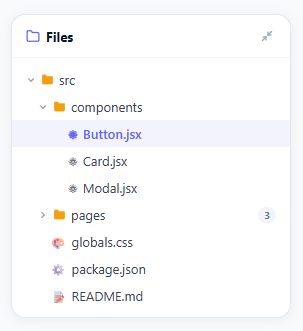
Open a file explorer with two thousand files dumped into one flat list and you'd never find anything — fold the same two thousand into folders-within-folders, and suddenly they're navigable, because at any moment you only have to look at the dozen or so that share your current context. This snippet builds that exact structure: a nested list of folders and files, each folder a click away from expanding or collapsing with a smooth height animation, a chevron that rotates to mirror its state, single-file selection, and a "collapse all" shortcut for when a dozen open folders have turned the sidebar into its own thing to scroll through.
Animating a height nobody can know in advance
CSS transitions height cleanly between two known values, but a folder's expanded height depends entirely on how many files and subfolders happen to be inside it — a number this snippet has no way to know ahead of time. The workaround is max-height: collapsed subtrees sit at max-height: 0 with overflow: hidden, and .open ones jump to max-height: 1000px — not because any real subtree is that tall, but because it's comfortably larger than any realistic one. transition: max-height 0.25s ease animates between the two, and because the browser only ever paints the *actual* content height, the motion reads as if it's measuring the real size, even though it's really racing toward an arbitrary ceiling and stopping early. It's the same trick the Accordion / FAQ snippet leans on to expand its answer panels.
One class name driving two animations at once
toggle() does exactly one meaningful thing: it flips .open on the folder's list item. Everything visible after that — the subtree sliding open via max-height, and the chevron rotating via transform: rotate(90deg) on .tree-node.folder.open .chevron — is pure CSS reacting to that single class change. There's no separate "now rotate the chevron" call to keep in sync with "now expand the subtree": if one fires, so does the other, because both are just selectors watching the same toggle land.
Indentation that comes from nesting, not from counting
Working out how deep a node sits and assigning it a matching padding-left in JavaScript would mean walking the tree and threading a depth counter through every recursive call. This snippet skips that bookkeeping with descendant selectors instead: .subtree .node-row gets one padding value, .subtree .subtree .node-row gets a larger one, and so on — the *selector itself* encodes the nesting depth, so a folder three levels down ends up indented correctly purely because of where its markup physically sits in the document.
Selecting one file, and only one
selectFile() opens by stripping .active from every node that currently carries it — document.querySelectorAll('.tree-node.file.active').forEach(n => n.classList.remove('active')) — and only then adds it to the file just clicked. That "clear everything, then set the one thing" order is the simplest possible way to guarantee a single-selection invariant: there's no special case for "what if two were already active," because the first line makes that state impossible to reach. Right-click a node in a real file explorer, though, and you'd expect a menu of actions to appear — precisely what the Context Menu snippet adds on top of a tree like this one.
Closing everything in one pass
collapseAll() runs the inverse of toggle() across every currently open folder at once — stripping .open, adding .closed to each subtree, and resetting aria-expanded back to "false". It's a short function, but it fixes a real annoyance: after wandering deep into a tree, getting back to a clean overview shouldn't mean clicking a dozen folders shut by hand, one breadcrumb at a time.
Build with AI
Build, Understand, Optimize, and Extend It With AI
Instead of reasoning through every selector by hand, paste this snippet's HTML, CSS, and JS into an AI coding assistant like Claude and ask it to walk through why the subtree max-height is set to a flat 1000px rather than any measured value, and what that arbitrary ceiling means for the closing animation's timing on a very short branch versus a very tall one. It's also worth asking it to optimize the indentation approach — the fixed .subtree .subtree descendant selectors only cover a few nesting levels, so ask what happens (and what to change) for a tree ten levels deep. For extending it, have it add keyboard arrow-key navigation between rows, lazy-loaded children fetched on first expand, or a right-click context menu using the pattern from the separate context menu snippet. Treat the code less like a finished artifact and more like a starting point for a conversation.
Prompt to recreate it
Copy this into your AI assistant of choice to build the effect from scratch, or as a jumping-off point for your own variant:
Build a collapsible file-tree menu in plain HTML, CSS, and vanilla JavaScript, using only CSS for the expand/collapse animation (no JS height measurement, no libraries).

Requirements:
- A nested unordered list where each folder is a list item containing a clickable row and a nested ul.subtree of its own children; each file is a leaf list item with no subtree.
- Collapsed subtrees must be styled with max-height: 0 and overflow: hidden, and open ones with a fixed max-height comfortably larger than any realistic subtree (e.g. 1000px), with a CSS transition on max-height so toggling reads as a smooth slide rather than an instant snap — the actual rendered height must still be determined by the real content, not by the max-height ceiling.
- A single toggle() function must add or remove one "open" class on the folder's list item; a chevron icon must rotate 90 degrees purely via a CSS selector reacting to that same class, with no separate JS call to rotate it.
- Indentation for each nesting level must come from CSS descendant selectors (e.g. .subtree .node-row, .subtree .subtree .node-row) rather than inline styles or a JS-computed depth value.
- Clicking a file row must clear the "active" class from every other file first, then add it to the clicked file, guaranteeing only one file is ever marked active.
- A "collapse all" button must find every currently open folder and close them all in a single pass, resetting aria-expanded to false on each.
- Use role="tree" and role="treeitem" with aria-expanded reflecting each folder's state.
Want to tighten it up first? Run this prompt through the AI Prompt Studio to score it across 8 quality dimensions, catch anti-patterns, and tune the wording for Claude, ChatGPT, or Gemini before you paste it in.
Step by step
How to Use
- 1Click folder names to expand or collapseClicking any folder row toggles it open or closed with a smooth max-height animation. The chevron rotates 90 degrees to indicate the state. Click the collapse-all icon to close all open folders at once.
- 2Click file names to select themClicking a file highlights it with an indigo background (active state). Only one file can be active at a time. The active file remains highlighted until another is clicked.
- 3Update the tree structure with your own filesAdd .tree-node.folder li elements for directories and .tree-node.file li elements for files. Nest .subtree ul lists inside folder nodes. Update .node-icon-leaf emojis or SVG icons to match your file types.
- 4Add more nesting levelsThe CSS handles up to 3 nesting levels via .subtree selectors. For deeper nesting, add .subtree .subtree .subtree .node-row { padding-left: 54px; } and extend the pattern.
- 5Add right-click context menuListen for contextmenu on each .node-row: row.addEventListener("contextmenu", e => { e.preventDefault(); showContextMenu(e, node); }). See the Context Menu snippet in the Navigation category for the full implementation.
- 6Export in your formatClick "HTML" for a standalone file, "JSX" for a React component with an items array prop, or "Tailwind" for a React + Tailwind CSS version.
Real-world uses
Common Use Cases
Got questions?
Frequently Asked Questions
Subtrees have max-height: 1000px when open (which accommodates any realistic tree depth) and max-height: 0 when closed. CSS transition: max-height 0.25s ease animates between these values. The browser interpolates from 0 to 1000px — even though the actual content might only be 120px, the transition appears to stop when the content is fully visible. The trade-off: the closing animation is always 0.25s regardless of actual height, which can feel slightly off for very deep trees.
Define a buildTree(nodes, container) function that iterates an array of {name, type, children} objects. For folders: create an li with .tree-node.folder, add a .node-row div, create a .subtree ul, and recurse. For files: create an li with .tree-node.file and a .node-row.leaf div. Append each li to the container. Call toggle(row) event listeners after generation. This pattern renders any nested data structure as a tree UI.
Add a keydown listener to the tree: for ArrowDown, find the next visible node and focus it. For ArrowUp, find the previous visible node. For ArrowRight, expand the current folder. For ArrowLeft, collapse the current folder or move to its parent. For Enter, select the current item. Track the focused node with a data-focused attribute. Apply focus styles with .node-row:focus-visible rules.
Click "JSX" to download. Define a TreeNode component that accepts name, type, and children props. Manage open state with useState(initiallyOpen). The subtree div has style={{ maxHeight: open ? 1000 : 0, overflow: "hidden", transition: "max-height 0.25s ease" }}. For file selection, lift the selectedFile state to the parent Tree component and pass setSelected as a callback.