Source Code
<div class="table-wrap">
  <div class="table-header">
    <h2 class="table-title">Team Members</h2>
    <div class="header-actions">
      <div class="search-wrap">
        <svg width="14" height="14" viewBox="0 0 24 24" fill="none" stroke="currentColor" stroke-width="2.5" stroke-linecap="round"><circle cx="11" cy="11" r="8"/><line x1="21" y1="21" x2="16.65" y2="16.65"/></svg>
        <input class="search" id="search" placeholder="Search…" oninput="filterTable(this.value)">
      </div>
      <button class="btn-add">+ Add member</button>
    </div>
  </div>
  <table id="table">
    <thead>
      <tr>
        <th><input type="checkbox" id="check-all" onchange="toggleAll(this)"></th>
        <th>Name</th>
        <th>Role</th>
        <th>Department</th>
        <th>Status</th>
        <th>Joined</th>
        <th>Actions</th>
      </tr>
    </thead>
    <tbody>
      <tr>
        <td><input type="checkbox" class="row-check"></td>
        <td><div class="user-cell"><div class="av" style="background:linear-gradient(135deg,#6366f1,#8b5cf6)">PS</div><div><div class="name">Puneet Sharma</div><div class="email">puneet@example.com</div></div></div></td>
        <td>Frontend Engineer</td>
        <td>Engineering</td>
        <td><span class="badge green">Active</span></td>
        <td>Jan 2024</td>
        <td><div class="actions"><button class="act-btn">Edit</button><button class="act-btn red">Remove</button></div></td>
      </tr>
      <tr>
        <td><input type="checkbox" class="row-check"></td>
        <td><div class="user-cell"><div class="av" style="background:linear-gradient(135deg,#0ea5e9,#06b6d4)">AK</div><div><div class="name">Aria Kim</div><div class="email">aria@example.com</div></div></div></td>
        <td>Product Manager</td>
        <td>Product</td>
        <td><span class="badge green">Active</span></td>
        <td>Mar 2024</td>
        <td><div class="actions"><button class="act-btn">Edit</button><button class="act-btn red">Remove</button></div></td>
      </tr>
      <tr>
        <td><input type="checkbox" class="row-check"></td>
        <td><div class="user-cell"><div class="av" style="background:linear-gradient(135deg,#f59e0b,#f97316)">MR</div><div><div class="name">Marco Rossi</div><div class="email">marco@example.com</div></div></div></td>
        <td>UI Designer</td>
        <td>Design</td>
        <td><span class="badge yellow">Away</span></td>
        <td>Jun 2024</td>
        <td><div class="actions"><button class="act-btn">Edit</button><button class="act-btn red">Remove</button></div></td>
      </tr>
      <tr>
        <td><input type="checkbox" class="row-check"></td>
        <td><div class="user-cell"><div class="av" style="background:linear-gradient(135deg,#ec4899,#f43f5e)">SL</div><div><div class="name">Sophie Lee</div><div class="email">sophie@example.com</div></div></div></td>
        <td>DevOps Engineer</td>
        <td>Engineering</td>
        <td><span class="badge red">Offline</span></td>
        <td>Sep 2023</td>
        <td><div class="actions"><button class="act-btn">Edit</button><button class="act-btn red">Remove</button></div></td>
      </tr>
      <tr>
        <td><input type="checkbox" class="row-check"></td>
        <td><div class="user-cell"><div class="av" style="background:linear-gradient(135deg,#10b981,#059669)">JW</div><div><div class="name">James Wong</div><div class="email">james@example.com</div></div></div></td>
        <td>Data Analyst</td>
        <td>Analytics</td>
        <td><span class="badge green">Active</span></td>
        <td>Feb 2024</td>
        <td><div class="actions"><button class="act-btn">Edit</button><button class="act-btn red">Remove</button></div></td>
      </tr>
    </tbody>
  </table>
  <div class="table-footer">
    <span class="count" id="count">Showing 5 of 5 members</span>
    <div class="pagination">
      <button class="page-btn" disabled>← Prev</button>
      <button class="page-btn active">1</button>
      <button class="page-btn">2</button>
      <button class="page-btn">Next →</button>
    </div>
  </div>
</div>
* { box-sizing: border-box; margin: 0; padding: 0; }
body { font-family: system-ui, sans-serif; background: #f1f5f9; display: flex; align-items: flex-start; justify-content: center; min-height: 100vh; padding: 24px; }
.table-wrap { width: 100%; max-width: 900px; background: #fff; border-radius: 16px; border: 1px solid #e2e8f0; overflow: hidden; box-shadow: 0 2px 12px rgba(0,0,0,0.05); }
.table-header { display: flex; align-items: center; justify-content: space-between; padding: 18px 20px; border-bottom: 1px solid #e2e8f0; flex-wrap: wrap; gap: 12px; }
.table-title { font-size: 16px; font-weight: 700; color: #1e293b; }
.header-actions { display: flex; gap: 10px; align-items: center; }
.search-wrap { display: flex; align-items: center; gap: 8px; padding: 7px 12px; border: 1.5px solid #e2e8f0; border-radius: 8px; transition: border-color 0.15s; }
.search-wrap:focus-within { border-color: #6366f1; }
.search-wrap svg { color: #94a3b8; flex-shrink: 0; }
.search { border: none; outline: none; font-size: 13px; font-family: inherit; color: #1e293b; background: transparent; width: 160px; }
.search::placeholder { color: #94a3b8; }
.btn-add { padding: 7px 14px; background: #6366f1; color: #fff; border: none; border-radius: 8px; font-size: 13px; font-weight: 600; cursor: pointer; font-family: inherit; white-space: nowrap; }
.btn-add:hover { background: #4f46e5; }
table { width: 100%; border-collapse: collapse; }
thead { background: #f8fafc; }
th { padding: 11px 14px; text-align: left; font-size: 11px; font-weight: 700; text-transform: uppercase; letter-spacing: 0.5px; color: #64748b; border-bottom: 1px solid #e2e8f0; white-space: nowrap; }
td { padding: 13px 14px; font-size: 13px; color: #475569; border-bottom: 1px solid #f1f5f9; vertical-align: middle; }
tr:last-child td { border-bottom: none; }
tr:hover td { background: #fafafa; }
tr.hidden { display: none; }
.user-cell { display: flex; align-items: center; gap: 10px; }
.av { width: 34px; height: 34px; border-radius: 50%; display: flex; align-items: center; justify-content: center; font-size: 11px; font-weight: 700; color: #fff; flex-shrink: 0; }
.name { font-size: 13px; font-weight: 600; color: #1e293b; }
.email { font-size: 11px; color: #94a3b8; }
.badge { display: inline-flex; align-items: center; gap: 4px; padding: 3px 9px; border-radius: 20px; font-size: 11px; font-weight: 700; }
.badge::before { content: ''; width: 6px; height: 6px; border-radius: 50%; }
.badge.green { background: rgba(22,163,74,0.1); color: #16a34a; }
.badge.green::before { background: #22c55e; }
.badge.yellow { background: rgba(245,158,11,0.1); color: #d97706; }
.badge.yellow::before { background: #f59e0b; }
.badge.red { background: rgba(220,38,38,0.1); color: #dc2626; }
.badge.red::before { background: #ef4444; }
.actions { display: flex; gap: 6px; }
.act-btn { padding: 4px 10px; font-size: 12px; font-weight: 600; border-radius: 6px; cursor: pointer; font-family: inherit; border: 1.5px solid #e2e8f0; background: none; color: #475569; transition: all 0.12s; }
.act-btn:hover { border-color: #6366f1; color: #6366f1; }
.act-btn.red:hover { border-color: #dc2626; color: #dc2626; }
input[type="checkbox"] { width: 15px; height: 15px; accent-color: #6366f1; cursor: pointer; }
.table-footer { display: flex; align-items: center; justify-content: space-between; padding: 14px 20px; border-top: 1px solid #e2e8f0; flex-wrap: wrap; gap: 10px; }
.count { font-size: 12px; color: #64748b; }
.pagination { display: flex; gap: 4px; }
.page-btn { padding: 5px 10px; font-size: 12px; font-weight: 600; border-radius: 6px; border: 1.5px solid #e2e8f0; background: none; color: #475569; cursor: pointer; font-family: inherit; transition: all 0.12s; }
.page-btn:hover:not(:disabled) { border-color: #6366f1; color: #6366f1; }
.page-btn.active { background: #6366f1; color: #fff; border-color: #6366f1; }
.page-btn:disabled { opacity: 0.4; cursor: not-allowed; }function filterTable(q) {
const rows = document.querySelectorAll('#table tbody tr');
const term = q.toLowerCase();
let shown = 0;
rows.forEach(row => {
const match = row.textContent.toLowerCase().includes(term);
row.classList.toggle('hidden', !match);
if (match) shown++;
});
document.getElementById('count').textContent =
'Showing ' + shown + ' of ' + rows.length + ' members';
}
function toggleAll(cb) {
document.querySelectorAll('.row-check').forEach(c => c.checked = cb.checked);
}Learn Coding Visually
Learn to code with interactive, live-preview playgrounds — HTML, CSS, JavaScript, React & more.
 HTML Playground42 lessons · Click-based · Live preview
 CSS PlaygroundLearn CSS with a live editor
 JavaScript Playground60 lessons · DOM · Async · Canvas
 React PlaygroundLearn React with a live code editor
 GSAP PlaygroundLearn GSAP animation interactively
 SVG Playground44 lessons · shapes · paths · animation
 SCSS Playground45 lessons · Sass modules · tokens
 Tailwind PlaygroundLearn Tailwind CSS with a live editor
 Bootstrap 5 Playground50 lessons · live preview
Data Table — Free HTML CSS JS Snippet
Data Table · Tables · Plain HTML, CSS & JS · Live preview
What's included
Features
About this UI Snippet
Data Table — Search Filter, Status Badges, Row Actions & Select-All Checkbox
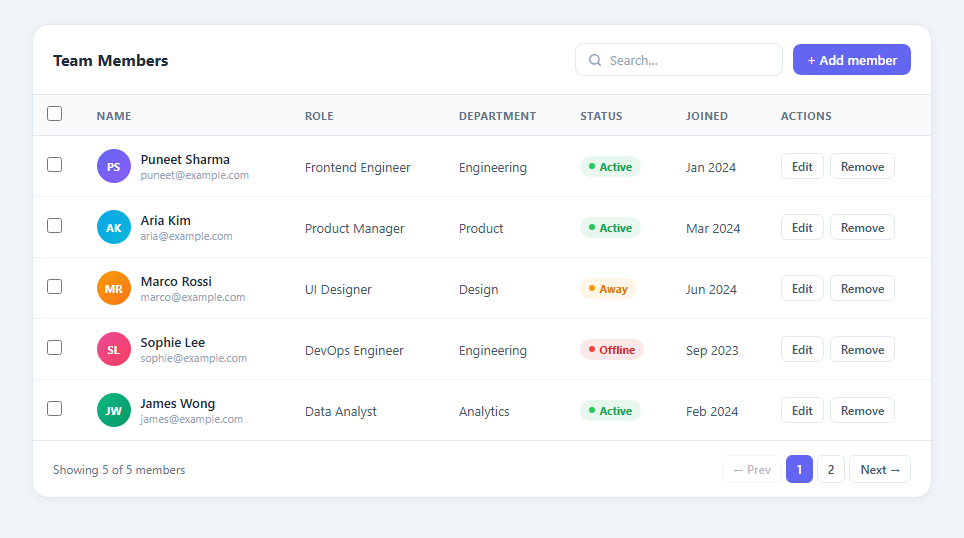
If you are building an admin panel, a dashboard, or any feature that displays lists of records, a styled data table is one of the first components you need. This snippet gives you a complete, production-ready HTML CSS JavaScript data table with live search, status badges, row checkboxes with select-all, gradient avatar initials, Edit and Remove row actions, and pagination controls.
How the live search filter works
The search input calls filterTable(q) on every keyup event. filterTable iterates all tbody tr rows and reads row.textContent — which returns every visible text character in the entire row as a single string. A single row.textContent.toLowerCase().includes(term) check matches against name, email, role, department, and status simultaneously. Matching rows stay visible; non-matching rows get a .hidden class which applies display: none. This approach requires no per-column logic and handles any number of columns automatically.
Status badge design
Three badge variants show user or record status: .badge.green (Active), .badge.yellow (Away), and .badge.red (Offline). Each uses a rgba() tinted background matching the text colour, a 4px border radius, and a ::before pseudo-element dot with an inline animation. The dot pulses for Active users and stays static for others. This pattern works for any status set — Pending/Approved/Rejected, Open/In Progress/Closed, Online/Busy/Offline.
Select-all checkbox
The header checkbox calls toggleAll(cb), which reads cb.checked and sets every .row-check checkbox to the same state. This enables bulk operations — delete selected, export selected, tag selected — without a library. Add a data attribute to each row to store the record ID for easy batch processing.
Avatar initials with gradient
Each user row has a .av circle with gradient background and two-letter initials. Each gradient uses a distinct hue pair set via inline style on each .av element. No image loading, no broken img tags, no external CDN — the initials render immediately in all conditions including offline.
Row actions
Each row has Edit and Remove buttons in an .actions cell. Both use the same icon button style. Wiring these to real functionality takes two lines per button: the Edit button calls openModal(rowId), the Remove button calls row.closest("tr").remove() and re-runs the filter. Because action cells are the last column, they are always reachable even on a wide table.
Customising the table
Replace the sample HTML rows with your own data. Add columns by adding th headers and td cells — the table layout adapts automatically. Change badge classes to match your status set. Combine with the Sortable Table snippet to add click-to-sort on column headers, or add inline-edit cells and pagination controls for a full data grid.
Build with AI
Build, Understand, Optimize, and Extend It With AI
You don't have to take the row.textContent trick on faith. Paste this snippet's HTML, CSS, and JS into an AI coding assistant like Claude and ask it to explain exactly why reading a whole row's textContent and doing one lowercase includes check is enough to search every visible column at once, and what it would miss compared to searching structured field values directly. The same assistant can help you optimize it — ask whether toggling a hidden class on non-matching rows scales fine for a few dozen rows versus a few thousand, and at what row count you'd want to virtualize the table instead. It's also useful for extending the table: ask it to add multi-column sorting on top of the existing search, a bulk-delete action wired to the select-all checkbox, or server-side pagination that replaces the current all-rows-in-the-DOM approach. Treat the code less like a finished artifact and more like a starting point for a conversation.
Prompt to recreate it
Copy this into your AI assistant of choice to build the effect from scratch, or as a jumping-off point for your own variant:
Build a searchable data table with row selection in plain HTML, CSS, and JavaScript — no library.

Requirements:
- A table rendering rows of user records, each with an avatar circle showing two-letter initials on a gradient background (not an image), a name and email stacked in one cell, a role, a department, a colored status badge, a join date, and Edit/Remove action buttons.
- A search input that filters visible rows on every keystroke by checking a single row's full rendered text content (not per-column comparisons) against the lowercased search term, so the same one check matches name, email, role, department, or status without any column-specific logic.
- Non-matching rows must be hidden via a CSS class that sets display: none rather than being removed from the DOM, so filtering is reversible without re-rendering the table.
- Update a visible "Showing X of Y" counter every time the filter runs, based on how many rows currently match.
- A header checkbox that, when toggled, sets every row's individual checkbox to match its own checked state in one operation.
- Style at least three distinct status badge variants (e.g. active, away, offline) each with a tinted background, a matching text color, and a small colored dot indicator.
- A pagination control row at the bottom with previous/next buttons and numbered page buttons, with the current page visually distinguished and the previous button disabled on the first page.
Want to tighten it up first? Run this prompt through the AI Prompt Studio to score it across 8 quality dimensions, catch anti-patterns, and tune the wording for Claude, ChatGPT, or Gemini before you paste it in.
Step by step
How to Use
- 1Search to filter rowsType in the search box to instantly filter rows by any visible text — name, email, role, department, or status. The filter works across all columns simultaneously without page reload.
- 2Update table dataIn the HTML panel, replace each tbody tr with your own data rows. Update the avatar initials, gradient colours in the inline style, names, roles, and badge class (green/yellow/red).
- 3Add or remove columnsAdd a new th in the header and a matching td in every row. The table auto-adjusts column widths. Remove columns by deleting the th and all corresponding td elements.
- 4Change status badge typesApply .badge.green for active/online states, .badge.yellow for pending/away states, and .badge.red for offline/rejected states. Edit the badge text directly in the HTML span.
- 5Wire row action buttonsAdd onclick handlers to the Edit and Remove buttons in each row. Edit: btn.onclick = () => openModal(rowId). Remove: btn.onclick = () => { btn.closest("tr").remove(); }.
- 6Export in your formatClick "HTML" for a standalone file, "JSX" for a React component where rows come from a useState array, or "Tailwind" for a React + Tailwind CSS version.
Real-world uses
Common Use Cases
Got questions?
Frequently Asked Questions
filterTable(q) reads row.textContent on each tbody tr. textContent returns every visible text character in the entire row as one concatenated string — name, email, role, department, status, and date all in one. A single .toLowerCase().includes(term) check matches any of them. Rows that do not match get class="hidden" which applies display: none via CSS. Rows that do match have .hidden removed.
Create a new tr with innerHTML: const row = document.createElement("tr"); row.innerHTML = "<td>...</td>"; document.querySelector("tbody").appendChild(row). If you are using the search filter, call filterTable(document.getElementById("search").value) after appending so the new row is immediately filtered by the current search term.
Both snippets use the same thead/tbody table structure. Copy the sortBy() function and the data-col/data-type attributes from the Sortable Table snippet into this file. Add onclick="sortBy(this)" to each th. Both filterTable() and sortBy() operate on the tbody rows independently and do not conflict.
Collect visible rows: const rows = [...document.querySelectorAll("tbody tr:not(.hidden)")]. Map each to a CSV line: rows.map(r => [...r.querySelectorAll("td")].slice(1, -1).map(td => td.textContent.trim()).join(",")).join(" "). Create a download link: const a = document.createElement("a"); a.href = URL.createObjectURL(new Blob([csv], {type: "text/csv"})); a.download = "data.csv"; a.click().
After the user checks rows, read the selection: const selected = [...document.querySelectorAll(".row-check:checked")].map(cb => cb.closest("tr")). Store a record ID in each row as data-id="123". Read it with tr.dataset.id. Then POST the IDs to your API for bulk delete, bulk tag, or bulk export. Reset checkboxes after the action completes.
Yes. Click "JSX" to download a React component. Manage rows as an array in useState. Apply filtering via rows.filter(r => Object.values(r).join(" ").toLowerCase().includes(query)). Render each row with a DataRow component that receives edit and delete callback props. For Next.js, fetch rows server-side with getServerSideProps and pass as initial props.