Source Code
<div class="table-wrap">
  <div class="table-header">
    <h2 class="table-title">Product Inventory</h2>
    <span class="sort-hint">Click any column header to sort</span>
  </div>
  <table id="table">
    <thead>
      <tr>
        <th class="sortable" data-col="0" onclick="sortBy(this)">Product <span class="arrow"></span></th>
        <th class="sortable" data-col="1" onclick="sortBy(this)">Category <span class="arrow"></span></th>
        <th class="sortable" data-col="2" data-type="number" onclick="sortBy(this)">Price <span class="arrow"></span></th>
        <th class="sortable" data-col="3" data-type="number" onclick="sortBy(this)">Stock <span class="arrow"></span></th>
        <th class="sortable" data-col="4" onclick="sortBy(this)">Status <span class="arrow"></span></th>
      </tr>
    </thead>
    <tbody id="tbody">
      <tr><td>Wireless Headphones</td><td>Audio</td><td data-val="89">$89</td><td data-val="142">142</td><td><span class="badge green">In Stock</span></td></tr>
      <tr><td>Mechanical Keyboard</td><td>Peripherals</td><td data-val="149">$149</td><td data-val="67">67</td><td><span class="badge green">In Stock</span></td></tr>
      <tr><td>USB-C Hub</td><td>Accessories</td><td data-val="45">$45</td><td data-val="0">0</td><td><span class="badge red">Out of Stock</span></td></tr>
      <tr><td>4K Monitor</td><td>Displays</td><td data-val="499">$499</td><td data-val="23">23</td><td><span class="badge yellow">Low Stock</span></td></tr>
      <tr><td>Webcam Pro</td><td>Video</td><td data-val="129">$129</td><td data-val="88">88</td><td><span class="badge green">In Stock</span></td></tr>
      <tr><td>Desk Lamp</td><td>Accessories</td><td data-val="39">$39</td><td data-val="5">5</td><td><span class="badge yellow">Low Stock</span></td></tr>
      <tr><td>Mouse Pad XL</td><td>Peripherals</td><td data-val="25">$25</td><td data-val="210">210</td><td><span class="badge green">In Stock</span></td></tr>
    </tbody>
  </table>
</div>
* { box-sizing: border-box; margin: 0; padding: 0; }
body { font-family: system-ui, sans-serif; background: #f1f5f9; display: flex; align-items: flex-start; justify-content: center; min-height: 100vh; padding: 24px; }
.table-wrap { width: 100%; max-width: 780px; background: #fff; border-radius: 16px; border: 1px solid #e2e8f0; overflow: hidden; box-shadow: 0 2px 12px rgba(0,0,0,0.05); }
.table-header { display: flex; align-items: center; justify-content: space-between; padding: 18px 20px; border-bottom: 1px solid #e2e8f0; gap: 12px; }
.table-title { font-size: 16px; font-weight: 700; color: #1e293b; }
.sort-hint { font-size: 12px; color: #94a3b8; }
table { width: 100%; border-collapse: collapse; }
thead { background: #f8fafc; }
th { padding: 11px 14px; text-align: left; font-size: 11px; font-weight: 700; text-transform: uppercase; letter-spacing: 0.5px; color: #64748b; border-bottom: 1px solid #e2e8f0; white-space: nowrap; user-select: none; }
th.sortable { cursor: pointer; transition: background 0.12s, color 0.12s; }
th.sortable:hover { background: #f1f5f9; color: #1e293b; }
th.asc, th.desc { background: #eef2ff; color: #6366f1; }
.arrow { font-size: 11px; margin-left: 4px; opacity: 0.4; }
th.asc .arrow::after { content: ' ↑'; opacity: 1; }
th.desc .arrow::after { content: ' ↓'; opacity: 1; }
th:not(.asc):not(.desc) .arrow::after { content: ' ↕'; }
td { padding: 13px 14px; font-size: 13px; color: #475569; border-bottom: 1px solid #f1f5f9; }
tr:last-child td { border-bottom: none; }
tr:hover td { background: #fafafa; }
.badge { display: inline-flex; align-items: center; padding: 3px 9px; border-radius: 20px; font-size: 11px; font-weight: 700; }
.badge.green { background: rgba(22,163,74,0.1); color: #16a34a; }
.badge.yellow { background: rgba(245,158,11,0.1); color: #d97706; }
.badge.red { background: rgba(220,38,38,0.1); color: #dc2626; }let sortDir = {};
function sortBy(th) {
const col = parseInt(th.dataset.col);
const type = th.dataset.type || 'string';
const isAsc = !th.classList.contains('asc');
// Reset all headers
document.querySelectorAll('th').forEach(t => t.classList.remove('asc','desc'));
th.classList.add(isAsc ? 'asc' : 'desc');
const tbody = document.getElementById('tbody');
const rows = [...tbody.querySelectorAll('tr')];
rows.sort((a, b) => {
const aCell = a.cells[col];
const bCell = b.cells[col];
const aVal = type === 'number'
? parseFloat(aCell.dataset.val ?? aCell.textContent)
: aCell.textContent.trim().toLowerCase();
const bVal = type === 'number'
? parseFloat(bCell.dataset.val ?? bCell.textContent)
: bCell.textContent.trim().toLowerCase();
return isAsc ? (aVal > bVal ? 1 : -1) : (aVal < bVal ? 1 : -1);
});
rows.forEach(r => tbody.appendChild(r));
}Learn Coding Visually
Learn to code with interactive, live-preview playgrounds — HTML, CSS, JavaScript, React & more.
 HTML Playground42 lessons · Click-based · Live preview
 CSS PlaygroundLearn CSS with a live editor
 JavaScript Playground60 lessons · DOM · Async · Canvas
 React PlaygroundLearn React with a live code editor
 GSAP PlaygroundLearn GSAP animation interactively
 SVG Playground44 lessons · shapes · paths · animation
 SCSS Playground45 lessons · Sass modules · tokens
 Tailwind PlaygroundLearn Tailwind CSS with a live editor
 Bootstrap 5 Playground50 lessons · live preview
Sortable Table — Free HTML CSS JS Snippet
Sortable Table · Tables · Plain HTML, CSS & JS · Live preview
What's included
Features
About this UI Snippet
Sortable Table — Click Column Header Sort, asc/desc Toggle & data-val Numeric Comparison
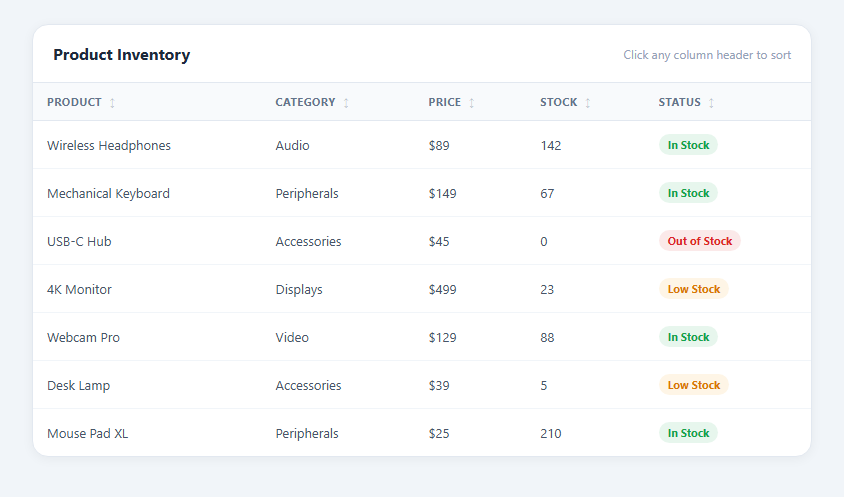
Column sorting is one of the most-requested features on any data table. When users can click a header to sort by price (lowest first), date (newest first), or name (A to Z), they find what they need without scrolling through unsorted data. This snippet provides a complete sortable HTML CSS JavaScript table with ascending/descending toggle, an arrow direction indicator, and a data-val attribute pattern for correct numeric sorting on formatted values like currency and units.
How the sort function works
sortBy(th) receives the clicked th element. It reads th.dataset.col to know which column index to sort, and th.dataset.type to know whether to sort as a string or number. It checks whether the header already has the .asc class to determine current direction — if it does, the next click will be descending; if not, ascending.
All headers are reset first (remove .asc, .desc, and active background) before the clicked header receives its new class. This ensures only one column is ever marked as active at a time. The rows are spread into an array via [...tbody.querySelectorAll("tr")], sorted using Array.sort(), and then re-appended to the tbody in sorted order.
Why data-val is necessary for numeric columns
A cell displaying "$89.99" cannot be compared as a number directly — the dollar sign makes parseFloat return NaN. The data-val attribute stores the raw numeric value separately: data-val="89.99" on the cell showing "$89.99". The sort function reads parseFloat(cell.dataset.val) for numeric columns. This technique applies to any column with formatted values: prices with currency symbols, quantities with units ("142 units"), percentages with symbols, or dates formatted as strings.
The arrow direction indicator
The .sortable::after pseudo-element uses CSS content to display ↕ (neutral), ↑ (ascending), or ↓ (descending) based on whether the header has .asc or .desc. The active sort column gets an indigo background to visually mark which column is currently sorted. The arrow updates purely in CSS — no innerHTML or attribute changes needed in JavaScript.
String vs number sort
data-type="number" on a th triggers parseFloat comparison: valA - valB for ascending, valB - valA for descending. Any th without this attribute defaults to string comparison: valA.toLowerCase().localeCompare(valB.toLowerCase()). Both handle null/empty cells gracefully.
Combining with search filter
The Sortable Table and Data Table snippets use the same thead/tbody structure. Add the filterTable() function from the Data Table snippet to this table — search and sort operate on the same tbody rows without conflicting. For long datasets, layer in pagination controls so sorted results stay paged.
Build with AI
Build, Understand, Optimize, and Extend It With AI
You don't have to trace the comparator logic by hand. Paste this snippet's HTML, CSS, and JS into an AI coding assistant like Claude and ask it to explain exactly why the data-val attribute exists separately from a cell's visible textContent, and what specific comparison would silently break (returning NaN) without it for a column showing formatted currency. The same assistant can help optimize it, for instance checking whether spreading tbody.querySelectorAll('tr') into an array and calling Array.sort() on every click scales fine for a few hundred rows or whether a larger dataset would benefit from sorting a lighter array of row data instead of live DOM nodes. It is just as useful for extending the table: ask it to add Shift-click multi-column secondary sorting, add a data-type of "date" that compares Unix timestamps stored in data-val, or persist the last-sorted column and direction to localStorage so it's restored on the next page load. Treat the code less like a finished artifact and more like a starting point for a conversation.
Prompt to recreate it
Copy this into your AI assistant of choice to build the effect from scratch, or as a jumping-off point for your own variant:
Build a click-to-sort HTML table in plain HTML, CSS, and JavaScript — no library.

Requirements:
- A table where every sortable th carries a data-col attribute (its column index) and an optional data-type attribute set to "number" for numeric columns; columns without data-type must default to string comparison.
- For any column displaying a formatted value that isn't directly parseable as a number (currency with a dollar sign, a quantity with a unit suffix, etc.), the corresponding td must carry a separate data-val attribute holding the raw numeric value, and the sort comparator must read that attribute via parseFloat instead of ever trying to parse the cell's visible textContent for numeric columns.
- Clicking a header must: determine the new sort direction by checking whether that header already has an "ascending" class (toggling to descending if so, ascending otherwise), remove any ascending/descending class from every other header first so only one column is ever marked active, convert the tbody's rows into an array, sort that array with a comparator that branches on the column's data-type, and then re-append the sorted row elements back into the tbody in their new order (not rebuild the rows from scratch).
- The active sorted column's header must visually indicate both that it's the active sort column and which direction, using a CSS ::after pseudo-element whose content changes based on the ascending/descending/neutral class, so no innerHTML manipulation is needed just to update the arrow.
- The sort function must work generically for any number of columns and rows without hardcoding column count, so adding a new sortable column requires only adding a th with the right data attributes and matching td cells.
Want to tighten it up first? Run this prompt through the AI Prompt Studio to score it across 8 quality dimensions, catch anti-patterns, and tune the wording for Claude, ChatGPT, or Gemini before you paste it in.
Step by step
How to Use
- 1Click any column header to sortClick Product, Category, Price, Stock, or Status header. The column sorts ascending on first click, descending on second. The arrow indicator and indigo background identify the active column.
- 2Add more sortable columnsAdd a th with class="sortable", data-col="N" (column index), and onclick="sortBy(this)". Add matching td cells. For numeric columns, also add data-type="number".
- 3Mark currency and formatted columns as numericAdd data-type="number" to any th that contains prices, quantities, or other numeric data. Add data-val="rawNumber" to each corresponding td so the dollar sign or unit label does not break numeric comparison.
- 4Replace the sample rows with your dataIn the HTML panel, replace the tbody tr rows with your own records. The sort function adapts to any row count and any column count without changes.
- 5Combine with live searchAdd the filterTable() function from the Data Table snippet. Both functions work on the same tbody rows independently — search by text and sort by column can run simultaneously.
- 6Export in your formatClick "HTML" for a standalone file, "JSX" for a React component using useState for sort state, or "Tailwind" for a React + Tailwind CSS version.
Real-world uses
Common Use Cases
Got questions?
Frequently Asked Questions
Each sortable th has a data-type attribute. data-type="number" triggers parseFloat(cell.dataset.val) comparison, giving correct numeric ordering. Without data-type, the function defaults to cell.textContent.toLowerCase().localeCompare() for alphabetical string comparison. You can add other types (date, boolean) by adding a new branch in the comparison function.
A cell showing "$89.99" or "142 units" has non-numeric characters in its textContent. parseFloat("$89.99") returns NaN, which breaks sorting. data-val="89.99" stores only the raw number separately. The sort function reads parseFloat(cell.dataset.val) for numeric columns, getting accurate float comparison regardless of how the cell is formatted for display.
Add data-type="number" to the date column th. In each date cell, add data-val with a Unix timestamp (seconds or milliseconds since epoch): data-val="1704067200". The numeric sort then orders rows chronologically. If your dates are ISO strings like "2024-01-01", you can also use data-type="string" — ISO format sorts correctly as a string because the year comes first.
Store sort state as an array of objects: let sortKeys = []. On header click, push or replace entries. In the sort comparator, iterate sortKeys in order: compare by primary key first; if equal, compare by secondary key. You can trigger secondary sort with Shift+Click by checking e.shiftKey in the sortBy function.
At the bottom of your script, call sortBy(document.querySelector(".sortable[data-col='2']")) — replacing 2 with your target column index. This runs the sort function exactly as if the user had clicked that column header, applying the default ascending sort and updating the arrow indicator.
Click "JSX" to download. In React, manage sortCol (number) and sortDir ("asc" or "desc") in useState. Derive sortedRows using [...rows].sort() based on current sort state — use useMemo to avoid re-sorting on every render. Apply the active column class via a conditional className on each th. The data-val pattern becomes a numeric property on the row data object.