Source Code
<div class="vms-phone">
<div class="vms-screen">
<div class="vms-status"><span>9:41</span><span class="vms-batt"><i></i></span></div>
<header class="vms-head">
<button class="vms-back" aria-label="Back">‹</button>
<div class="vms-contact"><span class="vms-avatar">P</span><b>Priya</b></div>
<span class="vms-spacer"></span>
</header>
<div class="vms-thread" id="vmsThread">
<div class="vms-msg vms-them">Hey! Can you send a quick voice note about the launch plan?</div>
<div class="vms-msg vms-me">Sure, one sec</div>
</div>
<div class="vms-composer">
<div class="vms-input-row" id="vmsInputRow">
<input class="vms-input" placeholder="Message" id="vmsTextInput">
<button class="vms-mic-btn" id="vmsMicBtn" aria-label="Hold to record">
<svg width="18" height="18" viewBox="0 0 24 24" fill="none" stroke="currentColor" stroke-width="2.2"><path d="M12 15a3 3 0 003-3V6a3 3 0 10-6 0v6a3 3 0 003 3z"/><path d="M19 11a7 7 0 01-14 0M12 18v3"/></svg>
</button>
</div>
<div class="vms-recording-row" id="vmsRecordingRow" hidden>
<button class="vms-cancel" id="vmsCancel" aria-label="Cancel recording">
<svg width="16" height="16" viewBox="0 0 24 24" fill="none" stroke="currentColor" stroke-width="2.4"><line x1="18" y1="6" x2="6" y2="18"/><line x1="6" y1="6" x2="18" y2="18"/></svg>
</button>
<span class="vms-rec-dot"></span>
<span class="vms-timer" id="vmsTimer">0:00</span>
<div class="vms-live-wave" id="vmsLiveWave"></div>
<span class="vms-slide-hint" id="vmsSlideHint">‹ Slide to cancel</span>
<button class="vms-send-btn" id="vmsSendBtn" aria-label="Send">
<svg width="16" height="16" viewBox="0 0 24 24" fill="currentColor"><path d="M3 20l18-8L3 4v6l12 2-12 2z"/></svg>
</button>
</div>
</div>
</div>
</div>*{box-sizing:border-box;margin:0;padding:0}
html{scrollbar-width:none;-ms-overflow-style:none}
html::-webkit-scrollbar{display:none}
body{font-family:system-ui,-apple-system,sans-serif;background:#1e293b;display:flex;justify-content:center;align-items:center;min-height:100vh;padding:24px;scrollbar-width:none;-ms-overflow-style:none}
body::-webkit-scrollbar{display:none}
.vms-phone{width:288px;height:600px;background:#0b1220;border-radius:46px;padding:12px;box-shadow:0 30px 60px -20px rgba(0,0,0,.6),inset 0 0 0 2px #1e293b}
.vms-screen{width:100%;height:100%;border-radius:34px;overflow:hidden;background:#eef2f7;color:#0f172a;display:flex;flex-direction:column}
.vms-status{display:flex;justify-content:space-between;align-items:center;padding:13px 24px 0;font-size:13px;font-weight:700}
.vms-batt{width:22px;height:11px;border:1.4px solid currentColor;border-radius:3px;position:relative;display:inline-block}
.vms-batt::after{content:'';position:absolute;right:-3px;top:3px;width:2px;height:5px;background:currentColor;border-radius:0 1px 1px 0}
.vms-batt i{position:absolute;left:1.4px;top:1.4px;bottom:1.4px;width:82%;background:currentColor;border-radius:1px}
.vms-head{display:flex;align-items:center;gap:10px;padding:8px 14px 12px;background:#fff;border-bottom:1px solid #e2e8f0}
.vms-back{background:rgba(15,23,42,.06);border:none;width:30px;height:30px;border-radius:50%;font-size:20px;color:#0f172a;cursor:pointer}
.vms-contact{display:flex;align-items:center;gap:8px;flex:1}
.vms-avatar{width:28px;height:28px;border-radius:50%;background:#7c3aed;color:#fff;display:flex;align-items:center;justify-content:center;font-size:12px;font-weight:800}
.vms-contact b{font-size:13.5px}
.vms-spacer{width:30px}
.vms-thread{flex:1;overflow-y:auto;padding:16px 14px;display:flex;flex-direction:column;gap:9px;scrollbar-width:none;-ms-overflow-style:none}
.vms-thread::-webkit-scrollbar{display:none}
.vms-msg{max-width:78%;font-size:13px;line-height:1.5;padding:9px 13px;border-radius:16px}
.vms-them{align-self:flex-start;background:#fff;border-bottom-left-radius:4px;box-shadow:0 1px 2px rgba(0,0,0,.05)}
.vms-me{align-self:flex-end;background:#7c3aed;color:#fff;border-bottom-right-radius:4px}
.vms-voice-bubble{align-self:flex-end;display:flex;align-items:center;gap:8px;background:#7c3aed;color:#fff;padding:9px 13px;border-radius:16px;border-bottom-right-radius:4px;max-width:78%}
.vms-voice-bubble .vms-play{width:24px;height:24px;border-radius:50%;background:rgba(255,255,255,.22);border:none;color:#fff;display:flex;align-items:center;justify-content:center;flex-shrink:0;cursor:pointer}
.vms-voice-bars{display:flex;align-items:center;gap:2px;height:18px;flex:1}
.vms-voice-bars span{width:2.5px;background:rgba(255,255,255,.85);border-radius:2px}
.vms-voice-dur{font-size:10.5px;opacity:.85;flex-shrink:0}
.vms-composer{background:#fff;border-top:1px solid #e2e8f0;padding:10px 12px;position:relative;overflow:hidden}
.vms-input-row{display:flex;align-items:center;gap:8px;transition:transform .2s,opacity .2s}
.vms-input-row.hide{transform:translateX(-30px);opacity:0;position:absolute;pointer-events:none}
.vms-input{flex:1;border:1.5px solid #e2e8f0;border-radius:20px;padding:10px 15px;font-size:13px;font-family:inherit;outline:none}
.vms-input:focus{border-color:#7c3aed}
.vms-mic-btn{width:40px;height:40px;border-radius:50%;background:#7c3aed;color:#fff;border:none;cursor:pointer;display:flex;align-items:center;justify-content:center;flex-shrink:0;transition:transform .12s}
.vms-mic-btn:active{transform:scale(.92)}
.vms-recording-row{display:flex;align-items:center;gap:8px}
.vms-cancel{width:30px;height:30px;border-radius:50%;background:#f1f5f9;border:none;color:#64748b;cursor:pointer;display:flex;align-items:center;justify-content:center;flex-shrink:0}
.vms-rec-dot{width:9px;height:9px;border-radius:50%;background:#ef4444;flex-shrink:0;animation:vmsBlink 1s infinite}
@keyframes vmsBlink{50%{opacity:.25}}
.vms-timer{font-size:12.5px;font-weight:700;font-variant-numeric:tabular-nums;flex-shrink:0}
.vms-live-wave{flex:1;height:22px;display:flex;align-items:center;gap:2px;overflow:hidden}
.vms-live-wave span{width:2.5px;background:#7c3aed;border-radius:2px;flex-shrink:0}
.vms-slide-hint{font-size:11px;color:#94a3b8;white-space:nowrap;flex-shrink:0}
.vms-send-btn{width:34px;height:34px;border-radius:50%;background:#7c3aed;color:#fff;border:none;cursor:pointer;display:flex;align-items:center;justify-content:center;flex-shrink:0}
.vms-send-btn[disabled]{opacity:.4;cursor:not-allowed}var micBtn = document.getElementById('vmsMicBtn');
var inputRow = document.getElementById('vmsInputRow');
var recordingRow = document.getElementById('vmsRecordingRow');
var timerEl = document.getElementById('vmsTimer');
var liveWave = document.getElementById('vmsLiveWave');
var cancelBtn = document.getElementById('vmsCancel');
var sendBtn = document.getElementById('vmsSendBtn');
var slideHint = document.getElementById('vmsSlideHint');
var thread = document.getElementById('vmsThread');
var seconds = 0;
var timerId = null;
var waveTimerId = null;
var isRecording = false;
var recordedBars = [];
function fmtTime(s) {
var m = Math.floor(s / 60);
var r = s % 60;
return m + ':' + (r < 10 ? '0' : '') + r;
}
function addWaveBar(container, height) {
var bar = document.createElement('span');
bar.style.height = height + 'px';
container.appendChild(bar);
return bar;
}
function startRecording() {
isRecording = true;
seconds = 0;
recordedBars = [];
timerEl.textContent = '0:00';
liveWave.innerHTML = '';
inputRow.classList.add('hide');
recordingRow.hidden = false;
sendBtn.disabled = false;
slideHint.style.opacity = '1';
timerId = setInterval(function () {
seconds++;
timerEl.textContent = fmtTime(seconds);
if (seconds > 2) slideHint.style.opacity = '0';
}, 1000);
waveTimerId = setInterval(function () {
var h = 4 + Math.round(Math.random() * 16);
recordedBars.push(h);
addWaveBar(liveWave, h);
liveWave.scrollLeft = liveWave.scrollWidth;
}, 120);
}
function stopRecording(shouldSend) {
isRecording = false;
clearInterval(timerId);
clearInterval(waveTimerId);
recordingRow.hidden = true;
inputRow.classList.remove('hide');
if (shouldSend && seconds > 0) {
sendVoiceMessage(seconds, recordedBars.slice());
}
}
function sendVoiceMessage(duration, bars) {
var bubble = document.createElement('div');
bubble.className = 'vms-voice-bubble';
var barsHtml = bars.slice(-24).map(function (h) {
return '<span style="height:' + Math.max(3, Math.round(h * 0.7)) + 'px"></span>';
}).join('');
bubble.innerHTML = '<button class="vms-play" aria-label="Play">' +
'<svg width="11" height="11" viewBox="0 0 24 24" fill="currentColor"><polygon points="6 3 20 12 6 21 6 3"/></svg></button>' +
'<span class="vms-voice-bars">' + barsHtml + '</span>' +
'<span class="vms-voice-dur">' + fmtTime(duration) + '</span>';
thread.appendChild(bubble);
thread.scrollTop = thread.scrollHeight;
}
micBtn.addEventListener('mousedown', startRecording);
micBtn.addEventListener('touchstart', function (e) { e.preventDefault(); startRecording(); });
micBtn.addEventListener('mouseup', function () { if (isRecording) stopRecording(true); });
micBtn.addEventListener('mouseleave', function () { if (isRecording) stopRecording(true); });
micBtn.addEventListener('touchend', function () { if (isRecording) stopRecording(true); });
cancelBtn.addEventListener('click', function () { stopRecording(false); });
sendBtn.addEventListener('click', function () { stopRecording(true); });Learn Coding Visually
Learn to code with interactive, live-preview playgrounds — HTML, CSS, JavaScript, React & more.
 HTML Playground42 lessons · Click-based · Live preview
 CSS PlaygroundLearn CSS with a live editor
 JavaScript Playground60 lessons · DOM · Async · Canvas
 React PlaygroundLearn React with a live code editor
 GSAP PlaygroundLearn GSAP animation interactively
 SVG Playground44 lessons · shapes · paths · animation
 SCSS Playground45 lessons · Sass modules · tokens
 Tailwind PlaygroundLearn Tailwind CSS with a live editor
 Bootstrap 5 Playground50 lessons · live preview
Mobile Voice Message Recording Screen — Free Snippet
Mobile Voice Message Recording Screen · Mobile · Plain HTML, CSS & JS · Live preview
What's included
Features
About this UI Snippet
Mobile Voice Message Screen — Hold-to-Record Composer with a Live Waveform
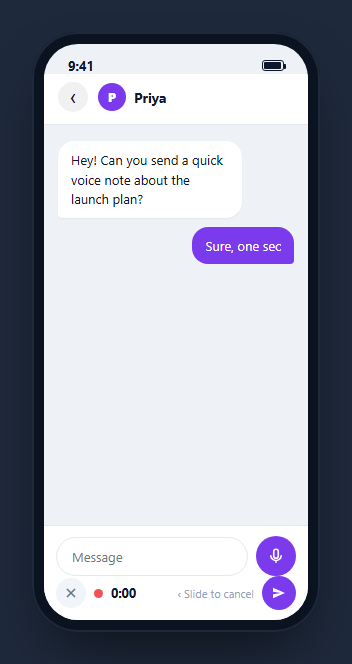
Voice messaging inside a chat composer is a distinct interaction from a standalone recorder: the input row has to transform into a recording state and back without ever losing the surrounding conversation. This snippet builds that full composer transformation inside a CSS phone frame — holding the mic button swaps the text field for a live timer and waveform, releasing sends a real voice bubble into the thread, and a separate cancel control discards the recording entirely.
Hold-to-record, not tap-to-record
The mic button listens for mousedown/touchstart to call startRecording() and mouseup/touchend/mouseleave to call stopRecording(true) — mirroring the press-and-hold gesture every major chat app uses for voice notes, rather than a tap-to-start/tap-to-stop toggle. The mouseleave handler specifically covers the case where a cursor (or a finger dragging away on touch) leaves the button while still pressed, so a recording never gets stuck open because the release event fired somewhere else.
The input row and the recording row are two views of one composer
Rather than modifying the text input in place, inputRow.classList.add('hide') slides the whole message-input row out while recordingRow.hidden = false reveals the timer/waveform row underneath the same composer bar. This clean swap — never both visible, never neither visible — is what makes the transformation read as "the composer became a recorder" rather than a second unrelated element appearing on the screen.
A waveform built live, one bar per tick
While recording, a bar is appended to #vmsLiveWave every 120 milliseconds with a randomized height, and each bar's height is also pushed into a recordedBars array — the running visual record of the recording, not just decoration. On send, the last 24 recorded heights are reused to build the sent message's static waveform bubble, so the waveform in the chat thread is not a generic fixed pattern; it is genuinely derived from the shape of that particular recording.
A slide-to-cancel hint that fades on its own schedule
The "Slide to cancel" text appears with the timer at zero and fades to opacity: 0 once seconds > 2, mirroring how real chat apps de-emphasize that hint once a user has clearly committed to a longer message. A dedicated X-button cancel control sits to the left of the timer as the reliable, always-available way to discard a recording, independent of whatever gesture-based slide-to-cancel a production build might layer on top.
Sending never fires on an accidental tap
stopRecording(shouldSend) only calls sendVoiceMessage() when shouldSend is true and seconds > 0 — releasing the mic button with zero elapsed time (an accidental brush of the button) produces no message at all, matching the expectation that a voice note needs at least a moment of actual audio before it is worth sending.
Wiring it to real audio capture
Replace the setInterval-driven random bar heights with real amplitude data from the Web Audio API's AnalyserNode bound to a MediaRecorder stream from navigator.mediaDevices.getUserMedia({ audio: true }), and swap the placeholder waveform bubble for an actual <audio> element wired to the recorded Blob once MediaRecorder stops — the composer state machine (hold to start, release to send or cancel, hide/show the two rows) needs no changes to support real audio underneath it.
Build with AI
Build, Understand, Optimize, and Extend It With AI
Rather than tracing the gesture-handling and state-swap logic by hand, paste this snippet's HTML, CSS, and JS into an AI coding assistant like Claude and ask it to explain exactly how the combination of mousedown/touchstart and mouseup/touchend/mouseleave prevents a recording from getting stuck open, and how the same recordedBars array feeds both the live waveform and the sent message bubble’s static waveform. The same assistant can help you optimize it, for instance asking whether pointer events (pointerdown/pointerup) would simplify the mouse-and-touch handling into a single unified set of listeners. It is also useful for extending the screen: ask it to wire in real MediaRecorder and Web Audio API amplitude capture in place of the randomized bars, implement an actual horizontal slide-to-cancel drag gesture instead of the fading text hint, or add playback scrubbing to the sent voice bubble. Treat the code less like a finished artifact and more like a starting point for a conversation.
Prompt to recreate it
Copy this into your AI assistant of choice to build the effect from scratch, or as a jumping-off point for your own variant:
Build a mobile chat "voice message" composer in plain HTML, CSS, and JavaScript, framed inside a CSS phone mockup showing a short message thread above it, with a press-and-hold recording gesture, no audio library.

Requirements:
- A composer bar containing a text input and a mic button by default. Pressing and holding the mic button (mousedown and touchstart, not a simple click) must slide the text input row out of view and reveal a separate recording row in its place within the same composer bar, never showing both at once.
- The recording row must show a blinking red dot, a running mm:ss timer that increments once per second, and a live waveform that appends one new bar with a randomized height roughly every 100–150 milliseconds while recording continues, plus a "slide to cancel" hint that fades out automatically after a couple of seconds of recording.
- Releasing the hold (mouseup, touchend, and also mouseleave, so the recording never gets stuck open if the cursor leaves the button while still pressed) must stop the recording, hide the recording row, restore the text-input row, and, only if at least one second of audio was recorded, append a new voice-message bubble to the message thread showing a play button, a waveform built from the actual bar heights recorded during that session (not a generic fixed shape), and the final duration.
- A separate visible cancel button within the recording row must let the user discard the current recording at any time without sending a message, distinct from simply releasing the mic button.
- A release with zero elapsed recording time (an accidental tap) must not send any message.
Want to tighten it up first? Run this prompt through the AI Prompt Studio to score it across 8 quality dimensions, catch anti-patterns, and tune the wording for Claude, ChatGPT, or Gemini before you paste it in.
Step by step
How to Use
- 1Paste HTML, CSS, and JSA chat screen renders with a message thread and a normal text composer at the bottom.
- 2Press and hold the mic buttonThe text input slides away and a live timer plus waveform take over the composer.
- 3Keep holdingNew waveform bars append roughly every 120ms and the "Slide to cancel" hint fades after 2 seconds.
- 4Release the mic buttonA voice message bubble with the actual recorded waveform shape and duration appears in the thread.
- 5Tap the X during a recordingThe recording is discarded and the composer returns to the normal text input with no message sent.
- 6Wire it to real audioReplace the randomized bar heights with real MediaRecorder/AnalyserNode amplitude data and attach an actual audio Blob to the sent bubble.
Real-world uses
Common Use Cases
Got questions?
Frequently Asked Questions
If the cursor (or a dragging finger on touch) leaves the button area while still pressed, a plain mouseup listener on the button itself might never fire there. Also listening for mouseleave guarantees stopRecording() is still called, so a recording can never get stuck open indefinitely.
No — each bar’s height is randomized every 120 milliseconds to simulate live amplitude. For real audio-reactive bars, bind a Web Audio API AnalyserNode to a MediaRecorder stream from getUserMedia and read actual frequency/amplitude data on each animation tick instead of Math.random().
Yes, within this demo’s simulated data — the same recordedBars array built live during recording is reused (its last 24 values) to draw the static waveform in the sent message bubble, so the sent bubble’s shape corresponds to that specific recording rather than a fixed generic pattern.
stopRecording() only calls sendVoiceMessage() when the elapsed seconds is greater than zero. A near-instant press-and-release produces no waveform bars and no sent message, preventing accidental blank voice notes.
Tap the X cancel button to the left of the timer at any point during recording. This calls stopRecording(false), which tears down the timers and returns the composer to its normal text-input state without calling sendVoiceMessage().
Yes. Track isRecording, seconds, and an array of bar heights in state, start/stop interval timers inside your gesture handlers, and conditionally render either the text-input row or the recording row from the same isRecording boolean — the send/cancel logic and the reused-bars-on-send pattern translate directly.