


Learn Coding Visually
Learn to code with interactive, live-preview playgrounds — HTML, CSS, JavaScript, React & more.
 HTML Playground42 lessons · Click-based · Live preview
 CSS PlaygroundLearn CSS with a live editor
 JavaScript Playground60 lessons · DOM · Async · Canvas
 React PlaygroundLearn React with a live code editor
 GSAP PlaygroundLearn GSAP animation interactively
 SVG Playground44 lessons · shapes · paths · animation
 SCSS Playground45 lessons · Sass modules · tokens
 Tailwind PlaygroundLearn Tailwind CSS with a live editor
 Bootstrap 5 Playground50 lessons · live preview
Mobile Chat Screen — Free HTML CSS JS UI Snippet
Mobile Chat Screen · Mobile · Plain HTML, CSS & JS · Live preview
What's included
Features
About this UI Snippet
Mobile Chat Screen — Messaging Thread UI
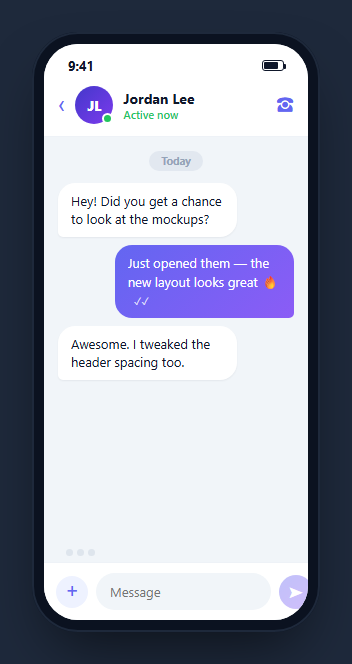
A chat screen is the core of every messaging app — a header with the contact and presence, a scrolling thread of left- and right-aligned bubbles, a typing indicator, and a composer bar pinned to the bottom. This snippet builds a complete, interactive one inside a CSS phone frame: you can type a message, watch it appear as an outgoing bubble, see an animated typing indicator, and get a simulated reply — all in HTML, CSS, and vanilla JavaScript with no dependency.
The two-sided bubble layout
Incoming and outgoing messages share one .mc-bubble class but flip alignment through their row: .mc-row.out uses justify-content: flex-end to push the bubble right, while incoming rows stay left. The tail is faked by rounding three corners fully and cutting the fourth to a small radius — border-bottom-left-radius for incoming, border-bottom-right-radius for outgoing — the universal chat-bubble shape without any SVG. Outgoing bubbles get a gradient fill and white text; incoming bubbles are white with a soft shadow.
The typing indicator
Three dots animate with a staggered @keyframes mcBounce, each dot delayed by 150ms so they ripple. The indicator is toggled with the hidden attribute rather than being rebuilt, and the header presence text swaps to "typing…" while it shows — the two cues you get in real apps when the other person is composing.
The composer and send state
The input is a real <form>, so pressing Enter submits. The send button is disabled whenever the trimmed input is empty and re-enables as you type, which prevents sending blank messages and mirrors native behavior. On submit, the message is appended as an outgoing bubble with double-tick read receipts, the thread auto-scrolls to the bottom via scrollTop = scrollHeight, and a timed reply fires after the typing indicator.
Bubble entrance animation
Every new bubble runs a short mcPop keyframe that fades and lifts it into place, so messages feel like they land rather than blink in. Because bubbles are appended to a flex column, the layout reflows naturally and the newest message always sits at the bottom.
Accessibility and performance
The composer is a real <form> with a labelled text input and an aria-label on the send button, so keyboard users can type and press Enter to send, and screen readers announce the control's purpose. The read-receipt ticks are decorative and carried inside the bubble text rather than as separate imagery, so they add no announcement noise. Performance-wise the thread is a plain flex column that appends one node per message and never re-renders the whole list, and the auto-scroll is a single scrollTop assignment rather than a layout-thrashing loop. The typing indicator animates purely in CSS, so it costs nothing on the main thread while it runs, and toggling it with the hidden attribute avoids rebuilding DOM. For very long conversations you would virtualize the thread so only the visible bubbles are mounted, but for a typical screen's worth of messages the direct-append approach stays smooth and keeps the code readable.
Reusing it
Replace the seeded messages and the canned replies array with your real data, and swap the setTimeout for a WebSocket or fetch call that streams responses. Lift the thread out of the phone frame for a responsive web chat, or keep it framed next to a mobile chat conversation list to present a full inbox-to-thread flow.
Build with AI
Build, Understand, Optimize, and Extend It With AI
You do not have to reconstruct the bubble logic from scratch to understand it. Paste this snippet's HTML, CSS, and JS into an AI coding assistant like Claude and ask it to walk through exactly how the addBubble function decides which corner radius to cut for the tail, or why the send button's disabled state is tied to input.value.trim() rather than the raw value. The same assistant is useful for optimizing it — ask whether appending one bubble at a time versus batching DOM writes matters once a thread has hundreds of messages, or how you would virtualize the mc-thread container so only visible bubbles stay mounted. It is just as useful for extending the effect: have it add message reactions, image attachments through the plus button, or swap the canned replies array and setTimeout for a real WebSocket connection. Treat the code less like a finished artifact and more like a starting point for a conversation.
Prompt to recreate it
Copy this into your AI assistant of choice to build the effect from scratch, or as a jumping-off point for your own variant:
Build a mobile messaging thread screen in plain HTML, CSS, and JavaScript inside a phone-frame container — no chat library, no build step.

Requirements:
- A header with a back button, an avatar with an online-status dot, a name plus a presence label, and a call button.
- A scrolling thread area where incoming and outgoing messages share one bubble class but flip alignment by wrapping each bubble in a row that is either left-aligned or uses justify-content flex-end for outgoing messages.
- Fake the bubble tail with border radius alone: fully round three corners and cut the fourth to a small radius, using the opposite corner for incoming versus outgoing bubbles, with no images or SVGs.
- A real form element wrapping a text input and a send button, where the send button is disabled whenever the trimmed input value is empty and re-enables on the input event as the user types.
- On submit, append the message as an outgoing bubble with a double-tick read receipt, clear the input, then show a three-dot typing indicator built from staggered CSS keyframe animations (each dot delayed slightly more than the last) while the header presence label temporarily changes to a typing state.
- After a short delay, hide the typing indicator, restore the presence label, and append a simulated reply cycling through a small array of canned messages.
- Every new bubble should play a brief entrance animation (fade plus a small upward translate) and the thread must auto-scroll to the bottom after every append by setting scrollTop to scrollHeight.
Want to tighten it up first? Run this prompt through the AI Prompt Studio to score it across 8 quality dimensions, catch anti-patterns, and tune the wording for Claude, ChatGPT, or Gemini before you paste it in.
Source Code
<div class="mc-phone">
<div class="mc-screen">
<div class="mc-status"><span>9:41</span><span class="mc-batt"><i></i></span></div>
<header class="mc-head">
<button class="mc-back" aria-label="Back">‹</button>
<div class="mc-avatar">JL<span class="mc-on"></span></div>
<div class="mc-who">
<b>Jordan Lee</b>
<small id="mcPresence">Active now</small>
</div>
<button class="mc-call" aria-label="Call">☎</button>
</header>
<div class="mc-thread" id="mcThread">
<div class="mc-day">Today</div>
<div class="mc-row in"><div class="mc-bubble">Hey! Did you get a chance to look at the mockups?</div></div>
<div class="mc-row out"><div class="mc-bubble">Just opened them — the new layout looks great 🔥<span class="mc-tick">✓✓</span></div></div>
<div class="mc-row in"><div class="mc-bubble">Awesome. I tweaked the header spacing too.</div></div>
</div>
<div class="mc-typing" id="mcTyping" hidden><span></span><span></span><span></span></div>
<form class="mc-input" id="mcForm">
<button type="button" class="mc-plus" aria-label="Attach">+</button>
<input id="mcText" type="text" placeholder="Message" autocomplete="off">
<button type="submit" class="mc-send" id="mcSend" aria-label="Send">➤</button>
</form>
</div>
</div>*{box-sizing:border-box;margin:0;padding:0}
html{scrollbar-width:none;-ms-overflow-style:none}
html::-webkit-scrollbar{display:none}
body{font-family:system-ui,-apple-system,sans-serif;background:#1e293b;display:flex;justify-content:center;align-items:center;min-height:100vh;padding:24px;scrollbar-width:none;-ms-overflow-style:none}
body::-webkit-scrollbar{display:none}
.mc-phone{width:288px;height:600px;background:#0b1220;border-radius:46px;padding:12px;box-shadow:0 30px 60px -20px rgba(0,0,0,.6),inset 0 0 0 2px #1e293b}
.mc-screen{width:100%;height:100%;border-radius:34px;overflow:hidden;background:#f1f5f9;color:#0f172a;display:flex;flex-direction:column}
.mc-status{display:flex;justify-content:space-between;align-items:center;padding:13px 24px 6px;font-size:13px;font-weight:700;background:#fff}
.mc-batt{width:22px;height:11px;border:1.4px solid currentColor;border-radius:3px;position:relative;display:inline-block}
.mc-batt::after{content:'';position:absolute;right:-3px;top:3px;width:2px;height:5px;background:currentColor;border-radius:0 1px 1px 0}
.mc-batt i{position:absolute;left:1.4px;top:1.4px;bottom:1.4px;width:70%;background:currentColor;border-radius:1px}
.mc-head{display:flex;align-items:center;gap:10px;padding:6px 14px 12px;background:#fff;border-bottom:1px solid #eef2f7}
.mc-back,.mc-call{background:none;border:none;font-size:22px;color:#6366f1;cursor:pointer;line-height:1}
.mc-call{font-size:18px}
.mc-avatar{position:relative;width:38px;height:38px;border-radius:50%;background:linear-gradient(135deg,#4338ca,#7c3aed);color:#fff;font-weight:800;font-size:13px;display:flex;align-items:center;justify-content:center;flex-shrink:0}
.mc-on{position:absolute;right:0;bottom:0;width:11px;height:11px;border-radius:50%;background:#22c55e;border:2px solid #fff}
.mc-who{flex:1;line-height:1.25}
.mc-who b{font-size:14px}
.mc-who small{display:block;font-size:11px;color:#22c55e;font-weight:600}
.mc-thread{flex:1;overflow-y:auto;padding:14px 14px 6px;display:flex;flex-direction:column;gap:8px;background:#f1f5f9;scrollbar-width:none;-ms-overflow-style:none}
.mc-thread::-webkit-scrollbar{display:none}
.mc-day{align-self:center;font-size:10.5px;color:#94a3b8;font-weight:700;background:#e2e8f0;padding:3px 12px;border-radius:99px;margin-bottom:4px}
.mc-row{display:flex}
.mc-row.out{justify-content:flex-end}
.mc-bubble{max-width:76%;padding:9px 13px;font-size:13px;line-height:1.4;border-radius:17px;position:relative;animation:mcPop .22s ease}
.mc-row.in .mc-bubble{background:#fff;border-bottom-left-radius:5px;box-shadow:0 1px 2px rgba(15,23,42,.06)}
.mc-row.out .mc-bubble{background:linear-gradient(135deg,#6366f1,#8b5cf6);color:#fff;border-bottom-right-radius:5px}
.mc-tick{display:inline-block;margin-left:6px;font-size:10px;opacity:.8;vertical-align:baseline}
@keyframes mcPop{from{opacity:0;transform:translateY(6px) scale(.96)}to{opacity:1;transform:none}}
.mc-typing{display:flex;gap:4px;align-items:center;padding:0 22px 6px;background:#f1f5f9}
.mc-typing span{width:7px;height:7px;border-radius:50%;background:#cbd5e1;animation:mcBounce 1.1s infinite}
.mc-typing span:nth-child(2){animation-delay:.15s}
.mc-typing span:nth-child(3){animation-delay:.3s}
@keyframes mcBounce{0%,60%,100%{transform:translateY(0);opacity:.5}30%{transform:translateY(-5px);opacity:1}}
.mc-input{display:flex;align-items:center;gap:8px;padding:10px 12px;background:#fff;border-top:1px solid #eef2f7}
.mc-plus{width:32px;height:32px;border-radius:50%;border:none;background:#eef2ff;color:#6366f1;font-size:20px;cursor:pointer;flex-shrink:0}
.mc-input input{flex:1;border:none;background:#f1f5f9;border-radius:99px;padding:10px 14px;font-size:13px;outline:none;font-family:inherit}
.mc-input input:focus{background:#e9edf5;box-shadow:0 0 0 2px #c7d2fe}
.mc-send{width:34px;height:34px;border-radius:50%;border:none;background:linear-gradient(135deg,#6366f1,#8b5cf6);color:#fff;font-size:15px;cursor:pointer;flex-shrink:0;transition:transform .15s,opacity .15s}
.mc-send:disabled{opacity:.4;cursor:default}
.mc-send:not(:disabled):active{transform:scale(.9)}var thread = document.getElementById('mcThread');
var form = document.getElementById('mcForm');
var input = document.getElementById('mcText');
var send = document.getElementById('mcSend');
var typing = document.getElementById('mcTyping');
var presence = document.getElementById('mcPresence');
function syncSend(){ send.disabled = input.value.trim() === ''; }
syncSend();
input.addEventListener('input', syncSend);
function addBubble(text, dir){
var row = document.createElement('div');
row.className = 'mc-row ' + dir;
var b = document.createElement('div');
b.className = 'mc-bubble';
b.textContent = text;
if (dir === 'out'){
var tick = document.createElement('span');
tick.className = 'mc-tick';
tick.textContent = '✓✓';
b.appendChild(tick);
}
row.appendChild(b);
thread.appendChild(row);
thread.scrollTop = thread.scrollHeight;
}
var replies = [
'Nice, that reads much cleaner 👌',
'Perfect — ship it!',
'Ha, agreed. Let me push the update.',
'Sounds good, talk soon 🙌'
];
var r = 0;
form.addEventListener('submit', function(e){
e.preventDefault();
var val = input.value.trim();
if (!val) return;
addBubble(val, 'out');
input.value = '';
syncSend();
presence.textContent = 'typing…';
typing.hidden = false;
thread.scrollTop = thread.scrollHeight;
setTimeout(function(){
typing.hidden = true;
presence.textContent = 'Active now';
addBubble(replies[r % replies.length], 'in');
r++;
}, 1400);
});Step by step
How to Use
- 1Paste HTML, CSS, and JSA chat thread renders with seeded incoming and outgoing bubbles inside a phone frame.
- 2Type a messageThe send button lights up as soon as the input has text.
- 3Send itYour message appears as a gradient outgoing bubble with read ticks and the thread scrolls down.
- 4Watch the typing indicatorThree bouncing dots appear and the header shows "typing…" before a reply lands.
- 5Keep the conversation goingEach send cycles through the canned replies so the thread grows.
- 6Wire your backendSwap the timed reply for a WebSocket or fetch call to make it live.
Real-world uses
Common Use Cases
Got questions?
Frequently Asked Questions
Both use the same .mc-bubble class, but each sits in a row that controls alignment. Incoming rows stay left; outgoing rows use justify-content: flex-end to push the bubble to the right edge. The tail is faked by fully rounding three corners and cutting the fourth — bottom-left for incoming, bottom-right for outgoing.
It is a simulation for the demo: on send, the header swaps to "typing…", the three-dot indicator un-hides, and after a short timeout a canned reply is appended. In production you would show the indicator when your server signals the other user is composing, and append the message when it actually arrives.
The button is disabled whenever the trimmed input value is empty and re-enables on the input event as you type. This prevents sending blank messages and matches how native messaging apps grey out send until there is content.
After each new bubble is appended, the code sets thread.scrollTop = thread.scrollHeight, which jumps the scroll container to the bottom. Because bubbles live in a flex column, the newest message is always the last child, so this keeps the latest message in view.
Render bubbles from a messages array and key them by id. In React append with a state setter and scroll to the bottom in a useEffect that watches the array; in Vue use a ref and nextTick; in Angular use ngAfterViewChecked. Replace the setTimeout reply with your WebSocket or fetch handler. The CSS ports directly, and Tailwind can express the bubble radii and gradient with utilities.
Yes. The thread already includes a centered day divider, and you can insert more by comparing each message's timestamp to the previous one and adding a divider when the date changes. To collapse consecutive messages from the same sender into a group, check whether the previous bubble shares the direction and only render the avatar or tail on the last bubble in the run, which is how most messaging apps tighten long exchanges.