You Might Also Like
Learn Coding Visually
Learn to code with interactive, live-preview playgrounds — HTML, CSS, JavaScript, React & more.
 HTML Playground42 lessons · Click-based · Live preview
 CSS PlaygroundLearn CSS with a live editor
 JavaScript Playground60 lessons · DOM · Async · Canvas
 React PlaygroundLearn React with a live code editor
 GSAP PlaygroundLearn GSAP animation interactively
 SVG Playground44 lessons · shapes · paths · animation
 SCSS Playground45 lessons · Sass modules · tokens
 Tailwind PlaygroundLearn Tailwind CSS with a live editor
 Bootstrap 5 Playground50 lessons · live preview
Chat Message Bubbles — HTML CSS JS Snippet
Chat Message Bubbles with Read Receipts · Cards · Plain HTML, CSS & JS · Live preview
What's included
Features
About this UI Snippet
Chat Message Bubbles — Grouped Threads, Read Receipts & Typing Indicator
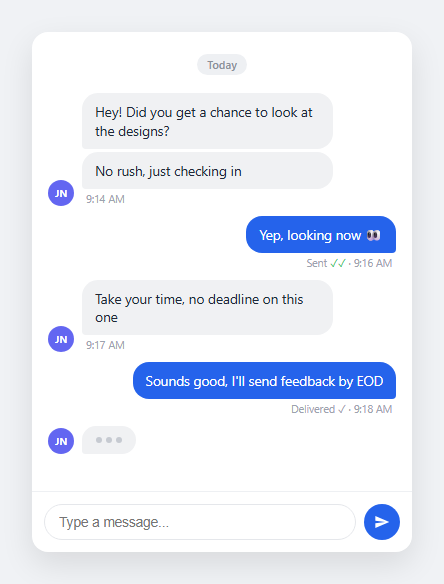
A chat interface is more than styled speech bubbles — the details that make one feel real are message grouping, delivery status, and a typing indicator that appears and disappears at the right moments. This snippet builds all three on top of plain flexbox, matching the visual language of iMessage and WhatsApp.
Bubble tails via asymmetric border-radius
Rather than an SVG or pseudo-element tail, each bubble uses border-radius: 16px with one corner overridden: incoming bubbles get border-bottom-left-radius: 4px, outgoing bubbles get border-bottom-right-radius: 4px. The sharp corner sits nearest the avatar, which is what visually "points" the bubble at its sender without any extra markup.
Grouping consecutive messages
When the same sender posts multiple messages in a row, only the first carries the full rounded top corners — a CSS rule targets .bubble:not(:first-child) within a group to restore the top-left radius on any bubble after the first, since the group's first bubble is the only one that should have a soft top. Combined with the shared .bubble-group wrapper only showing one timestamp per group instead of one per bubble, this is what makes rapid-fire messages read as one thought instead of a wall of separate boxes.
Read receipts
Each outgoing message's .meta line renders a status word ("Sent" or "Delivered") plus a checkmark. A single check in gray means delivered; a double check in green (.tick-read) means read. This is purely a CSS class toggle — in a real app, flip .tick to .tick-read when your backend's read-receipt event for that message arrives, typically over a WebSocket.
Day dividers
A centered pill (.day-divider) breaks the thread into date groups, matching the convention in every major chat app. In a real implementation, insert one whenever a message's date differs from the previous message's date, computed by comparing toDateString() on consecutive timestamps.
The typing indicator
Three dots inside a bubble-shaped container animate with a shared @keyframes bounce, offset by animation-delay of 0s, 0.15s, and 0.3s so they ripple rather than bounce in unison — the same staggering technique used by loading-dot spinners elsewhere in this library. The row is toggled via the hidden attribute rather than being added and removed from the DOM, so no layout thrash occurs each time it appears.
Sending flow
sendMsg() prevents the form's default submission, builds a new .msg-row via addMessage(), and inserts it with insertBefore(row, typingRow) — always right before the typing indicator's row rather than at the end of the thread, so the typing bubble (when shown) stays visually last. scrollToBottom() runs after every insertion by setting thread.scrollTop = thread.scrollHeight, keeping the newest message in view the way every chat app auto-scrolls.
Simulated reply for the demo
simulateReply() shows the typing indicator after a short delay, waits, then hides it and inserts a reply — standing in for a real WebSocket or polling connection. In production, the typing indicator's visibility should be driven by a "user is typing" event from your backend, not a fixed timeout, and the actual reply should come from your message stream rather than a hardcoded string.
XSS safety
Message text is written using .textContent, never innerHTML, on the dynamically created bubble — the only innerHTML usage builds the surrounding structural markup (avatar, meta), never the user-authored message body, which is the detail that keeps a chat UI safe when real user input flows through it.
See also the chat conversation list for the inbox view this thread would open from, and the AI chat interface for a variant built around a single assistant rather than a peer-to-peer conversation.
Build with AI
Build, Understand, Optimize, and Extend It With AI
Paste this chat thread's HTML, CSS, and JS into an AI coding assistant like Claude and ask it to explain how consecutive messages from the same sender get grouped visually, and how the border-radius asymmetry creates the speech-bubble tail effect without any extra shapes. This is also a good snippet to ask an assistant to wire up to a real backend — describe your WebSocket or REST API shape and have it replace the simulateReply timeout with real typing and read-receipt events. Beyond that, ask it to add message reactions (emoji tap-to-react), image/file attachments inside a bubble, or a "jump to latest" floating button that appears once the user has scrolled up away from the bottom of the thread.
Prompt to recreate it
Copy this into your AI assistant of choice to build the effect from scratch, or as a jumping-off point for your own variant:
Build a chat message thread UI in plain HTML, CSS, and JavaScript, no framework, no libraries.

Requirements:
- A scrollable message thread showing alternating incoming and outgoing message rows, each with a small circular avatar for incoming messages only, and speech-bubble-style message content with the corner nearest the avatar visually sharper than the other three corners to suggest a tail, achieved through border-radius alone with no separate tail shape.
- Consecutive messages from the same sender must visually group together: only the first bubble in a run of same-sender messages should get full rounding on its top corner, and only the last bubble in that group should display a single shared timestamp beneath it.
- Outgoing messages must show a status line with a delivery indicator that can toggle between a "delivered" state (a single gray checkmark) and a "read" state (a double green checkmark) via a CSS class.
- Include a centered pill-shaped day divider element demonstrating how a thread would be split by date.
- Include an animated three-dot typing indicator styled as its own bubble, hidden by default, with each dot bouncing on a shared animation but with staggered delays so they ripple rather than move in unison.
- Include a message composer input and send button at the bottom of the thread. Submitting a message must append it to the thread using safe text insertion (not raw HTML insertion), auto-scroll the thread to the newest message, and after a short delay, simulate the other participant's typing indicator appearing and then being replaced by a reply message, to demonstrate the full interaction loop.
Want to tighten it up first? Run this prompt through the AI Prompt Studio to score it across 8 quality dimensions, catch anti-patterns, and tune the wording for Claude, ChatGPT, or Gemini before you paste it in.
Step by step
How to Use
- 1Copy the thread and composer markupThe .thread scroll container holds .msg-row groups (them/me variants) plus a hidden .typing-row, and a .composer form sits below it for input.
- 2Wire sendMsg to your backendReplace the demo's local addMessage call with an API request or WebSocket emit, and only render the message once your backend confirms receipt if you want a "sending" intermediate state.
- 3Drive read receipts from real eventsToggle a message's .tick class to .tick-read when your backend's read-receipt event for that specific message id arrives, rather than on a timer.
- 4Show typing status from the other userToggle typingRow.hidden based on a "user is typing" socket event from the other participant, not a fixed setTimeout as the demo does.
- 5Insert day dividers dynamicallyBefore rendering a new message, compare its date to the previous message's date with toDateString() and insert a .day-divider element when they differ.
Real-world uses
Common Use Cases
Got questions?
Frequently Asked Questions
Replace the local addMessage() call in sendMsg() with an emit to your WebSocket or a POST to your API, then render the message when the server confirms it (or optimistically, then reconcile). Listen for incoming-message, typing, and read-receipt events to drive the other three dynamic pieces.
Before inserting each new message, compare new Date(message.timestamp).toDateString() to the previous message's date string; if they differ, insert a .day-divider element before the message row.
Listen for a "typing" event from your backend (commonly debounced on their keystrokes) and toggle typingRow.hidden = false, then hide it again after a short timeout or when their message actually arrives — do not drive it from a fixed local timer in production.
Yes — every message body is set via element.textContent, not innerHTML, so any HTML or script tags a user types are rendered as literal visible text rather than executed markup.
Open the Export menu on the snippet page for a React component that keeps messages in a useState array and maps over them, a React + Tailwind version, a Vue 3 SFC, or an Angular standalone component — all preserve the grouping, read-receipt, and typing-indicator logic.