You Might Also Like
Learn Coding Visually
Learn to code with interactive, live-preview playgrounds — HTML, CSS, JavaScript, React & more.
 HTML Playground42 lessons · Click-based · Live preview
 CSS PlaygroundLearn CSS with a live editor
 JavaScript Playground60 lessons · DOM · Async · Canvas
 React PlaygroundLearn React with a live code editor
 GSAP PlaygroundLearn GSAP animation interactively
 SVG Playground44 lessons · shapes · paths · animation
 SCSS Playground45 lessons · Sass modules · tokens
 Tailwind PlaygroundLearn Tailwind CSS with a live editor
 Bootstrap 5 Playground50 lessons · live preview
Picture-in-Picture Video Card — Free HTML CSS JS Snippet
Picture-in-Picture Video Card · Mobile · Plain HTML, CSS & JS · Live preview
What's included
Features
About this UI Snippet
Picture-in-Picture Video Card — Draggable Corner-Snapping Mini Player With Flick-to-Dismiss, in Vanilla JS
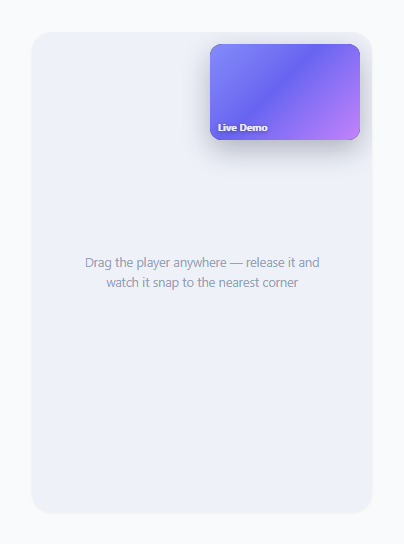
YouTube, Google Meet, FaceTime, and most video-call apps all share the same floating mini-player pattern: a small video window you can drag anywhere on screen, that automatically snaps itself to whichever corner it ended up closest to once you let go, and that you can flick toward an edge to dismiss entirely. None of that behavior comes from a native browser API for free — the real document.pictureInPicture API only gives you an OS-level floating window with no custom drag physics or corner-snap logic at all. This snippet rebuilds the *interaction design* of picture-in-picture entirely in userland: pointer events for dragging, a nearest-corner distance calculation for the snap, and a velocity-based threshold for the dismiss gesture.
Tracking the drag with pointer events, not mouse events
The player listens for pointerdown, pointermove, and pointerup rather than the older mousedown/mousemove/mouseup trio, because pointer events unify mouse, touch, and pen input behind one API — the same code drags correctly whether you are using a trackpad or a phone screen. setPointerCapture(pointerId) is called on pointerdown, which is the detail most drag implementations skip: it guarantees that subsequent pointermove and pointerup events keep firing on the player element even if the pointer moves faster than the browser can track and briefly leaves the element's bounds mid-drag — without it, a fast drag can "lose" the element and stop responding.
The corner-snap distance math
snapToNearestCorner() is the heart of the interaction. On release, it computes the player's current center point, builds an array of the four candidate corner positions (each already inset by MARGIN pixels and, critically, accounting for the player's own width and height so the bottom-right and bottom-left corners are anchored by the player's far edge, not its top-left origin), then loops over all four computing Math.hypot(cx - cornerCenterX, cy - cornerCenterY) — literally the straight-line Euclidean distance from the player's center to each corner's would-be center. Whichever corner produces the smallest distance is the target; a CSS transition on left/top (only added via the .snapping class at the moment of release, never during the drag itself) animates the move with an overshoot-flavored cubic-bezier curve so the snap feels alive rather than mechanical.
The flick-to-dismiss velocity and distance thresholds
Every pointermove computes an instantaneous velocity in pixels per millisecond by dividing the distance moved since the last event by the elapsed time (dt), continuously overwriting velocityX/velocityY so that by the time pointerup fires, those variables hold the true velocity of the final flick motion — not an average over the whole drag. shouldDismiss() then combines two independent signals: a distance check (has the player actually been dragged more than FLICK_DISTANCE pixels past the stage's edge already?) and a velocity-plus-direction check (is the player currently near an edge, and is it moving fast enough, *and in that edge's outward direction specifically*?). That direction qualifier is the detail that prevents false positives — without it, a fast flick from the top-left corner back toward the center of the screen would trigger a dismiss simply because the speed was high, even though the user was clearly moving the player further onto the stage, not off it.
Why a dismissed player gets an undo toast instead of vanishing silently
A flick gesture is easy to trigger by accident, especially on touch, and losing a floating video player with no way to get it back is a frustrating dead end — the same reason Gmail's "Archive" and most delete actions surface an undo toast instead of committing instantly. dismiss() saves the player's exact position and minimized state into lastPosition before animating it off-screen, and the toast's Undo button calls undoDismiss(), which restores the saved position, clears the fly-away transform, and re-displays the player exactly as it was — a full round trip, not just a re-show.
Minimize/expand and re-clamping to the stage
toggleMinimize() swaps the player between its full mini-player size and a small circular bubble via the .minimized class. Because the bubble is much smaller than the full player, simply keeping the same left/top could leave it not snapped to any edge cleanly, so after the size change is applied, the function re-clamps the position on the next animation frame using the corner's known margin bounds, keeping the toggle visually anchored near where it already was rather than jumping unexpectedly.
Build with AI
Build, Understand, Optimize, and Extend It With AI
Hand this snippet's JS to an AI assistant like Claude and ask it to trace through why shouldDismiss() checks both distance-past-edge and velocity-with-direction rather than relying on speed alone — that combination is what prevents a fast flick toward the center from accidentally closing the player, and it's easy to miss on a first read. It's also worth asking whether tracking velocity from consecutive pointermove events (as this snippet does) is noisier than sampling over a short rolling window, and what tradeoff that would introduce. For extending it: ask for snap targets at the midpoints of each edge in addition to the four corners, a settings panel that lets the snap margin and flick threshold be tuned live, or swapping the placeholder gradient for a real muted <video> element with its own play/pause state.
Prompt to recreate it
Copy this into your AI assistant of choice to build the effect from scratch, or as a jumping-off point for your own variant:
Build a draggable picture-in-picture style floating video player in plain HTML, CSS, and JavaScript using pointer events, no libraries.

Requirements:
- A small floating player window (video content can be a simple animated gradient placeholder) that the user can freely drag anywhere within a bounded container using pointerdown/pointermove/pointerup with setPointerCapture, working for both mouse and touch.
- On pointer release, compute the straight-line distance from the player's current center to each of the container's 4 corners, and animate the player to whichever corner is closest using a CSS transition added only at release time (never during the active drag).
- Track real pointer velocity (pixels per millisecond) throughout the drag from consecutive pointermove events.
- Implement a flick-to-dismiss gesture: on release, if the player is either dragged far enough past the container's edge, or is near an edge and moving fast enough specifically in that edge's outward direction, animate it flying off-screen along the release velocity direction and hide it — a fast flick back toward the center must NOT trigger a dismiss.
- Show a small "Video closed" toast with an Undo button after a dismiss; clicking Undo must restore the player to its exact prior position, size, and minimized state, not just make a new player reappear at a default position.
- Include a minimize/expand toggle that swaps the full player for a small circular bubble and re-clamps its position so it stays fully inside the container after the size change.
Want to tighten it up first? Run this prompt through the AI Prompt Studio to score it across 8 quality dimensions, catch anti-patterns, and tune the wording for Claude, ChatGPT, or Gemini before you paste it in.
Step by step
How to Use
- 1See the mini player start in the top-right cornerA small floating video window with an animated gradient background sits pinned near the top-right of the stage, with hover-revealed minimize and close controls.
- 2Drag the player anywhere with your mouse or fingerPress and hold on the player and move it freely — it tracks your pointer exactly using pointer events, so it works identically with mouse, trackpad, and touch input.
- 3Release it and watch it snap to the nearest cornerThe moment you let go, the player animates smoothly to whichever of the four corners its center point was closest to, using an eased overshoot transition rather than a linear snap.
- 4Click the minimize button (or the bubble) to collapse itThe full mini-player collapses into a small circular bubble with a play icon, then re-clamps its position so it stays fully visible near where it was.
- 5Drag it quickly toward any edge and releaseIf your flick is fast enough and heading outward, or if you drag it far enough past the stage boundary, the player animates flying off-screen and disappears, simulating a dismiss gesture.
- 6Click "Undo" on the toast that appearsA "Video closed" toast slides up from the bottom with an Undo button — clicking it restores the player to its exact previous position and size instead of leaving it gone for good.
Real-world uses
Common Use Cases
Got questions?
Frequently Asked Questions
Pointer events (pointerdown/pointermove/pointerup) are a single unified API that fires consistently for mouse, touch, and pen input, so one set of listeners handles every device instead of maintaining parallel mousedown/touchstart and mousemove/touchmove handlers with different coordinate properties. setPointerCapture also solves a real bug that plain mouse events have: without it, a fast drag can move the pointer outside the element between two event frames and silently stop receiving move events, which pointer capture prevents by locking all subsequent events to the original target regardless of where the pointer physically travels.
On release, the code computes the player's current center point, builds an array of the four corner target positions (each accounting for the player's own width and height so the right and bottom corners are correctly anchored), and for each one computes Math.hypot(centerX - cornerCenterX, centerY - cornerCenterY) — the straight-line distance formula. The corner with the smallest resulting distance is chosen as the snap target, and a CSS transition (added only at this moment via a .snapping class) animates left and top to that corner's coordinates.
Two independent conditions are checked on release: whether the player has already been dragged more than a fixed pixel distance past any stage edge, or whether it is both currently near an edge (within the outer quarter of the stage on that side) and moving fast enough in that edge's outward direction, measured from the actual pointer velocity captured during the last few move events. Requiring the direction to match the nearby edge specifically prevents a fast flick back toward the center of the stage from accidentally triggering a dismiss.
Yes. Keep the drag state (dragging, start coordinates, velocity) in refs rather than component state since they update on every pointermove and do not need to trigger re-renders, and attach the pointerdown/pointermove/pointerup listeners inside a useEffect (React), onMounted (Vue), or ngAfterViewInit (Angular) that runs after the player element exists in the DOM. Remove the listeners, and clear any pending setTimeout from the dismiss/undo flow, in the corresponding cleanup function (useEffect's return, onUnmounted, or ngOnDestroy) so a drag in progress cannot keep firing into an unmounted component.
Extend the corners array inside snapToNearestCorner() with additional candidate positions — for example, add mid-top ({ left: (rect.width - w) / 2, top: MARGIN }) and the equivalent for the bottom, left, and right edges. The nearest-distance logic already loops over whatever is in that array and picks the closest one using the same Math.hypot comparison, so no other part of the snap logic needs to change; you are only expanding the candidate list it chooses from.