More Modals Snippets
Front-End Coding Playgrounds
Learn to code with interactive, live-preview playgrounds — HTML, CSS, JavaScript, React & more.
 HTML Playground42 lessons · Click-based · Live preview
 CSS PlaygroundLearn CSS with a live editor
 JavaScript Playground60 lessons · DOM · Async · Canvas
 React PlaygroundLearn React with a live code editor
 GSAP PlaygroundLearn GSAP animation interactively
 SVG Playground44 lessons · shapes · paths · animation
 SCSS Playground45 lessons · Sass modules · tokens
 Tailwind PlaygroundLearn Tailwind CSS with a live editor
 Bootstrap 5 Playground50 lessons · live preview
Floating Chat Support Widget — Live Chat UI HTML CSS JS
Floating Chat Support Widget · Modals · Plain HTML, CSS & JS · Live preview
What's included
Features
scale(.8) translateY(20px) → scale(1) with cubic-bezier(.34,1.56,.64,1) — spring overshoot that makes the window "pop" open from the button.animation-delay — CSS-only wave animation removed and replaced with the agent reply after a random delay.border-radius: 4px 16px 16px 16px (agent) and 16px 4px 16px 16px (user) — the iMessage/WhatsApp tail pattern that communicates message direction.transform: scale(0) transition hides it when the chat opens.position: absolute; bottom; right with a white border ring — the standard online status badge.messages.scrollTop = messages.scrollHeight after each message append ensures the view always shows the latest message.onkeydown handler on the input fires sendMessage() on Enter — the expected keyboard behaviour for chat inputs.About this UI Snippet
Floating Chat Support Widget — Spring Animation, Typing Indicator & Message Bubble Pattern
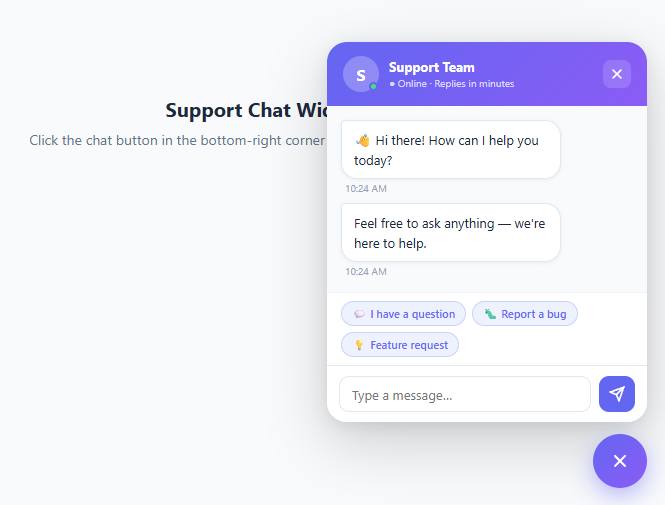
The floating chat widget is the most ubiquitous support UI pattern on the web — used by Intercom, Drift, Crisp, and HubSpot to provide live chat, onboarding help, and lead capture on every page. Building a custom chat widget lets you match your brand, avoid third-party tracking, and control the exact interaction. This snippet builds a complete floating chat widget: a gradient trigger button with unread badge, a spring-animated chat window with agent header, message bubbles with timestamps, typing indicator, quick reply chips, and a send message flow with auto-response.
Chat widgets must feel alive — the spring animation on open, the typing dots before the agent reply, and the bubble tail design all contribute to the sense that a real person is on the other end. Getting these micro-interactions right is the difference between a chat widget users engage with and one they immediately close.
Spring open animation
The chat window uses transform: scale(.8) translateY(20px) as its closed state and scale(1) translateY(0) when open — a scale-up from the bottom-right corner (transform-origin: bottom right). The transition uses cubic-bezier(.34,1.56,.64,1) — a spring easing that overshoots slightly before settling. This overshoot makes the window feel like it "pops" open rather than just appearing.
Typing indicator with CSS animation
The typing indicator renders three dots in a .typing-indicator message bubble. Each dot uses a @keyframes typingBounce animation with transform: scale and opacity — bouncing between 50% scale (dim) and 100% scale (bright). The three dots have staggered animation-delay values (0s, .15s, .3s), creating the left-to-right bounce wave. The indicator element is removed from the DOM and replaced by the actual reply after 1.2–1.8 seconds.
Message bubble tail design
User bubbles use border-radius: 16px 4px 16px 16px — the top-right corner is cut square to form a visual "tail" pointing toward the user. Agent bubbles use border-radius: 4px 16px 16px 16px — the top-left corner is cut square. This asymmetric border-radius pattern is the standard instant messaging bubble design (WhatsApp, iMessage, Telegram) that users immediately recognise as a conversation format.
Quick reply chips
Quick reply chips provide one-tap conversation starters for users who don't know what to ask. Clicking a chip populates the input with the chip text and immediately sends the message. The quick replies panel hides after the first message — showing them only before the conversation starts prevents them from cluttering an active chat. Pair with a modal for a full-screen overlay chat variant.
Build with AI
Build, Understand, Optimize, and Extend It With AI
You don't have to trace every timeout and class toggle in this widget by hand. Paste the HTML, CSS, and JS into an AI coding assistant like Claude and ask it to explain exactly why the chat window's closed state uses scale(.8) translateY(20px) with transform-origin bottom right, and how the cubic-bezier(.34,1.56,.64,1) easing produces the overshoot "pop" rather than a plain ease-out. The same assistant can help optimize it — ask whether creating a new typing-indicator DOM node on every message versus reusing one fixed node matters at this scale, or whether the random 1200-1800ms reply delay should be replaced with a real network round trip once a backend is wired up. It's just as useful for extending the widget: have it add message persistence across page loads with sessionStorage, a proactive auto-open after a delay on first visit, or a real fetch/WebSocket integration in place of the REPLIES array. Treat the code less like a finished artifact and more like a starting point for a conversation.
Prompt to recreate it
Copy this into your AI assistant of choice to build the effect from scratch, or as a jumping-off point for your own variant:
Build a floating customer-support chat widget in plain HTML, CSS, and JavaScript — no libraries, no real backend required but structured so one can be added easily.

Requirements:
- A circular trigger button fixed to the bottom-right corner showing a chat-bubble icon and a red unread-count badge; clicking it toggles a chat window class and crossfades the trigger's icon to an X, and clears the unread badge.
- The chat window must be closed by default with transform: scale(0.8) translateY(20px) and opacity 0, transform-origin set to bottom right, and transition to scale(1) translateY(0) opacity 1 when an "open" class is applied, using a springy overshoot cubic-bezier easing so the window visibly pops rather than fades linearly into place.
- A header showing an agent avatar with an initial letter and a small green "online" dot positioned at its corner, an agent name, and a status line, plus a close button.
- A scrollable message list where user messages and agent messages are visually distinguished using an asymmetric border-radius each (one corner squared off on the side facing that speaker, like WhatsApp/iMessage bubbles), each message showing a timestamp.
- A set of quick-reply chip buttons shown only before the first message is sent; clicking one fills the input with that chip's text and immediately sends it, then hides the chips permanently for that session.
- A send flow where submitting a message (via button click or Enter key) appends the user's message, clears the input, shows an animated three-dot typing indicator (each dot bouncing with a staggered CSS keyframe delay) in a message bubble, and after a randomized 1.2-1.8 second delay removes the typing indicator and appends a canned agent reply cycling through a fixed array of responses. The message list must auto-scroll to the bottom after every new message.
Step by step
How to Use
- 1Paste HTML, CSS, and JSA floating indigo chat button appears in the bottom-right corner with a red "2" unread badge. The page shows a placeholder content area.
- 2Click the chat buttonThe chat window springs open from the button with a scale + overshoot animation. The unread badge disappears. The agent header shows "Online · Replies in minutes".
- 3Use a quick reply chipClick "💬 I have a question" — it sends as a user message and triggers a typing indicator, followed by an auto-response after ~1.5 seconds.
- 4Type your own messageType in the input and press Enter or click the send button. Each message gets an agent reply from a rotating set of canned responses.
- 5Close with the × buttonThe × in the header closes the window. Clicking the trigger button again re-opens it.
- 6Customise the agent and responsesUpdate the
agent-nameandagent-statusin the HTML header. Update theREPLIESarray in JS with your real support responses or API integration.
Real-world uses
Common Use Cases
Got questions?
Frequently Asked Questions
Replace the REPLIES mock with a fetch call to your chat API in sendMessage(). Show the typing indicator while the request is pending. On response, remove the typing indicator and call addMessage(response.text, 'agent'). For WebSocket-based APIs, open a connection on chat init and push incoming messages via the onmessage handler.
Add setTimeout(() => { if (!isOpen) { toggleChat(); addMessage("👋 Need any help?", "agent"); } }, 30000) on page load. Store a sessionStorage flag to prevent it reopening on every page navigation within the same session.
Store messages in sessionStorage as a JSON array. On init, read the stored messages and call addMessage for each one to restore the conversation. On each addMessage call, update the stored array.
Create a ChatWidget component with const [isOpen, setIsOpen] = useState(false) and const [messages, setMessages] = useState(initialMessages). The window uses a CSS class driven by isOpen. Messages are a state array of {text, type, time} objects. The typing indicator is a separate const [typing, setTyping] = useState(false) state that renders a typing bubble conditionally.