More Modals Snippets
Front-End Coding Playgrounds
Learn to code with interactive, live-preview playgrounds — HTML, CSS, JavaScript, React & more.
 HTML Playground42 lessons · Click-based · Live preview
 CSS PlaygroundLearn CSS with a live editor
 JavaScript Playground60 lessons · DOM · Async · Canvas
 React PlaygroundLearn React with a live code editor
 GSAP PlaygroundLearn GSAP animation interactively
 SVG Playground44 lessons · shapes · paths · animation
 SCSS Playground45 lessons · Sass modules · tokens
 Tailwind PlaygroundLearn Tailwind CSS with a live editor
 Bootstrap 5 Playground50 lessons · live preview
Cookie Consent Banner — Free HTML CSS JS Snippet
Cookie Consent Banner · Modals · Plain HTML, CSS & JS · Live preview
What's included
Features
About this UI Snippet
Cookie Consent Banner — Slide-Up Animation, animationend Cleanup & localStorage Persistence
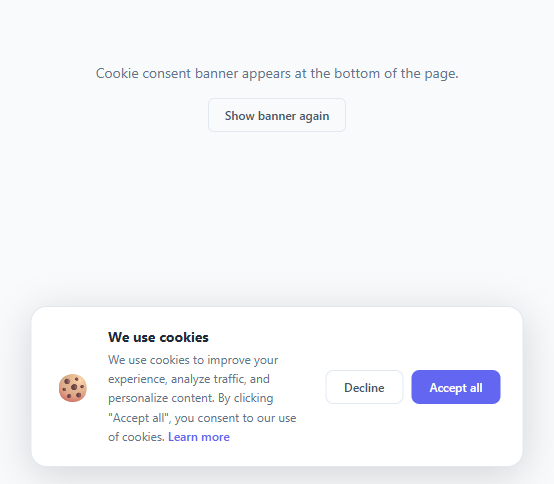
A cookie consent banner informs users about cookie usage and gives them a clear choice to accept or decline before any tracking begins. Under GDPR (EU/UK), CCPA (California), and similar privacy laws in Canada, Brazil, India, and Australia, any website that sets analytics, advertising, or personalisation cookies must obtain prior consent from users in those jurisdictions. A compliant banner must appear before cookies are set, clearly explain what cookies are used for, offer a real decline option (not just an accept button), and remember the user's choice across sessions. For granular per-category control, pair it with the GDPR consent manager.
The fixed bottom positioning and slide-up entrance
The banner uses position: fixed; bottom: 20px; left: 50%; transform: translateX(-50%) to center it horizontally at the bottom of the viewport, floating above the page content. On load, the @keyframes slideUp animation plays: starting from translateX(-50%) translateY(120%) (below the viewport) and ending at translateX(-50%) translateY(0) (in position). The cubic-bezier(0.34, 1.56, 0.64, 1) easing adds a slight overshoot bounce that makes the banner feel physical and attention-catching without being jarring.
The hide animation and animationend cleanup
When the user accepts or declines, hideBanner() adds the .hide class to the banner. The CSS .banner.hide rule applies the @keyframes slideDown animation: sliding back down below the viewport. An animationend event listener with { once: true } fires when the animation completes and sets b.style.display = 'none'. This display-none step is essential — without it, the banner remains in the DOM at its hidden position with opacity: 0, continuing to intercept pointer events and block clicks on elements behind it. The { once: true } option automatically removes the listener after it fires once, preventing memory leaks.
The show/hide banner functions
showBanner() and hideBanner() provide the full lifecycle. The "Show banner again" button in the demo calls showBanner() to reset the state for previewing. In production, showBanner() would only be called if localStorage.getItem('cookie-consent') returns null — meaning the user has not previously made a consent choice.
GDPR compliance requirements
For strict GDPR compliance beyond this UI snippet: save the user's choice to localStorage immediately on button click, load analytics scripts only inside the accept() callback (not on page load), provide a Manage Preferences option for granular cookie categories, and link to a full Privacy Policy page. The banner text includes a "Learn more" link placeholder for this policy page.
Build with AI
Build, Understand, Optimize, and Extend It With AI
You don't have to guess why the banner still blocks clicks without one specific line to understand the fix. Paste this snippet's HTML, CSS, and JS into an AI coding assistant like Claude and ask it to explain exactly why the animationend listener setting display to none is necessary even though the slideDown keyframe already animates the banner off-screen, and why that listener is registered with the once option. The same assistant can help optimize it — for instance asking whether checking localStorage before the banner even renders (rather than always mounting it and then hiding it) would avoid an unnecessary flash on repeat visits. It's also useful for extending the banner: ask it to add a third "Manage preferences" button that opens a full category-level consent modal, gate real analytics script loading strictly behind the accept handler, or persist consent with an expiry so users are re-asked after a set number of months as many regulations require. Treat the code less like a finished artifact and more like a starting point for a conversation.
Prompt to recreate it
Copy this into your AI assistant of choice to build the effect from scratch, or as a jumping-off point for your own variant:
Build a bottom cookie-consent banner in plain HTML, CSS, and JavaScript with a slide-up entrance and slide-down exit — no consent-management library, no frameworks.

Requirements:
- A banner fixed to the bottom of the viewport, horizontally centered with a max width, containing an icon, an explanatory message with a "learn more" link, and two distinct action buttons (an outlined decline and a solid accept).
- On page load, the banner plays a CSS keyframe animation sliding up from fully below the viewport to its resting position with a slight overshoot easing, so it feels tactile rather than mechanical.
- Both the accept and decline actions must trigger the same exit sequence: add a class that plays a separate slide-down keyframe animation moving the banner back below the viewport, then listen for that specific animation's completion event (registered so it only ever fires once per hide) and only at that point set the element's display to none — never before the animation visually finishes, and never skipping the display change afterward, since a still-visible-but-transparent banner would keep intercepting clicks on whatever is behind it.
- A separate reset control (for demo/testing purposes) that restores the banner's display and removes the hide class so the entrance animation can replay.
- Structure the accept and decline handlers as the single place where you would persist the user's choice (e.g. to localStorage) and where you would conditionally inject third-party analytics or tracking scripts only after acceptance, never before.
Step by step
How to Use
- 1Click Accept or Decline to trigger the slide-down animationClick Accept all or Decline in the banner to watch the slideDown animation play — the banner slides back below the viewport and then disappears from the DOM. Click 'Show banner again' in the page center to reset and replay the slideUp entrance animation.
- 2Update the banner text and Privacy Policy linkIn the HTML panel, change the .banner-text paragraph to describe your specific cookie usage (analytics, advertising, personalisation). Update the href on the 'Learn more' link to point to your actual /privacy-policy/ page. Change the .banner-title from 'We use cookies' to match your brand voice.
- 3Wire localStorage persistence to remember consent across page loadsIn the JS panel, add localStorage.setItem('cookie-consent', 'accepted') in the accept() function and localStorage.setItem('cookie-consent', 'declined') in dismiss(). On page load, check: if (localStorage.getItem('cookie-consent')) hideBanner(); so the banner only shows on first visit before any consent choice is recorded.
- 4Conditionally load analytics only after acceptanceIn the accept() function, dynamically inject your tracking scripts after consent is stored: const script = document.createElement('script'); script.src = 'https://www.googletagmanager.com/gtag/js?id=G-XXXXX'; script.async = true; document.head.appendChild(script); This ensures analytics never loads until the user explicitly accepts, which is required for GDPR compliance.
- 5Add a Manage Preferences button for granular cookie controlAdd a third button with class 'btn outline' between Decline and Accept all with label 'Manage Preferences'. Wire its onclick to open a modal listing cookie categories (Essential, Analytics, Marketing) as individual toggle switches. Store each category's consent state as separate localStorage keys.
- 6Export and add to the root layout of your websiteClick HTML for a standalone file, or JSX for a React component. In Next.js, add the CookieBanner component to src/app/layout.js so it appears on every page. In the component's useEffect, check localStorage on mount — if no consent record exists, show the banner; if consent was previously recorded, skip it entirely.
Real-world uses
Common Use Cases
Got questions?
Frequently Asked Questions
On load, the banner element has animation: slideUp 0.4s cubic-bezier(0.34,1.56,0.64,1) applied directly in CSS. The slideUp keyframe animates from translateX(-50%) translateY(120%) to translateX(-50%) translateY(0) — moving it upward from below the viewport. When accept() or dismiss() calls hideBanner(), the .hide class is added. The .banner.hide CSS rule applies animation: slideDown 0.3s ease forwards, reversing the motion back below the viewport. An animationend event listener with { once: true } fires when slideDown completes and calls b.style.display = 'none', removing the banner from pointer event handling entirely.
In the accept() function, add localStorage.setItem('cookie-consent', 'accepted') before calling hideBanner(). In dismiss(), add localStorage.setItem('cookie-consent', 'declined'). On page load, check the stored value: const consent = localStorage.getItem('cookie-consent'); if (consent !== null) hideBanner(); The banner only appears when cookie-consent is null — meaning the user has never made a choice on this browser. Note that localStorage is per-origin and per-browser — users who clear their browser data or use a different browser will see the banner again.
A two-button accept/decline banner satisfies the basic GDPR requirement for explicit consent — there must be a real opt-out that prevents tracking, and the user's choice must be remembered. However, for full GDPR compliance when using multiple cookie categories, a granular preference centre is required: users should be able to consent to Essential cookies only while declining Analytics and Marketing. Additionally, consent must be freely given (declining must be as easy as accepting), specific (users know what they're consenting to), and withdrawable at any time via a visible consent settings link or footer option.
When a CSS animation ends, the element returns to its original CSS state unless the animation has fill-mode: forwards. Even with forwards fill mode, the element remains in the DOM at its hidden position and continues intercepting pointer events. The animationend listener with { once: true } fires after the slideDown animation completes and sets b.style.display = 'none', which removes the element from the layout and pointer event handling entirely. Without this step, invisible banner elements accumulate in the DOM and block clicks on buttons or links positioned in the same area of the viewport.