
Learn Coding Visually
Learn to code with interactive, live-preview playgrounds — HTML, CSS, JavaScript, React & more.
 HTML Playground42 lessons · Click-based · Live preview
 CSS PlaygroundLearn CSS with a live editor
 JavaScript Playground60 lessons · DOM · Async · Canvas
 React PlaygroundLearn React with a live code editor
 GSAP PlaygroundLearn GSAP animation interactively
 SVG Playground44 lessons · shapes · paths · animation
 SCSS Playground45 lessons · Sass modules · tokens
 Tailwind PlaygroundLearn Tailwind CSS with a live editor
 Bootstrap 5 Playground50 lessons · live preview
GDPR Consent Manager — Free HTML CSS JS Snippet
GDPR Consent Manager · Modals · Plain HTML, CSS & JS · Live preview
What's included
Features
About this UI Snippet
GDPR Consent Manager — Cookie Banner, Preferences Modal, Toggle Switches & localStorage Consent Storage
Managing cookie consent is a legal requirement for any website serving users in the European Union, the United Kingdom, or California. The GDPR (General Data Protection Regulation), ePrivacy Directive, and CCPA (California Consumer Privacy Act) all require that websites obtain freely given, specific, informed, and unambiguous consent before placing non-essential cookies or tracking technologies on a user's device. This snippet provides a complete, production-ready GDPR consent manager built entirely in HTML, CSS, and vanilla JavaScript — no third-party consent platform, no script tags, no monthly fees.
What the GDPR and ePrivacy Directive require
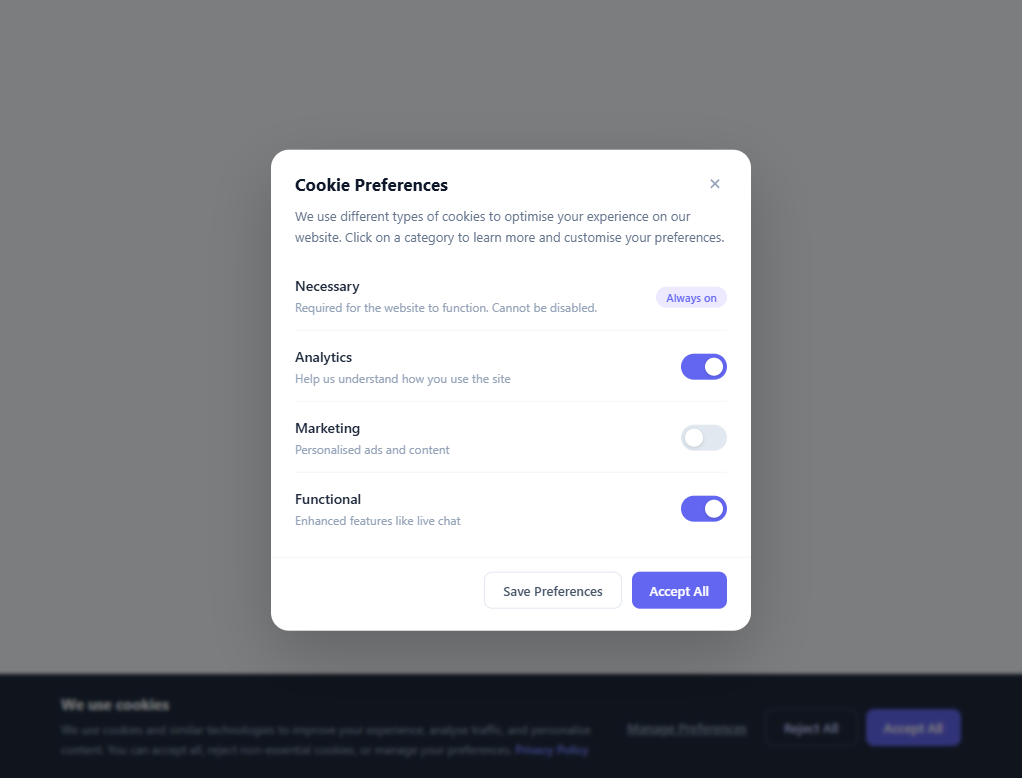
Under GDPR Article 6 and the EU ePrivacy Directive (Cookie Law), consent must meet four criteria: it must be freely given (declining must be as easy as accepting — no dark patterns), specific (users must know exactly which cookie categories they are consenting to), informed (a clear privacy policy link must be accessible), and unambiguous (pre-ticked boxes or implied consent from continued browsing are not valid). The user's choice must be stored and honoured, and users must be able to withdraw or change their consent at any time. This snippet satisfies every requirement: the banner offers Accept All, Reject All, and Manage Preferences; the modal exposes four named categories with individual toggles; and a persistent floating settings button lets users revisit their choices.
The four consent categories
The snippet implements the standard four-tier consent taxonomy used by the IAB TCF (Transparency and Consent Framework) and most consent management platforms. Necessary cookies (session IDs, CSRF tokens, login state) are always enabled because they are required for basic website functionality — GDPR explicitly exempts strictly necessary cookies from the consent requirement. Analytics cookies (Google Analytics, Plausible, Fathom) track how users navigate the site; they require opt-in consent because they build a profile of user behaviour. Marketing cookies (Meta Pixel, Google Ads, retargeting) are used for personalised advertising and require explicit consent under both GDPR and CCPA. Functional cookies power enhanced features such as live chat (Intercom, Zendesk), language preferences, or saved shopping carts — they require consent unless strictly necessary for a service explicitly requested by the user.
Technical implementation: banner, modal, and localStorage
The consent banner uses position: fixed; bottom: 0 with a CSS transform: translateY(110%) slide-up entrance and exit. The preferences modal uses the same opacity + scale pattern as a standard dialog: transform: translate(-50%, -48%) scale(0.96) closed, transitioning to translate(-50%, -50%) scale(1) open. Toggle switches are built in pure CSS: a hidden <input type="checkbox"> drives a .slider pseudo-element that moves 20px on the X axis when checked. The accent colour #6366f1 appears on active toggles and the primary Accept All button for visual consistency. The saveConsent() function serialises the consent object to localStorage as JSON: { necessary: true, analytics: bool, marketing: bool, functional: bool }. On page load, loadConsent() reads this value — if it exists, the banner is suppressed and the floating settings FAB is shown instead.
The floating settings FAB
After any consent action (Accept All, Reject All, or Save Preferences), the banner dismisses and a small floating "Cookie Settings" button appears in the bottom-left corner. This satisfies the GDPR requirement that users must be able to withdraw or change consent at any time — not just on first visit. The FAB reopens the preferences modal where users can toggle individual categories and save again. The FAB is hidden by default via display: none and shown by adding the .visible class which sets display: flex.
Connecting consent to actual cookie loading
The getConsent() function returns the current consent object. Call it before loading any third-party script: const c = getConsent(); if (c?.analytics) { /* inject GA script */ }. For strictest compliance, do not load any non-essential scripts in the HTML head — always load them dynamically in JavaScript after checking consent. Re-check consent in a pageshow listener to handle browser back/forward navigation.
Build with AI
Build, Understand, Optimize, and Extend It With AI
You don't have to just trust that this satisfies GDPR's consent criteria. Paste this snippet's HTML, CSS, and JS into an AI coding assistant like Claude and ask it to walk through exactly how loadConsent, saveConsent, and getConsent work together to decide whether the banner shows on a repeat visit, and where in the flow you would actually gate a real third-party script (like Google Analytics) behind the stored analytics flag. The same assistant can help optimize it — ask whether storing consent only in localStorage is sufficient for a multi-page site with server-rendered personalization, or whether a cookie readable server-side is also needed. It's also useful for extending the manager: ask it to add a versioned storage key so changing your cookie categories automatically re-prompts existing users, wire up the data-src iframe-blocking pattern mentioned in the howToUse for embedded YouTube or Maps content, or add a script that automatically disables Google Analytics tracking when a user withdraws previously-granted consent. Treat the code less like a finished artifact and more like a starting point for a conversation.
Prompt to recreate it
Copy this into your AI assistant of choice to build the effect from scratch, or as a jumping-off point for your own variant:
Build a GDPR-style cookie consent manager in plain HTML, CSS, and JavaScript with a banner, a granular preferences modal, and persisted consent — no third-party consent platform.

Requirements:
- A bottom-docked banner that slides up on entrance and down on exit using a CSS transform transition, offering three genuinely equal-prominence actions: accept all, reject all, and open a detailed preferences view — reject must not be visually buried or harder to find than accept.
- A preferences modal listing at least four cookie categories (for example necessary, analytics, marketing, functional), where the necessary category is always-on and cannot be toggled, and every other category has its own independent toggle switch built as a real checkbox input paired with a styled slider element (not just a decorative div).
- A single consent object shape that gets serialized to localStorage as JSON whenever the user takes any consent action (accept all, reject all, or save custom preferences from the modal), and a corresponding read function that other code can call to check whether a specific category is currently granted.
- On page load, check for previously stored consent: if none exists, show the banner; if consent already exists, suppress the banner entirely and instead show a small persistent floating button that reopens the preferences modal at any time, since GDPR requires consent to be as easy to withdraw or change as it was to give.
- Opening the preferences modal must sync every toggle to whatever was previously saved (not reset to defaults), so returning users see their actual current choices reflected accurately.
- The modal must be dismissible via a close button, a backdrop click, and the Escape key, and must use proper dialog semantics (role dialog, aria-modal, an accessible label tied to its heading).
- Explain, in a comment or to the user, exactly where in application code you would call the consent-read function before loading any non-essential third-party script (like an analytics or ads tag), so tracking never fires before explicit permission is granted.
Want to tighten it up first? Run this prompt through the AI Prompt Studio to score it across 8 quality dimensions, catch anti-patterns, and tune the wording for Claude, ChatGPT, or Gemini before you paste it in.
Source Code
<!-- Page demo content -->
<div class="demo-page">
  <h2>Your Website</h2>
  <p>The GDPR consent banner appears at the bottom of the screen on first visit.</p>
</div>

<!-- Cookie consent banner -->
<div class="consent-banner" id="consent-banner">
  <div class="banner-inner">
    <div class="banner-text">
      <p class="banner-title">We use cookies</p>
      <p class="banner-desc">We use cookies and similar technologies to improve your experience, analyse traffic, and personalise content. You can accept all, reject non-essential cookies, or manage your preferences. <a href="#" class="banner-link">Privacy Policy</a></p>
    </div>
    <div class="banner-actions">
      <button class="btn btn-ghost" id="btn-manage">Manage Preferences</button>
      <button class="btn btn-outline" id="btn-reject">Reject All</button>
      <button class="btn btn-primary" id="btn-accept-banner">Accept All</button>
    </div>
  </div>
</div>

<!-- Cookie preferences modal -->
<div class="overlay" id="overlay"></div>
<div class="pref-modal" id="pref-modal" role="dialog" aria-modal="true" aria-labelledby="modal-title">
  <div class="modal-header">
    <h3 id="modal-title">Cookie Preferences</h3>
    <button class="close-btn" id="btn-close-modal" aria-label="Close">
      <svg width="16" height="16" viewBox="0 0 24 24" fill="none" stroke="currentColor" stroke-width="2.5"><line x1="18" y1="6" x2="6" y2="18"/><line x1="6" y1="6" x2="18" y2="18"/></svg>
    </button>
  </div>
  <p class="modal-intro">We use different types of cookies to optimise your experience on our website. Click on a category to learn more and customise your preferences.</p>

  <div class="category-list">
    <div class="category-row">
      <div class="category-info">
        <span class="category-name">Necessary</span>
        <span class="category-desc">Required for the website to function. Cannot be disabled.</span>
      </div>
      <div class="toggle-wrap always-on">
        <span class="always-label">Always on</span>
      </div>
    </div>

    <div class="category-row">
      <div class="category-info">
        <span class="category-name">Analytics</span>
        <span class="category-desc">Help us understand how you use the site</span>
      </div>
      <label class="toggle-switch">
        <input type="checkbox" id="toggle-analytics" checked>
        <span class="slider"></span>
      </label>
    </div>

    <div class="category-row">
      <div class="category-info">
        <span class="category-name">Marketing</span>
        <span class="category-desc">Personalised ads and content</span>
      </div>
      <label class="toggle-switch">
        <input type="checkbox" id="toggle-marketing">
        <span class="slider"></span>
      </label>
    </div>

    <div class="category-row">
      <div class="category-info">
        <span class="category-name">Functional</span>
        <span class="category-desc">Enhanced features like live chat</span>
      </div>
      <label class="toggle-switch">
        <input type="checkbox" id="toggle-functional" checked>
        <span class="slider"></span>
      </label>
    </div>
  </div>

  <div class="modal-footer">
    <button class="btn btn-outline" id="btn-save">Save Preferences</button>
    <button class="btn btn-primary" id="btn-accept-modal">Accept All</button>
  </div>
</div>

<!-- Floating settings button (shown after consent saved) -->
<button class="settings-fab" id="settings-fab" title="Cookie Settings" aria-label="Cookie Settings">
  <svg width="16" height="16" viewBox="0 0 24 24" fill="none" stroke="currentColor" stroke-width="2"><circle cx="12" cy="12" r="3"/><path d="M19.4 15a1.65 1.65 0 0 0 .33 1.82l.06.06a2 2 0 0 1-2.83 2.83l-.06-.06a1.65 1.65 0 0 0-1.82-.33 1.65 1.65 0 0 0-1 1.51V21a2 2 0 0 1-4 0v-.09A1.65 1.65 0 0 0 9 19.4a1.65 1.65 0 0 0-1.82.33l-.06.06a2 2 0 0 1-2.83-2.83l.06-.06A1.65 1.65 0 0 0 4.68 15a1.65 1.65 0 0 0-1.51-1H3a2 2 0 0 1 0-4h.09A1.65 1.65 0 0 0 4.6 9a1.65 1.65 0 0 0-.33-1.82l-.06-.06a2 2 0 0 1 2.83-2.83l.06.06A1.65 1.65 0 0 0 9 4.68a1.65 1.65 0 0 0 1-1.51V3a2 2 0 0 1 4 0v.09a1.65 1.65 0 0 0 1 1.51 1.65 1.65 0 0 0 1.82-.33l.06-.06a2 2 0 0 1 2.83 2.83l-.06.06A1.65 1.65 0 0 0 19.4 9a1.65 1.65 0 0 0 1.51 1H21a2 2 0 0 1 0 4h-.09a1.65 1.65 0 0 0-1.51 1z"/></svg>
  Cookie Settings
</button>
* { box-sizing: border-box; margin: 0; padding: 0; }
body { font-family: system-ui, sans-serif; background: #f8fafc; min-height: 100vh; }
.demo-page { display: flex; flex-direction: column; align-items: center; justify-content: center; min-height: 100vh; gap: 12px; padding: 24px; }
.demo-page h2 { font-size: 22px; font-weight: 700; color: #1e293b; }
.demo-page p { font-size: 14px; color: #64748b; text-align: center; max-width: 340px; line-height: 1.6; }
/* — Banner — */
.consent-banner {
position: fixed; bottom: 0; left: 0; right: 0;
background: #1e293b;
padding: 20px 24px;
z-index: 900;
transform: translateY(0);
transition: transform 0.4s cubic-bezier(0.34, 1.4, 0.64, 1), opacity 0.4s;
opacity: 1;
}
.consent-banner.hidden {
transform: translateY(110%);
opacity: 0;
pointer-events: none;
}
.banner-inner {
max-width: 900px; margin: 0 auto;
display: flex; align-items: center; gap: 24px; flex-wrap: wrap;
}
.banner-text { flex: 1; min-width: 240px; }
.banner-title { font-size: 15px; font-weight: 700; color: #f1f5f9; margin-bottom: 6px; }
.banner-desc { font-size: 12px; color: #94a3b8; line-height: 1.65; }
.banner-link { color: #818cf8; text-decoration: none; font-weight: 600; }
.banner-link:hover { text-decoration: underline; }
.banner-actions { display: flex; gap: 8px; flex-wrap: wrap; flex-shrink: 0; }
/* — Buttons — */
.btn { padding: 9px 18px; font-size: 13px; font-weight: 600; border-radius: 8px; cursor: pointer; font-family: inherit; transition: all 0.15s; white-space: nowrap; }
.btn-primary { background: #6366f1; color: #fff; border: none; }
.btn-primary:hover { background: #4f46e5; }
.btn-outline { background: transparent; color: #c7d2fe; border: 1.5px solid #475569; }
.btn-outline:hover { border-color: #818cf8; color: #fff; }
.btn-ghost { background: transparent; color: #94a3b8; border: none; text-decoration: underline; padding: 9px 10px; }
.btn-ghost:hover { color: #f1f5f9; }
/* — Overlay — */
.overlay {
position: fixed; inset: 0;
background: rgba(0,0,0,0.5); backdrop-filter: blur(2px);
opacity: 0; pointer-events: none;
transition: opacity 0.22s;
z-index: 950;
}
.overlay.show { opacity: 1; pointer-events: all; }
/* — Preferences Modal — */
.pref-modal {
position: fixed; top: 50%; left: 50%;
transform: translate(-50%, -48%) scale(0.96);
background: #fff; border-radius: 18px;
width: 480px; max-width: calc(100vw - 32px);
max-height: calc(100vh - 48px); overflow-y: auto;
box-shadow: 0 24px 64px rgba(0,0,0,0.2);
opacity: 0; pointer-events: none;
transition: opacity 0.22s, transform 0.22s;
z-index: 960;
}
.pref-modal.show {
opacity: 1; pointer-events: all;
transform: translate(-50%, -50%) scale(1);
}
.modal-header {
display: flex; align-items: center; justify-content: space-between;
padding: 22px 24px 0;
}
.modal-header h3 { font-size: 17px; font-weight: 700; color: #0f172a; }
.close-btn { background: none; border: none; color: #94a3b8; cursor: pointer; padding: 4px; border-radius: 6px; display: flex; }
.close-btn:hover { background: #f1f5f9; color: #1e293b; }
.modal-intro { font-size: 13px; color: #64748b; line-height: 1.6; padding: 10px 24px 0; }
/* — Category rows — */
.category-list { padding: 14px 24px; display: flex; flex-direction: column; gap: 2px; }
.category-row {
display: flex; align-items: center; justify-content: space-between; gap: 16px;
padding: 14px 0; border-bottom: 1px solid #f1f5f9;
}
.category-row:last-child { border-bottom: none; }
.category-info { flex: 1; min-width: 0; }
.category-name { display: block; font-size: 14px; font-weight: 600; color: #1e293b; margin-bottom: 3px; }
.category-desc { display: block; font-size: 12px; color: #94a3b8; line-height: 1.5; }
/* Always-on badge */
.toggle-wrap.always-on { flex-shrink: 0; }
.always-label { font-size: 11px; font-weight: 600; color: #6366f1; background: #ede9fe; padding: 3px 10px; border-radius: 20px; white-space: nowrap; }
/* Toggle switch */
.toggle-switch { position: relative; display: inline-block; width: 46px; height: 26px; flex-shrink: 0; cursor: pointer; }
.toggle-switch input { opacity: 0; width: 0; height: 0; position: absolute; }
.slider {
position: absolute; inset: 0;
background: #e2e8f0; border-radius: 26px;
transition: background 0.25s;
}
.slider::before {
content: ''; position: absolute;
width: 18px; height: 18px; border-radius: 50%;
background: #fff; box-shadow: 0 1px 4px rgba(0,0,0,0.18);
top: 4px; left: 4px;
transition: transform 0.25s;
}
.toggle-switch input:checked + .slider { background: #6366f1; }
.toggle-switch input:checked + .slider::before { transform: translateX(20px); }
.toggle-switch input:focus-visible + .slider { outline: 2px solid #6366f1; outline-offset: 2px; }
/* Modal footer */
.modal-footer {
display: flex; gap: 10px; justify-content: flex-end;
padding: 14px 24px 22px;
border-top: 1px solid #f1f5f9;
}
.modal-footer .btn-outline {
background: transparent; color: #475569; border: 1.5px solid #e2e8f0;
}
.modal-footer .btn-outline:hover { border-color: #6366f1; color: #6366f1; }
/* — Floating FAB — */
.settings-fab {
position: fixed; bottom: 20px; left: 20px;
background: #1e293b; color: #94a3b8;
border: none; border-radius: 8px;
padding: 9px 14px; font-size: 12px; font-weight: 600;
font-family: inherit; cursor: pointer;
display: none; align-items: center; gap: 7px;
box-shadow: 0 4px 16px rgba(0,0,0,0.2);
transition: background 0.15s, color 0.15s;
z-index: 800;
}
.settings-fab:hover { background: #334155; color: #f1f5f9; }
.settings-fab.visible { display: flex; }const STORAGE_KEY = 'gdpr-consent';
function openBanner() {
document.getElementById('consent-banner').classList.remove('hidden');
}
function closeBanner() {
const b = document.getElementById('consent-banner');
b.classList.add('hidden');
document.getElementById('settings-fab').classList.add('visible');
}
function openModal() {
const modal = document.getElementById('pref-modal');
const overlay = document.getElementById('overlay');
// Sync toggles to current stored consent (if any)
const saved = getConsent();
if (saved) {
document.getElementById('toggle-analytics').checked = saved.analytics;
document.getElementById('toggle-marketing').checked = saved.marketing;
document.getElementById('toggle-functional').checked = saved.functional;
}
modal.classList.add('show');
overlay.classList.add('show');
document.body.style.overflow = 'hidden';
}
function closeModal() {
document.getElementById('pref-modal').classList.remove('show');
document.getElementById('overlay').classList.remove('show');
document.body.style.overflow = '';
}
function acceptAll() {
saveConsent({ necessary: true, analytics: true, marketing: true, functional: true });
closeModal();
closeBanner();
}
function rejectAll() {
saveConsent({ necessary: true, analytics: false, marketing: false, functional: false });
closeBanner();
}
function savePreferences() {
saveConsent({
necessary: true,
analytics: document.getElementById('toggle-analytics').checked,
marketing: document.getElementById('toggle-marketing').checked,
functional: document.getElementById('toggle-functional').checked,
});
closeModal();
closeBanner();
}
function saveConsent(obj) {
localStorage.setItem(STORAGE_KEY, JSON.stringify(obj));
}
function getConsent() {
try {
const raw = localStorage.getItem(STORAGE_KEY);
return raw ? JSON.parse(raw) : null;
} catch(e) { return null; }
}
function loadConsent() {
const saved = getConsent();
if (saved) {
// Consent already recorded — skip banner, show FAB
document.getElementById('settings-fab').classList.add('visible');
} else {
// No consent yet — show banner
openBanner();
}
}
document.getElementById('btn-manage').addEventListener('click', openModal);
document.getElementById('btn-reject').addEventListener('click', rejectAll);
document.getElementById('btn-accept-banner').addEventListener('click', acceptAll);
document.getElementById('overlay').addEventListener('click', closeModal);
document.getElementById('btn-close-modal').addEventListener('click', closeModal);
document.getElementById('btn-save').addEventListener('click', savePreferences);
document.getElementById('btn-accept-modal').addEventListener('click', acceptAll);
document.getElementById('settings-fab').addEventListener('click', openModal);
document.addEventListener('keydown', e => {
if (e.key === 'Escape') closeModal();
});
loadConsent();Step by step
How to Use
- 1Interact with the banner and modalThe banner slides up from the bottom on first load. Click "Accept All" or "Reject All" to save consent and dismiss the banner. Click "Manage Preferences" to open the modal where you can toggle individual cookie categories. After saving, the floating "Cookie Settings" button appears in the bottom-left corner — click it to reopen the modal at any time.
- 2Wire consent to your analytics and marketing scriptsReplace any hard-coded <script> tags for analytics or ads with dynamic loading: const c = getConsent(); if (c && c.analytics) { const s = document.createElement("script"); s.src = "https://www.googletagmanager.com/gtag/js?id=G-XXXX"; s.async = true; document.head.appendChild(s); }. Call this check in a DOMContentLoaded listener so it runs on every page after consent is loaded from localStorage.
- 3Customise the banner text and Privacy Policy linkIn the HTML panel, update the .banner-desc paragraph to describe your specific cookie usage. Replace href="#" on the "Privacy Policy" anchor with your actual /privacy-policy/ URL. Update the category descriptions in the modal to name your specific tools — e.g. "Analytics: Google Analytics 4, Plausible" and "Marketing: Meta Pixel, Google Ads Remarketing".
- 4Add or remove consent categoriesTo add a fifth category (e.g. "Personalisation"), copy a .category-row div in the HTML, give the checkbox a new id (e.g. "toggle-personalisation"), and add the key to the consent object in savePreferences(): personalisation: document.getElementById("toggle-personalisation").checked. Update saveConsent(), getConsent(), acceptAll(), and rejectAll() to include the new key.
- 5Block iframes and embeds until consent is givenFor YouTube embeds, Google Maps, or other third-party iframes, replace the src attribute with a data-src attribute on page load. After the user accepts functional or marketing consent, set iframe.src = iframe.dataset.src to load them. Show a placeholder overlay with a "Load content" button for users who decline — this is required by GDPR for consent-gated embeds.
- 6Export and add to your root layoutClick HTML to download a standalone file, or JSX for a React component. In Next.js, add the GdprConsentManager component to src/app/layout.js so it appears on every page. Use a useEffect with an empty dependency array to call loadConsent() on mount. Store the consent object in React context so any component can call useConsent() to check if a specific category is enabled before rendering consent-gated content.
Real-world uses
Common Use Cases
Got questions?
Frequently Asked Questions
This snippet satisfies the core GDPR UI requirements: it presents consent before non-essential cookies are set, offers a genuine Reject All option that is as prominent as Accept All, provides granular category control via the preferences modal, persists the user's choice in localStorage, and allows consent withdrawal via the floating settings button. To complete your compliance implementation, you must also: (1) wire the getConsent() helper to your script loading logic so non-essential scripts only load after consent; (2) link to a complete Privacy Policy explaining what data is collected and why; (3) re-show the banner when your cookie usage changes materially; and (4) implement server-side consent checks for any SSR-rendered personalisation. For IAB TCF v2.2 compliance required by programmatic ad networks, a full certified CMP is needed.
Call getConsent() in a DOMContentLoaded listener on every page load: const c = getConsent(); if (c && c.analytics) { /* inject Google Analytics */ } if (c && c.marketing) { /* inject Meta Pixel */ } if (c && c.functional) { /* initialise Intercom */ }. If c is null, no consent has been recorded yet — do not load any non-essential scripts. When the user saves preferences, call the same conditional loading logic immediately in savePreferences() and acceptAll() so newly granted consent activates without a page reload. For revoking consent, set the appropriate script-specific disable flags (e.g. window["ga-disable-G-XXXX"] = true for Google Analytics) and note that already-set cookies will persist until their natural expiry or until the user clears browser data.
localStorage is synchronous and scoped to the origin, so getConsent() reads the same object on every page of your website without any additional setup. In a React or Next.js SPA, call loadConsent() in a useEffect in your root layout component and store the consent object in React context (useContext) or Zustand/Redux so any component can access it. For SSR pages, localStorage is unavailable on the server — check typeof window !== "undefined" before calling getConsent() in any server-side or isomorphic code. For a React hook: function useConsent() { const [c, setC] = useState(null); useEffect(() => { setC(getConsent()); }, []); return c; }
Open the browser DevTools console and run: localStorage.removeItem("gdpr-consent"); location.reload(). The STORAGE_KEY constant in the JS panel defines the localStorage key — change it from "gdpr-consent" to a versioned key like "gdpr-consent-v2" whenever you add new cookie categories. Users who previously consented under the old key will see the banner again, which is correct behaviour under GDPR — materially changing your cookie usage requires re-collecting consent. You can also call openBanner() from the console to show the banner without clearing localStorage, which is useful for visual testing.