Source Code
<header class="fso-bar">
  <span class="fso-logo">◆ Acme Docs</span>
  <button type="button" class="fso-open" id="fsoOpen" aria-label="Open search">
    <svg width="18" height="18" viewBox="0 0 24 24" fill="none" stroke="currentColor" stroke-width="2" stroke-linecap="round"><circle cx="11" cy="11" r="8"/><path d="M21 21l-4.3-4.3"/></svg>
    <span>Search</span><kbd>⌘K</kbd>
  </button>
</header>

<div class="fso-overlay" id="fsoOverlay" role="dialog" aria-modal="true" aria-label="Search" hidden>
  <div class="fso-panel">
    <div class="fso-field">
      <svg width="22" height="22" viewBox="0 0 24 24" fill="none" stroke="currentColor" stroke-width="2" stroke-linecap="round"><circle cx="11" cy="11" r="8"/><path d="M21 21l-4.3-4.3"/></svg>
      <input type="text" id="fsoInput" placeholder="Search documentation…" autocomplete="off">
      <button type="button" class="fso-close" id="fsoClose" aria-label="Close">Esc</button>
    </div>
    <ul class="fso-results" id="fsoResults"></ul>
    <p class="fso-empty" id="fsoEmpty" hidden>No results for "<span id="fsoQ"></span>"</p>
  </div>
</div>*{box-sizing:border-box;margin:0;padding:0}
body{font-family:system-ui,-apple-system,sans-serif;background:#f8fafc;min-height:100vh}
.fso-bar{display:flex;align-items:center;justify-content:space-between;background:#fff;padding:14px 22px;border-bottom:1px solid #e2e8f0}
.fso-logo{font-size:16px;font-weight:800;color:#0f172a}
.fso-open{display:inline-flex;align-items:center;gap:9px;background:#f1f5f9;border:1px solid #e2e8f0;border-radius:10px;padding:8px 13px;font-size:13px;font-weight:600;color:#64748b;cursor:pointer;font-family:inherit}
.fso-open:hover{background:#e9eef5}
.fso-open kbd{background:#fff;border:1px solid #e2e8f0;border-radius:5px;padding:1px 6px;font-size:11px;font-weight:700;color:#94a3b8;font-family:inherit}
.fso-overlay{position:fixed;inset:0;background:rgba(15,23,42,.55);backdrop-filter:blur(4px);z-index:50;display:flex;justify-content:center;padding-top:14vh;
opacity:0;transition:opacity .2s}
.fso-overlay[hidden]{display:none}
.fso-overlay.fso-show{opacity:1}
.fso-panel{width:100%;max-width:560px;background:#fff;border-radius:16px;box-shadow:0 30px 80px rgba(15,23,42,.4);overflow:hidden;max-height:70vh;display:flex;flex-direction:column;
transform:translateY(-12px) scale(.98);transition:transform .22s}
.fso-show .fso-panel{transform:none}
.fso-field{display:flex;align-items:center;gap:12px;padding:16px 18px;border-bottom:1px solid #f1f5f9;color:#94a3b8}
.fso-field input{flex:1;border:none;outline:none;font-size:16px;font-family:inherit;color:#0f172a;background:none}
.fso-close{background:#f1f5f9;border:none;border-radius:6px;padding:4px 9px;font-size:11px;font-weight:700;color:#64748b;cursor:pointer;font-family:inherit}
.fso-results{list-style:none;overflow-y:auto}
.fso-results li{display:flex;align-items:center;gap:12px;padding:12px 18px;cursor:pointer;border-bottom:1px solid #f8fafc}
.fso-results li.fso-active,.fso-results li:hover{background:#eef2ff}
.fso-r-ico{width:32px;height:32px;border-radius:8px;background:#eef2ff;color:#6366f1;display:flex;align-items:center;justify-content:center;font-size:15px;flex-shrink:0}
.fso-r-text{flex:1;min-width:0}
.fso-r-title{font-size:14px;font-weight:700;color:#0f172a}
.fso-r-title mark{background:#fde68a;border-radius:2px}
.fso-r-cat{font-size:12px;color:#94a3b8}
.fso-r-enter{font-size:11px;color:#cbd5e1;font-weight:700}
.fso-empty{padding:32px;text-align:center;font-size:13.5px;color:#94a3b8}
.fso-empty[hidden]{display:none}var DOCS = [
{ title: 'Quickstart guide', cat: 'Getting started', ico: '🚀' },
{ title: 'Authentication & API keys', cat: 'Security', ico: '🔑' },
{ title: 'Rate limits', cat: 'API reference', ico: '⏱' },
{ title: 'Webhooks', cat: 'API reference', ico: '🔗' },
{ title: 'Billing & invoices', cat: 'Account', ico: '💳' },
{ title: 'Deploying to production', cat: 'Guides', ico: '📦' },
{ title: 'Error codes', cat: 'API reference', ico: '⚠️' },
{ title: 'Team roles & permissions', cat: 'Account', ico: '👥' },
];
var overlay = document.getElementById('fsoOverlay');
var input = document.getElementById('fsoInput');
var results = document.getElementById('fsoResults');
var active = 0;
function esc(s) { return s.replace(/[&<>]/g, function (c) { return { '&': '&', '<': '<', '>': '>' }[c]; }); }
function mark(text, q) {
if (!q) return esc(text);
var i = text.toLowerCase().indexOf(q.toLowerCase());
if (i < 0) return esc(text);
return esc(text.slice(0, i)) + '<mark>' + esc(text.slice(i, i + q.length)) + '</mark>' + esc(text.slice(i + q.length));
}
function render() {
var q = input.value.trim();
var list = q ? DOCS.filter(function (d) { return d.title.toLowerCase().indexOf(q.toLowerCase()) > -1 || d.cat.toLowerCase().indexOf(q.toLowerCase()) > -1; }) : DOCS;
active = 0;
results.innerHTML = list.map(function (d, i) {
return '<li class="' + (i === 0 ? 'fso-active' : '') + '" data-i="' + i + '">' +
'<span class="fso-r-ico">' + d.ico + '</span>' +
'<span class="fso-r-text"><span class="fso-r-title">' + mark(d.title, q) + '</span><span class="fso-r-cat">' + d.cat + '</span></span>' +
'<span class="fso-r-enter">↵</span></li>';
}).join('');
document.getElementById('fsoEmpty').hidden = list.length > 0;
document.getElementById('fsoQ').textContent = q;
}
function open() {
overlay.hidden = false;
requestAnimationFrame(function () { overlay.classList.add('fso-show'); });
render();
setTimeout(function () { input.focus(); }, 60);
}
function close() {
overlay.classList.remove('fso-show');
setTimeout(function () { overlay.hidden = true; input.value = ''; }, 200);
}
function move(dir) {
var items = results.querySelectorAll('li');
if (!items.length) return;
items[active].classList.remove('fso-active');
active = (active + dir + items.length) % items.length;
items[active].classList.add('fso-active');
items[active].scrollIntoView({ block: 'nearest' });
}
document.getElementById('fsoOpen').addEventListener('click', open);
document.getElementById('fsoClose').addEventListener('click', close);
overlay.addEventListener('click', function (e) { if (e.target === overlay) close(); });
input.addEventListener('input', render);
results.addEventListener('click', function (e) {
var li = e.target.closest('li');
if (li) { console.log('Open:', DOCS[+li.dataset.i] ? DOCS[+li.dataset.i].title : ''); close(); }
});
document.addEventListener('keydown', function (e) {
if ((e.metaKey || e.ctrlKey) && e.key.toLowerCase() === 'k') { e.preventDefault(); overlay.hidden ? open() : close(); return; }
if (overlay.hidden) return;
if (e.key === 'Escape') close();
else if (e.key === 'ArrowDown') { e.preventDefault(); move(1); }
else if (e.key === 'ArrowUp') { e.preventDefault(); move(-1); }
else if (e.key === 'Enter') {
var li = results.querySelector('.fso-active');
if (li) { console.log('Open:', DOCS[+li.dataset.i].title); close(); }
}
});Learn Coding Visually
Learn to code with interactive, live-preview playgrounds — HTML, CSS, JavaScript, React & more.
 HTML Playground42 lessons · Click-based · Live preview
 CSS PlaygroundLearn CSS with a live editor
 JavaScript Playground60 lessons · DOM · Async · Canvas
 React PlaygroundLearn React with a live code editor
 GSAP PlaygroundLearn GSAP animation interactively
 SVG Playground44 lessons · shapes · paths · animation
 SCSS Playground45 lessons · Sass modules · tokens
 Tailwind PlaygroundLearn Tailwind CSS with a live editor
 Bootstrap 5 Playground50 lessons · live preview
Fullscreen Search Overlay — ⌘K Search Modal JS
Fullscreen Search Overlay · Modals · Plain HTML, CSS & JS · Live preview
What's included
Features
About this UI Snippet
Fullscreen Search Overlay — ⌘K Modal Search with Keyboard Navigation
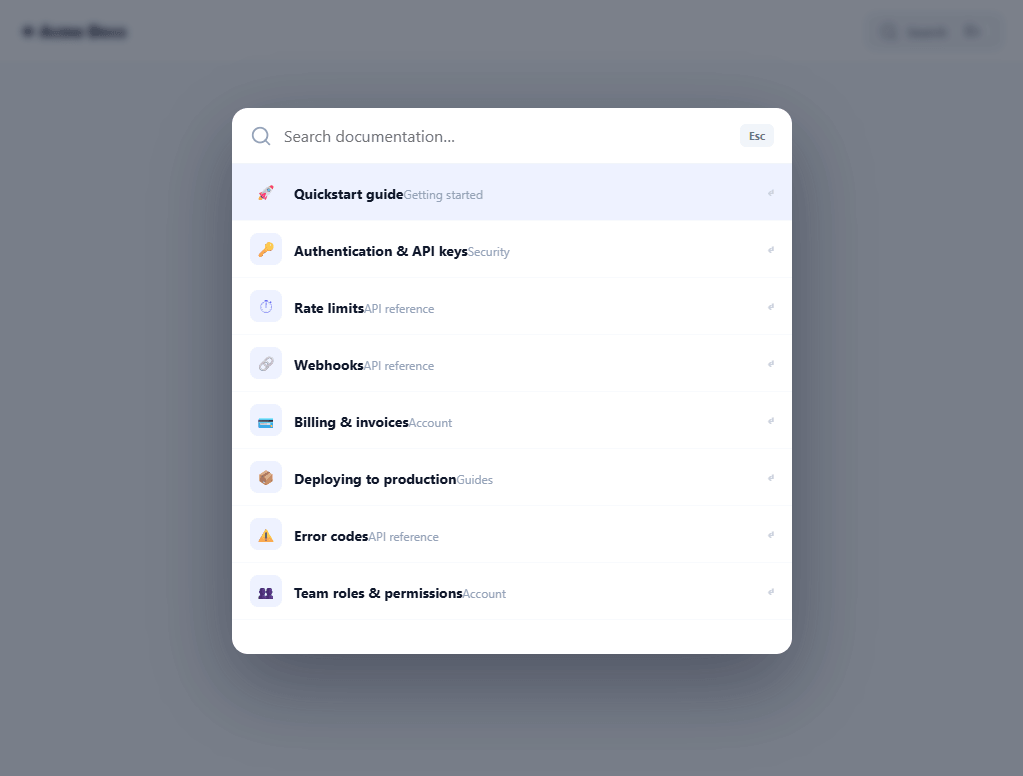
The fullscreen search overlay — invoked with ⌘K (or Ctrl+K), dimming the page behind a centred search panel with live results — is the search pattern of modern docs and apps (Algolia DocSearch, Linear, GitHub). This snippet builds it in plain HTML, CSS, and vanilla JavaScript: a keyboard-first overlay with live filtering, match highlighting, full arrow-key navigation, and the open/close conventions users expect — no library.
Keyboard-first by design
The whole point of this pattern is that power users never touch the mouse. A document-level keydown handler opens the overlay on ⌘K / Ctrl+K (and toggles it closed on a second press), Escape closes it, ArrowUp/ArrowDown move the active result with wraparound, and Enter opens the highlighted one. The trigger button advertises the ⌘K shortcut in a <kbd> so the affordance is discoverable. Building the keyboard model first — not as an afterthought — is what separates a real command-style search from a styled input.
An active row that the keyboard drives
Results maintain an active index, and the matching row gets a highlight class as you arrow through, scrolling into view with scrollIntoView({ block: 'nearest' }) so the selection never disappears off-screen in a long list. Hovering a row also activates it, so mouse and keyboard stay in sync. Pressing Enter (or clicking) "opens" the active result — here logged to the console, where you'd navigate to its URL.
Live filtering with safe highlighting
Typing filters the list on every keystroke against both the title and category, and the matched substring in each title is wrapped in a <mark>. The highlighting escapes all text before inserting the mark, so result data can never inject HTML — the safe escape-then-wrap order. An empty state shows the exact query when nothing matches, which is friendlier than a blank panel.
Smooth open, focus, and dismiss
Opening reveals the overlay then adds a class on the next animation frame so the backdrop fades and the panel eases down into place (the rAF defer is what lets the entry transition run from its start state). Focus moves to the input after a short delay so the cursor lands as the panel settles, not mid-animation. Clicking the dimmed backdrop closes it, and closing reverses the transition before hiding and clearing the query. The dialog is marked role="dialog" with aria-modal for assistive tech.
Drop-in and adaptable
Results come from a DOCS array, so pointing it at your pages — or debouncing a call to a real search API — is straightforward. It's a complete, dependency-free reference for the ⌘K overlay search every documentation site and app eventually wants, covering the keyboard model, active-row management, and safe highlighted filtering. If you swap the static DOCS array for a network call, debounce the input handler (roughly 150–250ms) before firing the request — searching on every keystroke against a local array is free, but against an API it would fire a request per character and race results out of order.
Build with AI
Build, Understand, Optimize, and Extend It With AI
You don't have to trace the metaKey/ctrlKey branching or the escape-then-mark highlighting by hand. Paste this snippet's HTML, CSS, and JS into an AI coding assistant like Claude and ask it to explain exactly why the open function defers adding the fso-show class to a requestAnimationFrame callback instead of adding it in the same call as removing the hidden attribute, and why the active index wraps with modulo arithmetic in the move function instead of clamping at the ends. The same assistant can help optimize it — ask whether filtering the static DOCS array on every keystroke would still be safe to do unthrottled against a real backend search API, or whether the results list should virtualize rendering once the dataset grows into the hundreds. It's also a good way to extend the overlay: have it add recent-search history shown when the input is empty, keyboard shortcuts to jump straight to a specific category, or fuzzy matching instead of plain substring search. Treat the code less like a finished artifact and more like a starting point for a conversation.
Prompt to recreate it
Copy this into your AI assistant of choice to build the effect from scratch, or as a jumping-off point for your own variant:
Build a ⌘K/Ctrl+K fullscreen search overlay in plain HTML, CSS, and JavaScript — no libraries, keyboard-first by design.

Requirements:
- A header button advertising a keyboard shortcut hint (a kbd element showing the platform shortcut) that opens a search overlay when clicked.
- A document-level keydown listener that detects Cmd+K on Mac and Ctrl+K on Windows/Linux (checking both metaKey and ctrlKey so one handler covers both platforms), calls preventDefault so the browser's own shortcut doesn't fire, and toggles the overlay open or closed depending on its current state.
- The overlay must start hidden via the HTML hidden attribute. Opening it must remove that attribute, then on the next animation frame (not the same tick) add a class that triggers the backdrop fade-in and the panel's ease-down-into-place transition — explain why deferring to a second frame is required for the transition to actually play instead of snapping instantly. Focus must move into the search input shortly after the panel becomes visible, not immediately on open.
- A results list filtered live on every keystroke against at least two fields per result (e.g. a title and a category), where the matching substring in the title is wrapped in a highlight element — but only after the full text has been HTML-escaped, so result data can never break out into real markup.
- Full keyboard navigation within the open overlay: Escape closes it; ArrowDown and ArrowUp move an "active" result index with wraparound (looping from the last result back to the first and vice versa) and scroll the newly active result into view without scrolling the whole page; Enter activates whichever result is currently active. Hovering a result with the mouse must also mark it active, so keyboard and mouse selection state can never disagree.
- Show a distinct empty-state message that echoes back the user's exact search query when no results match. Clicking the dimmed backdrop (but not the panel itself) must close the overlay.
Want to tighten it up first? Run this prompt through the AI Prompt Studio to score it across 8 quality dimensions, catch anti-patterns, and tune the wording for Claude, ChatGPT, or Gemini before you paste it in.
Step by step
How to Use
- 1Paste HTML, CSS, and JSA top bar renders with a Search button showing a ⌘K hint.
- 2Open with ⌘KPress ⌘K (or Ctrl+K), or click the button, to open the fullscreen search overlay focused on the input.
- 3Type to filterResults filter live against title and category, with matches highlighted.
- 4Navigate by keyboardUse ↑/↓ to move the active result (it scrolls into view) and Enter to open it.
- 5Close itPress Esc, click the backdrop, or press ⌘K again to close.
- 6Wire to your dataReplace the DOCS array (or debounce a search API) and navigate on Enter/click.
Real-world uses
Common Use Cases
Got questions?
Frequently Asked Questions
A document-level keydown handler checks for (e.metaKey || e.ctrlKey) with key 'k' — metaKey is ⌘ on macOS and ctrlKey covers Ctrl+K on Windows/Linux. It calls preventDefault so the browser's own shortcuts don't fire, and toggles the overlay (open if closed, close if open). The trigger button shows a ⌘K kbd hint so the shortcut is discoverable.
An active index tracks the highlighted result. Arrow keys move it with wraparound (modulo the list length) and scroll it into view; hovering a row sets it active too, via CSS and the same highlight class. Enter or a click opens whichever row is active. Because both input modes write to the same active state, they never disagree.
Yes. Each result's text is HTML-escaped first, and only the matched substring is then wrapped in <mark>. Because escaping happens before any markup is added, result data containing <, >, or & renders as text and can't inject elements — the correct escape-then-wrap order when building highlighted HTML with innerHTML.
The overlay starts hidden. To animate it in, it's first un-hidden (display restored), then the fso-show class is added on the next animation frame. That gap lets the browser paint the start state (transparent, panel offset) before the transition target is applied, so the fade and panel ease actually animate instead of snapping. Adding the class in the same tick would skip the transition.
Hold open state and the query in component state; render results from a filtered list. Attach the ⌘K and Escape listeners in a useEffect (React), onMounted/onUnmounted (Vue), or HostListener (Angular), cleaning up on unmount. Track the active index in state for arrow navigation. The filtering and highlight logic is framework-agnostic — only the listeners and state move into the framework.