

Learn Coding Visually
Learn to code with interactive, live-preview playgrounds — HTML, CSS, JavaScript, React & more.
 HTML Playground42 lessons · Click-based · Live preview
 CSS PlaygroundLearn CSS with a live editor
 JavaScript Playground60 lessons · DOM · Async · Canvas
 React PlaygroundLearn React with a live code editor
 GSAP PlaygroundLearn GSAP animation interactively
 SVG Playground44 lessons · shapes · paths · animation
 SCSS Playground45 lessons · Sass modules · tokens
 Tailwind PlaygroundLearn Tailwind CSS with a live editor
 Bootstrap 5 Playground50 lessons · live preview
Number Stepper — Keyboard Arrows, Page Up/Down, and Long-Press Acceleration
Number Stepper with Keyboard Arrows and Long-Press Acceleration · Forms · Plain HTML, CSS & JS · Live preview
What's included
Features
About this UI Snippet
Number Stepper with Keyboard Control and Long-Press Acceleration
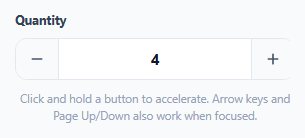
A plain <input type="number"> with spinner arrows technically supports incrementing, but its default arrows are tiny, inconsistent across browsers, and offer no acceleration for large adjustments. This snippet builds a custom stepper that treats the buttons and keyboard as two equally first-class input methods, and adds genuine press-and-hold acceleration so bulk changes don't require dozens of individual clicks.
Why acceleration needs both a delay and a ramp
startHold() fires one immediate step on press (so a quick click behaves exactly like a normal click), then waits 400ms before repeating starts — that delay exists specifically so a fast click-release doesn't accidentally trigger a second, unwanted increment from the repeat logic. Once repeating begins, each tick recursively schedules the next one with a *shrinking* delay (speedMs decreases by 15ms per tick down to a 30ms floor), so holding the button feels like it's accelerating rather than repeating at one constant, either too-slow or too-fast rate throughout the hold.
Why pointer events, not click, drive the hold behavior
The stepper listens for pointerdown/pointerup/pointerleave/pointercancel rather than click, because click only fires once per full press-release cycle and gives no way to detect an ongoing hold. Pointer events unify mouse, touch, and pen input under one API, so the same hold-and-accelerate logic works correctly whether a user is clicking with a mouse or pressing with a finger on a touchscreen — and pointercancel/pointerleave both clear the timers so a hold doesn't keep incrementing after the pointer leaves the button or the interaction is interrupted by the OS.
Full keyboard parity, not just Tab-then-click
When the input is focused, arrow keys step by 1, Page Up/Page Down step by a larger increment (5), and Home/End jump straight to the min/max bounds — mirroring the keyboard conventions of native range sliders and select elements. This means a keyboard-only user isn't stuck clicking tiny buttons repeatedly; they get the same fast bulk-adjustment ability the long-press gives mouse users, through a completely different interaction path.
Clamping happens in exactly one place
Every code path that changes the value — button clicks, keyboard steps, and free typing on blur — routes through setValue(), which calls clamp() before writing back to the input and immediately calls updateButtonStates() to disable whichever button would push the value out of range. Because clamping lives in a single function rather than being duplicated at each call site, the min/max bounds can never be violated by any interaction method, and the disabled-button visual feedback always stays in sync with the actual value.
Build with AI
Build, Understand, Optimize, and Extend It With AI
Ask an AI assistant to explain why the acceleration logic needs both an initial delay and a shrinking interval rather than a single fixed repeat rate, and why Pointer Events were chosen over separate mouse and touch event handlers. It's also worth asking for a version that supports a configurable step size per keypress modifier (e.g. holding Shift while pressing arrow keys jumps by 10 instead of 1), or one that formats the displayed value with a unit suffix while keeping the underlying numeric value clean.
Prompt to recreate it
Copy this into your AI assistant of choice to build the effect from scratch, or as a jumping-off point for your own variant:
Build a numeric stepper input in HTML, CSS, and vanilla JavaScript with full keyboard control and press-and-hold button acceleration — no external library.

Requirements:
- A text input flanked by a decrement and increment button, clamped to a configurable min/max range with a configurable step size.
- Clicking a button once performs exactly one step with no delay. Pressing and holding a button, after roughly 400ms, begins repeating the step on an interval that accelerates the longer it is held, down to a fast floor rate — implemented using Pointer Events (not click) so mouse, touch, and pen input all trigger the same hold behavior, and releasing, leaving, or having the pointer interaction cancelled all stop the repeat immediately.
- When the input itself has keyboard focus, Arrow Up/Down should step by the normal step size, Page Up/Page Down should step by a larger jump size, and Home/End should jump directly to the minimum and maximum bounds.
- All value changes, regardless of which interaction triggered them, must be clamped through one shared function so the min/max bounds can never be exceeded by any input method.
- Both buttons should visually disable themselves exactly when the value is at the corresponding bound, and re-enable immediately when it moves away from that bound.
- Typing directly into the field should strip non-numeric characters live and clamp the final value when the field loses focus.
Want to tighten it up first? Run this prompt through the AI Prompt Studio to score it across 8 quality dimensions, catch anti-patterns, and tune the wording for Claude, ChatGPT, or Gemini before you paste it in.
Source Code
<div class="demo">
  <label class="stepper-label" for="qty">Quantity</label>
  <div class="stepper" id="stepper">
    <button type="button" class="step-btn" id="decBtn" aria-label="Decrease quantity">
      <svg viewBox="0 0 24 24" width="16" height="16" fill="none" stroke="currentColor" stroke-width="2.5" stroke-linecap="round"><path d="M5 12h14"/></svg>
    </button>
    <input type="text" id="qty" class="step-input" value="4" inputmode="numeric" aria-live="polite" />
    <button type="button" class="step-btn" id="incBtn" aria-label="Increase quantity">
      <svg viewBox="0 0 24 24" width="16" height="16" fill="none" stroke="currentColor" stroke-width="2.5" stroke-linecap="round"><path d="M12 5v14M5 12h14"/></svg>
    </button>
  </div>
  <p class="stepper-hint">Click and hold a button to accelerate. Arrow keys and Page Up/Down also work when focused.</p>
</div>
* { box-sizing: border-box; margin: 0; padding: 0; }
body { font-family: system-ui, sans-serif; background: #f8fafc; display: flex; align-items: center; justify-content: center; min-height: 100vh; padding: 24px; }
.demo { display: flex; flex-direction: column; align-items: center; gap: 10px; width: 280px; max-width: 100%; }
.stepper-label { font-size: 12.5px; font-weight: 700; color: #334155; align-self: flex-start; }
.stepper { display: flex; align-items: stretch; border: 1.5px solid #e2e8f0; border-radius: 12px; overflow: hidden; background: #fff; width: 100%; }
.step-btn { width: 42px; flex-shrink: 0; border: none; background: #f8fafc; color: #475569; display: flex; align-items: center; justify-content: center; cursor: pointer; transition: background 0.12s, color 0.12s; user-select: none; }
.step-btn:hover { background: #eef2ff; color: #4338ca; }
.step-btn:active { background: #e0e7ff; }
.step-btn:focus-visible { outline: 2px solid #6366f1; outline-offset: -2px; }
.step-btn:disabled { opacity: 0.35; cursor: not-allowed; background: #f8fafc; color: #475569; }
.step-input { flex: 1; min-width: 0; border: none; border-left: 1.5px solid #e2e8f0; border-right: 1.5px solid #e2e8f0; text-align: center; font-size: 15px; font-weight: 700; color: #0f172a; font-family: inherit; padding: 10px 4px; -moz-appearance: textfield; }
.step-input:focus-visible { outline: none; background: #f8fafc; }
.stepper-hint { font-size: 11.5px; color: #94a3b8; text-align: center; line-height: 1.5; }const stepper = document.getElementById('stepper');
const input = document.getElementById('qty');
const decBtn = document.getElementById('decBtn');
const incBtn = document.getElementById('incBtn');
const MIN = 0;
const MAX = 99;
const STEP = 1;
const PAGE_STEP = 5;
let holdTimer = null;
let accelInterval = null;
function clamp(n) {
return Math.min(MAX, Math.max(MIN, n));
}
function getValue() {
const n = parseInt(input.value, 10);
return isNaN(n) ? 0 : n;
}
function setValue(n) {
input.value = String(clamp(n));
updateButtonStates();
}
function updateButtonStates() {
const n = getValue();
decBtn.disabled = n <= MIN;
incBtn.disabled = n >= MAX;
}
function step(delta) {
setValue(getValue() + delta);
}
// Long-press acceleration: a short delay before repeating starts (so a single
// click doesn't double-fire), then repeats on an interval that speeds up the
// longer the button stays held — small increments become fast bulk changes
// without the user ever needing to click dozens of times.
function startHold(delta) {
step(delta);
clearTimers();
holdTimer = setTimeout(() => {
let speedMs = 160;
const tick = () => {
step(delta);
speedMs = Math.max(30, speedMs - 15); // accelerate down to a 30ms floor
accelInterval = setTimeout(tick, speedMs);
};
tick();
}, 400);
}
function clearTimers() {
if (holdTimer) clearTimeout(holdTimer);
if (accelInterval) clearTimeout(accelInterval);
holdTimer = null;
accelInterval = null;
}
[decBtn, incBtn].forEach((btn) => {
const delta = btn === decBtn ? -STEP : STEP;
btn.addEventListener('pointerdown', (e) => { e.preventDefault(); startHold(delta); });
btn.addEventListener('pointerup', clearTimers);
btn.addEventListener('pointerleave', clearTimers);
btn.addEventListener('pointercancel', clearTimers);
});
input.addEventListener('keydown', (e) => {
if (e.key === 'ArrowUp') { e.preventDefault(); step(STEP); }
else if (e.key === 'ArrowDown') { e.preventDefault(); step(-STEP); }
else if (e.key === 'PageUp') { e.preventDefault(); step(PAGE_STEP); }
else if (e.key === 'PageDown') { e.preventDefault(); step(-PAGE_STEP); }
else if (e.key === 'Home') { e.preventDefault(); setValue(MIN); }
else if (e.key === 'End') { e.preventDefault(); setValue(MAX); }
});
input.addEventListener('input', () => {
// Allow free typing, but strip non-digits live so the field never holds garbage.
input.value = input.value.replace(/[^0-9]/g, '');
});
input.addEventListener('blur', () => setValue(getValue()));
updateButtonStates();Step by step
How to Use
- 1Click a button onceFires a single immediate step with no delay, behaving exactly like a normal button click.
- 2Press and hold a buttonAfter a short 400ms delay, the value starts repeating, accelerating from a slower to a faster rate the longer it is held.
- 3Focus the input and use the keyboardArrow Up/Down step by 1, Page Up/Down step by 5, and Home/End jump straight to the min and max bounds.
- 4Type a value directlyNon-digit characters are stripped live; the value is clamped to the valid range when the field loses focus.
- 5Adjust MIN, MAX, STEP, and PAGE_STEPChange the constants at the top of the JS to match your own valid range and step size.
Real-world uses
Common Use Cases
Got questions?
Frequently Asked Questions
Without it, a fast click-release would still trigger the repeat logic's first extra tick, effectively double-incrementing on a normal single click. The delay ensures repeating only begins once a press is genuinely held, not just quickly clicked.
click only fires once per full press-release cycle, giving no way to detect an ongoing hold. Pointer events (pointerdown/up/leave/cancel) unify mouse, touch, and pen, letting the same hold-and-accelerate logic work correctly across input types.
setValue() clamps every write to the MIN/MAX range, and the button disables itself once the bound is reached — held or not, the value simply stops changing at the limit.
Yes — Arrow Up/Down, Page Up/Down, and Home/End are all bound to the text input itself, so once it has focus (by click or Tab), the full keyboard range works independent of the buttons.
The input event listener strips any non-digit character immediately as you type, so the field can never hold invalid characters; the final value is also clamped to the valid range on blur.
Adjust the starting speedMs value (currently 160ms) and the per-tick decrement (currently 15ms) or the floor (currently 30ms) inside startHold() — smaller floor values make the fastest repeat rate faster.