Learn Coding Visually
Learn to code with interactive, live-preview playgrounds — HTML, CSS, JavaScript, React & more.
 HTML Playground42 lessons · Click-based · Live preview
 CSS PlaygroundLearn CSS with a live editor
 JavaScript Playground60 lessons · DOM · Async · Canvas
 React PlaygroundLearn React with a live code editor
 GSAP PlaygroundLearn GSAP animation interactively
 SVG Playground44 lessons · shapes · paths · animation
 SCSS Playground45 lessons · Sass modules · tokens
 Tailwind PlaygroundLearn Tailwind CSS with a live editor
 Bootstrap 5 Playground50 lessons · live preview
Cookie Preferences Modal — Free HTML CSS JS Snippet
Cookie Preferences · Modals · Plain HTML, CSS & JS · Live preview
What's included
Features
About this UI Snippet
Cookie Preferences Modal — GDPR Consent Banner with Category Toggles
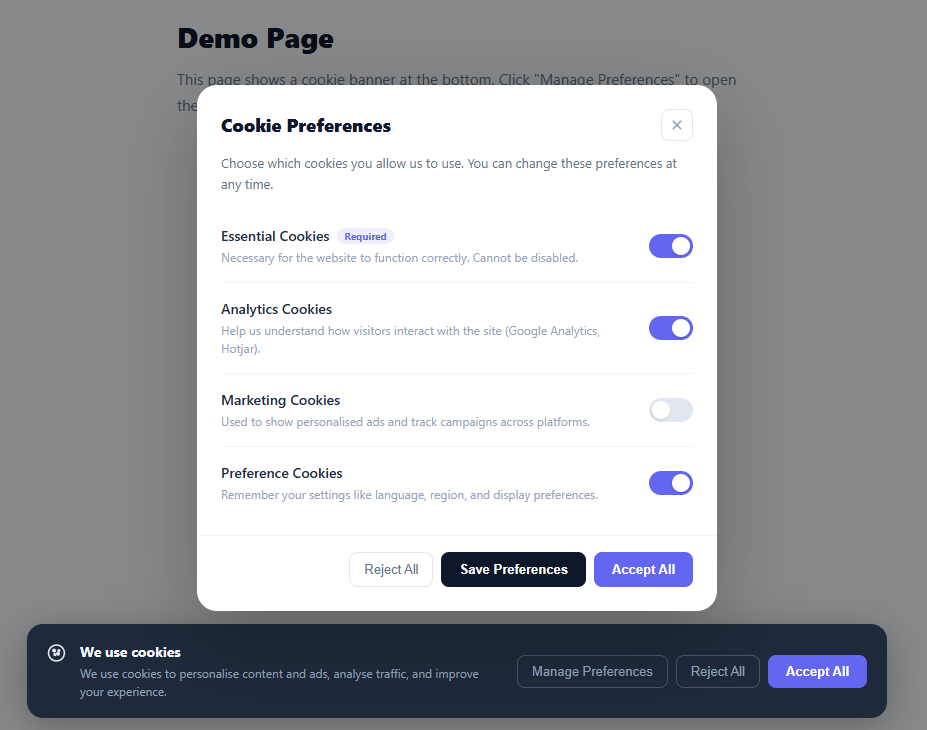
A cookie preferences modal is a legal requirement for websites under GDPR (EU), CCPA (California), and similar privacy regulations. This snippet provides a complete cookie consent system: a fixed bottom banner with Accept All, Reject All, and Manage Preferences buttons; a modal overlay with per-category toggle switches (Essential, Analytics, Marketing, Preferences); and a confirmation state after any choice is saved.
The banner layout
The .banner uses position: fixed, bottom: 20px, left: 50% with transform: translateX(-50%) to centre it above the page footer. A max-width: 860px keeps it from stretching too wide on large screens. The backdrop is a fixed overlay that darkens the page when the modal is open.
The CSS toggle switches
Each cookie category uses the same CSS toggle pattern: a hidden checkbox + .track pseudo-element. The Essential Cookies toggle has disabled attribute and .disabled class — its .track background is set to a light indigo (always-on appearance) without the cursor: pointer, communicating that it cannot be changed. The other three toggles start with different default states (Analytics: on, Marketing: off, Preferences: on) to demonstrate a realistic defaults scenario.
The three action paths
Accept All checks all three optional checkboxes before calling dismiss(). Reject All unchecks all three before calling dismiss(). Save Preferences reads the current checkbox states and builds a summary message before calling dismiss(). All three then hide the banner and show the status confirmation box on the page.
GDPR compliance notes
This snippet provides the UI pattern. For actual legal compliance, integrate with a Consent Management Platform (CMP) like the GDPR consent manager or store consent preferences in a cookie: document.cookie = "consent=" + JSON.stringify({ analytics, marketing, preferences }) + "; max-age=31536000; SameSite=Lax". Only load third-party analytics/ad scripts after the user has given consent.
Conditional script injection after consent
The most important production step is ensuring that tracking scripts are never executed before the user grants the relevant consent. The standard technique is to not include script tags for Google Analytics, Facebook Pixel, or any ad network in the initial HTML. Instead, dynamically create and append script elements only inside the acceptAll() or savePrefs() callback after reading the consent flags. For Tag Manager (GTM) workflows, push a custom dataLayer event: window.dataLayer.push({ event: "cookie_consent_update", analytics_consent: "granted" }) and configure GTM triggers that fire only when this event is present. This keeps all tracking logic in GTM without code changes for future tag additions.
Re-opening the preferences modal
Users must be able to withdraw or change consent at any time under GDPR. Add a "Cookie Settings" link in your site footer that calls openModal() to re-show the modal at any time. Read the current saved consent cookie and pre-populate the toggle checkboxes to their last saved state so users see their existing choices before making changes. After they save again, overwrite the consent cookie with the new values and apply or remove scripts accordingly — marketing scripts already injected may need a page reload to fully deactivate.
Build with AI
Build, Understand, Optimize, and Extend It With AI
You don't have to work out why the essential toggle looks locked just by staring at the CSS. Paste this snippet's HTML, CSS, and JS into an AI coding assistant like Claude and ask it to explain exactly how the disabled attribute combined with the toggle.disabled class communicates "always on" both visually and functionally, and why acceptAll, reject, and savePrefs all funnel through one shared dismiss function instead of duplicating the close-and-confirm logic three times. The same assistant can help optimize it — for instance asking whether the individual getElementById calls in acceptAll and reject should be cached once rather than re-queried on every action. It's also useful for extending the panel: ask it to persist the saved category choices to a cookie with an expiry and re-render the toggles from that stored state on return visits, gate real analytics/ad script loading strictly behind the analytics and marketing flags, or add a version number to the consent record so policy changes force a re-prompt. Treat the code less like a finished artifact and more like a starting point for a conversation.
Prompt to recreate it
Copy this into your AI assistant of choice to build the effect from scratch, or as a jumping-off point for your own variant:
Build a granular cookie-consent system in plain HTML, CSS, and JavaScript combining a bottom banner and a detailed preferences modal — no consent-management library, no frameworks.

Requirements:
- A bottom banner shown on load with three actions: Accept All, Reject All, and Manage Preferences, the last of which opens a modal dialog with a backdrop.
- The modal must list at least four cookie categories, each with a name, a plain-language description, and its own toggle switch, where one category (Essential/Strictly Necessary) is visually marked as required, its toggle is checked and disabled so it cannot be turned off, and every bulk action (accept/reject) must explicitly skip that required category rather than trying to toggle a disabled control.
- Each toggle switch must be built from a real checkbox input (not just a styled div) paired with a sibling element that renders the visual track and knob via CSS selectors keyed off the checkbox's checked and disabled states, so the switches remain keyboard-operable and screen-reader friendly.
- Three actions in the modal footer — Reject All, Save Preferences, Accept All — where Accept All checks every non-required category, Reject All unchecks every non-required category, and Save Preferences reads whatever the current toggle states are without changing them, and all three must funnel through one shared function that closes both the modal and the banner and shows a single confirmation message summarizing exactly which categories ended up enabled.
- The confirmation message must be built dynamically from the actual current checkbox states at the moment the user acts, not from a hardcoded string, so it always accurately reflects what was consented to.
- Structure the code so that the confirmation/save step is the one clear place where a real implementation would persist the choice (e.g. to a cookie) and conditionally load third-party analytics or marketing scripts only for the categories the user actually enabled.
Want to tighten it up first? Run this prompt through the AI Prompt Studio to score it across 8 quality dimensions, catch anti-patterns, and tune the wording for Claude, ChatGPT, or Gemini before you paste it in.
Source Code
<div class="page">
<div class="backdrop" id="backdrop"></div>
<div class="banner" id="banner">
<div class="banner-left">
<svg width="22" height="22" viewBox="0 0 24 24" fill="none" stroke="currentColor" stroke-width="2"><circle cx="12" cy="12" r="10"/><circle cx="9" cy="9" r="1.5" fill="currentColor"/><circle cx="15" cy="9" r="1" fill="currentColor"/><circle cx="10" cy="14" r="1" fill="currentColor"/><circle cx="14" cy="13" r="1.5" fill="currentColor"/></svg>
<div>
<div class="banner-title">We use cookies</div>
<div class="banner-sub">We use cookies to personalise content and ads, analyse traffic, and improve your experience.</div>
</div>
</div>
<div class="banner-btns">
<button class="btn-pref" onclick="openModal()">Manage Preferences</button>
<button class="btn-reject" onclick="reject()">Reject All</button>
<button class="btn-accept" onclick="acceptAll()">Accept All</button>
</div>
</div>
<div class="modal" id="modal" style="display:none">
<div class="modal-box">
<div class="modal-head">
<h2 class="modal-title">Cookie Preferences</h2>
<button class="modal-close" onclick="closeModal()">
<svg width="16" height="16" viewBox="0 0 24 24" fill="none" stroke="currentColor" stroke-width="2.5"><line x1="18" y1="6" x2="6" y2="18"/><line x1="6" y1="6" x2="18" y2="18"/></svg>
</button>
</div>
<p class="modal-desc">Choose which cookies you allow us to use. You can change these preferences at any time.</p>
<div class="pref-list">
<div class="pref-row required">
<div class="pref-info">
<div class="pref-name">Essential Cookies <span class="required-badge">Required</span></div>
<div class="pref-desc">Necessary for the website to function correctly. Cannot be disabled.</div>
</div>
<label class="toggle disabled"><input type="checkbox" checked disabled><span class="track"></span></label>
</div>
<div class="pref-row">
<div class="pref-info">
<div class="pref-name">Analytics Cookies</div>
<div class="pref-desc">Help us understand how visitors interact with the site (Google Analytics, Hotjar).</div>
</div>
<label class="toggle"><input type="checkbox" id="analytics" checked><span class="track"></span></label>
</div>
<div class="pref-row">
<div class="pref-info">
<div class="pref-name">Marketing Cookies</div>
<div class="pref-desc">Used to show personalised ads and track campaigns across platforms.</div>
</div>
<label class="toggle"><input type="checkbox" id="marketing"><span class="track"></span></label>
</div>
<div class="pref-row">
<div class="pref-info">
<div class="pref-name">Preference Cookies</div>
<div class="pref-desc">Remember your settings like language, region, and display preferences.</div>
</div>
<label class="toggle"><input type="checkbox" id="preferences" checked><span class="track"></span></label>
</div>
</div>
<div class="modal-footer">
<button class="btn-reject-sm" onclick="reject()">Reject All</button>
<button class="btn-save" onclick="savePrefs()">Save Preferences</button>
<button class="btn-accept" onclick="acceptAll()">Accept All</button>
</div>
</div>
</div>
<div class="page-content">
<h1>Demo Page</h1>
<p>This page shows a cookie banner at the bottom. Click "Manage Preferences" to open the cookie preferences modal.</p>
<div class="status-box" id="statusBox" style="display:none">
<div class="status-icon">✓</div>
<div id="statusMsg"></div>
</div>
</div>
</div>* { box-sizing: border-box; margin: 0; padding: 0; }
body { font-family: system-ui, sans-serif; background: #f8fafc; min-height: 100vh; }
.page { min-height: 100vh; }
.page-content { max-width: 600px; margin: 0 auto; padding: 60px 20px; }
.page-content h1 { font-size: 28px; font-weight: 800; color: #0f172a; margin-bottom: 12px; }
.page-content p { font-size: 15px; color: #64748b; line-height: 1.7; }
.status-box { display: flex; align-items: center; gap: 12px; margin-top: 24px; background: #f0fdf4; border: 1px solid #bbf7d0; border-radius: 12px; padding: 14px 18px; color: #16a34a; font-size: 14px; font-weight: 600; }
.status-icon { font-size: 18px; }
.backdrop { position: fixed; inset: 0; background: rgba(0,0,0,0.45); display: none; z-index: 100; }
.backdrop.show { display: block; }
.banner { position: fixed; bottom: 20px; left: 50%; transform: translateX(-50%); width: calc(100% - 40px); max-width: 860px; background: #1e293b; border-radius: 16px; padding: 18px 20px; display: flex; align-items: center; justify-content: space-between; gap: 16px; flex-wrap: wrap; z-index: 200; box-shadow: 0 8px 40px rgba(0,0,0,0.3); }
.banner-left { display: flex; align-items: flex-start; gap: 14px; flex: 1; color: #e2e8f0; min-width: 200px; }
.banner-title { font-size: 14px; font-weight: 700; color: #f8fafc; margin-bottom: 3px; }
.banner-sub { font-size: 12px; color: #94a3b8; line-height: 1.5; }
.banner-btns { display: flex; gap: 8px; flex-wrap: wrap; flex-shrink: 0; }
.btn-pref { background: none; border: 1px solid #475569; color: #94a3b8; padding: 8px 14px; border-radius: 8px; font-size: 13px; cursor: pointer; transition: all 0.15s; white-space: nowrap; }
.btn-pref:hover { border-color: #94a3b8; color: #f8fafc; }
.btn-reject { background: none; border: 1px solid #475569; color: #94a3b8; padding: 8px 14px; border-radius: 8px; font-size: 13px; cursor: pointer; transition: all 0.15s; white-space: nowrap; }
.btn-reject:hover { border-color: #94a3b8; color: #f8fafc; }
.btn-accept { background: #6366f1; border: none; color: #fff; padding: 8px 18px; border-radius: 8px; font-size: 13px; font-weight: 700; cursor: pointer; transition: background 0.15s; white-space: nowrap; }
.btn-accept:hover { background: #4f46e5; }
.modal { position: fixed; inset: 0; display: flex; align-items: center; justify-content: center; z-index: 300; padding: 20px; }
.modal-box { background: #fff; border-radius: 20px; max-width: 520px; width: 100%; max-height: 90vh; overflow-y: auto; box-shadow: 0 24px 80px rgba(0,0,0,0.25); }
.modal-head { display: flex; align-items: center; justify-content: space-between; padding: 24px 24px 0; }
.modal-title { font-size: 18px; font-weight: 800; color: #0f172a; }
.modal-close { background: none; border: 1px solid #e2e8f0; color: #94a3b8; width: 32px; height: 32px; border-radius: 8px; cursor: pointer; display: flex; align-items: center; justify-content: center; transition: all 0.15s; }
.modal-close:hover { background: #f1f5f9; color: #475569; }
.modal-desc { font-size: 13px; color: #64748b; padding: 12px 24px 0; line-height: 1.6; }
.pref-list { padding: 16px 24px; display: flex; flex-direction: column; gap: 0; }
.pref-row { display: flex; align-items: center; justify-content: space-between; gap: 16px; padding: 16px 0; border-bottom: 1px solid #f1f5f9; }
.pref-row:last-child { border-bottom: none; }
.pref-info { flex: 1; }
.pref-name { font-size: 14px; font-weight: 600; color: #1e293b; margin-bottom: 3px; display: flex; align-items: center; gap: 8px; }
.required-badge { font-size: 10px; font-weight: 700; background: rgba(99,102,241,0.1); color: #6366f1; padding: 1px 7px; border-radius: 10px; }
.pref-desc { font-size: 12px; color: #94a3b8; line-height: 1.5; }
.toggle { position: relative; width: 44px; height: 24px; flex-shrink: 0; }
.toggle input { opacity: 0; width: 0; height: 0; }
.track { position: absolute; inset: 0; background: #e2e8f0; border-radius: 12px; cursor: pointer; transition: background 0.2s; }
.track::after { content: ''; position: absolute; width: 18px; height: 18px; border-radius: 50%; background: #fff; top: 3px; left: 3px; transition: transform 0.2s; box-shadow: 0 1px 3px rgba(0,0,0,0.2); }
.toggle input:checked + .track { background: #6366f1; }
.toggle input:checked + .track::after { transform: translateX(20px); }
.toggle.disabled .track { background: #c7d2fe; cursor: not-allowed; }
.toggle.disabled .track::after { transform: translateX(20px); }
.modal-footer { display: flex; gap: 8px; justify-content: flex-end; padding: 16px 24px 24px; border-top: 1px solid #f1f5f9; flex-wrap: wrap; }
.btn-reject-sm { background: none; border: 1px solid #e2e8f0; color: #64748b; padding: 9px 14px; border-radius: 8px; font-size: 13px; cursor: pointer; transition: all 0.15s; }
.btn-reject-sm:hover { background: #f8fafc; }
.btn-save { background: #0f172a; color: #fff; border: none; padding: 9px 18px; border-radius: 8px; font-size: 13px; font-weight: 700; cursor: pointer; transition: background 0.15s; }
.btn-save:hover { background: #1e293b; }function openModal() {
document.getElementById('modal').style.display = 'flex';
document.getElementById('backdrop').classList.add('show');
}
function closeModal() {
document.getElementById('modal').style.display = 'none';
document.getElementById('backdrop').classList.remove('show');
}
function acceptAll() {
document.getElementById('analytics').checked = true;
document.getElementById('marketing').checked = true;
document.getElementById('preferences').checked = true;
dismiss('All cookies accepted. Thank you!');
}
function reject() {
document.getElementById('analytics').checked = false;
document.getElementById('marketing').checked = false;
document.getElementById('preferences').checked = false;
dismiss('Non-essential cookies rejected.');
}
function savePrefs() {
var analytics = document.getElementById('analytics').checked;
var marketing = document.getElementById('marketing').checked;
var preferences = document.getElementById('preferences').checked;
var msg = 'Saved: Essential ✓' + (analytics ? ' · Analytics ✓' : '') + (marketing ? ' · Marketing ✓' : '') + (preferences ? ' · Preferences ✓' : '');
dismiss(msg);
}
function dismiss(msg) {
closeModal();
document.getElementById('banner').style.display = 'none';
var box = document.getElementById('statusBox');
document.getElementById('statusMsg').textContent = msg;
box.style.display = 'flex';
}Step by step
How to Use
- 1See the banner on page loadThe cookie banner appears fixed at the bottom of the page. It has three buttons: Manage Preferences, Reject All, and Accept All.
- 2Open the preferences modalClick "Manage Preferences" to open the modal with four cookie categories. Essential is always on. Toggle Analytics, Marketing, and Preferences independently.
- 3Save, Accept, or RejectClick "Save Preferences" to save your current toggle states. "Accept All" turns on all optional categories. "Reject All" turns them all off. The banner dismisses and a confirmation appears on the page.
- 4Persist consent to a cookieIn the dismiss() function, save the consent state: document.cookie = "consent=" + JSON.stringify({ analytics, marketing, preferences }) + "; max-age=31536000". On page load, read this cookie and skip showing the banner if it exists.
- 5Load scripts conditionally on consentAfter accept/save, check each consent flag before injecting analytics or marketing scripts: if (analytics) { const s = document.createElement("script"); s.src = "https://www.google-analytics.com/analytics.js"; document.head.appendChild(s); }
- 6Export for your frameworkClick "JSX" for a React component with useState for modal open state and toggle values. Click "Vue" for a Vue 3 SFC with reactive consent object.
Real-world uses
Common Use Cases
Got questions?
Frequently Asked Questions
Use a cookie: document.cookie = "cookie_consent=" + JSON.stringify({ analytics: true, marketing: false, preferences: true }) + "; max-age=31536000; path=/; SameSite=Lax". On DOMContentLoaded, read with document.cookie and skip showing the banner if "cookie_consent=" is found. Parse with JSON.parse(cookieVal) to get the per-category choices.
The UI meets the visual and functional requirements (prior consent, granular controls, easy rejection, no pre-ticked marketing boxes). Legal compliance also requires: storing a dated consent record linked to the user, a privacy policy link, ability to withdraw consent, and only loading tracking scripts after consent. Consult a lawyer or use a full CMP for regulated environments.
In acceptAll() or savePrefs(), check analytics consent: if (analytics) { window.dataLayer = window.dataLayer || []; function gtag(){ dataLayer.push(arguments); } gtag("js", new Date()); gtag("config", "GA_ID"); const s = document.createElement("script"); s.src = "https://www.googletagmanager.com/gtag/js?id=GA_ID"; s.async = true; document.head.appendChild(s); }
In React, manage state with const [visible, setVisible] = useState(true) for the banner, const [modalOpen, setModalOpen] = useState(false), and const [prefs, setPrefs] = useState({ analytics: true, marketing: false, preferences: true }). Read persisted consent from localStorage on mount in useEffect. In Vue 3, use ref(true) for bannerVisible and a reactive() object for prefs. In Angular, create a CookieConsentService with BehaviorSubject<ConsentPrefs> and inject it into your app root component. All three frameworks follow the same pattern: read → show banner if no saved consent → save on user action.