Learn Coding Visually
Learn to code with interactive, live-preview playgrounds — HTML, CSS, JavaScript, React & more.
 HTML Playground42 lessons · Click-based · Live preview
 CSS PlaygroundLearn CSS with a live editor
 JavaScript Playground60 lessons · DOM · Async · Canvas
 React PlaygroundLearn React with a live code editor
 GSAP PlaygroundLearn GSAP animation interactively
 SVG Playground44 lessons · shapes · paths · animation
 SCSS Playground45 lessons · Sass modules · tokens
 Tailwind PlaygroundLearn Tailwind CSS with a live editor
 Bootstrap 5 Playground50 lessons · live preview
Audio Waveform Tone Visualizer — Free HTML CSS JS Snippet
Audio Waveform Tone Visualizer · Charts · Plain HTML, CSS & JS · Live preview
What's included
Features
About this UI Snippet
Audio Waveform Tone Visualizer — Live Oscilloscope With Web Audio API
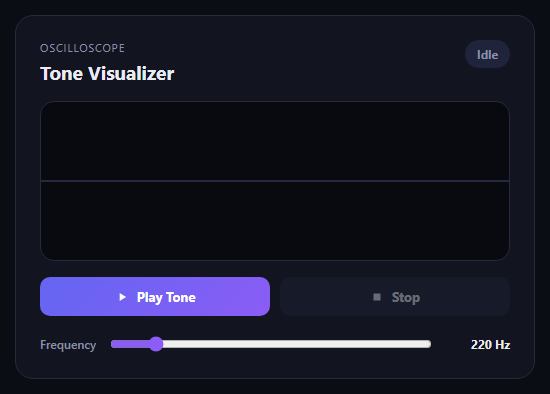
This snippet builds a real-time oscilloscope out of nothing but the browser's Web Audio API and a canvas element — no audio files, no libraries. Pressing Play Tone starts an AudioContext, generates a sine wave with an OscillatorNode, and routes it through an AnalyserNode so the raw waveform samples can be drawn to the screen as they happen.
The audio graph
Three nodes are wired together: the OscillatorNode generates the tone, a GainNode sets its volume, and an AnalyserNode taps the signal before it reaches the speakers via audioCtx.destination. The AnalyserNode doesn't change the sound at all — it's a read-only observation point that exposes analyser.getByteTimeDomainData(), the raw amplitude samples used to draw the waveform.
Drawing the waveform
A requestAnimationFrame loop repeatedly calls getByteTimeDomainData() into a Uint8Array, then walks the array plotting each sample as a point on the canvas, connected into a continuous line. Because the loop runs on every animation frame while the oscillator keeps generating a fresh signal, the line appears to move and breathe in real time — a true oscilloscope trace of the actual audio being generated, not a decorative animation.
Live frequency control
Dragging the frequency slider sets oscillator.frequency.value directly while the tone is playing — the Web Audio API allows this property to be changed on a live, connected oscillator node, so the pitch and the waveform's visual period both shift immediately without needing to restart the AudioContext.
Clean teardown
Stop cancels the animation frame, stops and disconnects the oscillator, disconnects the gain and analyser nodes, and closes the AudioContext entirely, so no audio processing or animation keeps running in the background after the user is done.
Build with AI
Build, Understand, Optimize, and Extend It With AI
Hand this snippet's HTML, CSS, and JavaScript to an AI coding assistant like Claude and ask it to adapt "Audio Waveform Tone Visualizer" to your project — restyle it to match your design system, wire it up to real data instead of the static example, or port it to the framework you're building in.
Prompt to recreate it
Copy this into your AI assistant of choice to build the effect from scratch, or as a jumping-off point for your own variant:
Build a charts component called "Audio Waveform Tone Visualizer" using plain HTML, CSS, and vanilla JavaScript — no framework, no build step.

Requirements:
- Match the structure and behavior of the "Audio Waveform Tone Visualizer" snippet from the UI Snippets Library.
- Keep the markup semantic and the styling self-contained (no external dependencies beyond what the original snippet uses).
- Keep the JavaScript vanilla, with no framework runtime required.
- Make it easy to restyle via CSS custom properties or class overrides so it can be dropped into a real project.
Want to tighten it up first? Run this prompt through the AI Prompt Studio to score it across 8 quality dimensions, catch anti-patterns, and tune the wording for Claude, ChatGPT, or Gemini before you paste it in.
Source Code
<div class="wv-card">
  <div class="wv-head">
    <div>
      <span class="wv-eyebrow">Oscilloscope</span>
      <h2>Tone Visualizer</h2>
    </div>
    <span class="wv-status" id="wvStatus">Idle</span>
  </div>

  <canvas class="wv-canvas" id="wvCanvas" width="600" height="200"></canvas>

  <div class="wv-controls">
    <button class="wv-btn wv-btn-play" id="wvPlayBtn">
      <svg width="14" height="14" viewBox="0 0 24 24" fill="currentColor"><path d="M8 5v14l11-7z"/></svg>
      Play Tone
    </button>
    <button class="wv-btn wv-btn-stop" id="wvStopBtn" disabled>
      <svg width="14" height="14" viewBox="0 0 24 24" fill="currentColor"><path d="M6 6h12v12H6z"/></svg>
      Stop
    </button>
  </div>

  <div class="wv-slider-row">
    <label for="wvFreq">Frequency</label>
    <input type="range" id="wvFreq" min="80" max="1200" value="220" step="1" />
    <span class="wv-freq-val" id="wvFreqVal">220 Hz</span>
  </div>
</div>*{box-sizing:border-box}
body{font-family:system-ui,-apple-system,sans-serif;background:#0b0d14;min-height:100vh;display:flex;align-items:center;justify-content:center;padding:24px}
.wv-card{font-family:system-ui,-apple-system,sans-serif;background:#12141f;color:#e9ebf5;border:1px solid #262a3b;border-radius:18px;padding:24px;max-width:520px;width:100%;margin:0 auto}
.wv-head{display:flex;justify-content:space-between;align-items:flex-start;margin-bottom:16px;gap:10px}
.wv-eyebrow{display:block;font-size:11px;letter-spacing:.08em;text-transform:uppercase;color:#8b90a8;margin-bottom:4px}
.wv-head h2{font-size:19px;margin:0}
.wv-status{font-size:12px;font-weight:700;background:#20243a;color:#8b90a8;padding:6px 12px;border-radius:999px;white-space:nowrap;transition:all .2s}
.wv-status.wv-live{background:rgba(74,222,128,.14);color:#4ade80}
.wv-canvas{width:100%;height:160px;background:#080a10;border-radius:14px;border:1px solid #262a3b;display:block;margin-bottom:16px}
.wv-controls{display:flex;gap:10px;margin-bottom:18px}
.wv-btn{flex:1;display:flex;align-items:center;justify-content:center;gap:8px;padding:11px 16px;border-radius:10px;border:none;font-size:13px;font-weight:700;cursor:pointer;font-family:inherit;transition:transform .1s, opacity .2s}
.wv-btn:active{transform:scale(.97)}
.wv-btn:disabled{opacity:.4;cursor:not-allowed}
.wv-btn-play{background:linear-gradient(135deg,#6366f1,#8b5cf6);color:#fff}
.wv-btn-stop{background:#20243a;color:#e9ebf5}
.wv-slider-row{display:flex;align-items:center;gap:12px}
.wv-slider-row label{font-size:12px;color:#8b90a8;font-weight:600;flex-shrink:0}
.wv-slider-row input[type="range"]{flex:1;accent-color:#8b5cf6}
.wv-freq-val{font-size:12px;font-weight:700;color:#e9ebf5;width:64px;text-align:right;flex-shrink:0}var canvas = document.getElementById('wvCanvas');
var ctx = canvas.getContext('2d');
var playBtn = document.getElementById('wvPlayBtn');
var stopBtn = document.getElementById('wvStopBtn');
var statusEl = document.getElementById('wvStatus');
var freqSlider = document.getElementById('wvFreq');
var freqVal = document.getElementById('wvFreqVal');
var audioCtx = null;
var oscillator = null;
var gainNode = null;
var analyser = null;
var rafId = null;
var dataArray = null;
function drawIdle() {
ctx.clearRect(0, 0, canvas.width, canvas.height);
ctx.strokeStyle = '#2c3148';
ctx.lineWidth = 2;
ctx.beginPath();
ctx.moveTo(0, canvas.height / 2);
ctx.lineTo(canvas.width, canvas.height / 2);
ctx.stroke();
}
function drawFrame() {
analyser.getByteTimeDomainData(dataArray);
ctx.clearRect(0, 0, canvas.width, canvas.height);
ctx.lineWidth = 2.5;
ctx.strokeStyle = '#8b5cf6';
ctx.beginPath();
var sliceWidth = canvas.width / dataArray.length;
var x = 0;
for (var i = 0; i < dataArray.length; i++) {
var v = dataArray[i] / 128.0;
var y = (v * canvas.height) / 2;
if (i === 0) {
ctx.moveTo(x, y);
} else {
ctx.lineTo(x, y);
}
x += sliceWidth;
}
ctx.lineTo(canvas.width, canvas.height / 2);
ctx.stroke();
rafId = requestAnimationFrame(drawFrame);
}
function startTone() {
audioCtx = new (window.AudioContext || window.webkitAudioContext)();
oscillator = audioCtx.createOscillator();
gainNode = audioCtx.createGain();
analyser = audioCtx.createAnalyser();
analyser.fftSize = 2048;
dataArray = new Uint8Array(analyser.frequencyBinCount);
oscillator.type = 'sine';
oscillator.frequency.value = parseFloat(freqSlider.value);
gainNode.gain.value = 0.2;
oscillator.connect(gainNode);
gainNode.connect(analyser);
analyser.connect(audioCtx.destination);
oscillator.start();
playBtn.disabled = true;
stopBtn.disabled = false;
statusEl.textContent = 'Playing';
statusEl.classList.add('wv-live');
drawFrame();
}
function stopTone() {
if (rafId) {
cancelAnimationFrame(rafId);
rafId = null;
}
if (oscillator) {
try { oscillator.stop(); } catch (e) {}
oscillator.disconnect();
oscillator = null;
}
if (gainNode) { gainNode.disconnect(); gainNode = null; }
if (analyser) { analyser.disconnect(); analyser = null; }
if (audioCtx) {
audioCtx.close();
audioCtx = null;
}
playBtn.disabled = false;
stopBtn.disabled = true;
statusEl.textContent = 'Idle';
statusEl.classList.remove('wv-live');
drawIdle();
}
playBtn.addEventListener('click', startTone);
stopBtn.addEventListener('click', stopTone);
freqSlider.addEventListener('input', function () {
var freq = parseFloat(freqSlider.value);
freqVal.textContent = freq + ' Hz';
if (oscillator) {
oscillator.frequency.value = freq;
}
});
drawIdle();Step by step
How to Use
- 1Load the snippetClick "Audio Waveform Tone Visualizer" in the sidebar to load its HTML, CSS, and JS into the editor panels. The preview updates instantly.
- 2Edit the codeModify any panel — HTML, CSS, or JS. The preview refreshes as you type. Use Reset in each panel header to restore the original.
- 3Preview on devicesClick the Mobile (375px), Tablet (768px), or Desktop buttons in the preview header to check responsiveness.
- 4Export in your formatClick "HTML" to download a standalone file, "JSX" for a React component, "Tailwind" for a React + Tailwind CSS component, "Tailwind HTML" for a standalone HTML file with Tailwind CDN, "Vue" for a Vue 3 SFC with <template>/<script setup>/<style scoped>, or "Angular" for a standalone Angular .component.ts file. "Copy all" copies the full code to clipboard.
- 5Save your versionClick "Save as", type a name, and press Enter. Your snippet saves to IndexedDB and appears in the Saved tab.
Real-world uses
Common Use Cases
Got questions?
Frequently Asked Questions
Browsers require a real user gesture before allowing an AudioContext to produce sound, as an anti-autoplay policy. The Play Tone button click satisfies that requirement.
Yes — set oscillator.type to "square", "sawtooth", or "triangle" instead of "sine" before or after calling start(), and the drawn waveform shape will change to match.
No. oscillator.frequency.value is updated directly on the live, already-connected oscillator, so the pitch glides to the new value without any audio glitch or restart.