Source Code
<canvas id="distCanvas"></canvas>
<div class="imd-caption">Move your cursor over the sphere</div>*{box-sizing:border-box;margin:0;padding:0}
html,body{width:100%;height:100%;overflow:hidden;background:#040509}
#distCanvas{display:block;width:100%;height:100%;cursor:none}
.imd-caption{position:fixed;left:50%;bottom:22px;transform:translateX(-50%);color:#c7d2fe;font:12.5px system-ui,sans-serif;letter-spacing:.03em;opacity:.65;pointer-events:none;text-transform:uppercase}const canvas = document.getElementById('distCanvas');
const renderer = new THREE.WebGLRenderer({ canvas, antialias: true });
renderer.setPixelRatio(Math.min(window.devicePixelRatio, 2));
const scene = new THREE.Scene();
const camera = new THREE.PerspectiveCamera(45, 1, 0.1, 50);
camera.position.z = 6;
scene.add(new THREE.AmbientLight(0x333366, 0.6));
const light = new THREE.PointLight(0x818cf8, 2, 30);
light.position.set(4, 4, 6);
scene.add(light);
const geometry = new THREE.IcosahedronGeometry(1.8, 5);
const material = new THREE.MeshStandardMaterial({ color: 0x6366f1, metalness: 0.3, roughness: 0.35, emissive: 0x1e1b4b, emissiveIntensity: 0.5 });
const mesh = new THREE.Mesh(geometry, material);
scene.add(mesh);
const posAttr = geometry.getAttribute('position');
const original = posAttr.array.slice();
const vertexCount = posAttr.count;
// Per-vertex "velocity" toward/away from the surface normal — a spring-like
// value that gets pushed by the raycast hit each frame and eased back to
// zero, so displaced vertices settle smoothly rather than snapping.
const displacement = new Float32Array(vertexCount);
const raycaster = new THREE.Raycaster();
const pointerNDC = new THREE.Vector2(10, 10); // start off-screen so nothing triggers before the first move
let hovering = false;
canvas.addEventListener('pointermove', e => {
const rect = canvas.getBoundingClientRect();
pointerNDC.x = ((e.clientX - rect.left) / rect.width) * 2 - 1;
pointerNDC.y = -((e.clientY - rect.top) / rect.height) * 2 + 1;
hovering = true;
});
canvas.addEventListener('pointerleave', () => { hovering = false; });
const RADIUS = 0.9; // affected radius, in local units
const STRENGTH = 0.5; // max push distance
const EASE = 0.88; // how quickly displacement decays back to zero
function resize() {
const w = canvas.clientWidth, h = canvas.clientHeight;
renderer.setSize(w, h, false);
camera.aspect = w / h;
camera.updateProjectionMatrix();
}
function animate() {
requestAnimationFrame(animate);
if (hovering) {
raycaster.setFromCamera(pointerNDC, camera);
const hit = raycaster.intersectObject(mesh)[0];
if (hit) {
// hit.point is in world space; convert to the mesh's local space so
// it compares directly against the geometry's own vertex coordinates.
const local = mesh.worldToLocal(hit.point.clone());
for (let i = 0; i < vertexCount; i++) {
const ox = original[i * 3], oy = original[i * 3 + 1], oz = original[i * 3 + 2];
const dx = ox - local.x, dy = oy - local.y, dz = oz - local.z;
const dist = Math.sqrt(dx * dx + dy * dy + dz * dz);
if (dist < RADIUS) {
const falloff = 1 - dist / RADIUS;
displacement[i] = Math.max(displacement[i], falloff * falloff * STRENGTH);
}
}
}
}
for (let i = 0; i < vertexCount; i++) {
if (displacement[i] > 0.0002) {
const ox = original[i * 3], oy = original[i * 3 + 1], oz = original[i * 3 + 2];
const len = Math.sqrt(ox * ox + oy * oy + oz * oz) || 1;
const nx = ox / len, ny = oy / len, nz = oz / len;
posAttr.setXYZ(i, ox + nx * displacement[i], oy + ny * displacement[i], oz + nz * displacement[i]);
displacement[i] *= EASE;
} else if (displacement[i] !== 0) {
posAttr.setXYZ(i, original[i * 3], original[i * 3 + 1], original[i * 3 + 2]);
displacement[i] = 0;
}
}
posAttr.needsUpdate = true;
geometry.computeVertexNormals();
mesh.rotation.y += 0.0018;
renderer.render(scene, camera);
}
resize();
window.addEventListener('resize', resize);
animate();Learn Coding Visually
Learn to code with interactive, live-preview playgrounds — HTML, CSS, JavaScript, React & more.
 HTML Playground42 lessons · Click-based · Live preview
 CSS PlaygroundLearn CSS with a live editor
 JavaScript Playground60 lessons · DOM · Async · Canvas
 React PlaygroundLearn React with a live code editor
 GSAP PlaygroundLearn GSAP animation interactively
 SVG Playground44 lessons · shapes · paths · animation
 SCSS Playground45 lessons · Sass modules · tokens
 Tailwind PlaygroundLearn Tailwind CSS with a live editor
 Bootstrap 5 Playground50 lessons · live preview
Three.js Interactive Mesh Distortion — Raycasted WebGL Cursor Ripple
Three.js Interactive Mesh Distortion · Animations · Plain HTML, CSS & JS · Live preview
What's included
Features
About this UI Snippet
How to Build a Cursor-Reactive Mesh Distortion in Three.js With Raycasting
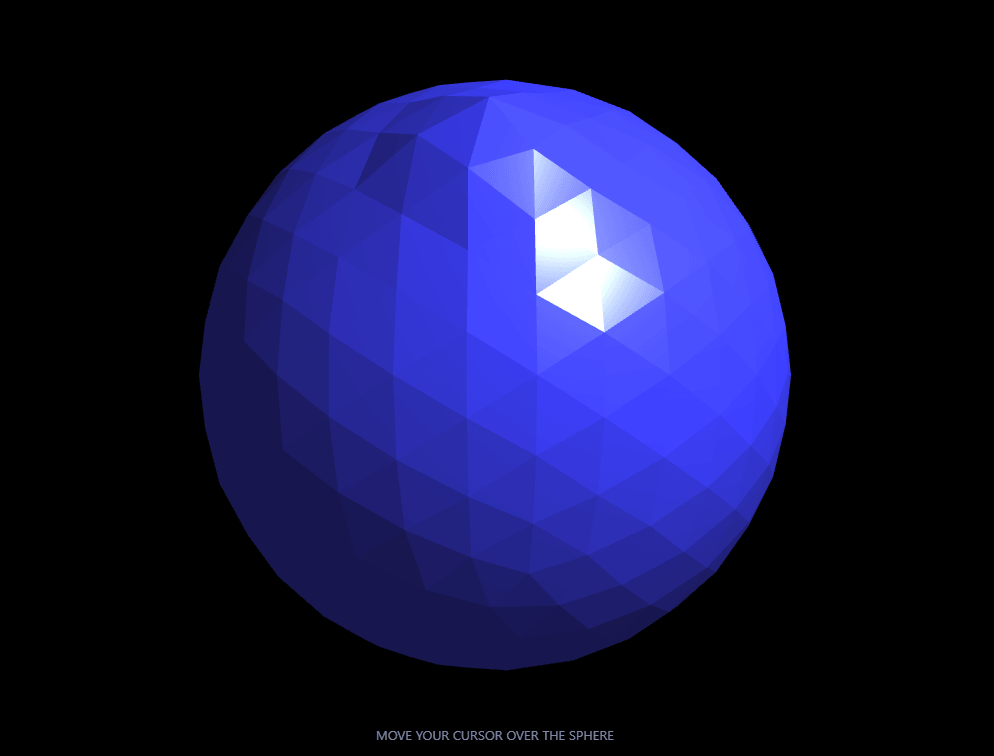
The Three.js Interactive Mesh Distortion snippet renders a sphere whose surface visibly bulges outward wherever the visitor's cursor hovers over it, using THREE.Raycaster to find the exact 3D point under the pointer and a per-vertex spring-like easing system to make the bulge rise and settle smoothly — all with core Three.js loaded from a CDN.
Raycasting turns a 2D cursor position into a 3D surface point
A mouse position is just two numbers, X and Y, on a flat screen — but the deformation needs a real point *on the surface of the 3D mesh*. Every frame the cursor is hovering, the snippet converts the pointer's screen coordinates into normalized device coordinates and fires a THREE.Raycaster from the camera through that point; raycaster.intersectObject(mesh) returns the exact world-space point where that ray first hits the sphere's surface. This is the standard technique for any "click or hover on a 3D object" interaction — the same math that powers 3D object picking in games and editors.
World space versus local space matters
The raycast hit point comes back in *world* coordinates, but the geometry's own vertex positions are stored in the mesh's *local* coordinate space (before any rotation or position offset is applied). The snippet converts the hit point with mesh.worldToLocal() before comparing it against vertex positions — skip this step and, the moment the sphere starts rotating, the calculated distances would silently drift out of alignment with where the cursor visually appears to be touching the mesh.
A displacement buffer, not direct position writes
Rather than immediately snapping nearby vertices outward and back, every vertex owns its own entry in a separate displacement array — a single float representing how far that vertex is currently pushed outward from its original position. Each frame, vertices within the hit radius have their displacement value raised (never immediately set, only raised if the new falloff value is *higher* than what's already there); every vertex's displacement then decays by a fixed ease factor every frame regardless of whether it's currently being hit. This produces a smooth rise as the cursor arrives and a gradual, spring-like settle afterward, instead of a jarring snap-and-release.
Falloff by distance, squared for a softer edge
A vertex's push strength is computed as (1 - distance/radius) squared — not a linear falloff. Squaring the falloff means vertices near the very center of the cursor's influence area get pushed hard, while vertices near the edge of that radius taper off much more gently than a straight linear ramp would, producing a rounder, more natural-looking bulge rather than a cone with a hard-edged base.
Displacing along the vertex's own normal, not toward the camera
Each displaced vertex moves outward along its *own* direction from the sphere's center — effectively its surface normal on a sphere — rather than toward the camera or the cursor. This is what makes the deformation read as the surface itself bulging outward in 3D, correctly foreshortened and shaded from every angle, rather than a flat decal-like distortion that only looks right from one viewing direction.
Recomputing normals every frame, again
Just as in the morphing blob snippet, geometry.computeVertexNormals() has to run every single frame the vertex positions actually change — otherwise the MeshStandardMaterial's lighting calculation uses stale normals and the bulge looks flat instead of physically shaded.
Where this technique is used
Cursor-following mesh deformation is the core mechanic behind liquid-metal hover effects, interactive fabric or jelly simulations, and "poke the blob" novelty interactions. Compare its interactive, cursor-driven displacement against the purely time-driven wobble of the morphing blob, or pair it with a custom cursor snippet for a fully cursor-themed page.
Build with AI
Build, Understand, Optimize, and Extend It With AI
You do not have to work out the raycasting-to-displacement pipeline by tracing every variable yourself. Paste this snippet's HTML, CSS, and JS into an AI coding assistant like Claude and ask it to explain exactly why the raycast hit point needs a worldToLocal conversion before it can be compared against vertex positions, or why the squared falloff formula produces a rounder bulge than a linear one would. The same assistant can help optimize it, for instance checking whether the per-vertex distance loop could skip vertices outside a coarse bounding check before doing the full square-root distance calculation, or whether the displacement array could use a typed array operation instead of a per-element loop for the decay step. It is also useful for extending the effect: ask it to make the bulge push inward as a dent instead of outward, support multiple simultaneous touch points on mobile, or tie the displacement strength to how fast the cursor is moving rather than a fixed constant. Treat the code less like a finished artifact and more like a starting point for a conversation.
Prompt to recreate it
Copy this into your AI assistant of choice to build the effect from scratch, or as a jumping-off point for your own variant:
Build an "interactive mesh distortion" sphere in plain HTML, CSS, and JavaScript using Three.js loaded from a CDN (no bundler, no build step) — a mesh that bulges outward wherever the cursor hovers over it and eases smoothly back afterward.

Requirements:
- A full-viewport canvas with a WebGLRenderer sized to match it, updated on window resize including camera aspect ratio, with ambient and point lighting so a standard material shows visible shading.
- A high-subdivision icosahedron or sphere mesh using a MeshStandardMaterial, slowly rotating on its own.
- Immediately after creating the geometry, copy its original vertex position array into a separate saved array, and allocate a same-length array of per-vertex "displacement" values initialized to zero.
- Track the pointer's position over the canvas with pointermove and pointerleave events, converting the cursor's pixel coordinates into normalized device coordinates for raycasting, and track a boolean indicating whether the pointer is currently over the canvas.
- Every animation frame that the pointer is active, cast a ray from the camera through the pointer's normalized coordinates using a Raycaster, find its intersection point with the mesh, and convert that intersection point from world space into the mesh's local coordinate space using the mesh's world-to-local transform.
- For every vertex within a fixed radius of that local-space hit point, raise its stored displacement value (never overwrite it downward directly) based on a falloff formula using the square of (1 - distance/radius), so nearby vertices push out more, and the push amount tapers off smoothly rather than linearly near the radius boundary.
- Every frame, for every vertex with a non-zero displacement value, compute its rendered position by moving it outward from its original saved position along the direction from the sphere's center through that vertex (its normal direction on a sphere), scaled by the current displacement amount, then multiply that vertex's displacement value by an ease factor less than 1 so it decays toward zero over subsequent frames regardless of whether the cursor is still nearby.
- After updating positions for the frame, recompute the geometry's vertex normals every frame so lighting continues to look physically correct as the surface deforms.
Want to tighten it up first? Run this prompt through the AI Prompt Studio to score it across 8 quality dimensions, catch anti-patterns, and tune the wording for Claude, ChatGPT, or Gemini before you paste it in.
Step by step
How to Use
- 1Load the Three.js CDNAdd three.min.js from the CDN panel — Raycaster is part of core Three.js.
- 2Paste HTML, CSS, and JSA slowly rotating sphere appears; move your cursor over it to see the effect.
- 3Hover over the sphereThe surface bulges outward wherever the raycast hits, easing back smoothly when you move away.
- 4Move off the meshThe displacement decays on its own each frame, so the surface always settles back to its original shape.
- 5Tune radius and strengthAdjust RADIUS for a wider or narrower affected area, and STRENGTH for a subtler or more dramatic bulge.
- 6Tune the ease-back speedLower EASE (closer to 0) for a snappier settle, or raise it (closer to 1) for a slower, jelly-like decay.
Real-world uses
Common Use Cases
Got questions?
Frequently Asked Questions
A THREE.Raycaster is cast from the camera through the cursor's normalized screen position every frame it moves. raycaster.intersectObject(mesh) returns the exact world-space point where that ray first hits the sphere's surface; that point is converted into the mesh's local coordinate space and compared against every vertex's original position to find which ones fall within the affected radius.
The geometry's vertex positions are defined in the mesh's own local coordinate space, before any rotation or position offset is applied, while the raycaster returns hit points in world space. Comparing world-space and local-space coordinates directly would work initially but silently misalign the moment the mesh starts rotating, since the mesh's local axes no longer match the world axes.
Storing a decaying displacement value per vertex, separate from its position, allows the bulge to rise smoothly on contact and ease back down gradually afterward using simple multiplication by a fixed factor each frame. Writing directly to vertex positions with no intermediate value would either require duplicating this easing logic per-vertex anyway, or produce an abrupt snap when the cursor moves away.
A linear falloff (1 - distance/radius) produces a cone-shaped bulge with a visible hard edge at the radius boundary. Squaring that value makes vertices near the center push out strongly while vertices near the edge taper off much more gently, producing a rounder, more organic-looking bulge with a soft transition back to the undisturbed surface.
Yes. Change the displacement addition in the position update from adding the normal-direction offset to subtracting it, which pushes affected vertices toward the sphere's center instead of away from it, producing a dent rather than a bulge.
Yes. Click JSX for a React component, Vue for a Vue 3 SFC, Angular for a standalone component, or Tailwind for a React + Tailwind CSS utility-class version. Attach the pointermove and pointerleave listeners to the canvas ref inside a mount effect, keep the displacement array and hovering flag in refs rather than component state (to avoid re-rendering on every mouse move), and call renderer.dispose() plus remove the event listeners on cleanup.