Source Code
<div class="scb-page">
  <div class="scb-intro">
    <h2>Plans built to grow with you</h2>
    <p>Scroll down to compare — a quick-pick bar follows once the full table scrolls out of view.</p>
  </div>

  <div class="scb-table" id="scbTable">
    <div class="scb-col">
      <div class="scb-tier">Starter</div>
      <div class="scb-price">$0<span>/mo</span></div>
      <ul><li>3 projects</li><li>1 GB storage</li><li>Community support</li></ul>
      <button type="button" class="scb-btn">Get started</button>
    </div>
    <div class="scb-col scb-featured">
      <div class="scb-badge">Most popular</div>
      <div class="scb-tier">Growth</div>
      <div class="scb-price">$24<span>/mo</span></div>
      <ul><li>Unlimited projects</li><li>50 GB storage</li><li>Priority support</li><li>API access</li></ul>
      <button type="button" class="scb-btn primary">Start free trial</button>
    </div>
    <div class="scb-col">
      <div class="scb-tier">Scale</div>
      <div class="scb-price">$79<span>/mo</span></div>
      <ul><li>Everything in Growth</li><li>500 GB storage</li><li>SSO + audit logs</li><li>Dedicated support</li></ul>
      <button type="button" class="scb-btn">Start free trial</button>
    </div>
  </div>

  <div class="scb-filler"><p>More plan details, FAQs, and feature breakdowns would continue here on a real pricing page — keep scrolling to see the sticky compare bar in action.</p></div>
</div>

<div class="scb-sticky" id="scbSticky" aria-hidden="true">
  <div class="scb-sticky-inner">
    <span class="scb-sticky-label">Compare plans</span>
    <div class="scb-sticky-plans">
      <div class="scb-sticky-plan"><b>Starter</b><span>$0/mo</span><button type="button" class="scb-mini">Choose</button></div>
      <div class="scb-sticky-plan"><b>Growth</b><span>$24/mo</span><button type="button" class="scb-mini primary">Choose</button></div>
      <div class="scb-sticky-plan"><b>Scale</b><span>$79/mo</span><button type="button" class="scb-mini">Choose</button></div>
    </div>
  </div>
</div>*{box-sizing:border-box;margin:0;padding:0}
body{font-family:system-ui,-apple-system,sans-serif;background:#f1f5f9;color:#0f172a}
.scb-page{max-width:900px;margin:0 auto;padding:48px 22px 20px}
.scb-intro{text-align:center;margin-bottom:36px}
.scb-intro h2{font-size:26px;font-weight:800;margin-bottom:8px;letter-spacing:-.01em}
.scb-intro p{font-size:14px;color:#64748b}
.scb-table{display:grid;grid-template-columns:repeat(3,1fr);gap:18px}
@media (max-width:720px){.scb-table{grid-template-columns:1fr}}
.scb-col{background:#fff;border-radius:16px;padding:26px 22px;border:1.5px solid #e2e8f0;position:relative}
.scb-featured{border-color:#6366f1;box-shadow:0 16px 40px rgba(99,102,241,.14)}
.scb-badge{position:absolute;top:-11px;left:50%;transform:translateX(-50%);background:#6366f1;color:#fff;font-size:10.5px;font-weight:800;padding:4px 12px;border-radius:999px;text-transform:uppercase}
.scb-tier{font-size:14px;font-weight:800;margin-bottom:8px}
.scb-price{font-size:30px;font-weight:800;margin-bottom:16px}
.scb-price span{font-size:13px;font-weight:600;color:#94a3b8}
.scb-col ul{list-style:none;display:flex;flex-direction:column;gap:9px;margin-bottom:20px}
.scb-col li{font-size:12.5px;color:#475569;padding-left:20px;position:relative;font-weight:600}
.scb-col li::before{content:'✓';position:absolute;left:0;color:#16a34a;font-weight:800}
.scb-btn{width:100%;border-radius:9px;padding:11px;font-size:13.5px;font-weight:700;cursor:pointer;font-family:inherit;border:1.5px solid #e2e8f0;background:#fff;color:#0f172a}
.scb-btn.primary{background:#6366f1;color:#fff;border-color:#6366f1}
.scb-filler{max-width:640px;margin:56px auto 90px;text-align:center}
.scb-filler p{font-size:13.5px;color:#94a3b8;line-height:1.8}
.scb-sticky{position:fixed;top:0;left:0;right:0;z-index:50;background:#fff;border-bottom:1px solid #e2e8f0;box-shadow:0 6px 20px rgba(15,23,42,.08);transform:translateY(-100%);transition:transform .25s ease}
.scb-sticky.visible{transform:translateY(0)}
.scb-sticky-inner{max-width:900px;margin:0 auto;padding:12px 22px;display:flex;align-items:center;justify-content:space-between;gap:20px;flex-wrap:wrap}
.scb-sticky-label{font-size:13px;font-weight:800;color:#0f172a;flex-shrink:0}
.scb-sticky-plans{display:flex;gap:10px;flex-wrap:wrap}
.scb-sticky-plan{display:flex;align-items:center;gap:8px;background:#f8fafc;border-radius:9px;padding:6px 6px 6px 12px}
.scb-sticky-plan b{font-size:12.5px}
.scb-sticky-plan span{font-size:12px;color:#64748b}
.scb-mini{border:none;background:#e2e8f0;color:#0f172a;font-size:11.5px;font-weight:700;padding:6px 12px;border-radius:7px;cursor:pointer;font-family:inherit}
.scb-mini.primary{background:#6366f1;color:#fff}
@media (max-width:640px){.scb-sticky-label{display:none}}// A real IntersectionObserver watches the original pricing table — the sticky bar shows
// only once the table has fully scrolled past the top of the viewport, and hides again
// if the visitor scrolls back up to it. No scroll-position math, no throttling needed.
var table = document.getElementById('scbTable');
var sticky = document.getElementById('scbSticky');
if ('IntersectionObserver' in window) {
var observer = new IntersectionObserver(function (entries) {
var entry = entries[0];
// entry.isIntersecting is false both when the table is far below (not yet reached)
// and when it has scrolled above the viewport (passed) — boundingClientRect distinguishes them.
var scrolledPast = !entry.isIntersecting && entry.boundingClientRect.top < 0;
sticky.classList.toggle('visible', scrolledPast);
sticky.setAttribute('aria-hidden', scrolledPast ? 'false' : 'true');
}, { threshold: 0 });
observer.observe(table);
} else {
// Fallback for environments without IntersectionObserver: plain scroll-position check.
window.addEventListener('scroll', function () {
var rect = table.getBoundingClientRect();
var scrolledPast = rect.bottom < 0;
sticky.classList.toggle('visible', scrolledPast);
sticky.setAttribute('aria-hidden', scrolledPast ? 'false' : 'true');
});
}
// Wire the mini "Choose" buttons to scroll back up to their matching full-size card,
// so the sticky bar stays useful for navigation, not just a static reminder.
var miniButtons = document.querySelectorAll('.scb-mini');
var fullColumns = document.querySelectorAll('.scb-col');
miniButtons.forEach(function (btn, i) {
btn.addEventListener('click', function () {
var target = fullColumns[i];
if (target) target.scrollIntoView({ behavior: 'smooth', block: 'center' });
});
});Learn Coding Visually
Learn to code with interactive, live-preview playgrounds — HTML, CSS, JavaScript, React & more.
 HTML Playground42 lessons · Click-based · Live preview
 CSS PlaygroundLearn CSS with a live editor
 JavaScript Playground60 lessons · DOM · Async · Canvas
 React PlaygroundLearn React with a live code editor
 GSAP PlaygroundLearn GSAP animation interactively
 SVG Playground44 lessons · shapes · paths · animation
 SCSS Playground45 lessons · Sass modules · tokens
 Tailwind PlaygroundLearn Tailwind CSS with a live editor
 Bootstrap 5 Playground50 lessons · live preview
Pricing Table with Sticky Compare Bar — Free Snippet
Pricing Table with Sticky Compare Bar · Pricing · Plain HTML, CSS & JS · Live preview
What's included
Features
About this UI Snippet
Pricing Table with Sticky Compare Bar — IntersectionObserver-Driven, Not Scroll Math
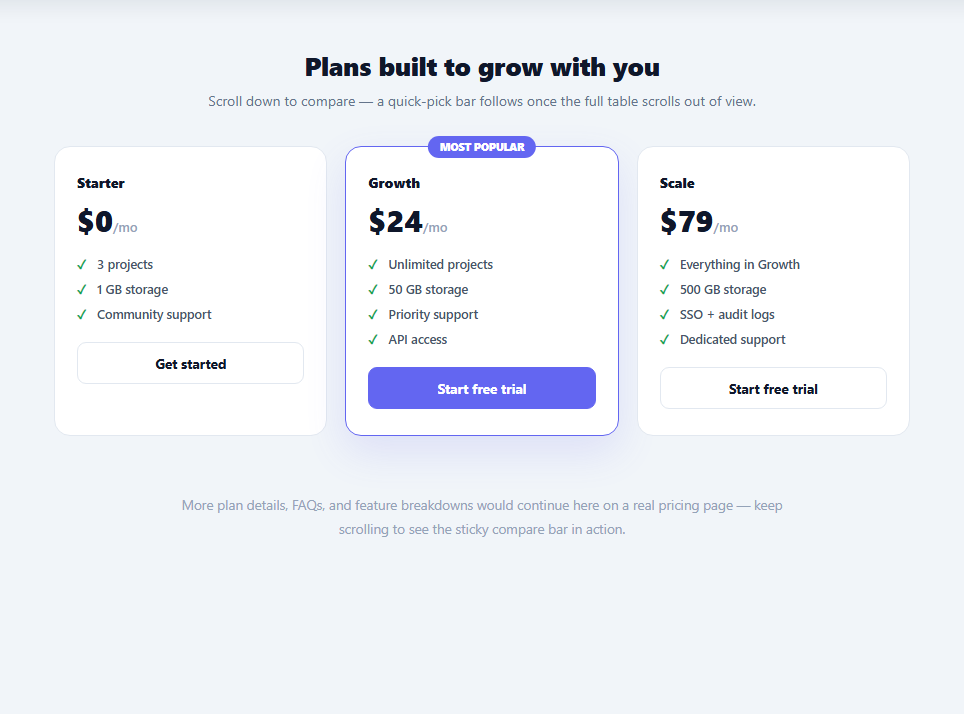
On a long pricing page — a table followed by an FAQ, feature breakdown, or testimonials — a visitor who scrolls past the pricing table loses easy access to it. Scrolling back up to compare plans or click a CTA is friction that can cost a conversion. This snippet keeps a compact summary of every plan within reach: a sticky bar slides down from the top of the viewport once the full pricing table has scrolled out of view, and slides back away if the visitor scrolls back up to it.
IntersectionObserver instead of a scroll-position calculation
The naive way to build this is a scroll event listener that repeatedly calls getBoundingClientRect() on the table and compares it against the viewport — which runs on every single scroll event and can be a real performance cost on a long page without careful throttling. This snippet uses an IntersectionObserver watching the #scbTable element instead, which only invokes its callback when the element's intersection with the viewport actually changes — the browser handles the expensive geometry calculation off the main thread's hot path, and the callback fires far less often than a raw scroll listener would.
Distinguishing "not yet reached" from "already passed"
entry.isIntersecting alone is false in two different situations: before the visitor has scrolled far enough to reach the table, and after they've scrolled past it. Showing the sticky bar in both cases would make it appear immediately on page load, before the table is even visible — the opposite of the intended behavior. The callback adds one more check, entry.boundingClientRect.top < 0, which is only true once the table has scrolled *above* the top of the viewport — that combination (!isIntersecting && top < 0) is what actually means "scrolled past," and is the only condition that shows the bar.
The slide transition, not a hard show/hide
The sticky bar is always in the DOM at position: fixed; top: 0, permanently offset upward by transform: translateY(-100%) so it sits just off-screen. Toggling a .visible class resets that transform to translateY(0), and a CSS transition animates the move — so the bar visibly slides into place rather than popping into existence, which reads as considerably less jarring on a page the visitor is actively scrolling.
Mini "Choose" buttons that scroll back to the real card
Each compact plan entry in the sticky bar has its own "Choose" button, wired via scrollIntoView({ behavior: 'smooth', block: 'center' }) to its matching full-size card in the original table — clicking "Choose" under "Growth" in the sticky bar smooth-scrolls the visitor back up to the actual Growth column rather than immediately triggering checkout from a compressed summary view. This keeps the sticky bar a navigation aid for a visitor who wants to revisit a specific plan, rather than a second, disconnected checkout entry point.
The fallback path
Because IntersectionObserver isn't universally available in every environment a snippet might be embedded in, the code checks 'IntersectionObserver' in window and falls back to a plain scroll listener performing the equivalent getBoundingClientRect() check if it's missing — so the feature degrades to the naive approach rather than breaking entirely on an older or unusual runtime.
Aria-hidden tracks the visible state
The sticky bar's aria-hidden attribute is kept in sync with the .visible class in both the observer and fallback paths, so assistive technology doesn't announce or expose the sticky bar's interactive buttons while it's transformed off-screen and non-functional to a sighted mouse user.
Extending it
Add a fourth pricing tier by adding both a .scb-col to the main table and a matching .scb-sticky-plan (with its own .scb-mini button) to the sticky bar, keeping their order the same — the JavaScript pairs mini buttons to full columns purely by index, so keeping the two lists in the same order is what keeps "Choose" scrolling to the correct plan.
Build with AI
Build, Understand, Optimize, and Extend It With AI
Rather than reasoning through scroll-position edge cases by hand, paste this snippet's HTML, CSS, and JS into an AI coding assistant like Claude and ask it to explain exactly why the visibility check combines !entry.isIntersecting with entry.boundingClientRect.top < 0 rather than relying on isIntersecting alone — and what incorrect behavior would appear on page load if that extra boundingClientRect check were removed. The same assistant is useful for extending the pattern: ask it to add a subtle highlight to whichever plan in the sticky bar the visitor is nearest to price-wise (if you track that elsewhere on the page), or to convert the IntersectionObserver-based visibility logic into a reusable React hook that any sticky-on-scroll component in your app could share. It can also help you tune the transition timing or add a small shadow-elevation change as the bar becomes sticky, and can review whether the aria-hidden handling is sufficient or whether the mini buttons also need inert or tabindex management while hidden. Treat the code less like a finished artifact and more like a starting point for a conversation.
Prompt to recreate it
Copy this into your AI assistant of choice to build the effect from scratch, or as a jumping-off point for your own variant:
Build a pricing section in plain HTML, CSS, and vanilla JavaScript: a 3-column pricing table followed by extra page content, plus a sticky compare bar that slides in from the top of the viewport once the pricing table has scrolled fully out of view, and slides back away if the visitor scrolls back up to it — using IntersectionObserver, not a raw scroll listener, and no library.

Requirements:
- A 3-tier pricing table (name, price, a short feature list, and a CTA button per tier, with the middle tier visually marked as most popular) followed by additional filler content below it, long enough to scroll the table out of view.
- A sticky bar fixed to the top of the viewport, permanently present in the DOM but visually hidden just off-screen via a CSS transform, containing a compact summary (name, price, and a small "Choose" button) for each of the three plans.
- Use an IntersectionObserver watching the pricing table element to detect when it has scrolled out of view. The visibility check must correctly distinguish "the table has not been reached yet" from "the table has been scrolled past" (both report isIntersecting as false) using the observed entry's bounding rectangle — explain in a comment why isIntersecting alone is not sufficient and would show the bar incorrectly on initial page load.
- Toggling the sticky bar's visibility must animate it in and out via a CSS transition on the transform property, not an instant show/hide, and must update an aria-hidden attribute to match its visible state.
- Include a graceful fallback using a plain scroll event listener with the equivalent bounding-rectangle check for environments without IntersectionObserver support.
- Each mini "Choose" button in the sticky bar must smooth-scroll the page back to its matching full-size plan card in the main table (paired by list order/index), rather than performing any actual checkout action.
Want to tighten it up first? Run this prompt through the AI Prompt Studio to score it across 8 quality dimensions, catch anti-patterns, and tune the wording for Claude, ChatGPT, or Gemini before you paste it in.
Step by step
How to Use
- 1Scroll past the pricing tableOnce the table has fully scrolled above the viewport, the sticky compare bar slides down from the top.
- 2Scroll back upThe sticky bar slides back away once the pricing table is back in view.
- 3Click a mini "Choose" buttonSmooth-scrolls back to the matching full-size plan card rather than acting as a separate checkout entry point.
- 4Edit the plansUpdate the pricing, features, and labels in both .scb-table and the matching entries in .scb-sticky — keep both lists in the same order.
- 5Add a fourth tierAdd a .scb-col and a matching .scb-sticky-plan in the same list position — buttons are paired to columns by index.
- 6Export in your formatClick "HTML" for a standalone file, "JSX" for a React component, or "Tailwind" for a React + Tailwind version.
Real-world uses
Common Use Cases
Got questions?
Frequently Asked Questions
A raw scroll listener fires very frequently and, without careful throttling, repeatedly recalculates the table's position on every single scroll event — a real performance cost, especially on a long page. IntersectionObserver instead only invokes its callback when the observed element's intersection with the viewport actually changes, letting the browser handle the expensive geometry work more efficiently and firing far less often.
entry.isIntersecting is false both before the visitor has scrolled far enough to reach the table and after they have scrolled past it — those are opposite situations. Checking entry.boundingClientRect.top < 0 alongside !isIntersecting narrows the condition to specifically "the table has scrolled above the viewport," which is the only case where showing the sticky bar makes sense; without that extra check the bar would incorrectly appear immediately on page load.
The mini buttons and the full-size plan columns are each collected into their own querySelectorAll list, and the click handler for miniButtons[i] calls scrollIntoView() on fullColumns[i] — the two lists are paired purely by matching index. Keeping the sticky bar's plan order identical to the main table's column order is what keeps this pairing correct.
The code checks 'IntersectionObserver' in window before creating the observer. If it is unavailable, it falls back to a plain scroll event listener that performs the equivalent getBoundingClientRect() check on every scroll event — the feature still works, just via the less efficient fallback path rather than failing silently.
The bar is always rendered at position: fixed with a permanent transform: translateY(-100%) that keeps it just off-screen. Toggling a .visible class resets that transform to translateY(0), letting a CSS transition animate the slide. Adding and removing the element from the DOM instead would prevent any animation — it would simply appear and disappear instantly.
Yes. Add a new .scb-col to the main .scb-table grid and a matching .scb-sticky-plan (with its own .scb-mini button) to the sticky bar in the same relative position, and update the grid-template-columns count if needed. Since the JavaScript pairs mini buttons to columns purely by array index, keeping both lists in the same order is what keeps the "Choose" scroll-to behavior correct for the new tier.