Source Code
<nav class="pager" aria-label="Pagination">
  <button class="pg-btn arrow" data-rel="prev" aria-label="Previous page">
    <svg viewBox="0 0 24 24"><polyline points="15 18 9 12 15 6"/></svg>
  </button>
  <div class="pg-pages"></div>
  <button class="pg-btn arrow" data-rel="next" aria-label="Next page">
    <svg viewBox="0 0 24 24"><polyline points="9 18 15 12 9 6"/></svg>
  </button>
</nav>
<p class="pg-status"></p>
* { box-sizing: border-box; margin: 0; padding: 0; }
body {
font-family: system-ui, sans-serif;
background: #f8fafc;
min-height: 100vh;
display: flex; flex-direction: column; align-items: center; justify-content: center; gap: 16px;
}
.pager { display: flex; align-items: center; gap: 6px; }
.pg-btn {
min-width: 38px; height: 38px;
display: inline-flex; align-items: center; justify-content: center;
padding: 0 10px;
border: 1px solid #e2e8f0;
border-radius: 9px;
background: #fff;
font-size: 14px; font-weight: 600; color: #334155; font-family: inherit;
cursor: pointer;
transition: background 0.15s, border-color 0.15s, color 0.15s;
}
.pg-btn:hover:not(:disabled):not(.active) { background: #f1f5f9; border-color: #cbd5e1; }
.pg-btn:disabled { opacity: 0.45; cursor: not-allowed; }
.pg-btn.active { background: #6366f1; border-color: #6366f1; color: #fff; cursor: default; }
.pg-btn.arrow svg { width: 16px; height: 16px; fill: none; stroke: currentColor; stroke-width: 2.5; stroke-linecap: round; stroke-linejoin: round; }
.pg-ellipsis { min-width: 28px; text-align: center; color: #94a3b8; font-weight: 700; user-select: none; }
.pg-pages { display: flex; align-items: center; gap: 6px; }
.pg-status { font-size: 13px; color: #64748b; }const TOTAL = 12; // total pages
let current = 1;
// Build the page list with ellipses: 1 … (c-1) c (c+1) … N
function pageList(c, n) {
const out = new Set([1, n, c, c - 1, c + 1]);
const list = [...out].filter(p => p >= 1 && p <= n).sort((a, b) => a - b);
const result = [];
let prev = 0;
for (const p of list) {
if (p - prev > 1) result.push('…');
result.push(p);
prev = p;
}
return result;
}
function initPagination() {
const pages = document.querySelector('.pg-pages');
if (!pages) return; // not mounted yet
const status = document.querySelector('.pg-status');
const prevBtn = document.querySelector('[data-rel="prev"]');
const nextBtn = document.querySelector('[data-rel="next"]');
function render() {
pages.innerHTML = '';
for (const p of pageList(current, TOTAL)) {
if (p === '…') {
const span = document.createElement('span');
span.className = 'pg-ellipsis';
span.textContent = '…';
pages.appendChild(span);
} else {
const btn = document.createElement('button');
btn.className = 'pg-btn' + (p === current ? ' active' : '');
btn.textContent = p;
btn.setAttribute('aria-label', 'Page ' + p);
if (p === current) btn.setAttribute('aria-current', 'page');
btn.addEventListener('click', () => go(p));
pages.appendChild(btn);
}
}
prevBtn.disabled = current === 1;
nextBtn.disabled = current === TOTAL;
status.textContent = 'Page ' + current + ' of ' + TOTAL;
}
function go(p) {
current = Math.min(Math.max(1, p), TOTAL);
render();
}
prevBtn.addEventListener('click', () => go(current - 1));
nextBtn.addEventListener('click', () => go(current + 1));
render();
}
// Run after the DOM mounts (framework exports run snippet JS before render)
if (document.readyState === 'loading') document.addEventListener('DOMContentLoaded', initPagination);
else requestAnimationFrame(initPagination);Learn Coding Visually
Learn to code with interactive, live-preview playgrounds — HTML, CSS, JavaScript, React & more.
 HTML Playground42 lessons · Click-based · Live preview
 CSS PlaygroundLearn CSS with a live editor
 JavaScript Playground60 lessons · DOM · Async · Canvas
 React PlaygroundLearn React with a live code editor
 GSAP PlaygroundLearn GSAP animation interactively
 SVG Playground44 lessons · shapes · paths · animation
 SCSS Playground45 lessons · Sass modules · tokens
 Tailwind PlaygroundLearn Tailwind CSS with a live editor
 Bootstrap 5 Playground50 lessons · live preview
Pagination — Numbered Page Navigation Snippet
Pagination · Navigation · Plain HTML, CSS & JS · Live preview
What's included
Features
About this UI Snippet
Pagination — Numbered Pages, Prev/Next Arrows & Smart Ellipsis Truncation
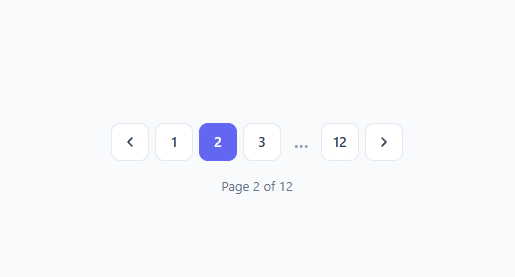
Pagination is one of the most-searched UI components because almost every list, search result, blog, or data table that spans many pages needs a clean way to move between them (see the pagination table for the table-integrated version). This snippet is a complete, accessible pagination control: numbered page buttons, previous/next arrows, an active-page highlight, and the genuinely tricky part — smart ellipsis truncation that keeps the control compact no matter how many pages there are. It is built with vanilla JavaScript and renders the page list dynamically from the current page.
The smart ellipsis algorithm
The hard part of pagination is not styling — it is deciding which page numbers to show when there are dozens or hundreds. Showing all of them is unusable; showing too few hides useful context. This snippet uses the standard "first, last, and a window around the current page" rule. The pageList(c, n) function builds a Set of the pages that always matter — 1, n (last), the current page c, and its immediate neighbours c-1 and c+1 — filters out anything off-range, and sorts them. Then it walks the sorted list and, wherever there is a gap larger than one between consecutive pages, inserts an '…' ellipsis. So on page 6 of 12 you get 1 … 5 6 7 … 12, and on page 1 you get 1 2 … 12. The control stays the same compact width whether you have 12 pages or 12,000.
Rendering from state
The component keeps a single piece of state — current — and a render() function rebuilds the page buttons every time it changes. This state-driven approach is exactly how you would build pagination in React or Vue, just expressed in vanilla DOM: compute the page list, create a button for each number (or a span for each ellipsis), mark the active one, and wire a click handler that calls go(p). Because rendering is a pure function of current and TOTAL, the active highlight, disabled arrows, and ellipses are always correct without any manual DOM patching.
Previous / next arrow behaviour
The prev and next arrows are real <button> elements with SVG chevrons. They call go(current - 1) and go(current + 1), and go() clamps the value between 1 and TOTAL so you can never navigate past the ends. Critically, the arrows become disabled at the boundaries — prevBtn.disabled = current === 1 and nextBtn.disabled = current === TOTAL — which both prevents invalid navigation and gives a clear visual cue (the dimmed, not-allowed cursor) that you have reached the first or last page.
The active page and current state
The current page button gets an .active class (filled accent color, non-interactive cursor) so users always know where they are. For accessibility it also receives aria-current="page", the correct ARIA attribute that tells screen readers which item in the set is the current one. The whole control is wrapped in a <nav aria-label="Pagination"> landmark, and each numbered button has an aria-label like "Page 5" so the buttons are announced meaningfully rather than as a bare number. A status line ("Page 6 of 12") gives sighted users an at-a-glance summary and can double as a live region for screen readers.
Why generate the buttons in JavaScript
Hard-coding page buttons in HTML only works for a fixed, small number of pages. Real pagination is driven by data — total items, page size, current page — so the buttons must be generated. This snippet centralizes that in render(), which means wiring it to a real backend is a two-line change: set TOTAL from your API's total-pages value, and in go(p) fetch that page's data (or update the URL query string) before re-rendering. The truncation, active state, and arrow logic all keep working unchanged.
Customizing the control
Re-theme by changing the button border, hover background, and the .active accent color. Widen the window around the current page by adding c-2 and c+2 to the Set in pageList if you want two neighbours shown on each side. To make the buttons circular, set border-radius: 50% and a fixed width/height. You can add "First" and "Last" jump buttons beside the arrows, or a "Go to page" input, using the same go() function. For URL-based pagination, read the page from location.search on load and push a new query string in go() so pages are bookmarkable and the browser back button works.
Accessibility checklist
Keep the <nav> landmark with an aria-label so assistive tech can find and name the pagination region. Keep aria-current="page" on the active button. Ensure the disabled arrows use the disabled attribute (not just a class) so they are removed from the tab order and announced as unavailable. Maintain strong contrast between the active button and the rest, and between text and background, so low-vision users can read the numbers. Because every control is a native <button>, the whole component is keyboard-operable — Tab to move between pages, Enter/Space to activate — with no extra code.
Build with AI
Build, Understand, Optimize, and Extend It With AI
You do not have to trace the ellipsis math by hand to understand it. Paste this snippet's HTML, CSS, and JS into an AI coding assistant like Claude and ask it to explain exactly how the pageList function's Set of first, last, current, and neighbour pages produces the 1 ... 5 6 7 ... 12 pattern, and why a Set is used instead of an array with manual duplicate checks. The same assistant can help you optimize it, for instance checking whether render() rebuilding every button on each click matters at all once TOTAL reaches the thousands, or whether the click handlers should be delegated to the container instead of bound per button. It is just as useful for extending the control: ask it to add a jump-to-page input, read and push the current page to the URL query string so pages are bookmarkable, or animate the active button between positions. Treat the code less like a finished artifact and more like a starting point for a conversation.
Prompt to recreate it
Copy this into your AI assistant of choice to build the effect from scratch, or as a jumping-off point for your own variant:
Build a numbered pagination control in plain HTML, CSS, and JavaScript with no framework and no libraries.

Requirements:
- A nav element containing a previous arrow button, a container for numbered page buttons, and a next arrow button, plus a status line showing "Page X of Y".
- A single TOTAL constant for the total page count and a single current variable holding the active page number; all rendering must be a pure function of these two values, rebuilding the page buttons from scratch each time rather than patching individual DOM nodes.
- Implement smart ellipsis truncation: always show the first page, the last page, the current page, and the current page's immediate neighbours (current minus one and current plus one). Collect these into a deduplicated, sorted list, then walk it and insert an ellipsis marker wherever the gap between two consecutive shown pages is greater than one, so the control stays a fixed compact width whether there are 12 pages or 12,000.
- Each numbered button must get an aria-label like "Page 5", and the active page's button must additionally get aria-current="page" and a distinct visual style (not color alone).
- The previous and next buttons must use the native disabled attribute (not just a CSS class) when the current page is the first or last page respectively, and a go(page) function must clamp any requested page number between 1 and TOTAL so navigation can never go out of range.
- Wrap the whole control in a nav element with an aria-label identifying it as pagination, and make every page number and arrow a real button element so the whole control is keyboard operable without extra JavaScript.
Want to tighten it up first? Run this prompt through the AI Prompt Studio to score it across 8 quality dimensions, catch anti-patterns, and tune the wording for Claude, ChatGPT, or Gemini before you paste it in.
Step by step
How to Use
- 1Copy the markup and scriptCopy the <nav class="pager"> with its prev/next buttons and empty .pg-pages container, plus the JavaScript that renders the page buttons.
- 2Set the total pagesChange the TOTAL constant to your number of pages. The control truncates long ranges with ellipses automatically.
- 3Hook up your dataIn go(p), fetch that page from your API (or update the URL query string) before re-rendering, so the list updates with the page.
- 4Re-theme itUpdate the button border, hover background, and the .active accent color to match your design.
- 5Widen the page windowAdd c-2 and c+2 to the Set in pageList() to show two neighbours on each side of the current page.
- 6Export in your formatClick "HTML" for a standalone file, "JSX" for a React component, or "Tailwind" for a React + Tailwind version.
Real-world uses
Common Use Cases
Got questions?
Frequently Asked Questions
pageList(c, n) collects the pages that always matter — 1, the last page n, the current page c, and its neighbours c-1 and c+1 — sorts them, then inserts an ellipsis wherever there is a gap larger than one between consecutive pages. So page 6 of 12 renders as 1 … 5 6 7 … 12, staying compact no matter how many pages exist.
Set the TOTAL constant from your API's total-pages value, and inside go(p) fetch that page's data (or update the URL query string) before calling render(). The truncation, active state, and arrow disabling all continue to work.
Add c-2 and c+2 (and more) to the Set inside pageList(). The function automatically sorts them and inserts ellipses for any remaining gaps, so the wider window renders correctly.
Yes. It uses a <nav aria-label="Pagination"> landmark, aria-current="page" on the active button, per-button aria-labels, and the disabled attribute on boundary arrows so they leave the tab order. Every control is a native button, so it is fully keyboard operable.
Give .pg-btn a fixed equal width and height and border-radius: 50%. The flex layout and gap keep them evenly spaced.
Yes. Click "JSX" for a React component or "Tailwind" for a React + Tailwind version. In React, hold current in useState and compute the page list with the same algorithm in render; the state-driven structure maps directly.