
Learn Coding Visually
Learn to code with interactive, live-preview playgrounds — HTML, CSS, JavaScript, React & more.
 HTML Playground42 lessons · Click-based · Live preview
 CSS PlaygroundLearn CSS with a live editor
 JavaScript Playground60 lessons · DOM · Async · Canvas
 React PlaygroundLearn React with a live code editor
 GSAP PlaygroundLearn GSAP animation interactively
 SVG Playground44 lessons · shapes · paths · animation
 SCSS Playground45 lessons · Sass modules · tokens
 Tailwind PlaygroundLearn Tailwind CSS with a live editor
 Bootstrap 5 Playground50 lessons · live preview
Page Dots Navigation — Section Dot Nav HTML CSS JS
Page Dots Navigation · Navigation · Plain HTML, CSS & JS · Live preview
What's included
Features
About this UI Snippet
Page Dots Navigation — Scroll-Synced Section Dots with IntersectionObserver
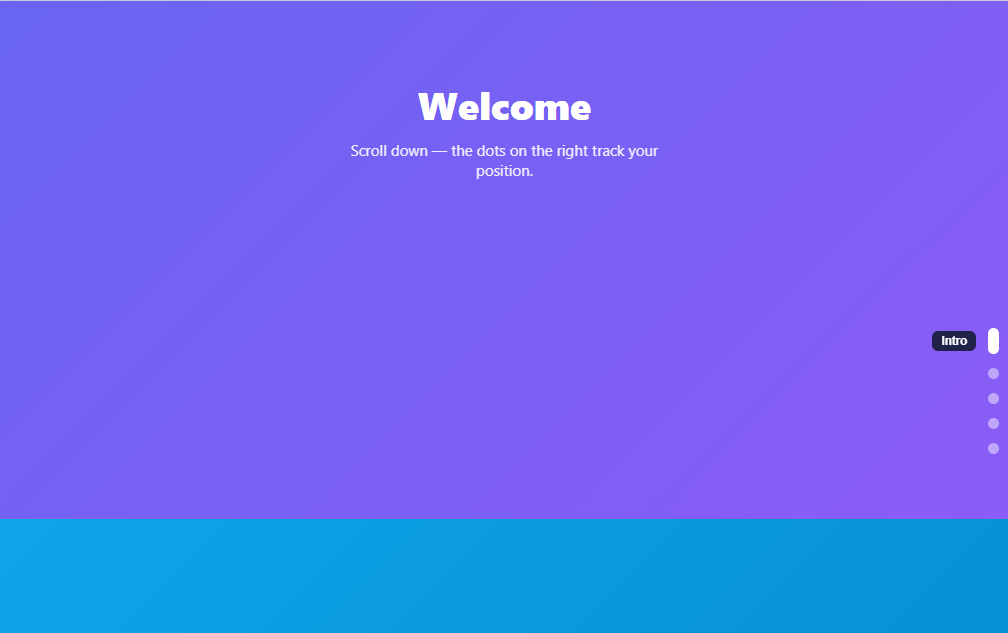
The fixed column of dots down the side of a one-page site — each marking a full-screen section, the active one expanded, click to jump — is the signature navigation of portfolios, product landing pages, and scrollytelling sites. This snippet builds it in plain HTML, CSS, and vanilla JavaScript using IntersectionObserver, so it tracks the active section accurately with no scroll-position math, and includes scroll-snapping sections and hover labels.
IntersectionObserver, not scroll-offset math
The old way to build this was a scroll listener that compared every section's offset against the scroll position on every frame — janky, error-prone, and a performance drain. The modern way is IntersectionObserver: each section is observed, and the browser tells you (off the main thread) when one crosses a visibility threshold. When a section becomes at least half-visible, its dot is marked active. This is dramatically more efficient and more accurate — it just works regardless of section heights, viewport size, or scroll speed, with no manual measurement.
The active dot expands
The dots are small pills; the active one stretches taller (height: 26px) and turns solid white, so the current section is unmistakable at a glance. The transition between dots is animated, so as you scroll from one section to the next, the active indicator smoothly grows on the new dot and shrinks on the old — giving the column a sense of tracking your position continuously rather than snapping. This expanding-active-dot is the detail that makes the navigation feel premium rather than like plain bullet points.
Hover and active labels
Each dot reveals a small label (the section name) on hover, sliding in from the right — so a user can see where a dot leads before clicking, rather than guessing from position. The active dot's label can also show, anchoring the user's sense of "you are here." The labels are dark pills with a slide-and-fade transition, positioned to the left of the dots where a right-edge navigation expects them.
Click to jump, smooth-scroll
Clicking any dot smooth-scrolls to its section via scrollIntoView({ behavior: 'smooth' }) — the native, no-library way to animate to an anchor. Combined with the observer keeping the active dot in sync, clicking a dot scrolls there and the dot activates as the section arrives, so the manual navigation and the scroll-tracking stay consistent. No separate state to manage — the observer is the single source of which section is active, whether you got there by scrolling or clicking.
Scroll-snap sections
The sections use CSS scroll-snap (scroll-snap-type: y mandatory) so scrolling settles cleanly on each full-screen section rather than stopping halfway — the expected behavior for a one-page sectioned site, and it pairs naturally with the dot navigation since each snap point is a dot. The whole thing lives in a scroll container, so it works embedded in a page as well as full-screen.
Data-light and reusable
The dots are generated from the sections themselves (reading a data-label per section), so adding a section automatically adds its dot — there's no separate dots list to keep in sync with the content. Drop in your real sections with labels, and the navigation builds itself. The same pattern works for any full-page-section layout: a portfolio, a product tour, a pitch deck, or a scrollytelling article.
Build with AI
Build, Understand, Optimize, and Extend It With AI
You don't have to reason through the observer thresholds by hand. Paste this snippet's HTML, CSS, and JS into an AI coding assistant like Claude and ask it to explain exactly why setActive is only called when a section's intersectionRatio crosses 0.5, and what would happen to the active dot if two adjacent sections were both above that ratio at once during a fast scroll. The same assistant can help optimize it, for instance asking whether observing sections against a shared root with a rootMargin bias would settle the active state more precisely than the current threshold array on unevenly sized sections. It's also a good way to extend the effect: ask it to add keyboard support so arrow-down and arrow-up move the active dot, animate the dot label to stay open briefly after the section change, or make the dots collapse into a hamburger-style single indicator on narrow viewports. Treat the code less like a finished artifact and more like a starting point for a conversation.
Prompt to recreate it
Copy this into your AI assistant of choice to build the effect from scratch, or as a jumping-off point for your own variant:
Build a "page dots navigation" component in plain HTML, CSS, and JavaScript, using IntersectionObserver for scroll tracking — do not write any scroll-offset math with a scroll event listener.

Requirements:
- A vertically scrolling container of full-height sections, each using CSS scroll-snap so scrolling settles cleanly on each section rather than stopping partway.
- A fixed vertical column of dot buttons, one per section, generated in JavaScript from the sections themselves (reading a data attribute for each section's label) rather than hardcoded separately, so adding a section automatically produces its dot with no separate list to maintain.
- Set up a single IntersectionObserver, scoped to the scrolling container as its root, observing every section, with at least one threshold around 0.5. When a section's intersection ratio crosses that threshold and it is intersecting, mark only that section's dot as active (and every other dot as not active) — this must be the single source of truth for which dot is active, whether the user arrived there by scrolling or by clicking a dot.
- The active dot must visually grow taller and change color, and every dot must reveal a small label showing its section's name on hover, with the active dot allowed to show its label as well.
- Clicking any dot must call scrollIntoView with smooth behavior on that dot's target section — do not implement scrolling with a manual animation loop or setTimeout chain.
- Give the dot navigation an aria-current attribute reflecting the active state for accessibility, and make sure removing or reordering sections in the HTML does not require any JavaScript changes.
Want to tighten it up first? Run this prompt through the AI Prompt Studio to score it across 8 quality dimensions, catch anti-patterns, and tune the wording for Claude, ChatGPT, or Gemini before you paste it in.
Source Code
<div class="pdn-scroll" id="pdnScroll">
  <section class="pdn-section" id="sec-intro" data-label="Intro" style="--c1:#6366f1;--c2:#8b5cf6">
    <div><h2>Welcome</h2><p>Scroll down — the dots on the right track your position.</p></div>
  </section>
  <section class="pdn-section" id="sec-features" data-label="Features" style="--c1:#0ea5e9;--c2:#0284c7">
    <div><h2>Features</h2><p>Click a dot to jump to its section.</p></div>
  </section>
  <section class="pdn-section" id="sec-pricing" data-label="Pricing" style="--c1:#22c55e;--c2:#10b981">
    <div><h2>Pricing</h2><p>The active dot expands and shows a label on hover.</p></div>
  </section>
  <section class="pdn-section" id="sec-faq" data-label="FAQ" style="--c1:#f59e0b;--c2:#f97316">
    <div><h2>FAQ</h2><p>Built with IntersectionObserver — no scroll math.</p></div>
  </section>
  <section class="pdn-section" id="sec-contact" data-label="Contact" style="--c1:#ec4899;--c2:#db2777">
    <div><h2>Contact</h2><p>Get in touch — that's the last section.</p></div>
  </section>

  <nav class="pdn-dots" id="pdnDots" aria-label="Page sections"></nav>
</div>*{box-sizing:border-box;margin:0;padding:0}
body{font-family:system-ui,-apple-system,sans-serif}
/* Scroll-snapping full-height sections inside a scroll container. */
.pdn-scroll{position:relative;height:100vh;overflow-y:auto;scroll-snap-type:y mandatory;scroll-behavior:smooth}
.pdn-section{height:100vh;scroll-snap-align:start;display:flex;align-items:center;justify-content:center;text-align:center;color:#fff;padding:24px;background:linear-gradient(135deg,var(--c1),var(--c2))}
.pdn-section h2{font-size:38px;font-weight:800;margin-bottom:10px}
.pdn-section p{font-size:15px;opacity:.9;max-width:340px;margin:0 auto}
.pdn-dots{position:fixed;top:50%;right:26px;transform:translateY(-50%);display:flex;flex-direction:column;gap:14px;z-index:10}
.pdn-dot{position:relative;width:11px;height:11px;border-radius:999px;border:none;background:rgba(255,255,255,.45);cursor:pointer;padding:0;transition:background .25s,height .25s}
.pdn-dot:hover{background:rgba(255,255,255,.8)}
.pdn-dot.active{background:#fff;height:26px}
.pdn-dot-label{position:absolute;right:calc(100% + 12px);top:50%;transform:translateY(-50%) translateX(6px);
background:rgba(15,23,42,.85);color:#fff;font-size:11.5px;font-weight:700;padding:4px 9px;border-radius:6px;white-space:nowrap;
opacity:0;pointer-events:none;transition:opacity .18s,transform .18s}
.pdn-dot:hover .pdn-dot-label,.pdn-dot.active .pdn-dot-label{opacity:1;transform:translateY(-50%) translateX(0)}var scroller = document.getElementById('pdnScroll');
var sections = Array.prototype.slice.call(scroller.querySelectorAll('.pdn-section'));
var dotsNav = document.getElementById('pdnDots');
// Build one dot per section.
dotsNav.innerHTML = sections.map(function (s) {
return '<button type="button" class="pdn-dot" data-target="' + s.id + '" aria-label="' + s.dataset.label + '">' +
'<span class="pdn-dot-label">' + s.dataset.label + '</span></button>';
}).join('');
var dots = Array.prototype.slice.call(dotsNav.querySelectorAll('.pdn-dot'));
function setActive(id) {
dots.forEach(function (d) {
var on = d.dataset.target === id;
d.classList.toggle('active', on);
d.setAttribute('aria-current', on ? 'true' : 'false');
});
}
// IntersectionObserver marks the section that's most in view as active.
var observer = new IntersectionObserver(function (entries) {
entries.forEach(function (entry) {
if (entry.isIntersecting && entry.intersectionRatio >= 0.5) setActive(entry.target.id);
});
}, { root: scroller, threshold: [0.5, 0.75] });
sections.forEach(function (s) { observer.observe(s); });
// Click a dot to smooth-scroll to its section.
dotsNav.addEventListener('click', function (e) {
var dot = e.target.closest('.pdn-dot');
if (!dot) return;
var target = document.getElementById(dot.dataset.target);
if (target) target.scrollIntoView({ behavior: 'smooth' });
});
setActive(sections[0].id);Step by step
How to Use
- 1Paste HTML, CSS, and JSA full-screen sectioned page renders with a column of dots fixed on the right, the first one active.
- 2Scroll through sectionsAs each section comes into view, its dot expands and activates — tracked by IntersectionObserver.
- 3Hover a dotA label slides in showing the section name, so you can see where it leads before clicking.
- 4Click to jumpClick any dot to smooth-scroll to its section; the active dot updates as the section arrives.
- 5Add sectionsAdd a <section> with an id and data-label — its dot is generated automatically, no separate list.
- 6Use your contentReplace the placeholder sections with your real full-page sections and labels.
Real-world uses
Common Use Cases
Got questions?
Frequently Asked Questions
A scroll listener fires constantly and forces you to measure every section's position against the scroll offset on each event — janky, performance-heavy, and fiddly to get right across viewport sizes. IntersectionObserver lets the browser report visibility changes efficiently (off the main thread) when a section crosses a threshold you specify, so you just react to "this section is now mostly visible" with no measurement. It's more accurate and far cheaper.
Add a <section> with a unique id and a data-label attribute — the script generates one dot per section from those, observes it, and wires its click, so no separate dots list exists to keep in sync. Remove a section and its dot disappears too. This data-from-the-DOM approach prevents the common bug where the navigation and the content drift apart.
Adjust the IntersectionObserver threshold and the ratio check — this snippet activates a section at 50% visibility. Raise it for a stricter "mostly centered" feel or lower it to switch earlier. For sections of unequal height, you can also set a rootMargin to bias the active zone toward the viewport center, so the active dot changes when a section reaches the middle rather than the edge.
Yes — the sections and dots live inside a scroll container (the .pdn-scroll element with its own overflow), and the observer uses that container as its root. So it works whether the container is the full viewport or a smaller embedded region. For whole-page scrolling instead, observe against the document viewport (root: null) and let the sections flow in normal page scroll.
In React, render dots from your sections data, set up the IntersectionObserver in a useEffect (disconnecting on unmount), and hold the active id in useState; in Vue, use onMounted/onUnmounted with a ref; in Angular, create the observer in ngAfterViewInit and disconnect in ngOnDestroy. The observer setup and scrollIntoView are framework-agnostic — only the active-state storage and cleanup move into the lifecycle.