Source Code
<div class="msf-phone">
<div class="msf-screen">
<div class="msf-status"><span>9:41</span><span class="msf-batt"><i></i></span></div>
<header class="msf-head">
<button class="msf-back" aria-label="Back">‹</button>
<div class="msf-search"><span>⚲</span><input id="msfSearch" type="text" placeholder="Search hotels, cities…" value="Lisbon"></div>
</header>
<div class="msf-bar">
<span class="msf-count" id="msfCount">12 stays</span>
<button class="msf-filter-btn" id="msfOpenFilters">
<svg width="13" height="13" viewBox="0 0 24 24" fill="none" stroke="currentColor" stroke-width="2.4"><line x1="4" y1="6" x2="20" y2="6"/><line x1="4" y1="12" x2="20" y2="12"/><line x1="4" y1="18" x2="20" y2="18"/><circle cx="9" cy="6" r="1.6" fill="currentColor" stroke="none"/><circle cx="16" cy="12" r="1.6" fill="currentColor" stroke="none"/><circle cx="11" cy="18" r="1.6" fill="currentColor" stroke="none"/></svg>
Filters <span class="msf-badge" id="msfBadge" hidden>0</span>
</button>
</div>
<div class="msf-list" id="msfList">
<div class="msf-item" data-price="142" data-rating="4.8" data-type="hotel">
<div class="msf-thumb h1"></div>
<div class="msf-info"><b>Alfama Riverside Hotel</b><small>★ 4.8 · Hotel · 1.2km from center</small><span>$142/night</span></div>
</div>
<div class="msf-item" data-price="89" data-rating="4.5" data-type="apartment">
<div class="msf-thumb h2"></div>
<div class="msf-info"><b>Baixa Loft Apartment</b><small>★ 4.5 · Apartment · 0.4km from center</small><span>$89/night</span></div>
</div>
<div class="msf-item" data-price="215" data-rating="4.9" data-type="hotel">
<div class="msf-thumb h3"></div>
<div class="msf-info"><b>Tagus View Suites</b><small>★ 4.9 · Hotel · 0.8km from center</small><span>$215/night</span></div>
</div>
<div class="msf-item" data-price="61" data-rating="4.1" data-type="hostel">
<div class="msf-thumb h4"></div>
<div class="msf-info"><b>Bairro Alto Hostel</b><small>★ 4.1 · Hostel · 1.9km from center</small><span>$61/night</span></div>
</div>
<div class="msf-item" data-price="178" data-rating="4.6" data-type="apartment">
<div class="msf-thumb h5"></div>
<div class="msf-info"><b>Chiado Design Flat</b><small>★ 4.6 · Apartment · 0.6km from center</small><span>$178/night</span></div>
</div>
<p class="msf-empty" id="msfEmpty" hidden>No stays match these filters.</p>
</div>
</div>
<div class="msf-overlay" id="msfOverlay" hidden>
<div class="msf-sheet">
<div class="msf-sheet-handle"></div>
<div class="msf-sheet-head"><h2>Filters</h2><button class="msf-close" id="msfClose" aria-label="Close">×</button></div>
<div class="msf-sect">
<p class="msf-sect-title">Price per night</p>
<div class="msf-price-vals"><span id="msfMinLabel">$50</span><span id="msfMaxLabel">$250</span></div>
<input type="range" id="msfMin" min="0" max="250" value="0" class="msf-range">
<input type="range" id="msfMax" min="0" max="250" value="250" class="msf-range">
</div>
<div class="msf-sect">
<p class="msf-sect-title">Property type</p>
<div class="msf-chips" id="msfTypeChips">
<button class="msf-chip active" data-type="all">All</button>
<button class="msf-chip" data-type="hotel">Hotel</button>
<button class="msf-chip" data-type="apartment">Apartment</button>
<button class="msf-chip" data-type="hostel">Hostel</button>
</div>
</div>
<div class="msf-sect">
<p class="msf-sect-title">Minimum rating</p>
<div class="msf-chips" id="msfRatingChips">
<button class="msf-chip" data-rating="0">Any</button>
<button class="msf-chip" data-rating="4">4.0+</button>
<button class="msf-chip" data-rating="4.5">4.5+</button>
<button class="msf-chip" data-rating="4.8">4.8+</button>
</div>
</div>
<div class="msf-sect">
<p class="msf-sect-title">Sort by</p>
<select class="msf-select" id="msfSort">
<option value="rec">Recommended</option>
<option value="price-asc">Price: Low to High</option>
<option value="price-desc">Price: High to Low</option>
<option value="rating">Top Rated</option>
</select>
</div>
<div class="msf-sheet-actions">
<button class="msf-reset" id="msfReset">Reset</button>
<button class="msf-apply" id="msfApply">Show <span id="msfApplyCount">12</span> stays</button>
</div>
</div>
</div>
</div>*{box-sizing:border-box;margin:0;padding:0}
html{scrollbar-width:none;-ms-overflow-style:none}
html::-webkit-scrollbar{display:none}
body{font-family:system-ui,-apple-system,sans-serif;background:#1e293b;display:flex;justify-content:center;align-items:center;min-height:100vh;padding:24px;scrollbar-width:none;-ms-overflow-style:none}
body::-webkit-scrollbar{display:none}
.msf-phone{position:relative;width:288px;height:600px;background:#0b1220;border-radius:46px;padding:12px;box-shadow:0 30px 60px -20px rgba(0,0,0,.6),inset 0 0 0 2px #1e293b}
.msf-screen{width:100%;height:100%;border-radius:34px;overflow:hidden;background:#f8fafc;color:#0f172a;display:flex;flex-direction:column}
.msf-status{display:flex;justify-content:space-between;align-items:center;padding:13px 24px 0;font-size:13px;font-weight:700}
.msf-batt{width:22px;height:11px;border:1.4px solid currentColor;border-radius:3px;position:relative;display:inline-block}
.msf-batt::after{content:'';position:absolute;right:-3px;top:3px;width:2px;height:5px;background:currentColor;border-radius:0 1px 1px 0}
.msf-batt i{position:absolute;left:1.4px;top:1.4px;bottom:1.4px;width:75%;background:currentColor;border-radius:1px}
.msf-head{display:flex;align-items:center;gap:8px;padding:8px 14px 10px}
.msf-back{background:rgba(15,23,42,.06);border:none;width:30px;height:30px;border-radius:50%;font-size:19px;color:#0f172a;cursor:pointer;flex-shrink:0}
.msf-search{flex:1;display:flex;align-items:center;gap:6px;background:#fff;border:1px solid #e2e8f0;border-radius:11px;padding:8px 12px}
.msf-search span{color:#94a3b8;font-size:13px}
.msf-search input{flex:1;border:none;outline:none;font-size:13px;font-family:inherit;color:inherit}
.msf-bar{display:flex;align-items:center;justify-content:space-between;padding:2px 14px 10px}
.msf-count{font-size:12px;color:#64748b;font-weight:600}
.msf-filter-btn{display:flex;align-items:center;gap:6px;background:#fff;border:1px solid #e2e8f0;border-radius:9px;padding:7px 11px;font-size:12px;font-weight:700;color:#0f172a;cursor:pointer;font-family:inherit}
.msf-badge{background:#6366f1;color:#fff;font-size:10px;font-weight:800;padding:1px 6px;border-radius:99px}
.msf-list{flex:1;overflow-y:auto;padding:0 14px 18px;scrollbar-width:none;-ms-overflow-style:none}
.msf-list::-webkit-scrollbar{display:none}
.msf-item{display:flex;gap:11px;background:#fff;border-radius:13px;padding:10px;margin-bottom:10px;transition:opacity .2s,transform .2s}
.msf-item.hide{display:none}
.msf-thumb{width:58px;height:58px;border-radius:10px;flex-shrink:0;background-size:cover}
.h1{background:linear-gradient(135deg,#fbbf24,#f59e0b)}
.h2{background:linear-gradient(135deg,#60a5fa,#3b82f6)}
.h3{background:linear-gradient(135deg,#a78bfa,#8b5cf6)}
.h4{background:linear-gradient(135deg,#34d399,#10b981)}
.h5{background:linear-gradient(135deg,#f472b6,#ec4899)}
.msf-info{flex:1;min-width:0}
.msf-info b{display:block;font-size:12.5px;margin-bottom:3px;white-space:nowrap;overflow:hidden;text-overflow:ellipsis}
.msf-info small{display:block;font-size:10.5px;color:#94a3b8;margin-bottom:4px}
.msf-info span{font-size:12px;font-weight:800;color:#4f46e5}
.msf-empty{text-align:center;color:#94a3b8;font-size:13px;padding:30px 10px}
.msf-overlay{position:absolute;inset:0;background:rgba(15,23,42,.45);display:flex;align-items:flex-end;z-index:10;border-radius:34px;overflow:hidden}
.msf-sheet{width:100%;max-height:86%;background:#fff;border-radius:22px 22px 0 0;padding:8px 20px 18px;overflow-y:auto;scrollbar-width:none;-ms-overflow-style:none}
.msf-sheet::-webkit-scrollbar{display:none}
.msf-sheet-handle{width:36px;height:4px;background:#e2e8f0;border-radius:99px;margin:6px auto 12px}
.msf-sheet-head{display:flex;align-items:center;justify-content:space-between;margin-bottom:12px}
.msf-sheet-head h2{font-size:16px;font-weight:800}
.msf-close{background:none;border:none;font-size:20px;color:#94a3b8;cursor:pointer}
.msf-sect{margin-bottom:18px}
.msf-sect-title{font-size:12px;font-weight:700;color:#334155;margin-bottom:10px}
.msf-price-vals{display:flex;justify-content:space-between;font-size:12px;font-weight:700;color:#4f46e5;margin-bottom:4px}
.msf-range{width:100%;-webkit-appearance:none;height:3px;background:#e2e8f0;border-radius:99px;margin-top:6px}
.msf-range::-webkit-slider-thumb{-webkit-appearance:none;width:16px;height:16px;border-radius:50%;background:#4f46e5;cursor:pointer;border:2px solid #fff;box-shadow:0 0 0 1px #c7d2fe}
.msf-chips{display:flex;gap:7px;flex-wrap:wrap}
.msf-chip{background:#f1f5f9;border:1px solid #e2e8f0;color:#475569;font-size:12px;font-weight:600;padding:7px 12px;border-radius:99px;cursor:pointer;font-family:inherit}
.msf-chip.active{background:#4f46e5;border-color:#4f46e5;color:#fff}
.msf-select{width:100%;border:1px solid #e2e8f0;border-radius:9px;padding:9px 11px;font-size:12.5px;font-family:inherit;color:#0f172a;background:#fff}
.msf-sheet-actions{display:flex;gap:10px;margin-top:6px}
.msf-reset{flex:1;background:#f1f5f9;color:#475569;border:none;border-radius:11px;padding:12px;font-size:13px;font-weight:700;cursor:pointer;font-family:inherit}
.msf-apply{flex:2;background:#4f46e5;color:#fff;border:none;border-radius:11px;padding:12px;font-size:13px;font-weight:700;cursor:pointer;font-family:inherit}var items = Array.prototype.slice.call(document.querySelectorAll('.msf-item'));
var state = { min: 0, max: 250, type: 'all', rating: 0, sort: 'rec' };
var overlay = document.getElementById('msfOverlay');
var openBtn = document.getElementById('msfOpenFilters');
var closeBtn = document.getElementById('msfClose');
var resetBtn = document.getElementById('msfReset');
var applyBtn = document.getElementById('msfApply');
var minRange = document.getElementById('msfMin');
var maxRange = document.getElementById('msfMax');
var minLabel = document.getElementById('msfMinLabel');
var maxLabel = document.getElementById('msfMaxLabel');
var sortSelect = document.getElementById('msfSort');
function matches(item) {
var price = parseFloat(item.getAttribute('data-price'));
var rating = parseFloat(item.getAttribute('data-rating'));
var type = item.getAttribute('data-type');
if (price < state.min || price > state.max) return false;
if (rating < state.rating) return false;
if (state.type !== 'all' && type !== state.type) return false;
return true;
}
function visibleCount() {
return items.filter(matches).length;
}
function applyToList() {
var visible = items.filter(matches);
if (state.sort === 'price-asc') visible.sort(function (a, b) { return a.getAttribute('data-price') - b.getAttribute('data-price'); });
if (state.sort === 'price-desc') visible.sort(function (a, b) { return b.getAttribute('data-price') - a.getAttribute('data-price'); });
if (state.sort === 'rating') visible.sort(function (a, b) { return b.getAttribute('data-rating') - a.getAttribute('data-rating'); });
items.forEach(function (item) { item.classList.add('hide'); });
var list = document.getElementById('msfList');
visible.forEach(function (item) {
item.classList.remove('hide');
list.appendChild(item);
});
document.getElementById('msfCount').textContent = visible.length + (visible.length === 1 ? ' stay' : ' stays');
document.getElementById('msfEmpty').hidden = visible.length !== 0;
var activeFilters = (state.type !== 'all' ? 1 : 0) + (state.rating > 0 ? 1 : 0) + (state.min > 0 || state.max < 250 ? 1 : 0);
var badge = document.getElementById('msfBadge');
badge.hidden = activeFilters === 0;
badge.textContent = activeFilters;
}
function updateLivePreviewCount() {
document.getElementById('msfApplyCount').textContent = visibleCount();
}
openBtn.addEventListener('click', function () { overlay.hidden = false; });
closeBtn.addEventListener('click', function () { overlay.hidden = true; });
overlay.addEventListener('click', function (e) { if (e.target === overlay) overlay.hidden = true; });
minRange.addEventListener('input', function () {
state.min = Math.min(parseInt(minRange.value, 10), state.max);
minRange.value = state.min;
minLabel.textContent = '$' + state.min;
updateLivePreviewCount();
});
maxRange.addEventListener('input', function () {
state.max = Math.max(parseInt(maxRange.value, 10), state.min);
maxRange.value = state.max;
maxLabel.textContent = '$' + state.max;
updateLivePreviewCount();
});
document.getElementById('msfTypeChips').querySelectorAll('.msf-chip').forEach(function (chip) {
chip.addEventListener('click', function () {
document.getElementById('msfTypeChips').querySelectorAll('.msf-chip').forEach(function (c) { c.classList.remove('active'); });
chip.classList.add('active');
state.type = chip.getAttribute('data-type');
updateLivePreviewCount();
});
});
document.getElementById('msfRatingChips').querySelectorAll('.msf-chip').forEach(function (chip) {
chip.addEventListener('click', function () {
document.getElementById('msfRatingChips').querySelectorAll('.msf-chip').forEach(function (c) { c.classList.remove('active'); });
chip.classList.add('active');
state.rating = parseFloat(chip.getAttribute('data-rating'));
updateLivePreviewCount();
});
});
sortSelect.addEventListener('change', function () {
state.sort = sortSelect.value;
});
resetBtn.addEventListener('click', function () {
state = { min: 0, max: 250, type: 'all', rating: 0, sort: 'rec' };
minRange.value = 0; maxRange.value = 250;
minLabel.textContent = '$0'; maxLabel.textContent = '$250';
sortSelect.value = 'rec';
document.querySelectorAll('.msf-chip').forEach(function (c) { c.classList.remove('active'); });
document.querySelector('[data-type="all"]').classList.add('active');
document.querySelector('[data-rating="0"]').classList.add('active');
updateLivePreviewCount();
});
applyBtn.addEventListener('click', function () {
applyToList();
overlay.hidden = true;
});
document.querySelector('[data-rating="0"]').classList.add('active');
applyToList();
updateLivePreviewCount();Learn Coding Visually
Learn to code with interactive, live-preview playgrounds — HTML, CSS, JavaScript, React & more.
 HTML Playground42 lessons · Click-based · Live preview
 CSS PlaygroundLearn CSS with a live editor
 JavaScript Playground60 lessons · DOM · Async · Canvas
 React PlaygroundLearn React with a live code editor
 GSAP PlaygroundLearn GSAP animation interactively
 SVG Playground44 lessons · shapes · paths · animation
 SCSS Playground45 lessons · Sass modules · tokens
 Tailwind PlaygroundLearn Tailwind CSS with a live editor
 Bootstrap 5 Playground50 lessons · live preview
What's included
Features
About this UI Snippet
Mobile Search Filters Screen — Bottom-Sheet Filtering with a Live Result Count
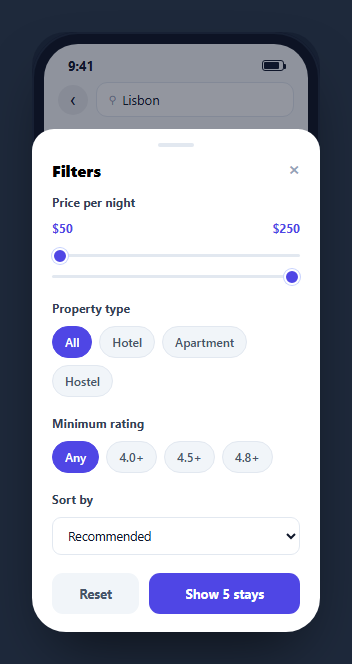
Search results without filters force users to scroll past everything to find what they want; filters without a live preview of how many results they'll leave force users to apply-and-check repeatedly. This snippet solves both: a mobile search results list with a "Filters" trigger that opens a bottom sheet containing a dual price-range slider, property-type chips, a minimum-rating selector, and a sort dropdown — with the Apply button's own label updating live to show exactly how many results the current filter combination will leave, before it's even tapped.
A dual-thumb range with two native inputs
Rather than a custom-built range slider, the price filter uses two overlapping native <input type="range"> elements — one for the minimum, one for the maximum — styled to sit on the same track. Each one's input handler clamps its own value against the other (state.min = Math.min(minRange.value, state.max)), so the minimum thumb can never be dragged past the maximum and vice versa. This is a deliberately simple approach to dual-range filtering: two native inputs are more accessible and more robust across browsers than a fully custom-built two-thumb slider, at the cost of the thumbs visually overlapping when both approach the same value.
Filters as pure functions of state
Every filter control — the two range inputs, the type chips, the rating chips, the sort dropdown — writes into one shared state object rather than directly manipulating the DOM. A single matches(item) function reads that state and returns whether one listing satisfies every active constraint, and visibleCount() maps it over every item to count matches. Centralizing the filtering logic this way means adding a new filter type later only requires extending matches() in one place, not touching every event handler.
The live count before you commit
As soon as any filter control changes, updateLivePreviewCount() recalculates visibleCount() and writes it directly into the Apply button's own label — "Show 4 stays" — so a user sees the effect of their current selections while still inside the sheet, before deciding whether to apply them or adjust further. This is a meaningfully better pattern than applying immediately and forcing the user to close the sheet just to see the result, or applying silently with no count feedback at all.
Reset clears state, not just the UI
The Reset button rebuilds the entire state object from scratch (rather than incrementally undoing individual controls), then syncs every control's visual state to match — range values, label text, and active chip classes — guaranteeing the UI can never drift out of sync with the underlying filter state, a common bug class in hand-written filter panels that mutate controls and state independently.
Sorting alongside filtering
Applying filters also re-sorts the surviving list: price ascending/descending or rating, computed at the moment Apply is pressed via Array.sort on the matching subset, then re-appended to the list container in that new order — combining filter and sort into one atomic "Apply" action rather than two separate interactions a user would need to trigger independently.
Build with AI
Build, Understand, Optimize, and Extend It With AI
Instead of tracing the dual-range clamping logic by hand, paste this snippet's HTML, CSS, and JS into an AI coding assistant like Claude and ask it to explain exactly how two independent native range inputs are prevented from crossing each other, and how the shared state object combined with the single matches() function keeps every filter control\u2019s logic in one place rather than scattered across handlers. The same assistant can help you optimize it, for instance asking whether the live-count recalculation on every slider input event should be debounced for a much larger result set, or whether the filtering/sorting should move server-side once real data is involved. It is also useful for extending the screen: ask it to add a "save this search" feature that persists the current filter state, support multi-select for property type instead of single-select chips, or animate the bottom sheet with a proper drag-to-dismiss gesture instead of a tap-to-close backdrop. Treat the code less like a finished artifact and more like a starting point for a conversation.
Prompt to recreate it
Copy this into your AI assistant of choice to build the effect from scratch, or as a jumping-off point for your own variant:
Build a mobile "search results with filters" screen in plain HTML, CSS, and JavaScript, framed inside a CSS phone mockup, using a bottom-sheet overlay for the filter panel — no library.

Requirements:
- A search results list of at least five items, each carrying data attributes for price, rating, and a category type, displayed with a result count and a "Filters" button (showing a small badge with the number of currently active filter categories) above the list.
- Tapping Filters opens a bottom sheet containing: a dual-thumb price range control built from two native range inputs whose values must be mutually clamped so the minimum can never exceed the maximum, a single-select group of property-type chips, a single-select group of minimum-rating chips, and a sort-by dropdown (price ascending, price descending, top rated).
- All filter controls must write into one shared state object, and a single reusable function must evaluate whether one listing matches the entire current state — used both to filter the underlying list and to compute a live "N stays match" count.
- The sheet's Apply button label itself must update live, on every control change, to show exactly how many results the current filter combination will produce, before the user taps it.
- Tapping Apply must filter the underlying list down to matches, sort the surviving items according to the selected sort option, close the sheet, and update the result count and filter badge; tapping Reset must restore every control to its default state and resync the UI in one action so nothing can drift out of sync.
- The sheet must be dismissible by tapping its close button or by clicking the backdrop outside the sheet.
Want to tighten it up first? Run this prompt through the AI Prompt Studio to score it across 8 quality dimensions, catch anti-patterns, and tune the wording for Claude, ChatGPT, or Gemini before you paste it in.
Step by step
How to Use
- 1Paste HTML, CSS, and JSA search results list renders inside a phone frame with a Filters button and result count above it.
- 2Open the filter sheetTap "Filters" — a bottom sheet slides up with price range, type, rating, and sort controls.
- 3Adjust any controlThe Apply button\u2019s label updates live to show exactly how many results match the current selections.
- 4Apply the filtersTap "Show N stays" to filter and sort the underlying list, close the sheet, and update the badge count.
- 5ResetTap Reset to clear every filter back to its default and resync all controls in one action.
- 6Wire it to real dataReplace the five hardcoded listings with results from your search API, keeping the same data-price/data-rating/data-type attributes.
Real-world uses
Common Use Cases
Got questions?
Frequently Asked Questions
Two separate native <input type="range"> elements are layered on the same track, one representing the minimum and one the maximum. Each input\u2019s own event handler clamps its value against the other\u2019s current value (the minimum can never exceed the maximum and vice versa), so together they behave like a single dual-thumb slider without any custom drag-handling code.
Every filter control change calls updateLivePreviewCount(), which recomputes how many listings currently match all active filters and writes that number directly into the Apply button\u2019s own label. This lets a user see the effect of their filter combination immediately, rather than having to apply and reopen the sheet to check.
Yes — the Apply handler both filters the list down to matching items and, based on the selected Sort option, orders the surviving items by price or rating before re-inserting them into the list container. Filtering and sorting are combined into one action rather than two separate steps.
It counts how many filter categories currently differ from their default (a non-default price range, a specific property type instead of "All", or a minimum rating above "Any"), not the number of individual controls touched — so adjusting only the price range shows a badge of 1, not 2, even though two range inputs moved.
Reset rebuilds the entire state object from scratch in one assignment, then explicitly re-syncs every control — range input values, their label text, and which chips carry the active class — to match that fresh state, rather than trying to incrementally undo each control\u2019s previous change individually.
Replace the five hardcoded .msf-item elements with listings rendered from your API response, keeping the same data-price, data-rating, and data-type attributes the matches() function reads. For large result sets, consider moving the actual filtering/sorting server-side and using this sheet purely to construct the query parameters.