You Might Also Like
Learn Coding Visually
Learn to code with interactive, live-preview playgrounds — HTML, CSS, JavaScript, React & more.
 HTML Playground42 lessons · Click-based · Live preview
 CSS PlaygroundLearn CSS with a live editor
 JavaScript Playground60 lessons · DOM · Async · Canvas
 React PlaygroundLearn React with a live code editor
 GSAP PlaygroundLearn GSAP animation interactively
 SVG Playground44 lessons · shapes · paths · animation
 SCSS Playground45 lessons · Sass modules · tokens
 Tailwind PlaygroundLearn Tailwind CSS with a live editor
 Bootstrap 5 Playground50 lessons · live preview
Mobile Search Screen — Free HTML CSS JS UI Snippet
Mobile Search Screen · Mobile · Plain HTML, CSS & JS · Live preview
What's included
Features
About this UI Snippet
Mobile Search Screen — Live Search UI
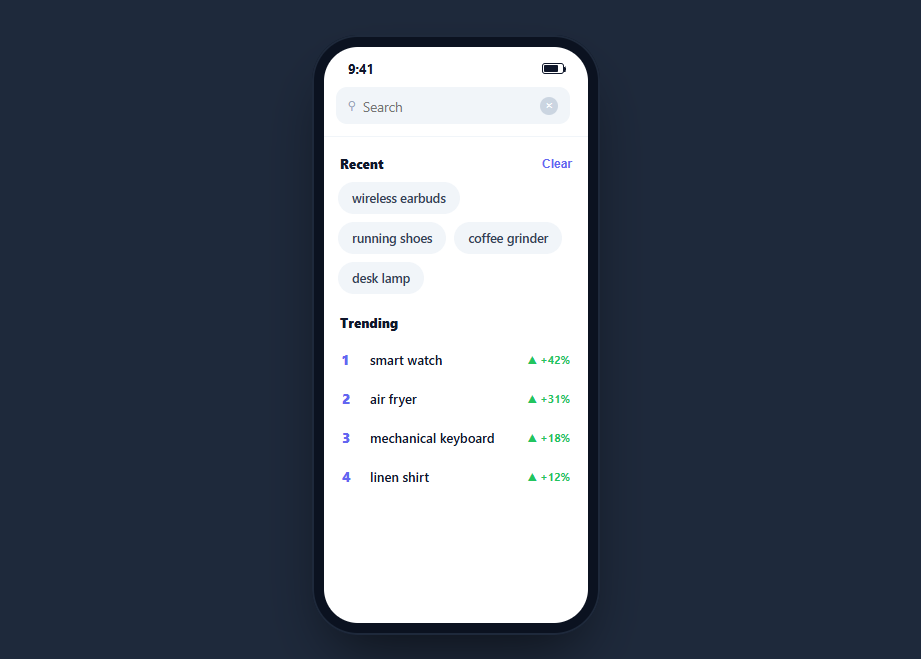
A search screen has two faces — a resting state with recent searches and trending queries, and an active state that filters results live as you type. This snippet builds a complete, interactive one inside a CSS phone frame: typing filters a catalog and highlights the matched substring, recent chips and trending rows prefill the query, a cancel button slides in on focus, and a no-results state names what you searched — in HTML, CSS, and vanilla JavaScript with no dependency.
Two states from one input
When the field is empty, the default view shows recent-search chips and a ranked trending list; the moment you type, that view hides and a results list takes its place. A single run() function reads the input, decides which view to show, and renders — so every entry point (typing, tapping a chip, tapping a trend row) funnels through the same logic and the screen stays consistent.
Live filtering with highlighted matches
Typing filters a catalog array by a case-insensitive substring test, then renders each match with the matched portion wrapped in a <mark>. The highlight is built by replacing the query with a captured group using a RegExp, and the query is escaped first so special characters like . or ( cannot break the pattern — the safety step most naive highlighters miss. Each result shows an icon, the highlighted name, and its category.
The sliding cancel button
Focusing the field slides a Cancel button in from zero width using a max-width and opacity transition, and tapping it clears the query, blurs the field, and returns to the default view — the exact iOS search-bar behavior. A small clear (×) button inside the field appears only when there is text.
Prefill from recent and trending
Recent searches are tappable chips and trending queries are a ranked list with a rising-percentage badge; tapping either drops its text into the input and runs the search immediately, so common queries are one tap away. The "Clear" action empties the recent list and leaves a quiet placeholder in its place.
A named empty state
When nothing matches, the results are hidden and a message echoes the exact query — "No results for …" — so the user knows the search ran and simply found nothing, rather than staring at a blank screen wondering if it is loading.
Accessibility and performance
The field is a real text input and the recent chips, trending rows, cancel, and clear controls are all buttons, so the screen is fully keyboard-operable. When you adapt this, wrap the results region in an aria-live="polite" container so the match count is announced as you type, give the input role="searchbox" semantics, and make sure the highlighted <mark> does not swallow the readable text — screen readers still read marked text, so the emphasis is purely visual. Performance is fine for a client-side catalog: filtering is a single indexOf pass over the array per keystroke and the results render with one innerHTML write. The important safety detail is escaping the query before building the highlight RegExp, which prevents both broken patterns and needless re-compilation errors. For a real backend, debounce the input by a couple hundred milliseconds so you are not firing a request per character, and guard against out-of-order responses by tracking the latest query. Rendering matches by splitting on the match, rather than injecting HTML, avoids any escaping concerns entirely when you port to a framework.
Reusing it
Swap the catalog for your data or an async endpoint (debounce the input for network calls), persist recent searches, and wire results to detail screens. Lift it out of the phone frame for a responsive web search, or keep it framed beside an expandable search field to present a full flow.
Build with AI
Build, Understand, Optimize, and Extend It With AI
Rather than tracing the run() function line by line yourself, paste this snippet's HTML, CSS, and JS into an AI coding assistant like Claude and ask it to explain precisely why the query has to pass through the esc() escaping helper before being used to build the highlight RegExp, and what would actually break if that escaping step were removed. The same assistant is useful for optimizing it too — ask whether the catalog filter and highlight rebuild on every keystroke would still be responsive against a catalog of thousands of items, or whether the input needs debouncing once the source becomes a live network request instead of a local array. It is just as handy for extending the search screen: ask it to add debounced server-side search, voice input, or category filter chips above the results. Treat the code less like a finished artifact and more like a starting point for a conversation.
Prompt to recreate it
Copy this into your AI assistant of choice to build the effect from scratch, or as a jumping-off point for your own variant:
Build a mobile "search screen" in plain HTML, CSS, and JavaScript, framed inside a CSS phone mockup, using only client-side array filtering — no search library, no backend.

Requirements:
- A search field with a magnifier glyph, a clear (x) button that only appears once there is text, and a Cancel button that slides in from zero width using a max-width and opacity transition when the field gains focus, and slides back out when Cancel is pressed (which must also clear the field and blur it).
- A resting/default state shown only when the query is empty: a row of tappable "recent search" chips and a ranked "trending" list where each row shows a rank number, a name, and a rising-percentage badge. Tapping any chip or trending row must fill the input with that text and immediately run the same search logic used for typing.
- An active/results state shown whenever the query is non-empty: filter a hardcoded catalog array (name, category, icon) with a case-insensitive substring match against the item name, and render each match with the matched substring wrapped in a mark tag for highlighting.
- Before building the highlighting regular expression, the query string must be escaped so that regex metacharacters typed by the user (parentheses, brackets, plus signs, periods, etc.) are treated as literal text rather than breaking or altering the pattern.
- A distinct empty-results state that echoes the exact search query back to the user (e.g. "No results for "xyz"") rather than just showing a blank area.
- Every state transition (typing, chip tap, trend tap, clear, cancel) must funnel through one shared function so the visible state (default vs results vs empty) never gets out of sync with the input's current value.
- A "Clear" action for the recent-searches section that empties it and shows a small "no recent searches" placeholder in its place.
Want to tighten it up first? Run this prompt through the AI Prompt Studio to score it across 8 quality dimensions, catch anti-patterns, and tune the wording for Claude, ChatGPT, or Gemini before you paste it in.
Step by step
How to Use
- 1Paste HTML, CSS, and JSA search screen renders with recent chips and a ranked trending list.
- 2Focus the fieldA Cancel button slides in from the right edge.
- 3Type a queryThe default view hides and matching catalog items appear with the typed text highlighted.
- 4Tap a chip or trendRecent chips and trending rows prefill the query and run the search instantly.
- 5Clear or cancelThe inline × clears the text; Cancel resets everything to the default view.
- 6See no resultsSearch for something absent and a message echoes your exact query.
Real-world uses
Common Use Cases
Got questions?
Frequently Asked Questions
Each result name has the query wrapped in a mark tag. The code builds a case-insensitive RegExp from the query with a capture group and replaces the match with the same text inside mark. Crucially it escapes the query first, so characters like . ( or [ are treated literally and cannot break the pattern.
User input can contain regex metacharacters. Without escaping, typing an open parenthesis or a plus would create an invalid or unintended pattern and either throw or highlight the wrong thing. Escaping those characters first makes the search treat the query as literal text, which is what a user expects.
A single run() function reads the input value. If it is empty, the recent-and-trending default view shows and the results hide; if there is text, the default hides and results render. Because typing, chips, and trending taps all call run(), the two states never get out of sync.
Cancel starts at max-width zero with opacity zero. Focusing the field adds a class that transitions its max-width and opacity up, sliding it into view. Tapping it clears the query, blurs the field, and removes the class so it slides away — the standard iOS search-bar interaction.
Hold the query in state and derive results with a filter in useMemo (React), computed (Vue), or a pipe (Angular). For a live API, debounce the input and fetch in an effect, guarding against out-of-order responses. Render highlights by splitting on the match rather than using innerHTML. Persist recents in storage. Tailwind expresses the field, chips, and rows with utilities.