Source Code
<div class="wrap">
  <div class="table-head">
    <h2 class="table-title">Course Schedule by Department</h2>
    <span class="hint">Click a department cell to collapse its group</span>
  </div>
  <table class="tbl" id="tbl">
    <thead>
      <tr>
        <th>Department</th>
        <th>Course</th>
        <th>Instructor</th>
        <th class="num">Seats</th>
      </tr>
    </thead>
    <tbody id="tbody"></tbody>
  </table>
</div>
* { box-sizing: border-box; margin: 0; padding: 0; }
body { font-family: system-ui, sans-serif; background: #f8fafc; min-height: 100vh; padding: 32px 20px; }
.wrap { max-width: 640px; margin: 0 auto; }
.table-head { display: flex; align-items: baseline; justify-content: space-between; gap: 12px; margin-bottom: 12px; flex-wrap: wrap; }
.table-title { font-size: 17px; font-weight: 800; color: #0f172a; }
.hint { font-size: 11px; color: #94a3b8; font-weight: 600; }
.tbl { width: 100%; border-collapse: collapse; background: #fff; border-radius: 12px; overflow: hidden; box-shadow: 0 1px 6px rgba(0,0,0,0.06); }
.tbl thead tr { background: #f8fafc; }
.tbl th { padding: 11px 14px; text-align: left; font-size: 11px; font-weight: 700; text-transform: uppercase; letter-spacing: 0.4px; color: #64748b; border-bottom: 1px solid #e2e8f0; }
.tbl th.num, .tbl td.num { text-align: right; }
.tbl td { padding: 10px 14px; border-bottom: 1px solid #f1f5f9; font-size: 13px; color: #334155; vertical-align: middle; }
.tbl tbody tr:last-child td { border-bottom: none; }
.tbl tbody tr td:not(.dept-cell):hover { background: #fafafa; }
.dept-cell { font-weight: 800; color: #0f172a; cursor: pointer; user-select: none; background: #f8fafc; border-right: 1px solid #f1f5f9; transition: background 0.15s; }
.dept-cell:hover { background: #f1f5f9; }
.dept-cell .chev { display: inline-block; margin-right: 8px; transition: transform 0.2s ease; color: #94a3b8; }
.dept-cell.collapsed .chev { transform: rotate(-90deg); }
.dept-count { font-size: 10.5px; font-weight: 700; color: #94a3b8; margin-left: 6px; }
.tbl tbody tr.hidden { display: none; }
.seats-val { font-variant-numeric: tabular-nums; font-weight: 700; }
.seats-val.full { color: #dc2626; }
.seats-val.open { color: #16a34a; }const GROUPS = [
{ dept: 'Computer Science', rows: [
{ course: 'CS 101 — Intro to Programming', instructor: 'Dr. Patel', seats: 3 },
{ course: 'CS 240 — Data Structures', instructor: 'Dr. Nakamura', seats: 0 },
{ course: 'CS 410 — Distributed Systems', instructor: 'Dr. Reyes', seats: 12 },
] },
{ dept: 'Mathematics', rows: [
{ course: 'MATH 151 — Calculus I', instructor: 'Dr. Okafor', seats: 22 },
{ course: 'MATH 310 — Linear Algebra', instructor: 'Dr. Voss', seats: 0 },
] },
{ dept: 'Physics', rows: [
{ course: 'PHYS 201 — Mechanics', instructor: 'Dr. Bianchi', seats: 7 },
{ course: 'PHYS 330 — Thermodynamics', instructor: 'Dr. Kessler', seats: 15 },
{ course: 'PHYS 450 — Quantum Theory', instructor: 'Dr. Lindqvist', seats: 2 },
] },
];
function seatsHtml(seats) {
if (seats === 0) return '<span class="seats-val full">Full</span>';
if (seats <= 3) return '<span class="seats-val full">' + seats + ' left</span>';
return '<span class="seats-val open">' + seats + ' open</span>';
}
function render() {
const tbody = document.getElementById('tbody');
let html = '';
GROUPS.forEach((group, gi) => {
group.rows.forEach((row, ri) => {
html += '<tr data-group="' + gi + '"' + (ri > 0 ? ' class="grouped-row"' : '') + '>';
if (ri === 0) {
html += '<td class="dept-cell" rowspan="' + group.rows.length + '" data-group="' + gi + '">' +
'<span class="chev">\u25be</span>' + group.dept +
'<span class="dept-count">(' + group.rows.length + ')</span>' +
'</td>';
}
html += '<td>' + row.course + '</td>' +
'<td>' + row.instructor + '</td>' +
'<td class="num">' + seatsHtml(row.seats) + '</td>' +
'</tr>';
});
});
tbody.innerHTML = html;
}
document.getElementById('tbody').addEventListener('click', (e) => {
const deptCell = e.target.closest('.dept-cell');
if (!deptCell) return;
const gi = deptCell.dataset.group;
const collapsed = deptCell.classList.toggle('collapsed');
document.querySelectorAll('tr[data-group="' + gi + '"].grouped-row').forEach((row) => {
row.classList.toggle('hidden', collapsed);
});
});
render();Learn Coding Visually
Learn to code with interactive, live-preview playgrounds — HTML, CSS, JavaScript, React & more.
 HTML Playground42 lessons · Click-based · Live preview
 CSS PlaygroundLearn CSS with a live editor
 JavaScript Playground60 lessons · DOM · Async · Canvas
 React PlaygroundLearn React with a live code editor
 GSAP PlaygroundLearn GSAP animation interactively
 SVG Playground44 lessons · shapes · paths · animation
 SCSS Playground45 lessons · Sass modules · tokens
 Tailwind PlaygroundLearn Tailwind CSS with a live editor
 Bootstrap 5 Playground50 lessons · live preview
Table with Merged Row Groups (rowspan) — Free HTML CSS JS Snippet
Table with Merged Row Groups (rowspan) · Tables · Plain HTML, CSS & JS · Live preview
What's included
Features
About this UI Snippet
Table with Merged Row Groups — rowspan Category Column & Click-to-Collapse
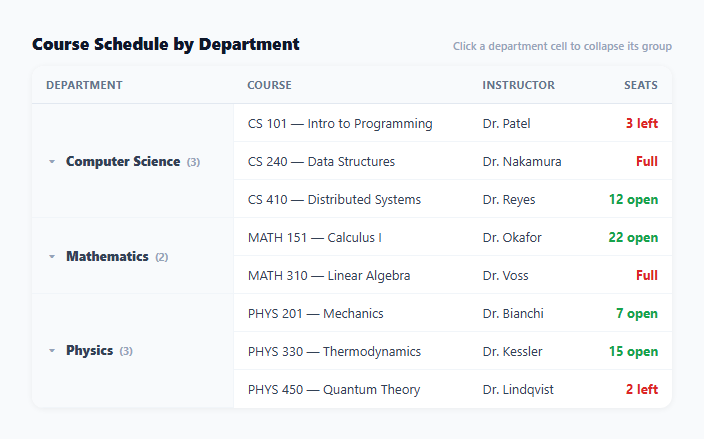
Repeating the same department or category name on every row of a grouped table wastes visual space and makes it harder to see where one group ends and the next begins — a merged cell that spans the whole group communicates both facts at once: what the group is, and exactly how many rows belong to it. This table builds that merged-cell layout directly with the HTML rowspan attribute, and layers a click-to-collapse toggle on top so any group can be tucked away without leaving the table.
rowspan computed from group length, not hardcoded
render() only emits a <td class="dept-cell" rowspan="..."> on the *first* row of each group (ri === 0), and its rowspan value is set directly from group.rows.length — so a department with three courses gets rowspan="3", a department with two gets rowspan="2", with no manual counting required anywhere. Every subsequent row in that group simply omits the department <td> entirely, letting the browser's native table layout algorithm handle the vertical merge — this is what rowspan does structurally, not a CSS visual trick layered on top of a normal grid of cells.
Collapse state lives on the DOM, driven by a data attribute match
Clicking a .dept-cell toggles its own .collapsed class and then queries every tr[data-group="N"].grouped-row sharing that group's index to hide or show them via a .hidden class (display: none). Every row — including the first row that holds the merged department cell — carries a data-group attribute, but only rows *after* the first get the additional .grouped-row class, since the first row (which holds the always-visible merged department cell) should never itself be hidden when its own group collapses — only the rows beneath it.
A rotating chevron indicates collapse state without extra text
The department cell's ▾ (down-caret) character is wrapped in a .chev span with a CSS transition: transform 0.2s; adding .collapsed to the parent .dept-cell rotates it -90deg to point sideways, the same expand/collapse convention used throughout this library's accordion and tree patterns, applied here inside a table cell instead of a standalone button.
Seat availability color-coded independently of the grouping
seatsHtml() renders each row's seat count as "Full" (red) at zero seats, a red "N left" warning at three or fewer, or a green "N open" otherwise — a status signal layered on top of, and entirely independent from, the department grouping and collapse mechanics. This demonstrates that the rowspan-merge pattern composes cleanly with other per-row styling; grouping the rows visually doesn't require flattening or simplifying what each individual row can show.
Why the group index, not the department name, drives the query
Hiding rows uses data-group="N" (a numeric array index) rather than matching on the department name string — avoiding any ambiguity if two groups happened to share a display name, and avoiding the need to escape a name value into a CSS attribute-selector string, which is a more fragile approach once department names can contain quotes or other characters that need selector-escaping.
Build with AI
Build, Understand, Optimize, and Extend It With AI
Paste this snippet's HTML, CSS, and JS into an AI coding assistant like Claude and ask it to explain exactly why the rowspan value is computed from group.rows.length rather than hardcoded, and why only rows after the first row in each group receive the class used for hiding. The same assistant can help optimize it — for instance asking whether using a numeric group index for the data-group attribute is more robust than using the department name directly, and why. It's also useful for extending the table: ask it to support nested sub-groups with their own rowspan levels, add a "collapse all" / "expand all" control, or persist which groups are collapsed across a page reload using localStorage. Treat the code less like a finished artifact and more like a starting point for a conversation.
Prompt to recreate it
Copy this into your AI assistant of choice to build the effect from scratch, or as a jumping-off point for your own variant:
Build a grouped data table using the HTML rowspan attribute to merge a category column, with a per-group click-to-collapse toggle, in plain HTML, CSS, and JavaScript — no framework, no library.

Requirements:
- Structure the source data as an array of group objects, each with a category name and an array of row objects (for example a course name, an instructor, and a numeric seats-remaining value).
- Render one actual HTML table row per data row, but only emit the category table cell on the first row of each group, giving that cell a rowspan attribute whose value is computed automatically from the number of rows in that group (never hardcoded) so the browser's native table layout visually merges it down the full height of the group.
- Every row within a group (including the first) must carry a data attribute identifying which group index it belongs to; only rows after the first row in a group should carry an additional class marking them as hideable, since the first row holds the always-visible merged category cell.
- Make each merged category cell clickable: clicking it must toggle a "collapsed" state that hides every hideable row belonging to that specific group (using a CSS class, not removing them from the DOM) while leaving the merged category cell and its row visible, and must rotate a chevron icon inside that cell to indicate the current collapsed/expanded state. Clicking a collapsed group's cell must expand it again.
- Independently of the grouping, render each row's numeric seats value with its own color-coded status text (for example a red "Full" state at zero, a red low-availability warning under a small threshold, and a green "open" state otherwise) to demonstrate that per-row styling composes cleanly with the row-merging structure.
Want to tighten it up first? Run this prompt through the AI Prompt Studio to score it across 8 quality dimensions, catch anti-patterns, and tune the wording for Claude, ChatGPT, or Gemini before you paste it in.
Step by step
How to Use
- 1Click any department cellCollapses that department's course rows, leaving only the merged department cell visible with its course count.
- 2Click again to expandThe chevron rotates back and the group's rows reappear.
- 3Notice the seat availability colorsZero seats shows red "Full," three or fewer shows a red "N left" warning, and anything above shows a green "N open."
- 4Replace GROUPS with real dataUpdate the array with your own department/category names and per-row course, instructor, and seat data — rowspan values compute automatically from each group's row count.
- 5Adjust the seat-warning thresholdChange the "seats <= 3" condition in seatsHtml() to whatever count should trigger the warning styling.
- 6Export in your formatClick "HTML" for a standalone file, "JSX" for a React component, or "Tailwind" for a Tailwind CSS version.
Real-world uses
Common Use Cases
Got questions?
Frequently Asked Questions
render() sets the rowspan attribute on each group's first-row department cell directly to group.rows.length — the number of course rows in that group. A department with three courses automatically gets rowspan="3" with no manual counting or hardcoded values anywhere in the code.
The .grouped-row class is only applied to rows after the first row in each group (ri > 0). The first row holds the merged department cell via rowspan and must always stay visible even when its own group is collapsed, since that cell is what the user clicks to expand the group again — only the rows beneath it should ever be hidden.
Matching hidden rows against a numeric array index (data-group="2") avoids two problems a name-based approach would have: ambiguity if two groups ever shared the same display name, and the need to safely escape a name string for use inside a CSS attribute selector, which becomes fragile once names can contain quotes or special characters.
The department cell's .chev span has a CSS transition on transform. When the parent .dept-cell gains the .collapsed class (toggled on click), a rule rotates the chevron -90 degrees; removing the class rotates it back to its default downward-pointing orientation. This is the same rotating-indicator convention used by this library's accordion and tree-menu patterns.
No — the click handler reads only the clicked cell's own data-group value and queries rows matching that exact group index, so collapsing or expanding one department has no effect on any other department's rows or collapse state.
Add more objects to the GROUPS array (each with a dept name and a rows array), or add more row objects to an existing group's rows array. The rowspan value, row rendering, and collapse-toggle logic all derive from the array structure automatically, requiring no other code changes.